In this blog, we will show simple steps for Salesforce quote creation
Step 1: Log in to Salesforce.
Step 2: Open Docs Made Easy from the App launcher.
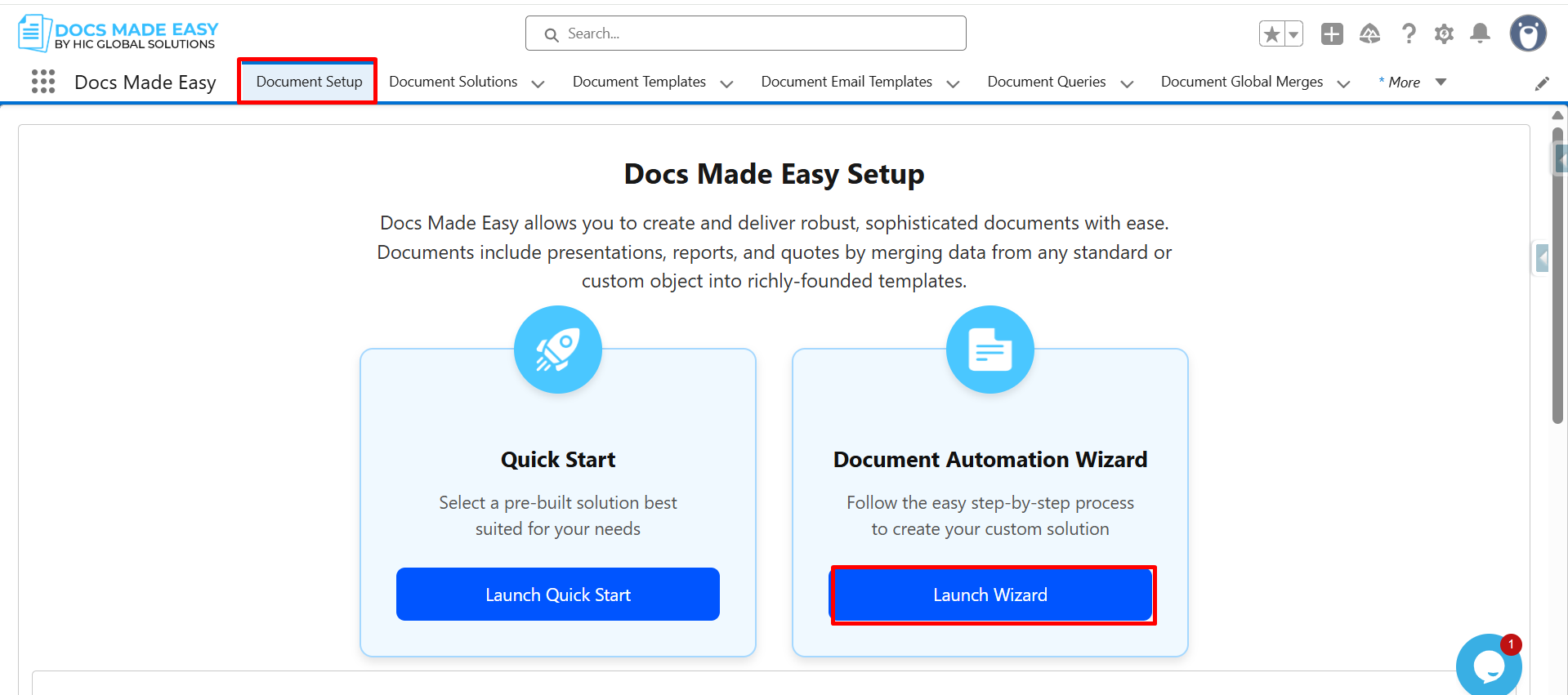
Step 3: Click on Document setup. Then click Launch wizard.
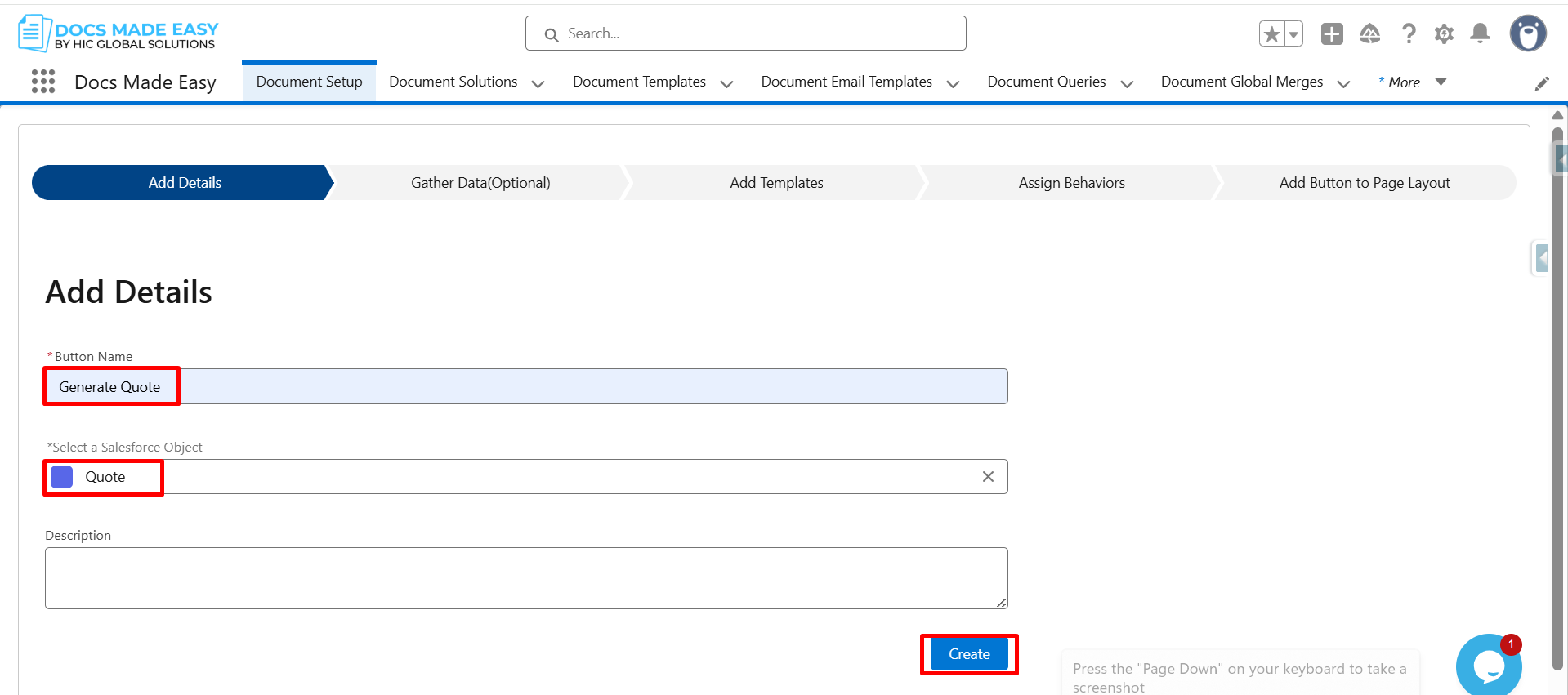
Step 4: Enter Button Name, select Salesforce object.
Click on the Create button.
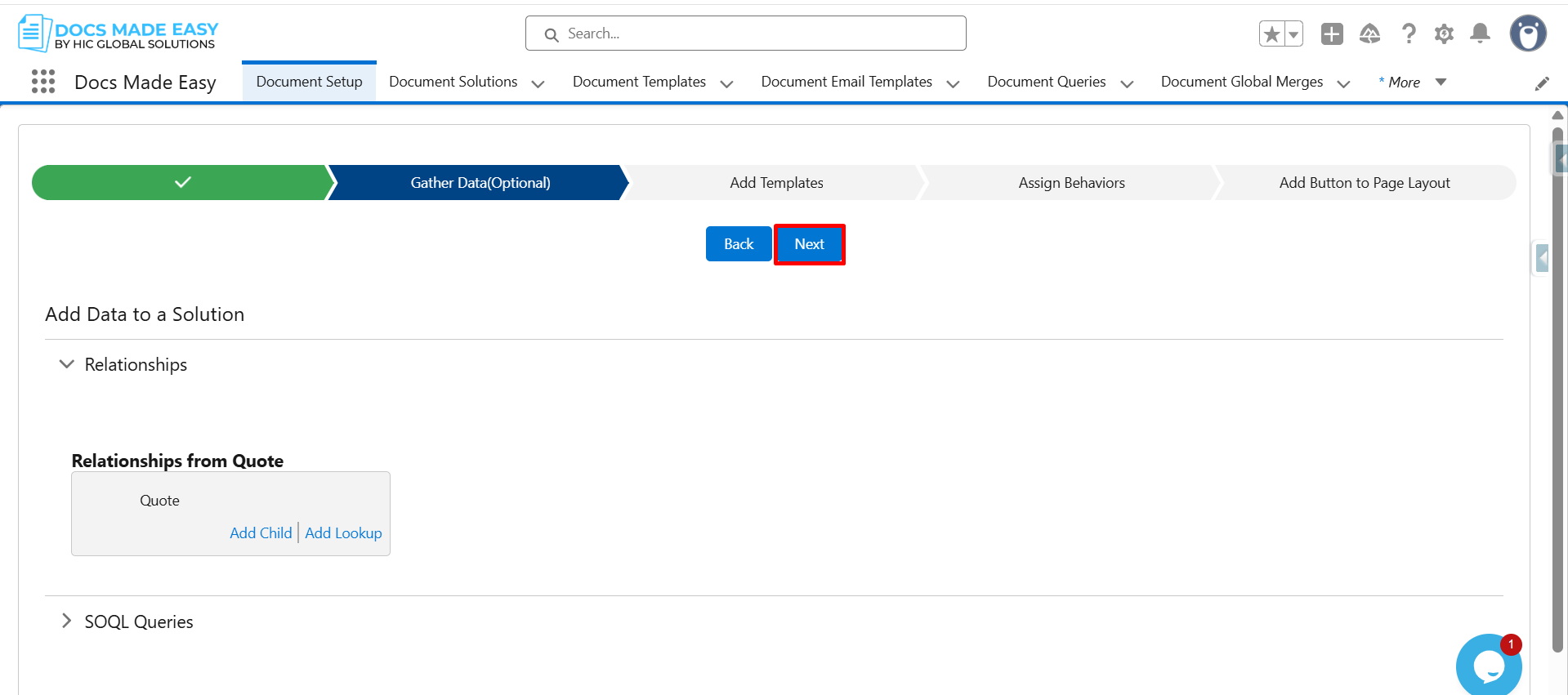
Step 5: Then, click on Next.
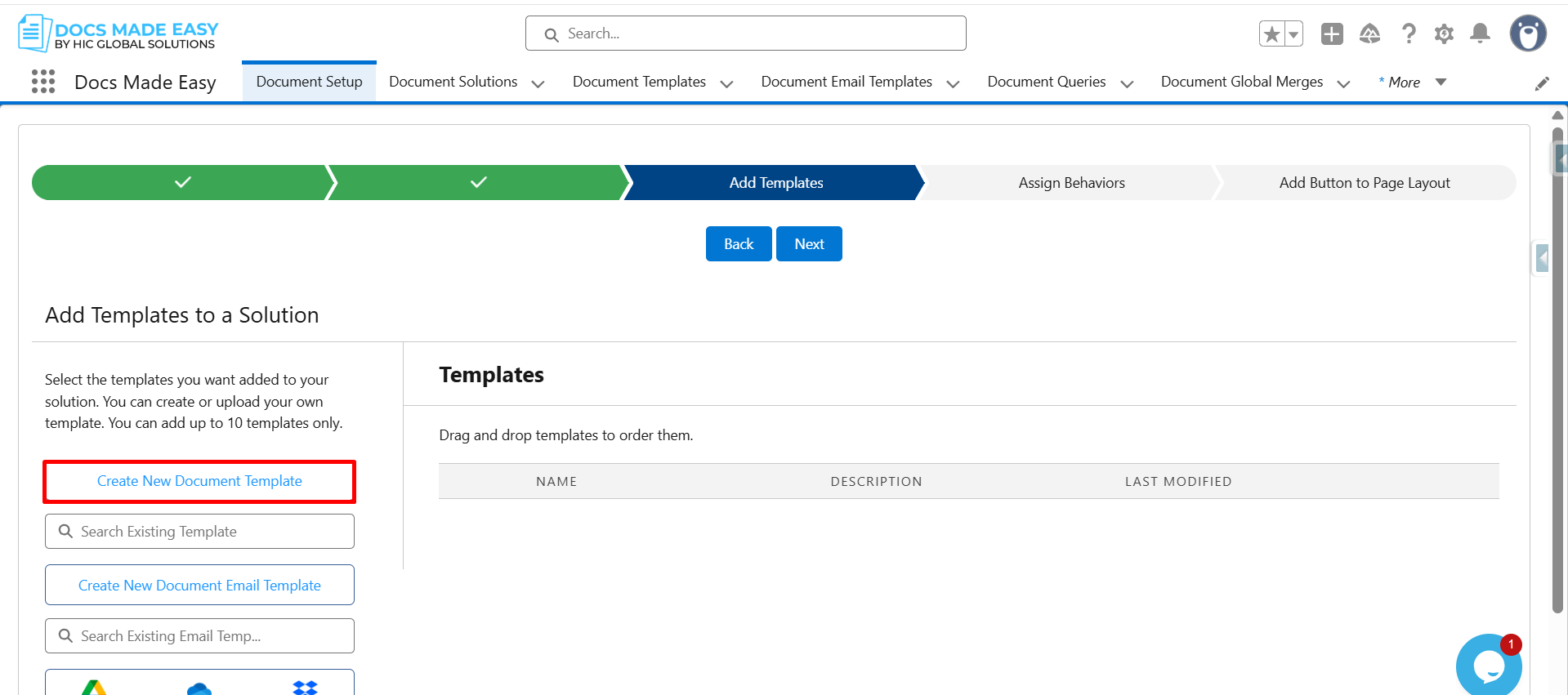
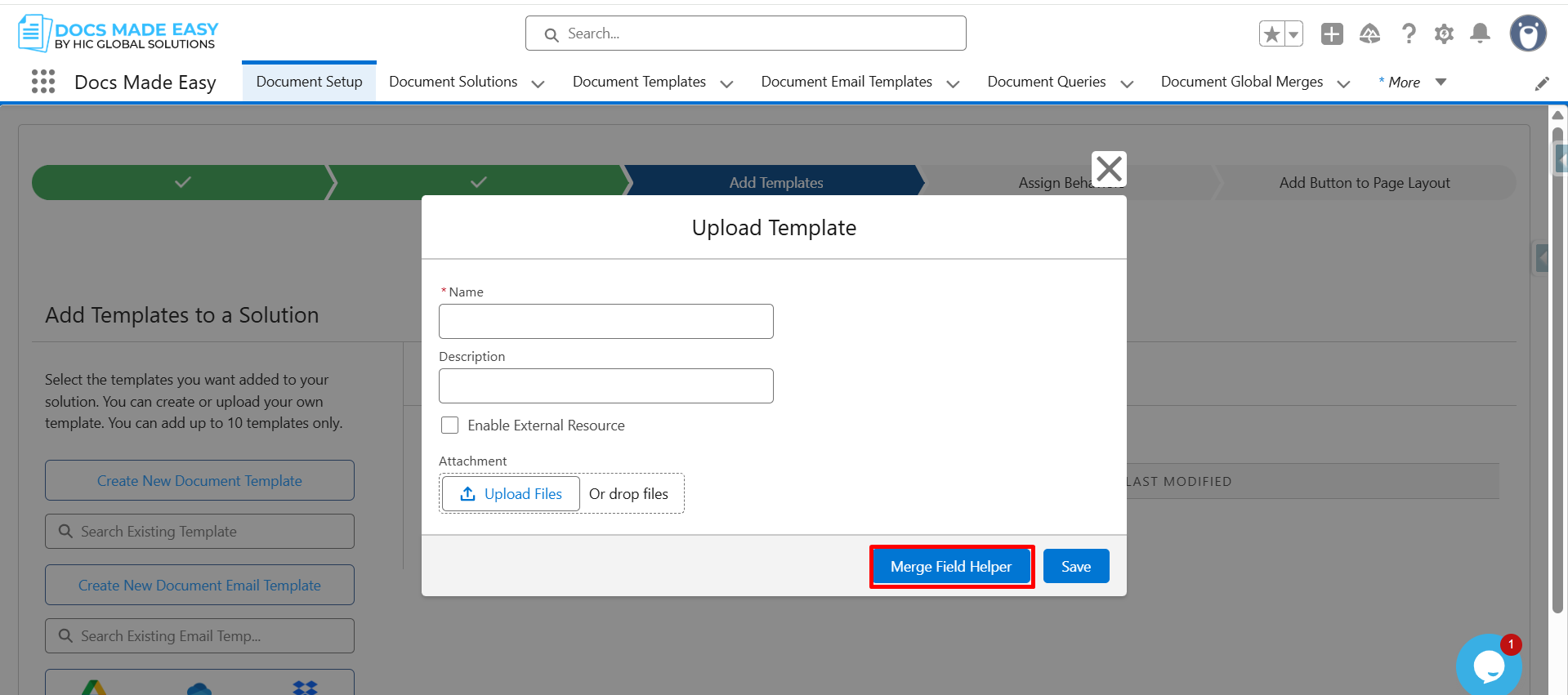
Step 6: Click on Create New Document Template.
Step 7: Open Merge Field Helper.
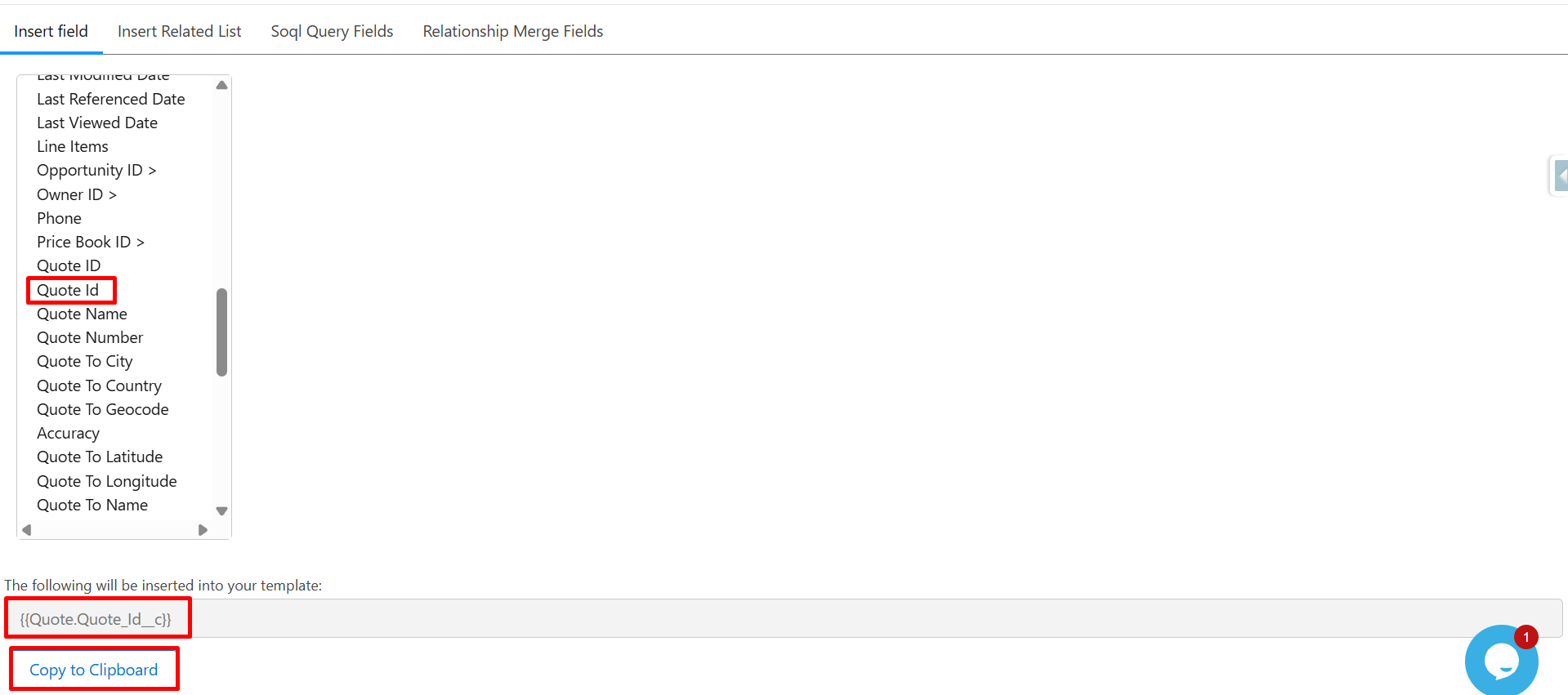
Step 8: From the Insert field list, click on Quote ID.
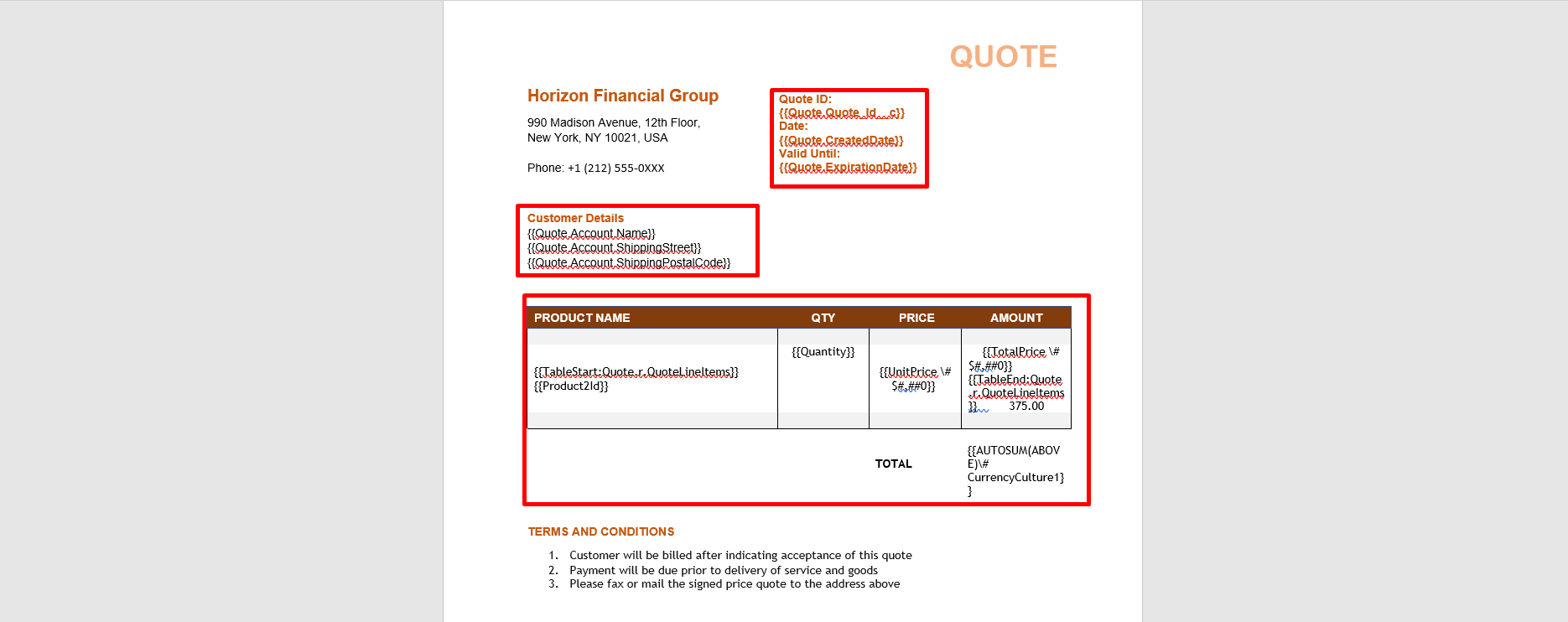
The system will auto-generate the merge field syntax: {{Quote.Quote_Id_c}}
Click Copy to Clipboard.
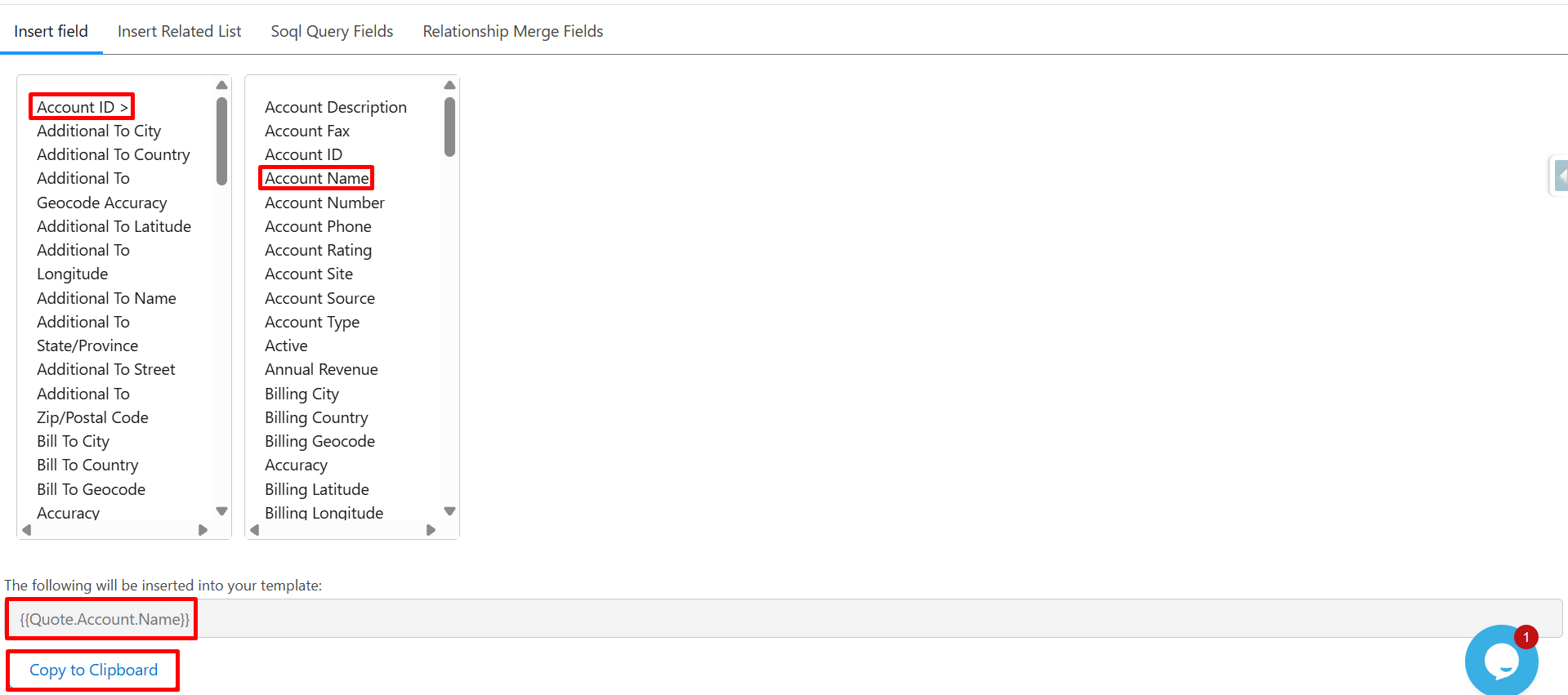
Step 9: Here, select Account ID (Quote→ Account relationship).
Choose Account Name.
The merge field syntax will automatically appear; click Copy to Clipboard.
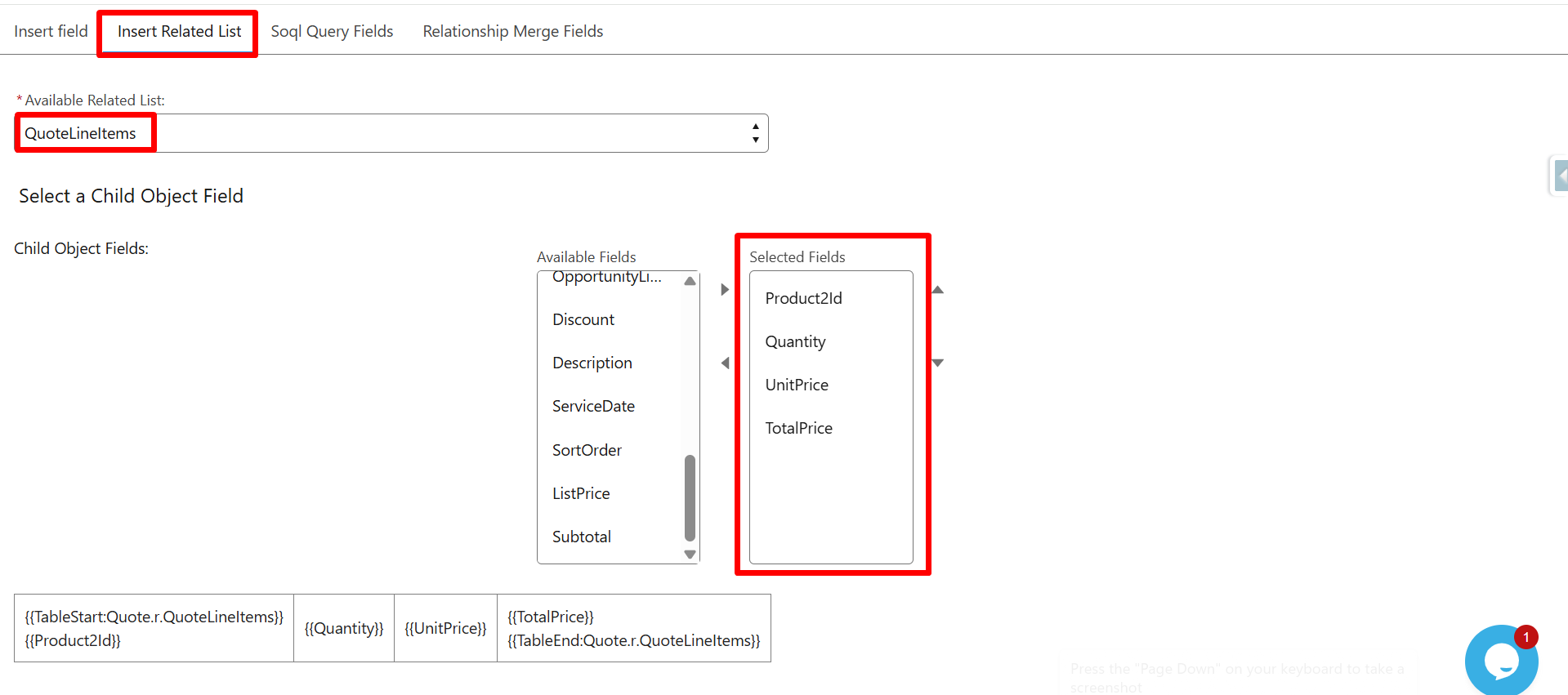
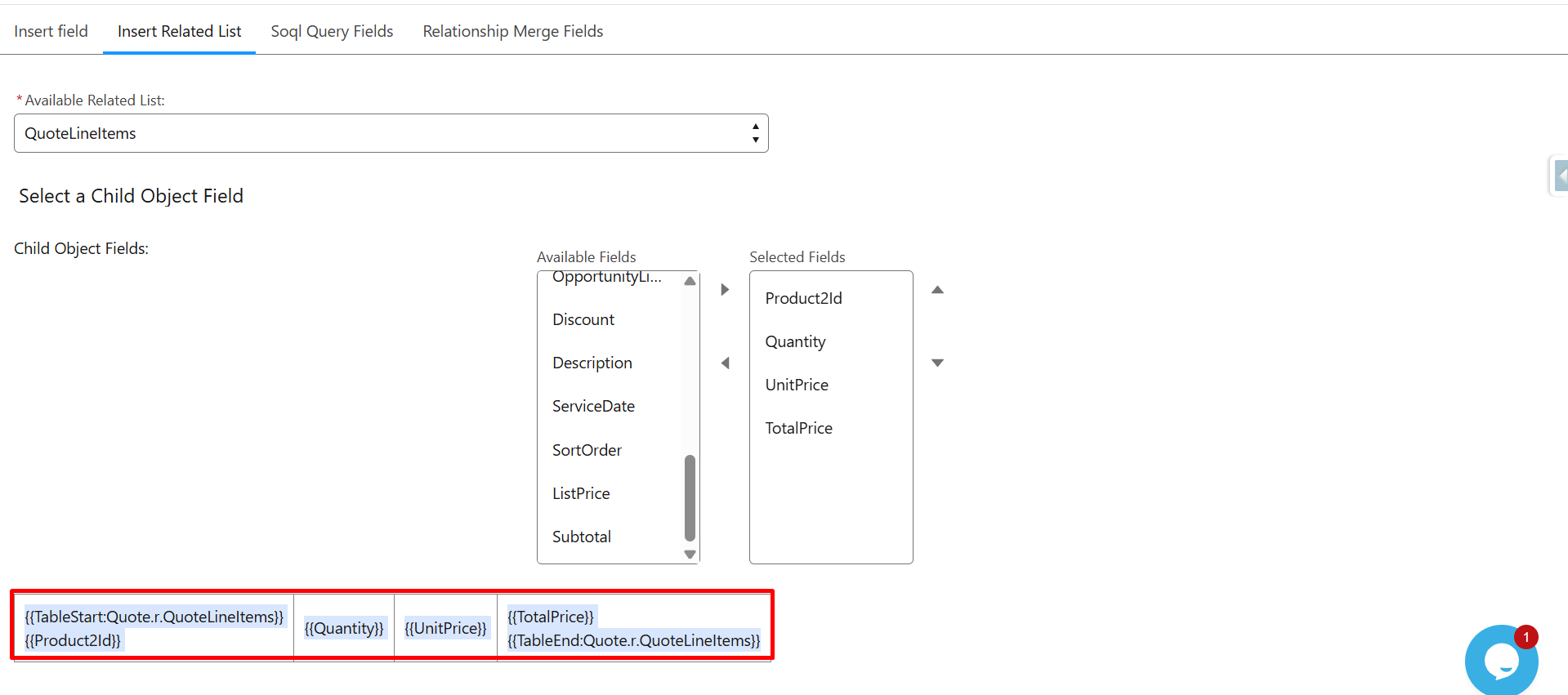
Step 10: Click on the Insert Related List.
From the Available Related List, select Quote LineItems.
Under Child Object Fields, choose the required fields such as:
- Name
- Quantity
- UnitPrice
- TotalPrice
The system automatically generates the table merge syntax.
Step 11: Copy the generated table merge syntax.
Step 12: Paste all the Syntax into the Template editor.
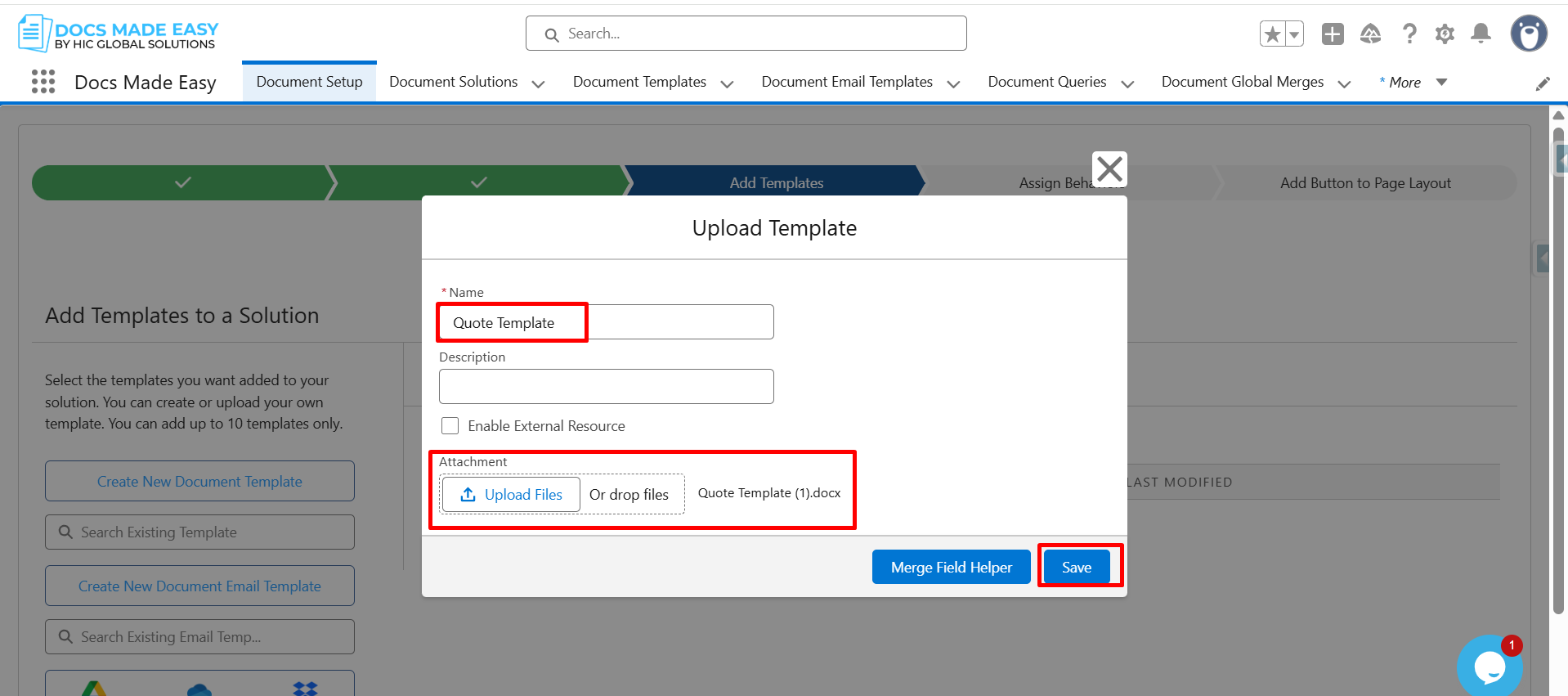
Step 13: Reopen the Upload Template window, enter the Template Name, upload the Template file, and click Save.
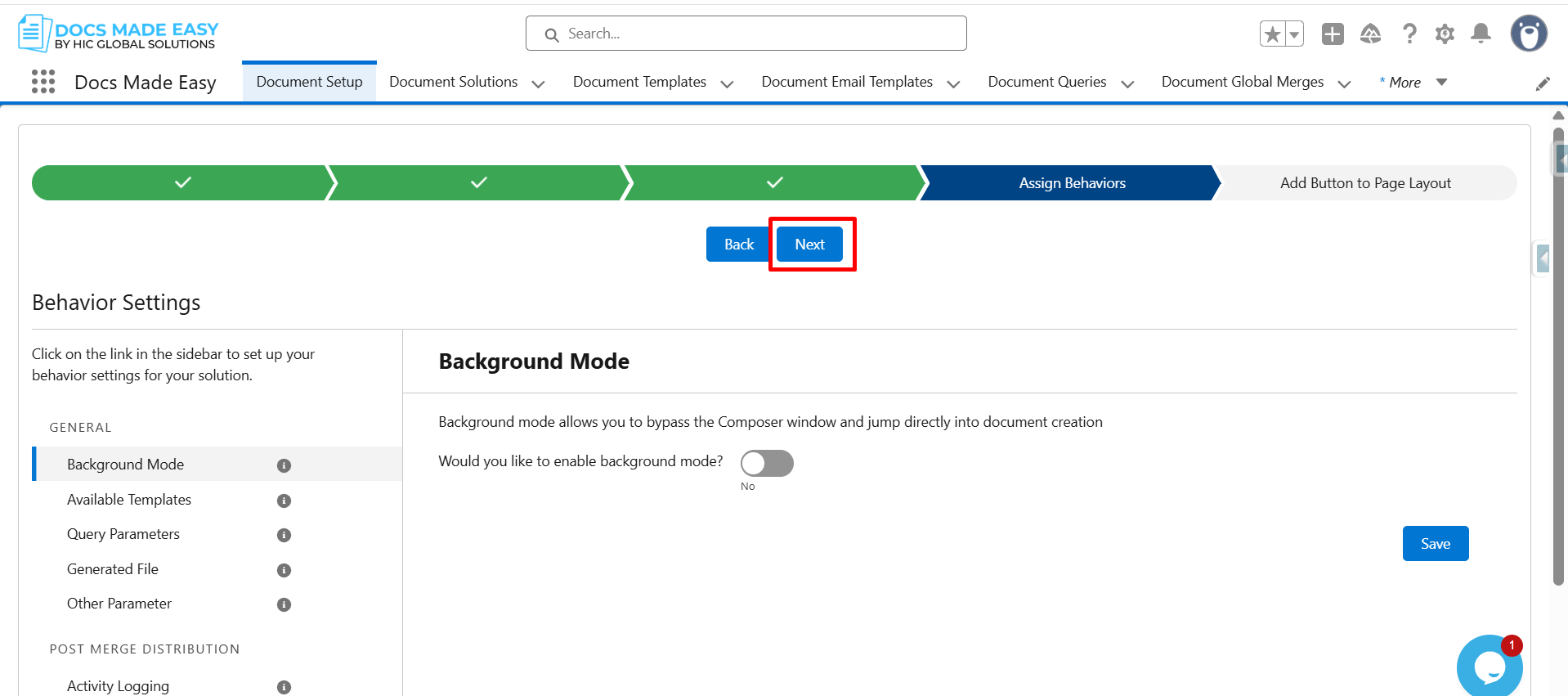
Step 14: Click on Next.
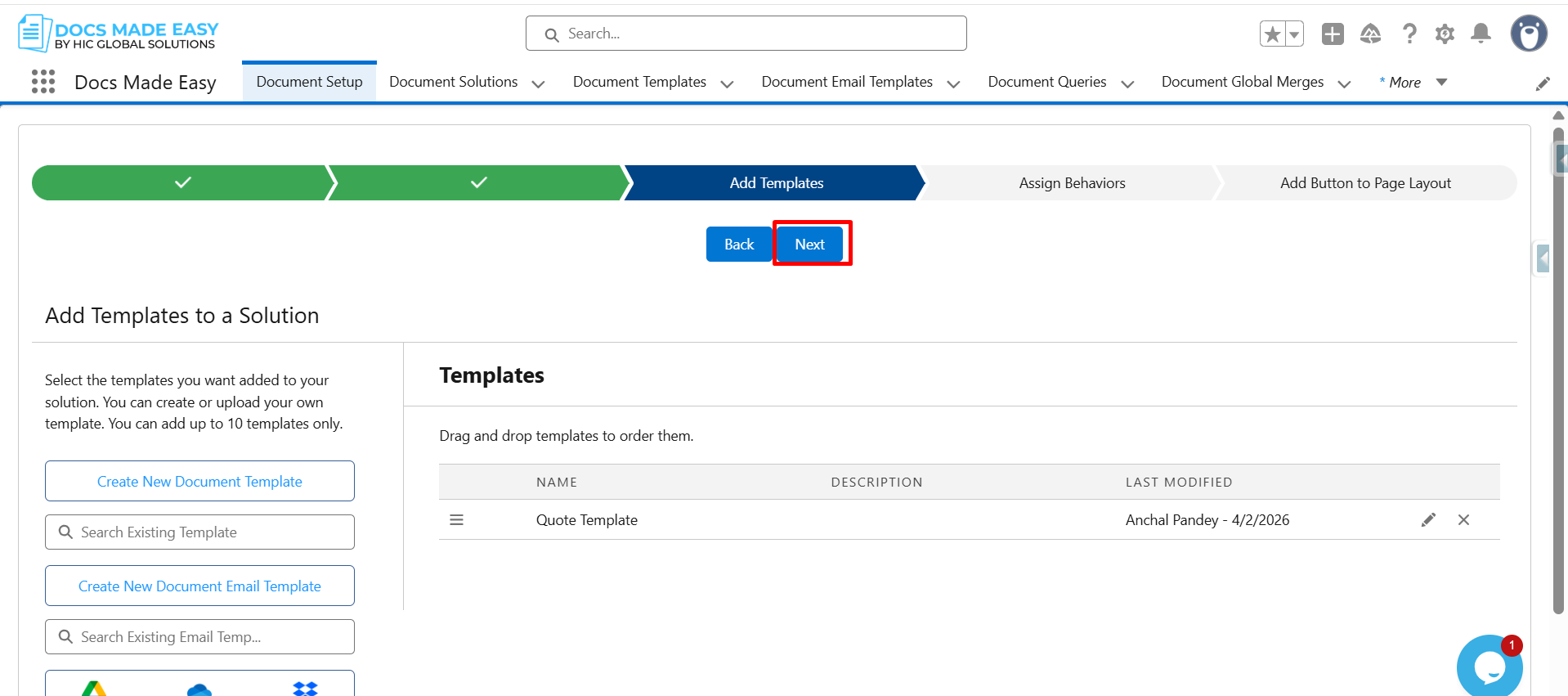
Step 15: Click on Next again.
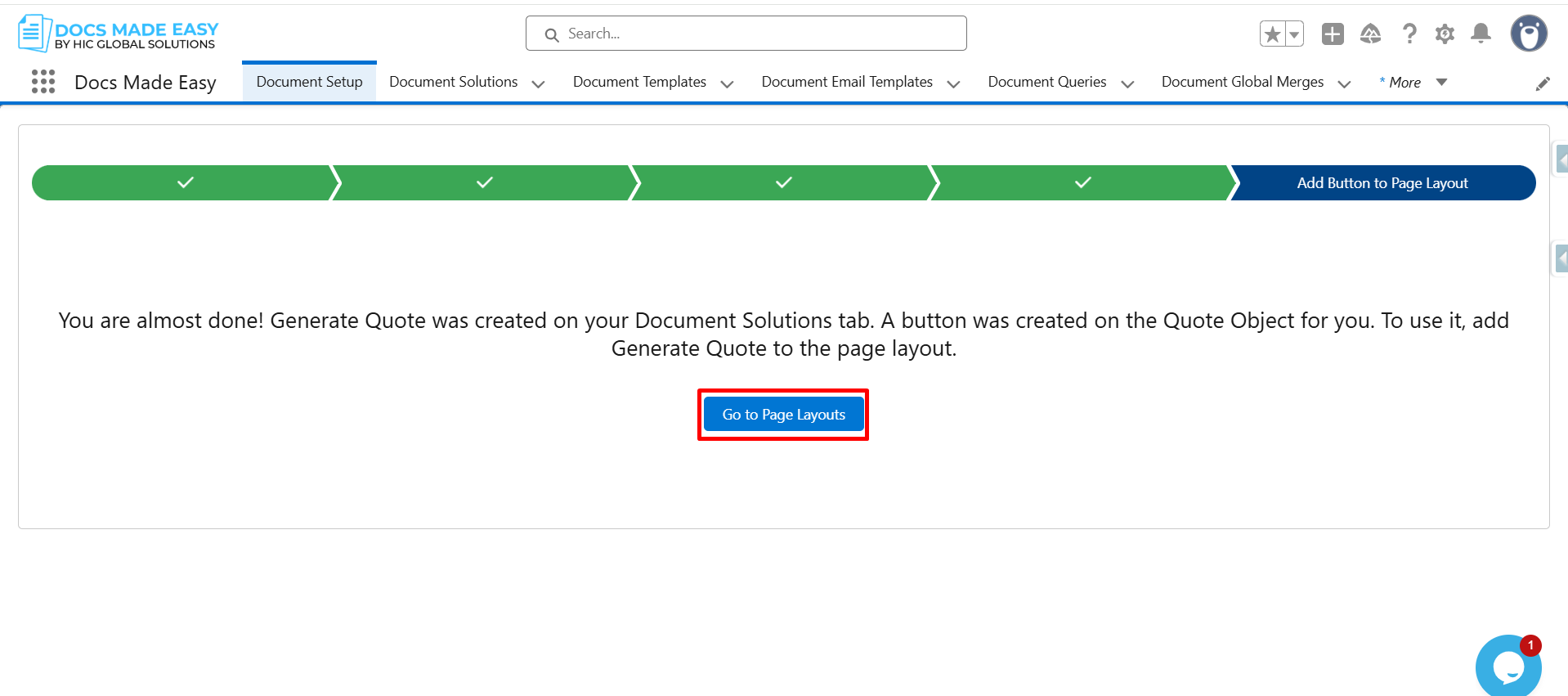
Step 16: Click on Go to Page Layout.
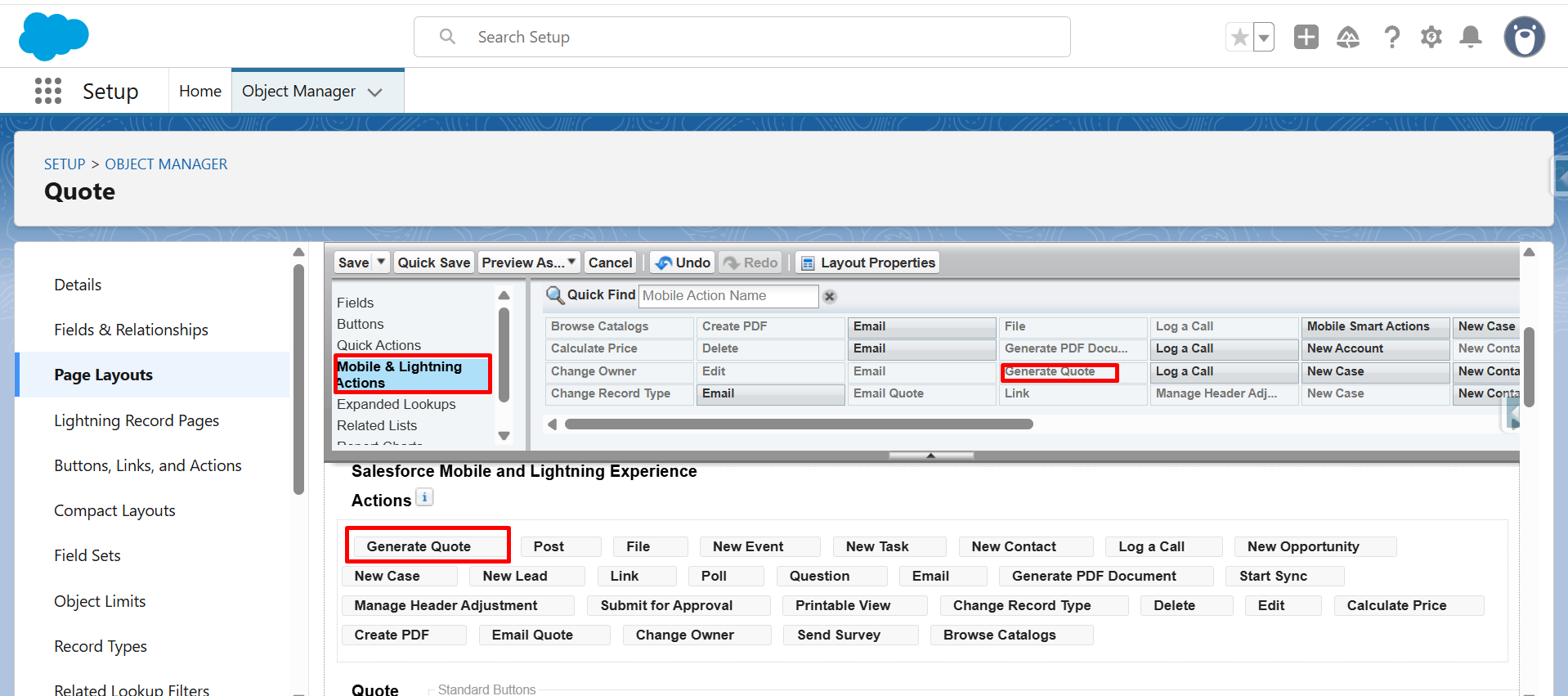
Step 17: From Mobile & Lightning Actions, drag and drop the Generate Quote button in Salesforce Mobile and Lightning Experience Actions.
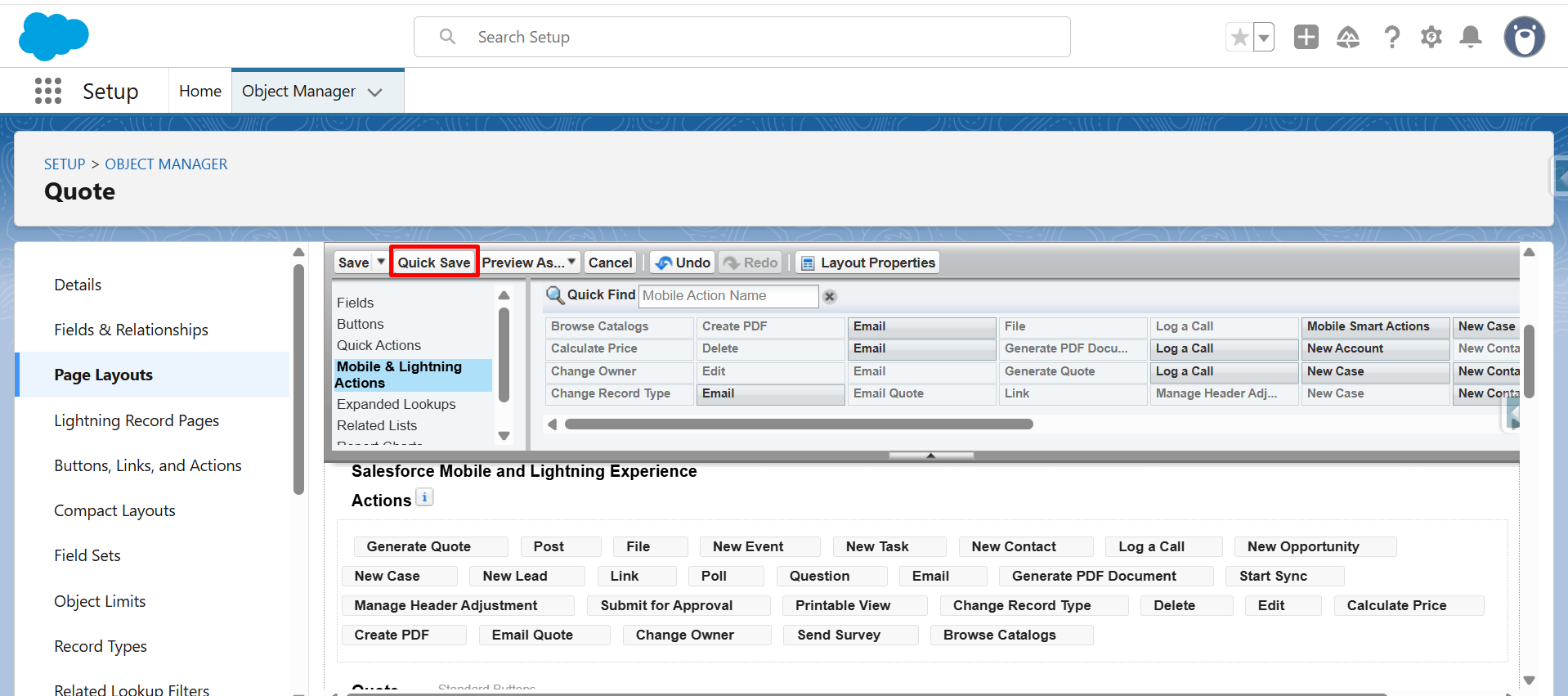
Step 18: Click on Quick Save.
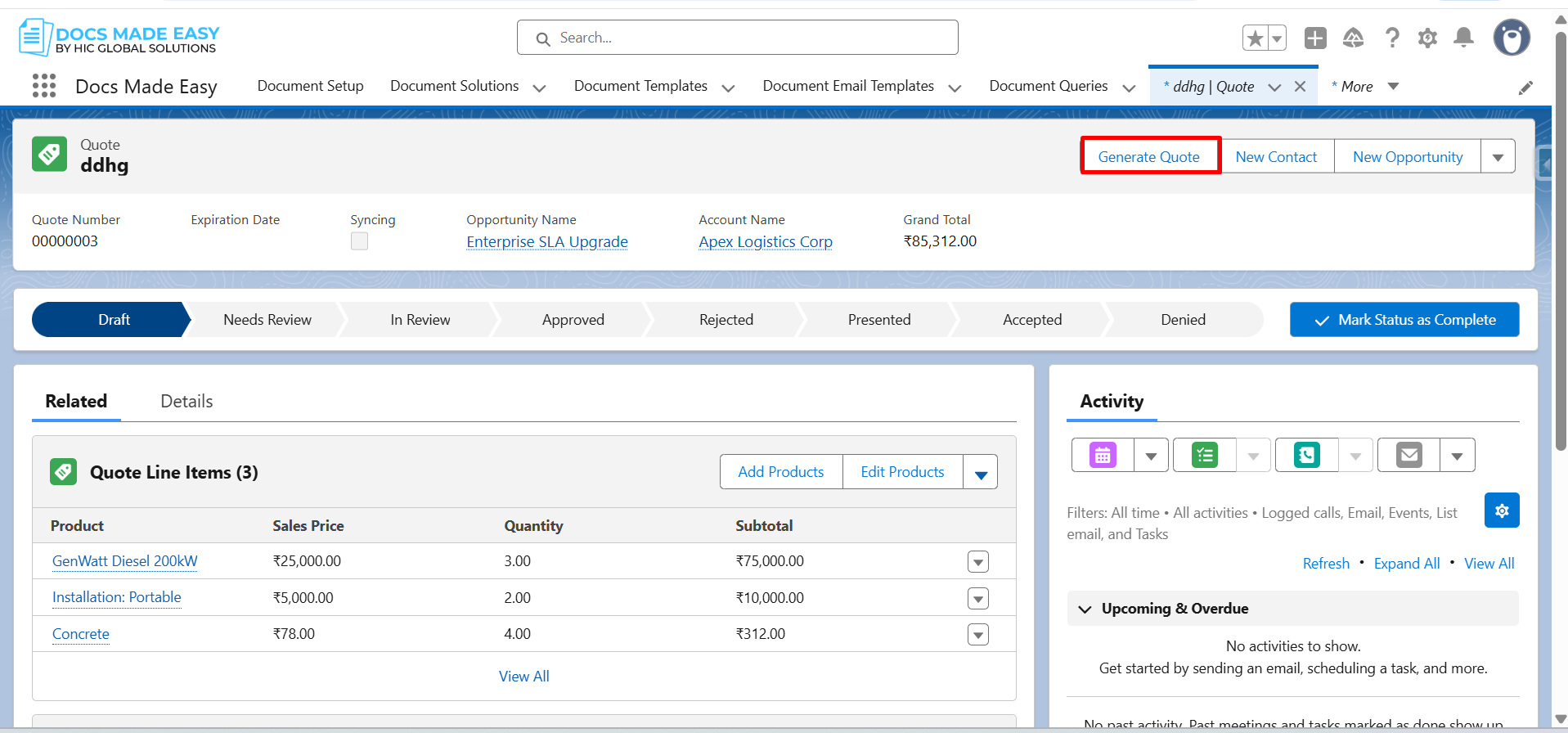
Step 19: Go to Quote Record and click on the button (Generate Quote).
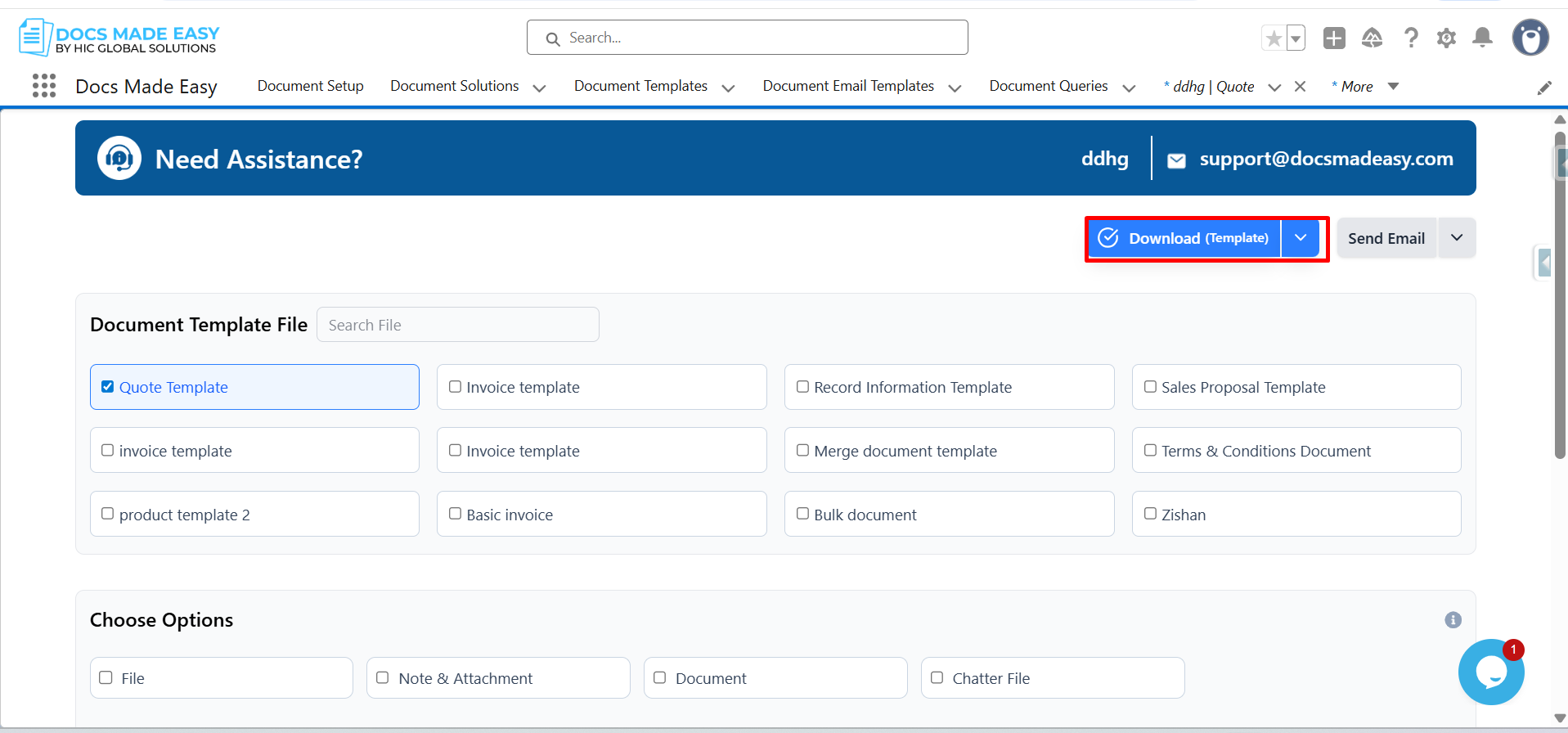
Step 20: Click on Download Template.
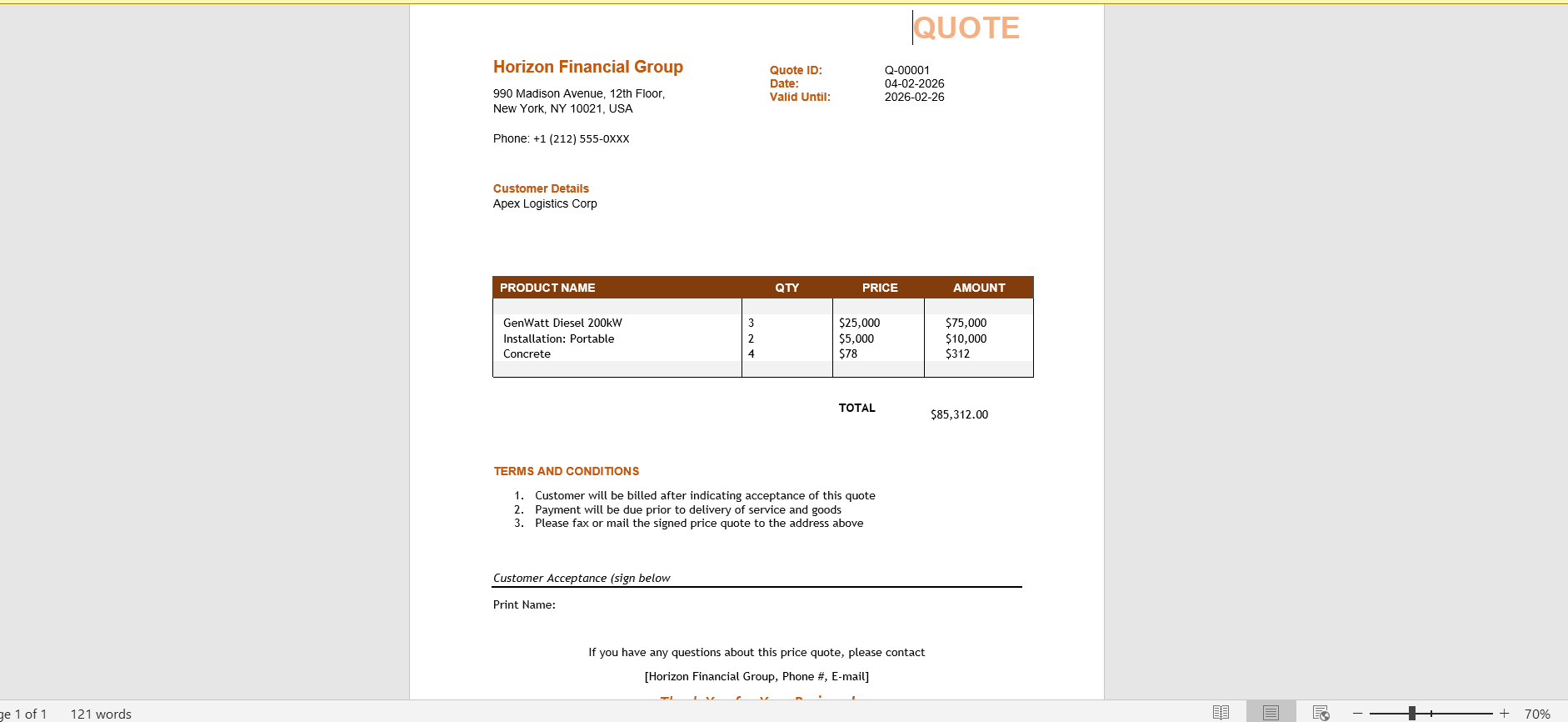
Step 21: Open the generated document.
Thank You
Was this article helpful?
That’s Great!
Thank you for your feedback
Sorry! We couldn't be helpful
Thank you for your feedback
Feedback sent
We appreciate your effort and will try to fix the article