Step 1: Start by logging into Salesforce.
Step 2: Now, open Docs Made Easy from the App Launcher to begin the setup.
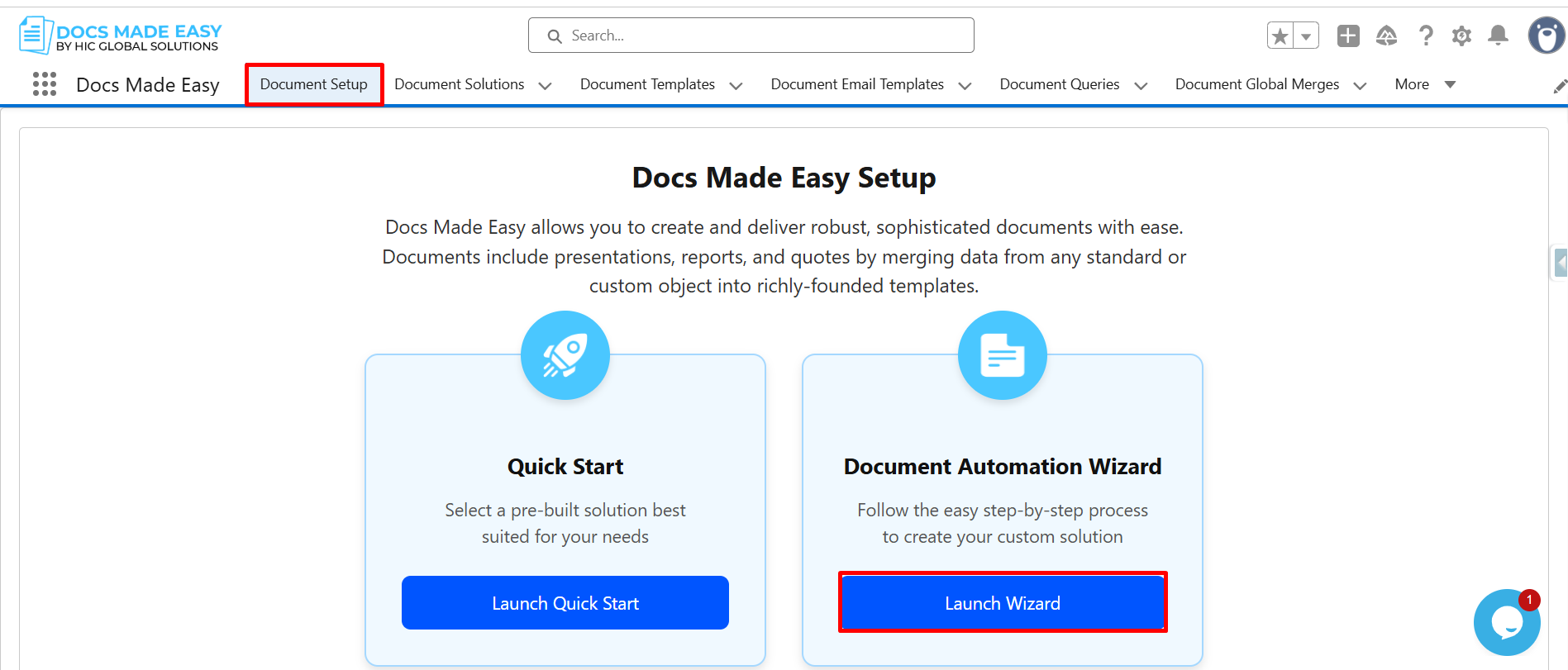
Step 3: Once you’re inside the app, click Document Setup and then proceed by clicking Launch Wizard.
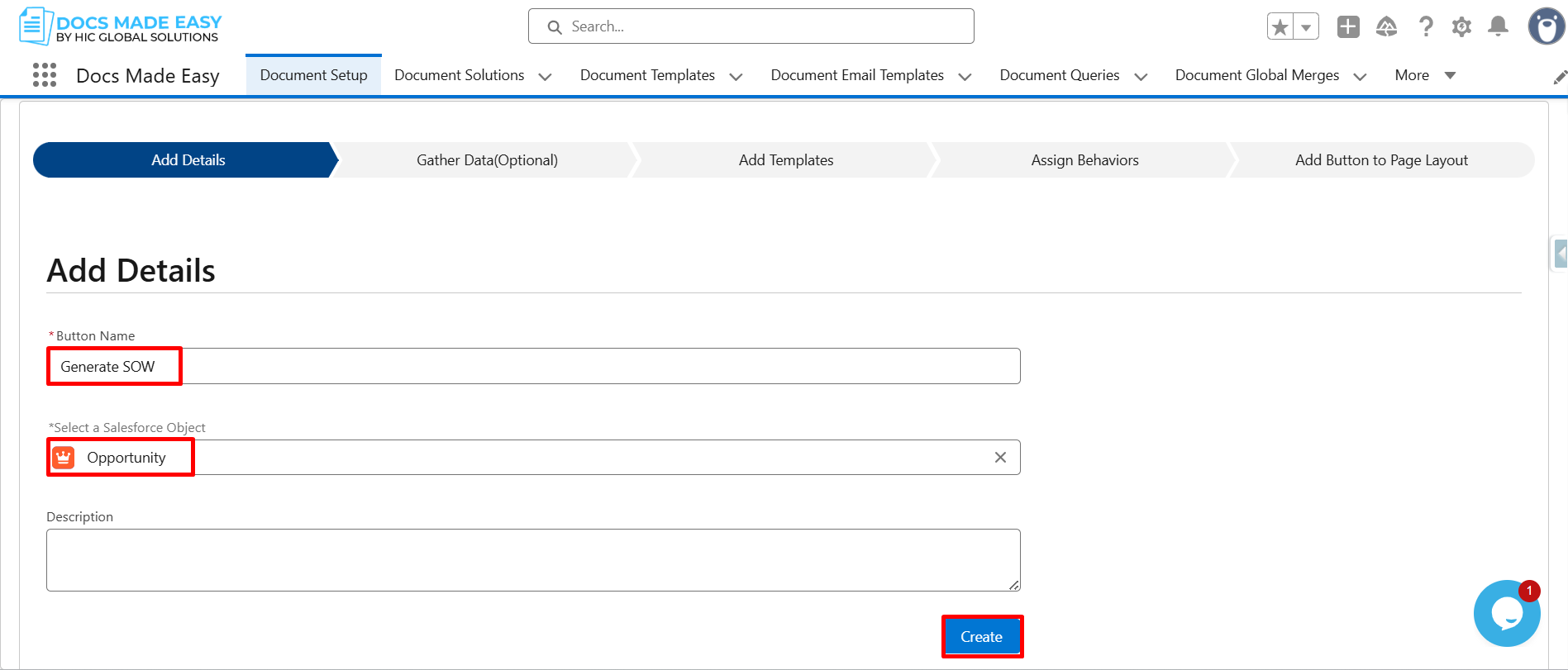
Step 4: Next, enter the button name and select the Salesforce Object, like Opportunity.
After setting this up, click Create to move forward.
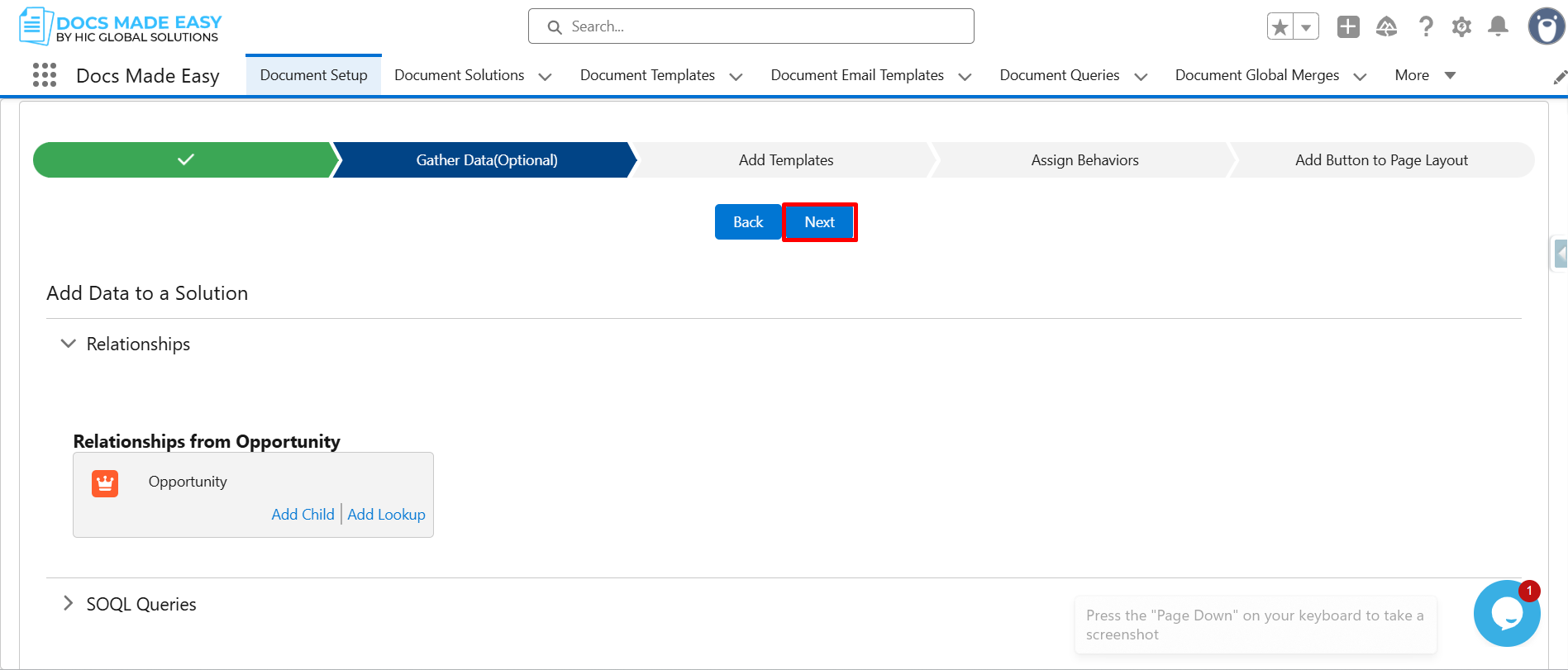
Step 5: Click Next to continue.
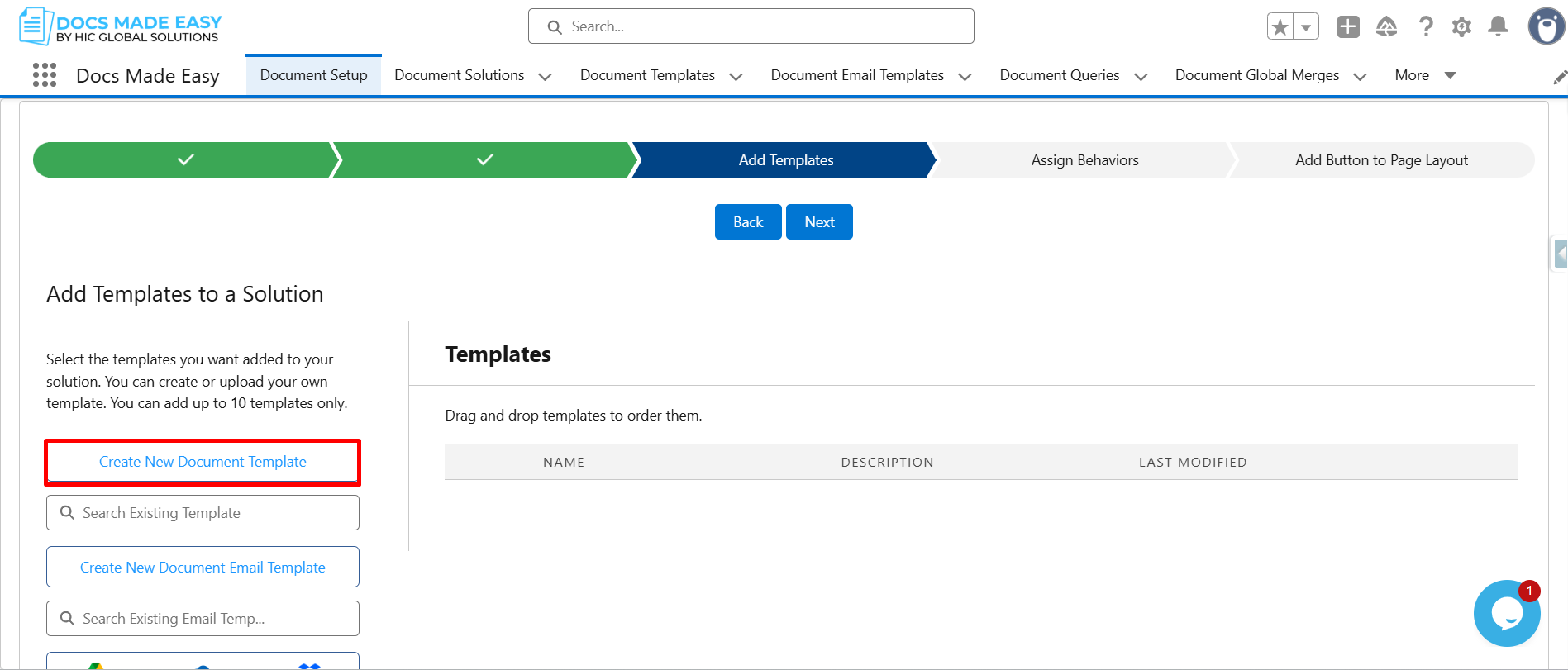
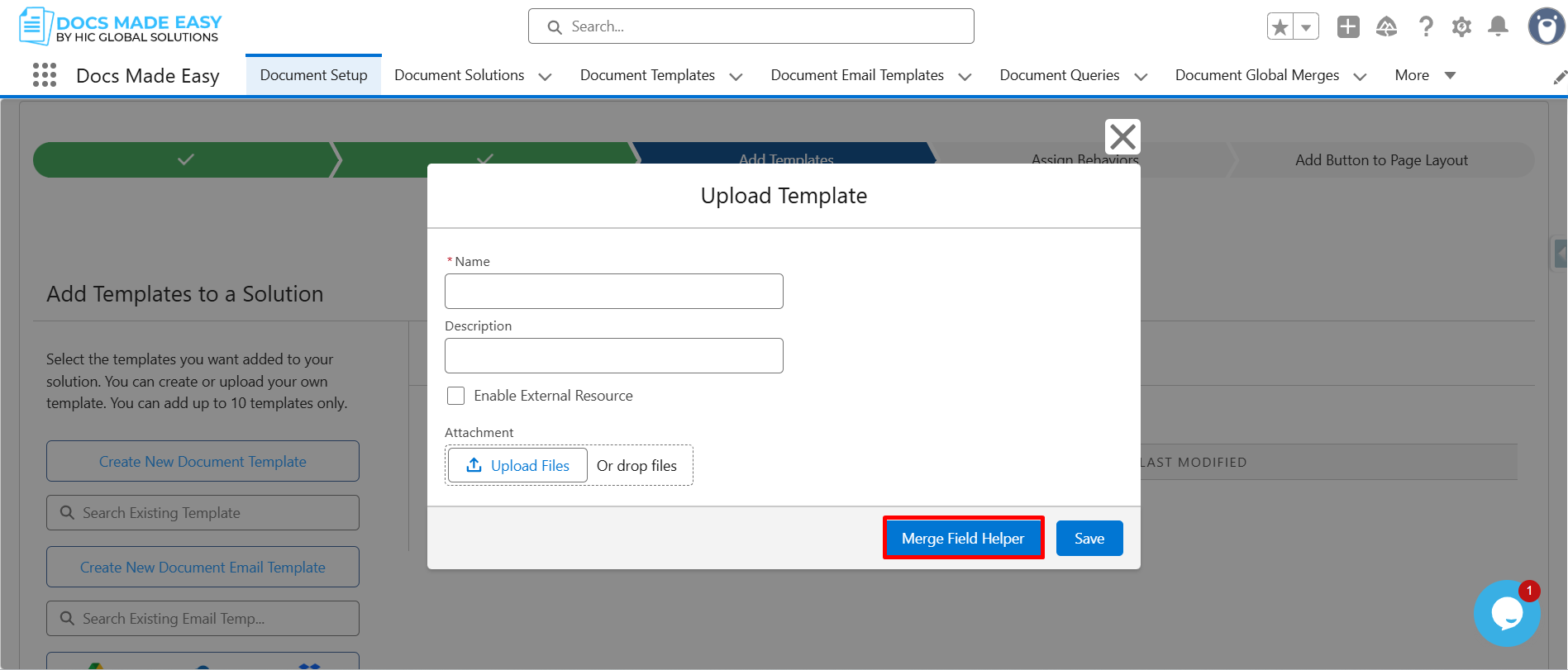
Step 6: At this stage, click Create New Document Template.
Step 7: Now, open Merge Field Helper.
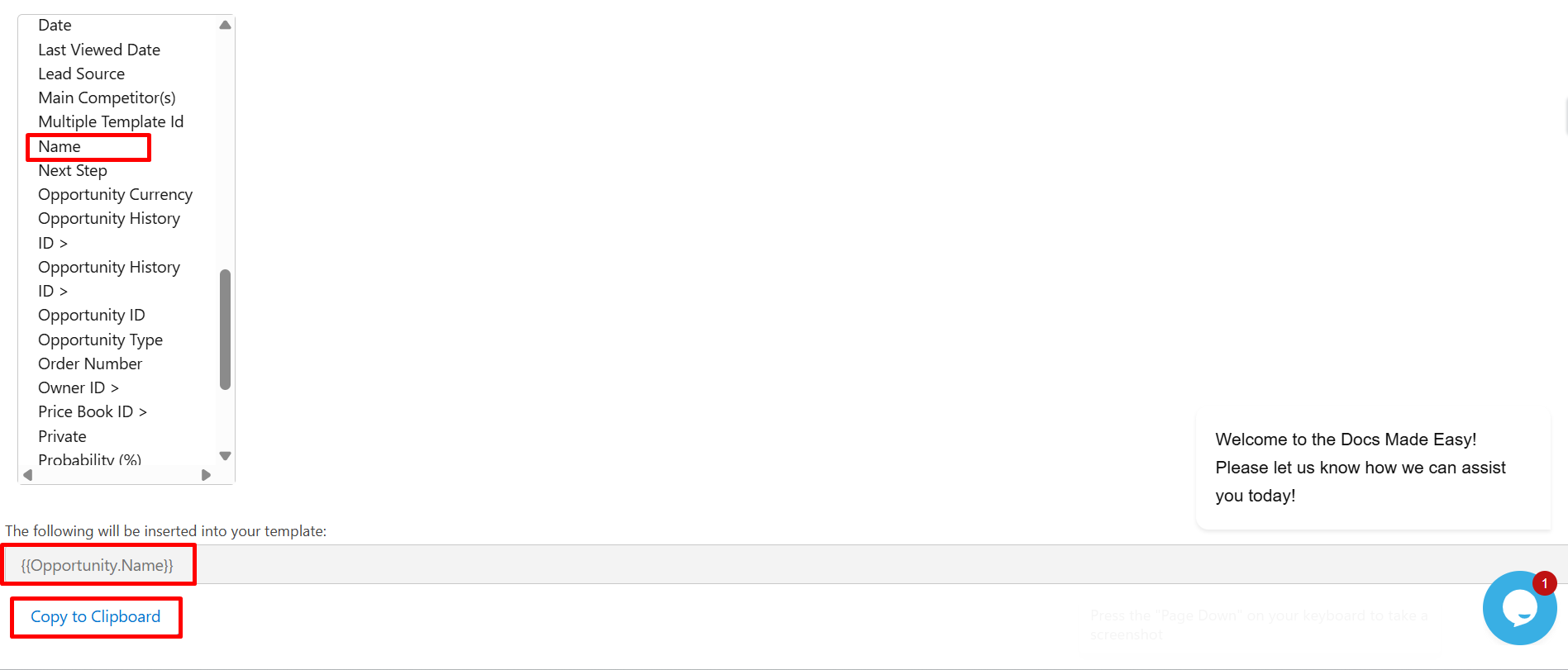
Step 8: From the field list, click Name to select it.
The system automatically generates the merge field syntax: {{Opportunity.Name}}
Now, click Copy to Clipboard.
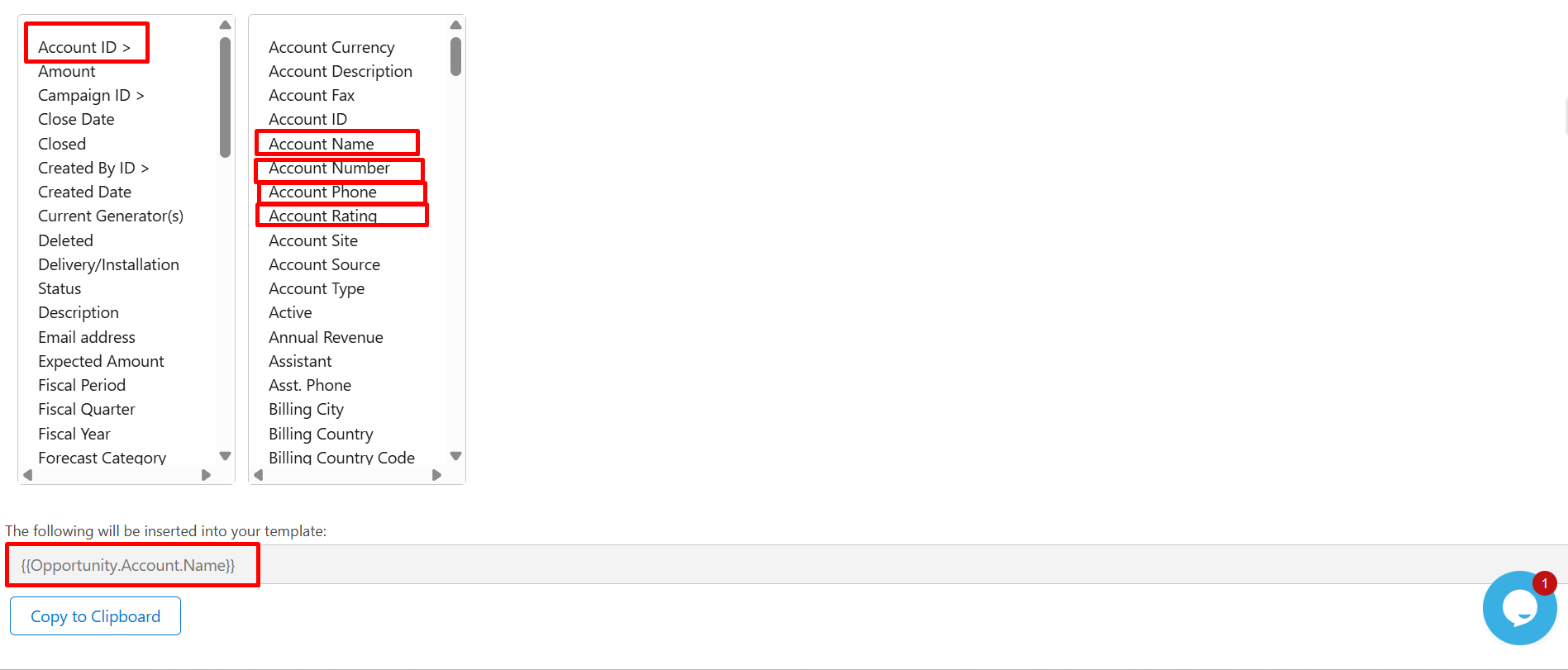
Step 9: After that, select Account ID (Opportunity → Account relationship) and click the required account-related fields such as Account Name, Phone Number, or Rating,
Then click Copy to Clipboard to copy the generated merge field for use in your template.
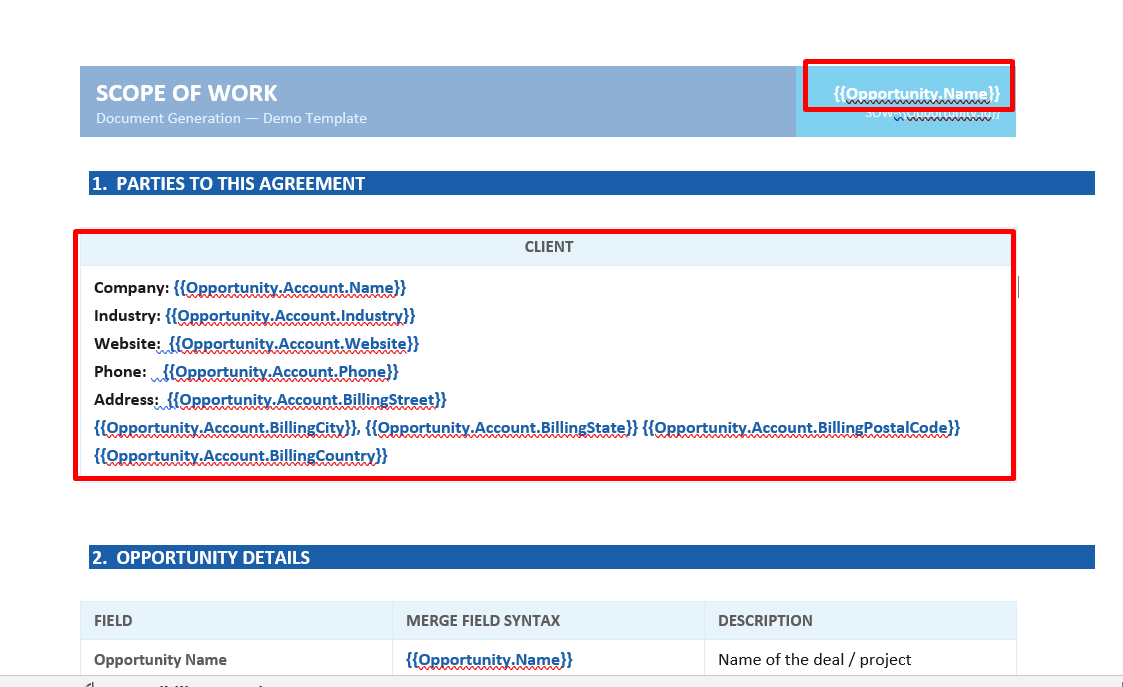
Step 10: Next, paste all the copied merge field syntax into the Template.
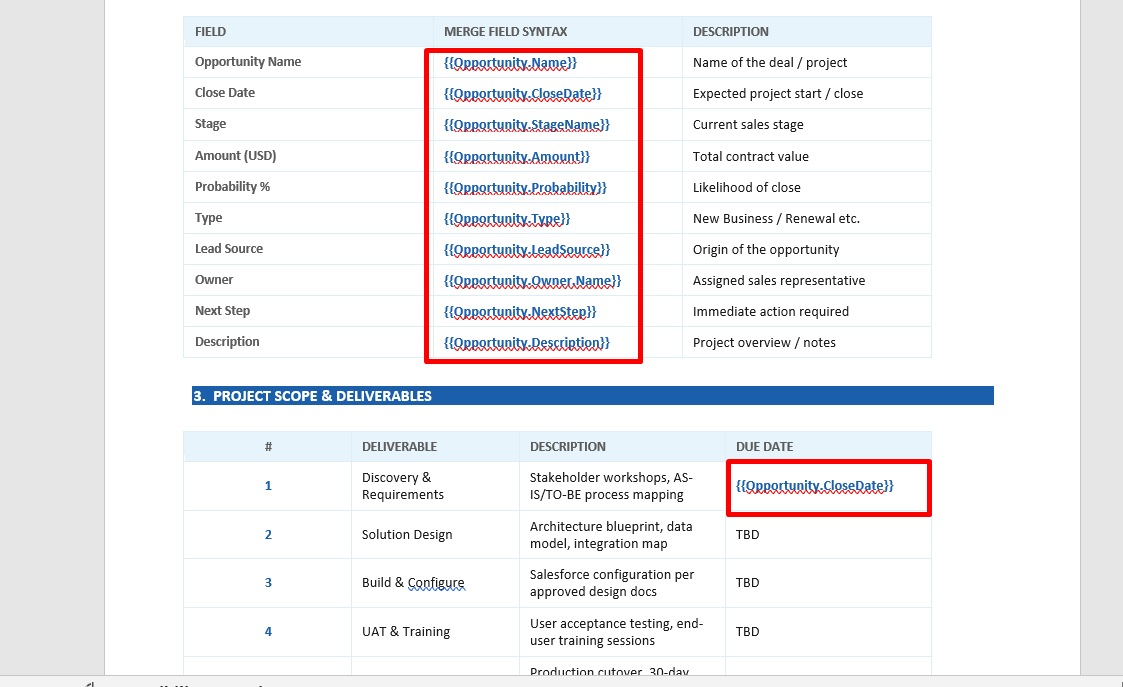
Step 11: After completing the template design, reopen the Upload Template window.
Enter the template name, upload the template file, and then click Save.
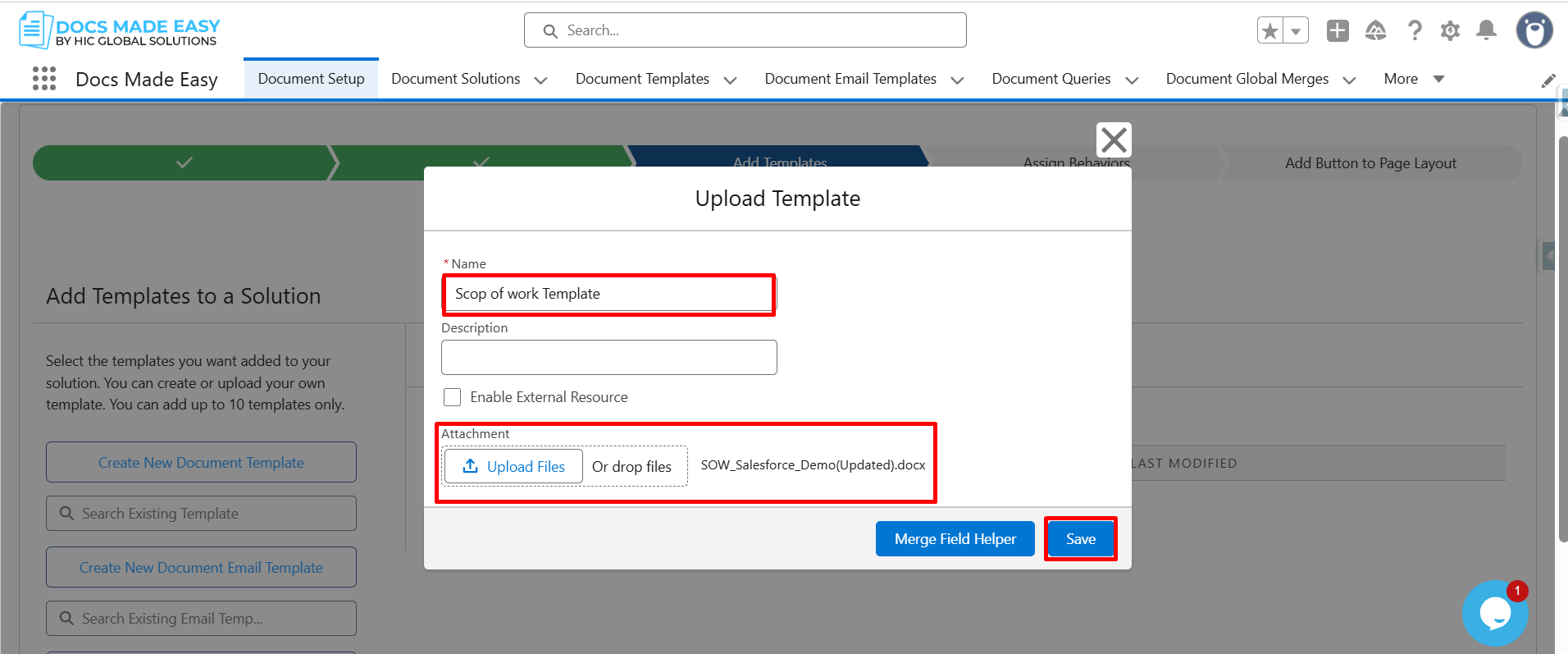
Step 12: Now that the template is saved, click Next to continue.
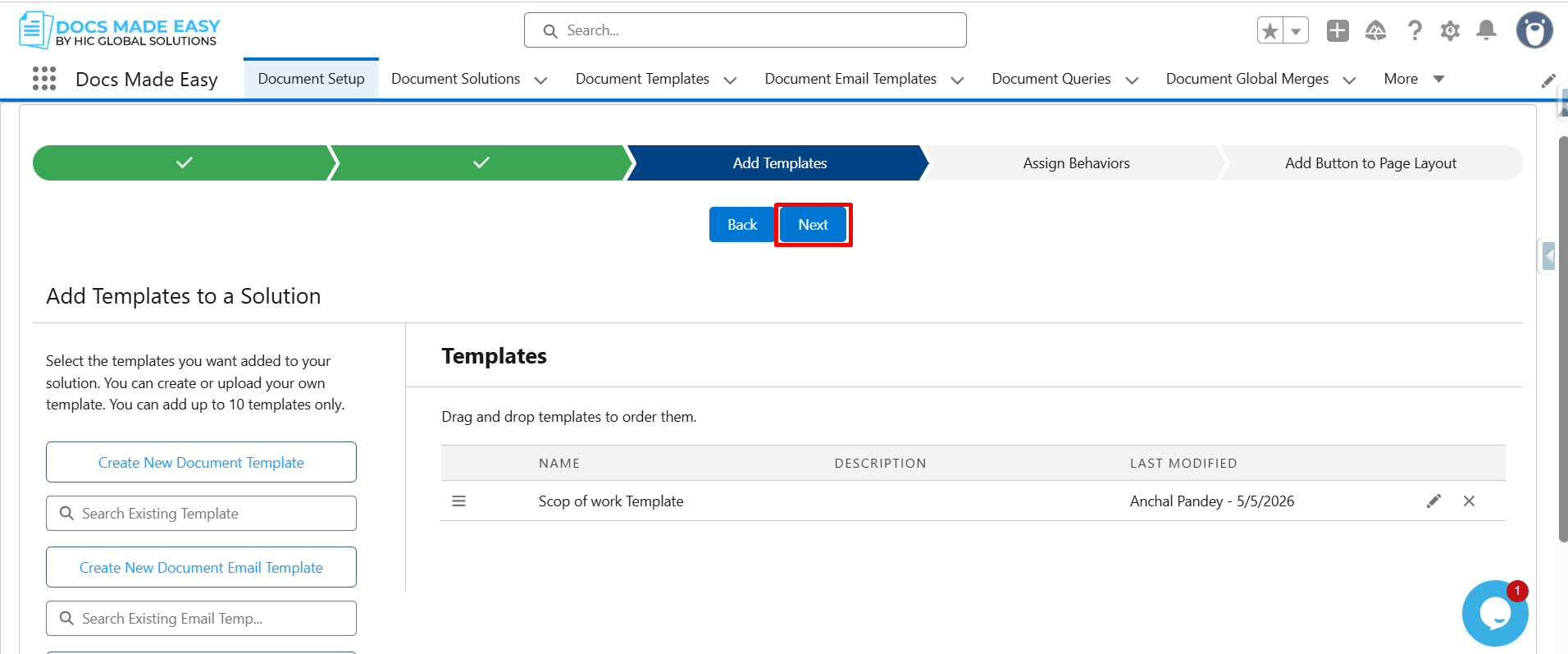
Step 13: Click Next again to move to the layout configuration.
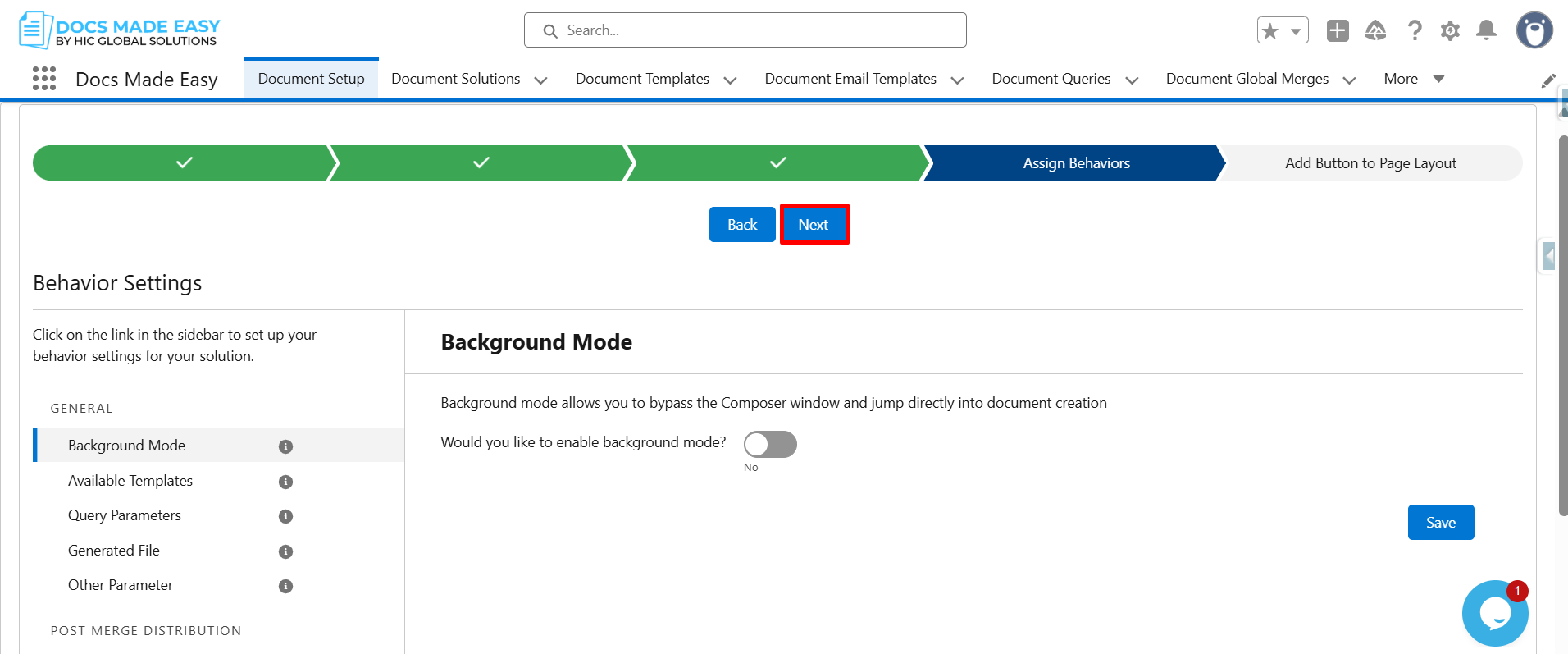
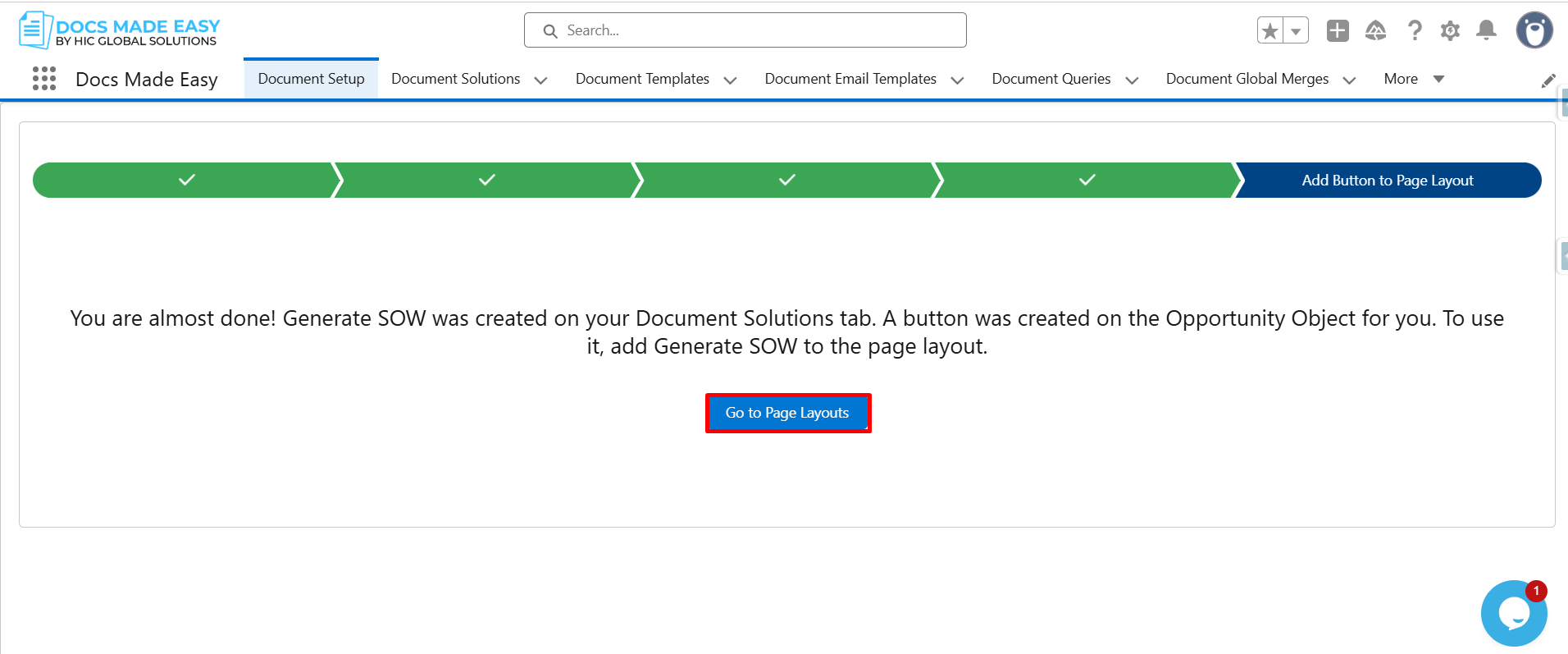
Step 14: Click on Go to Page Layouts in Salesforce.
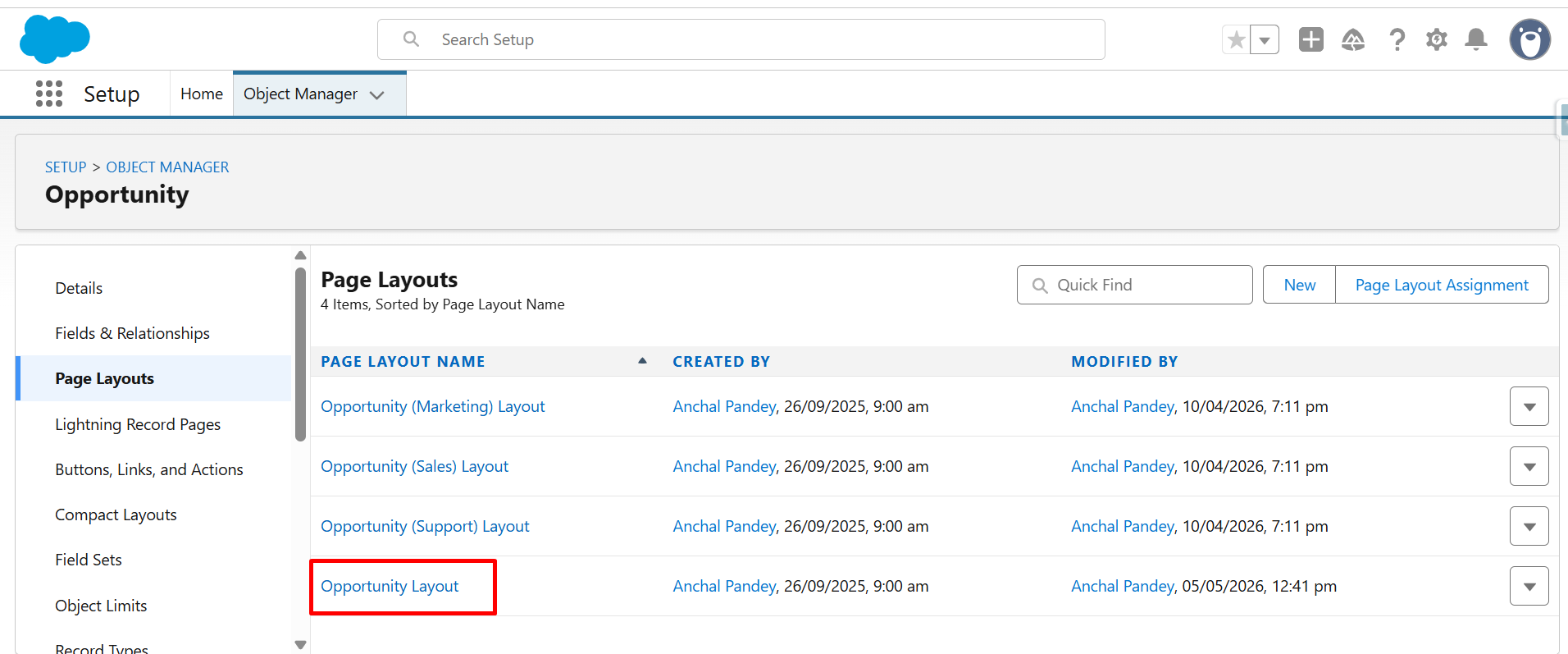
Step 15: From the list, click Opportunity Layout (as we have selected Opportunity as the Salesforce object) to customize the record page.
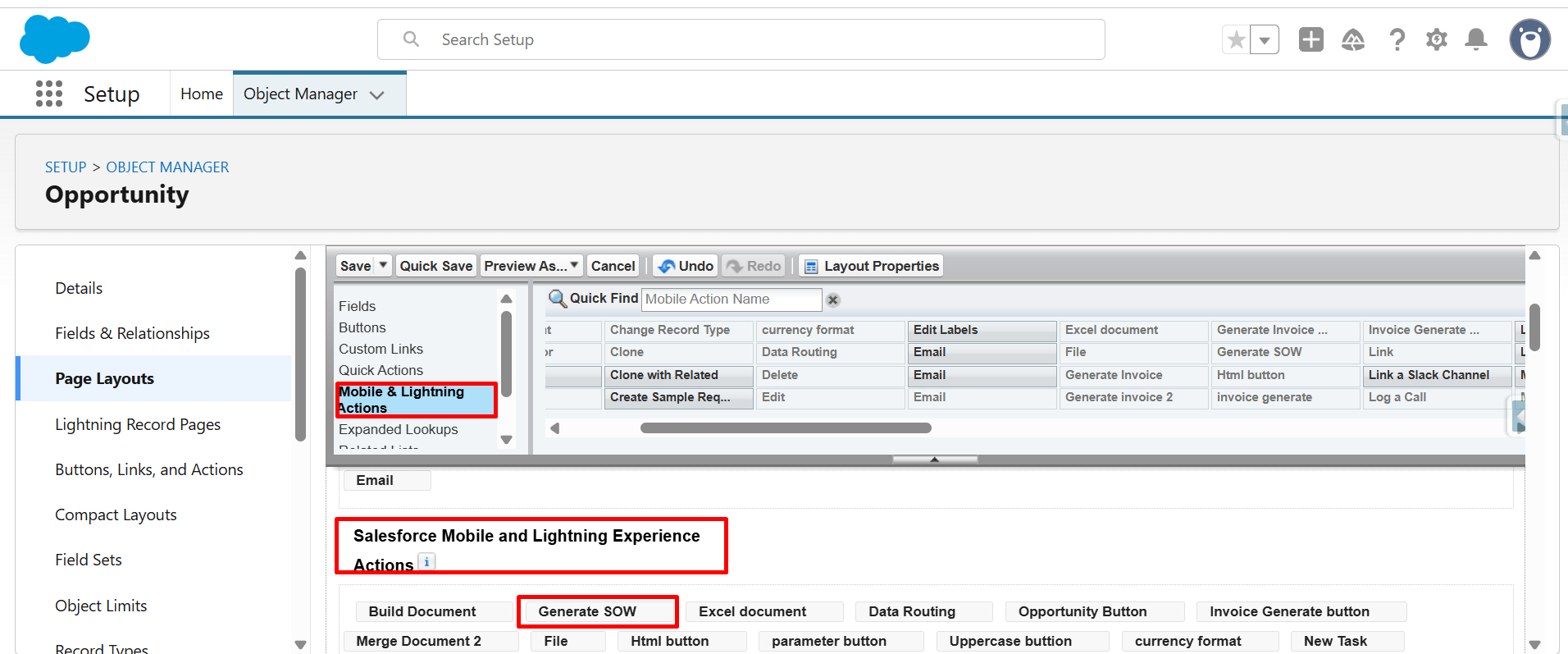
Step 16: Now, from Mobile & Lightning Actions, drag and drop Generate SOW into Salesforce Mobile and Lightning Experience Actions.
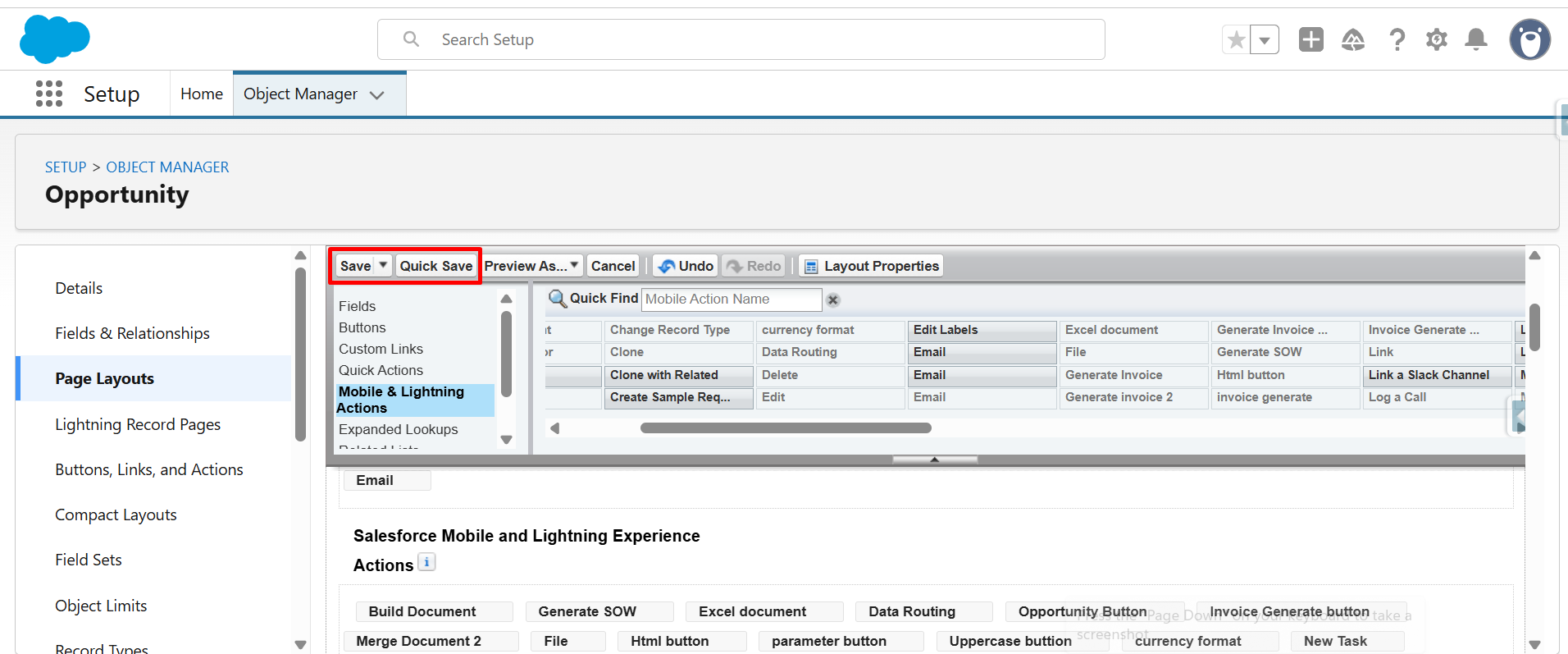
Step 17: After placing the button, click Quick Save or Save to apply the changes.
Step 18: Next, open an Opportunity record and click the Generate SOW (the button you created).
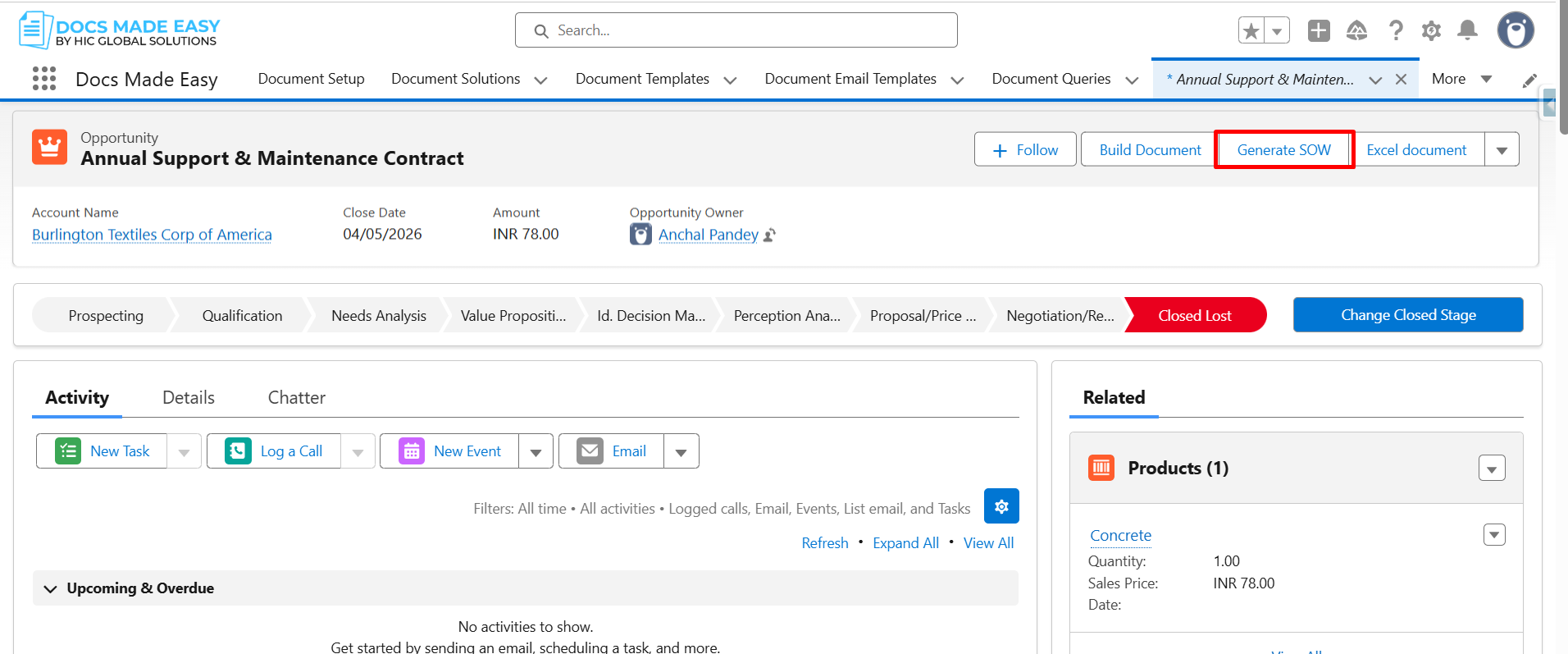
Step 19: Now, click Download Template to start the document process.
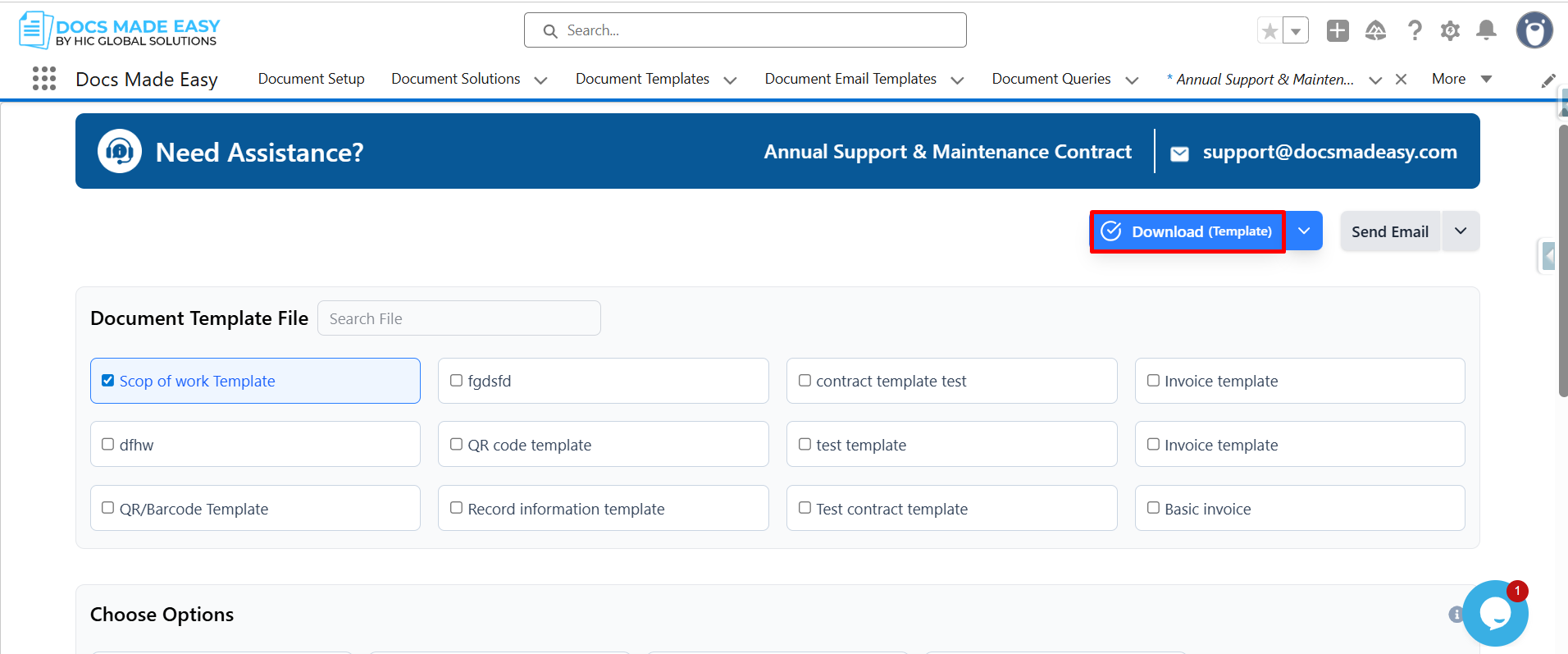
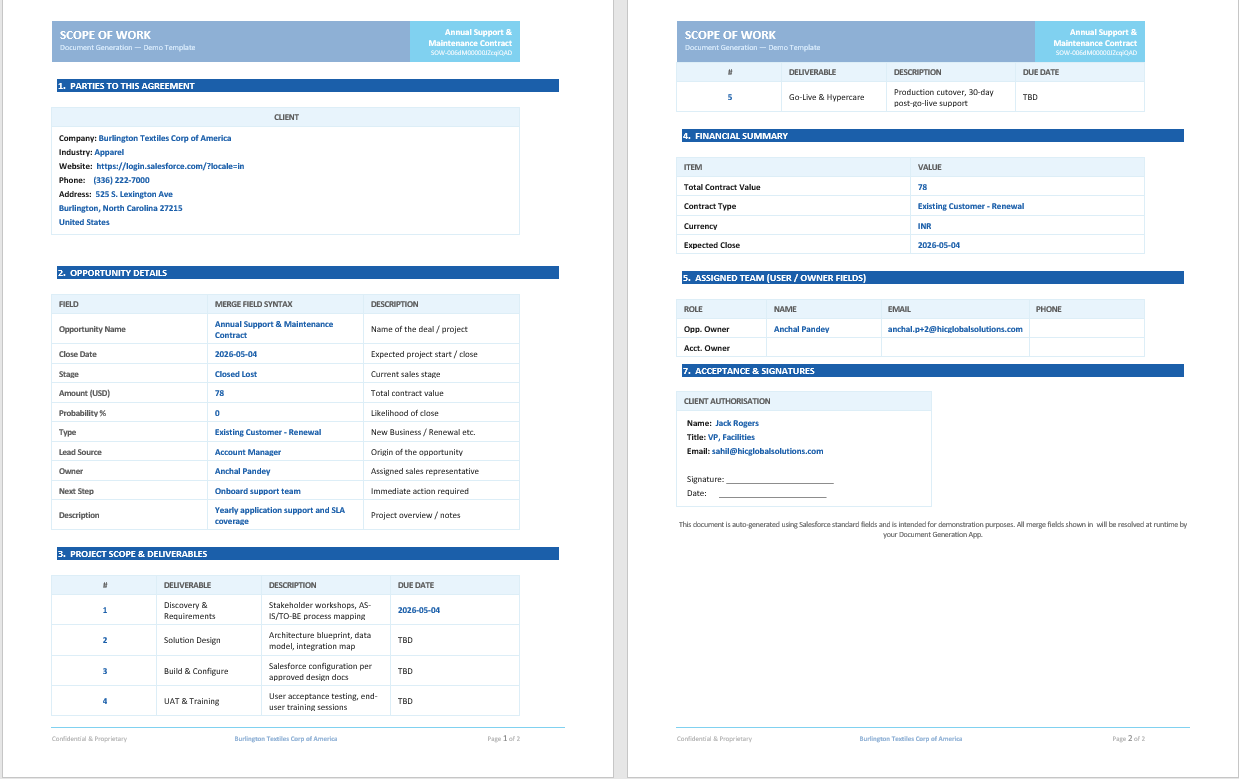
Step 20: Now you can open the generated document and review.
Thank You
Was this article helpful?
That’s Great!
Thank you for your feedback
Sorry! We couldn't be helpful
Thank you for your feedback
Feedback sent
We appreciate your effort and will try to fix the article