Steps to Set Up QVar Parameter for Dynamic Document Templates in Salesforce.
Step 1: Open Docs made easy in Salesforce.
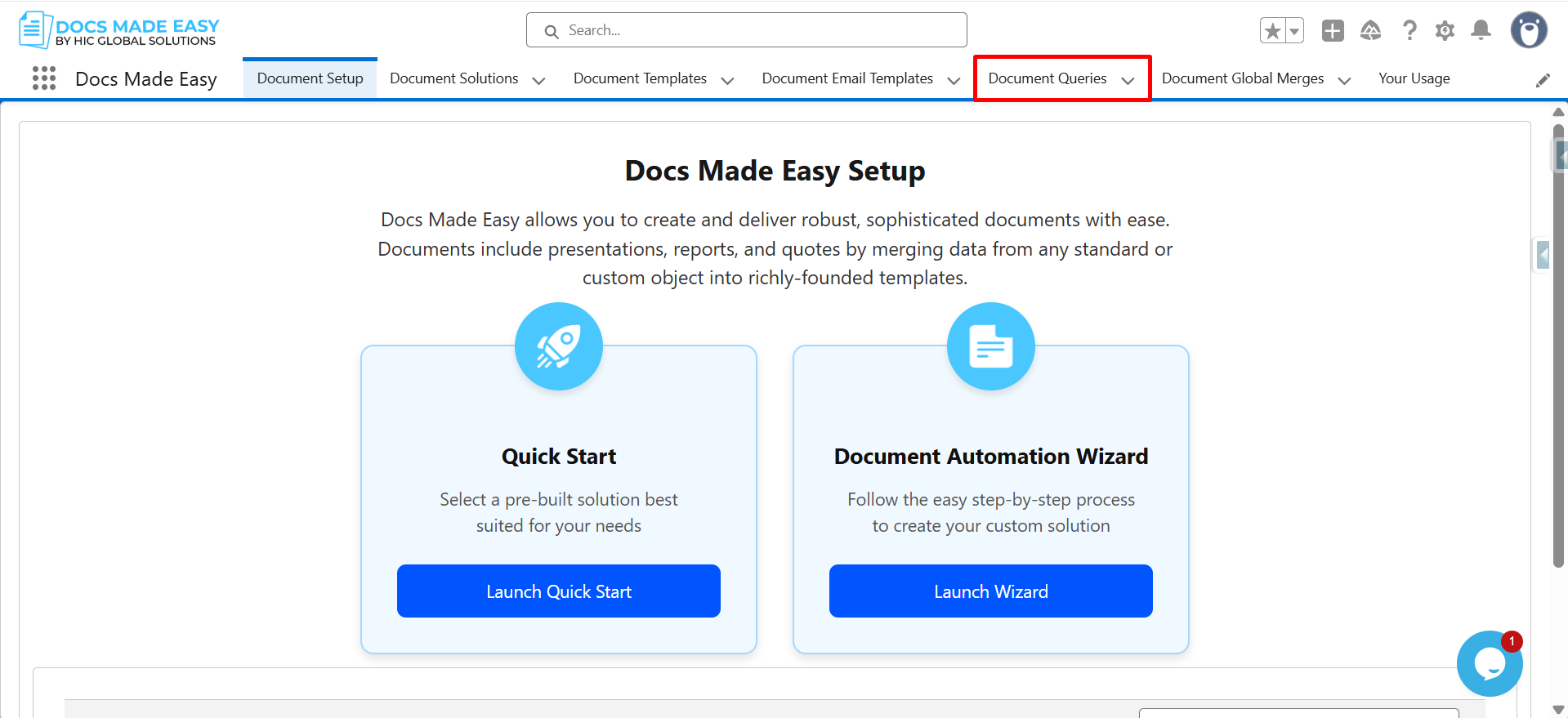
Step 2: Click on Document Queries.
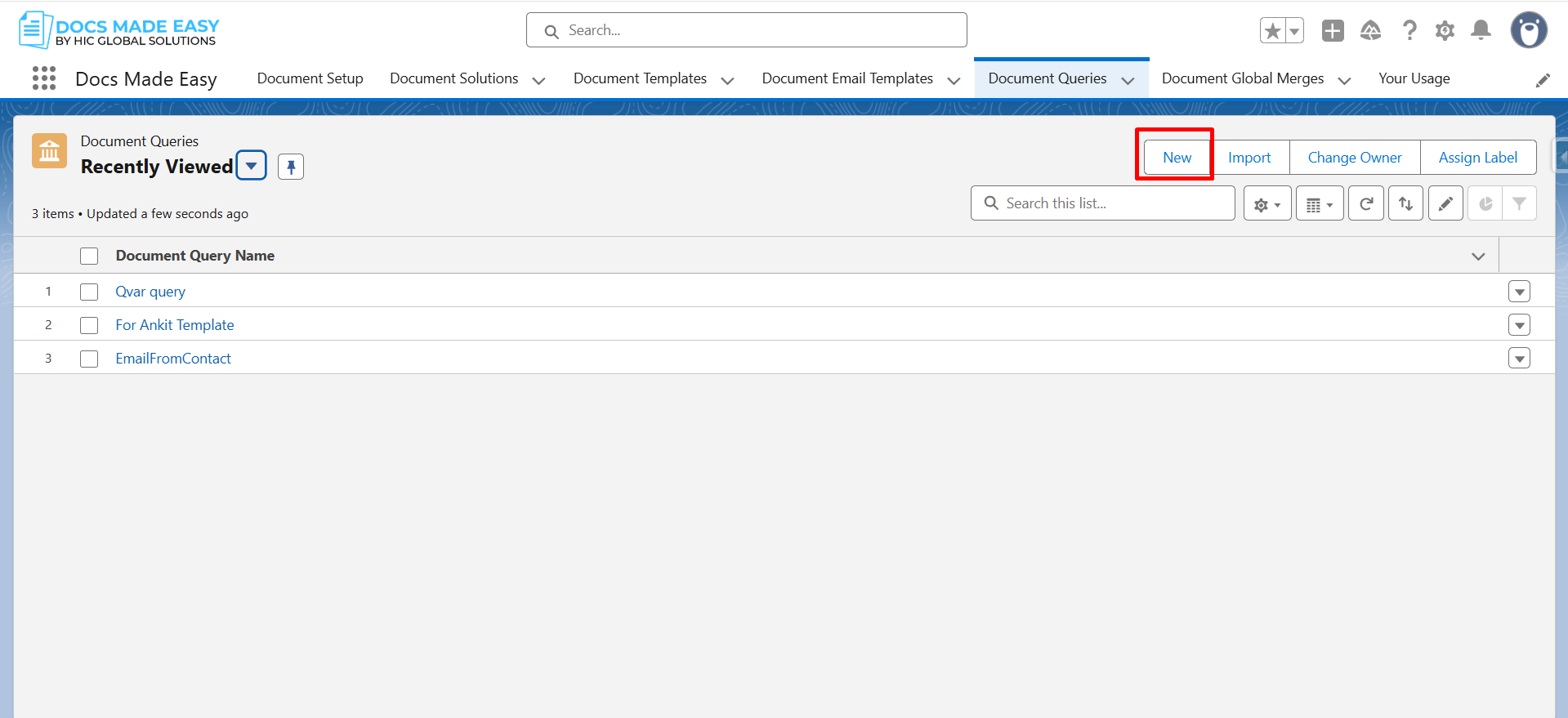
Step 3: Click on New.
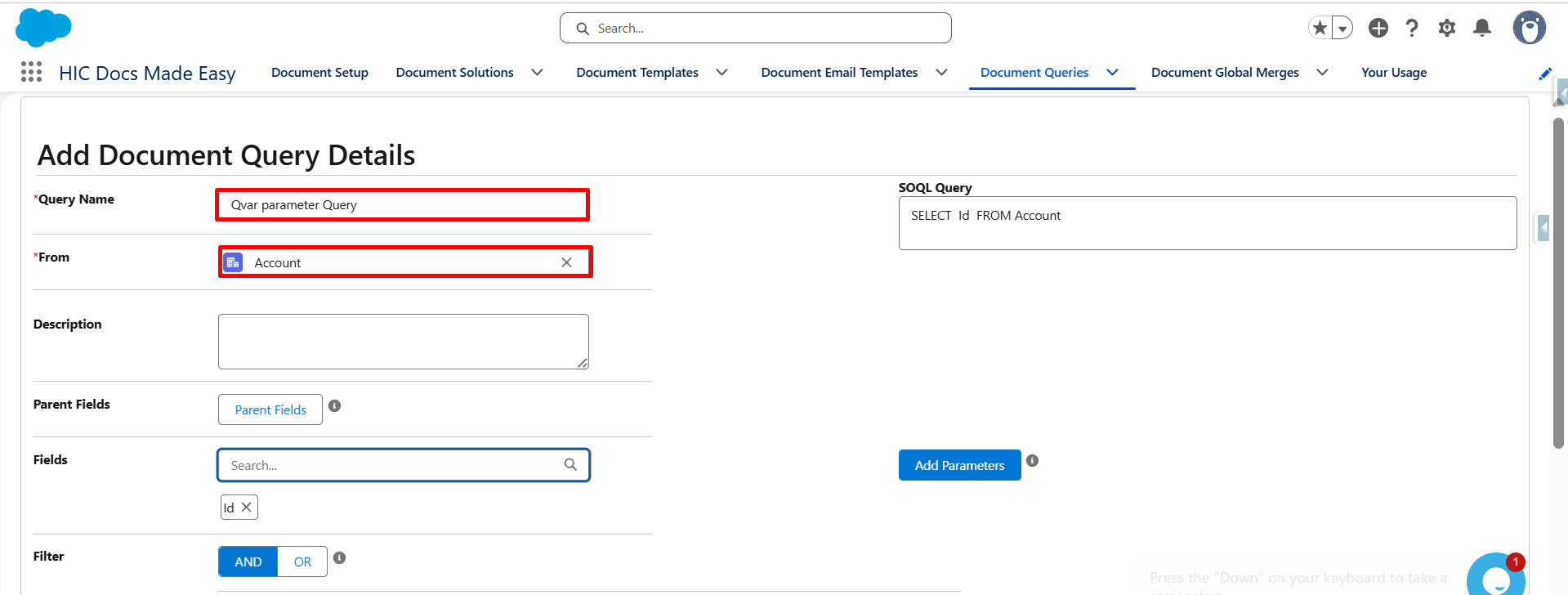
Step 4: In the Query Name field, enter Query name.
From the From dropdown, select the required object (e.g., Account).
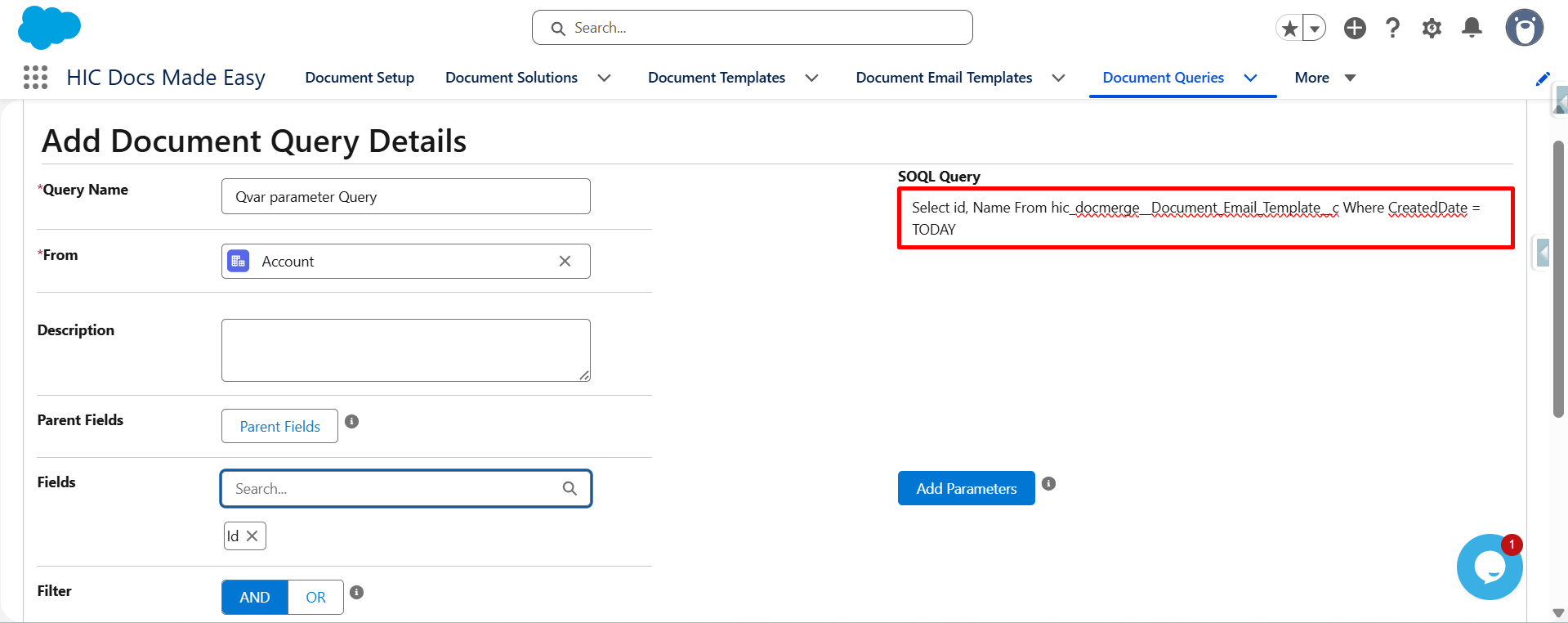
Step 5: In the SOQL Query section, write the Query.
Step 6: Scroll down and click the Save button.
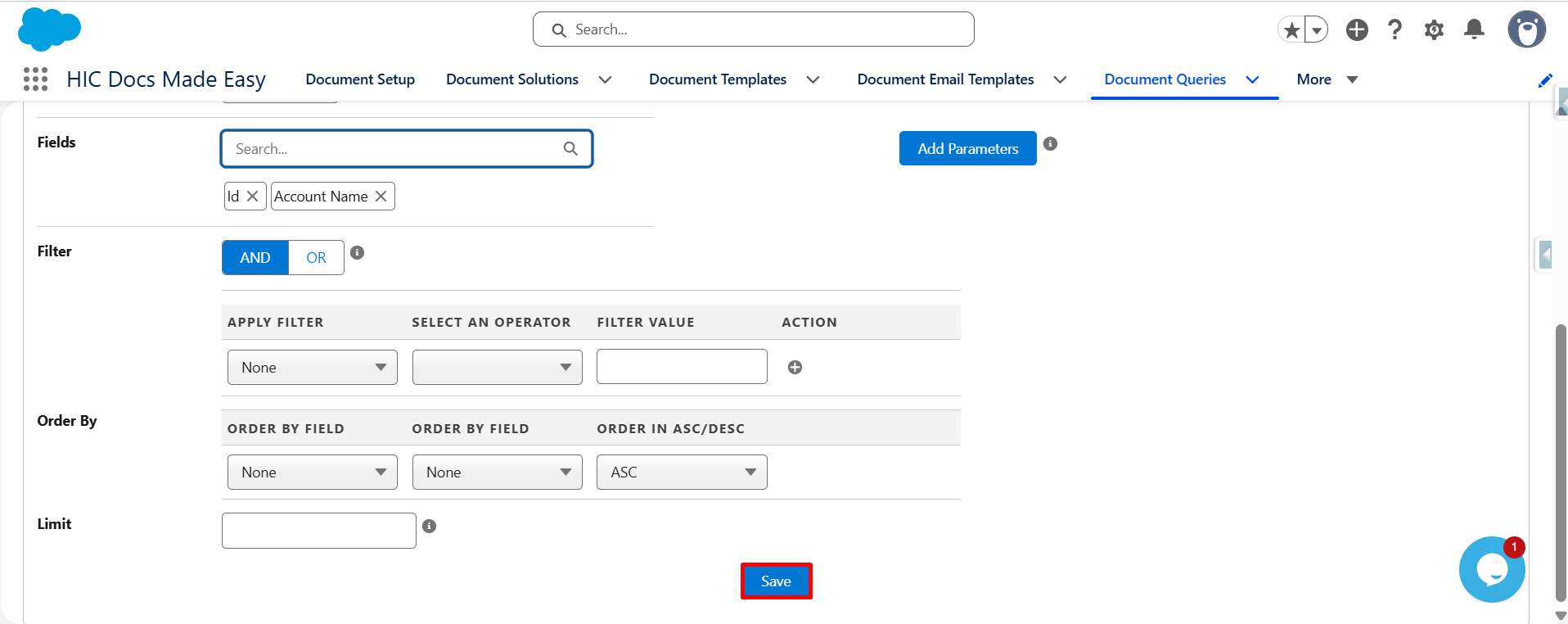
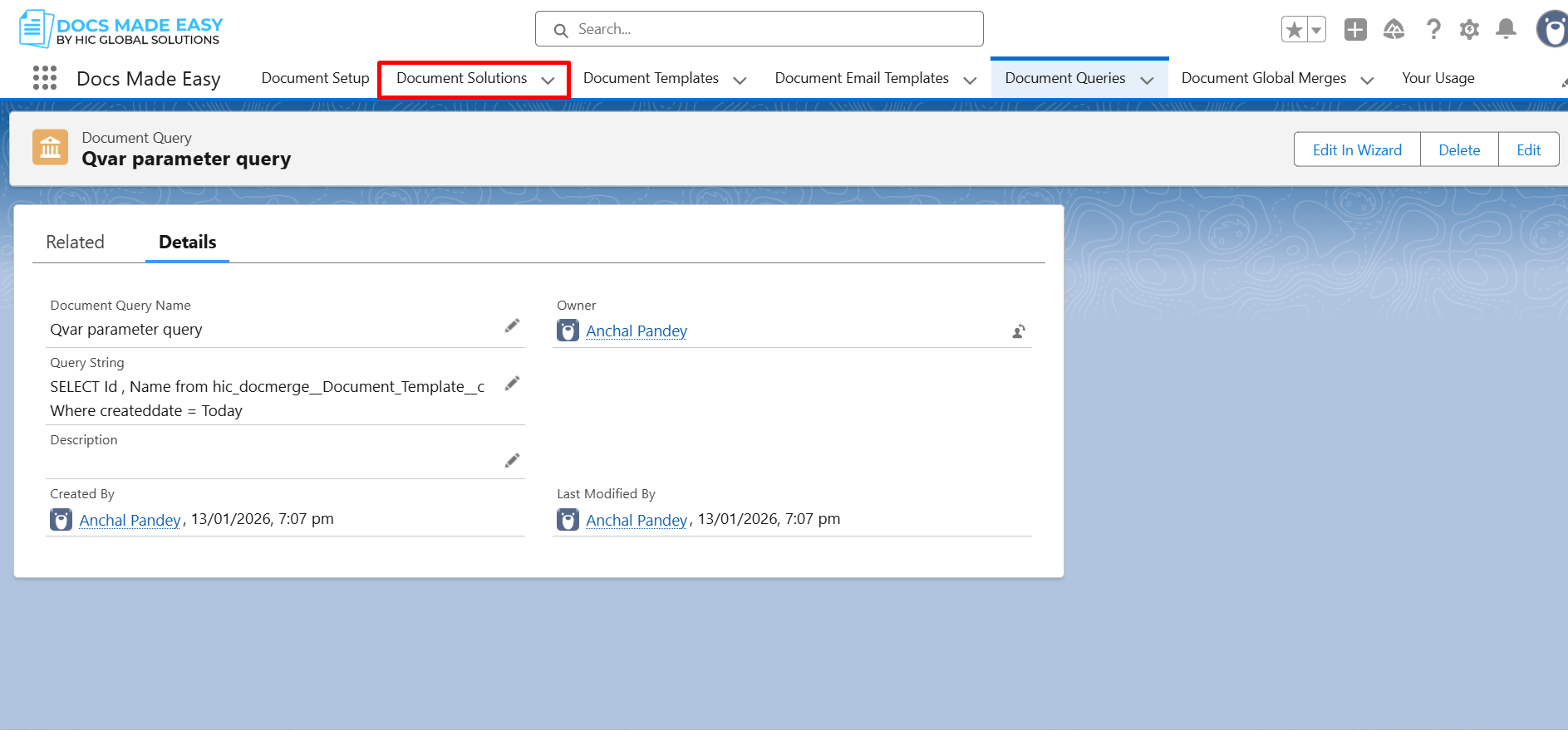
Step 7: Once created, the document query will appear in the Document Queries list.
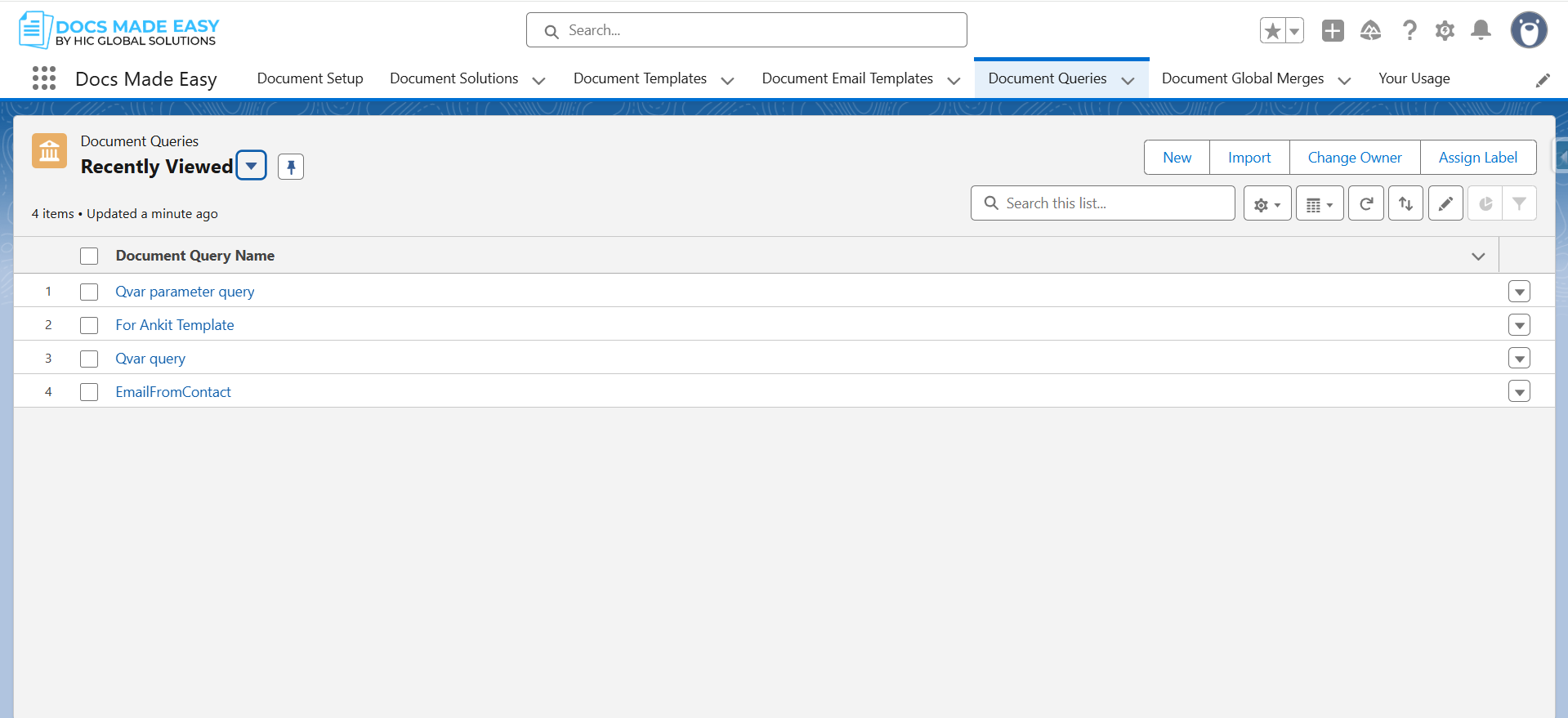
Step 8: Click on the document query to open it.
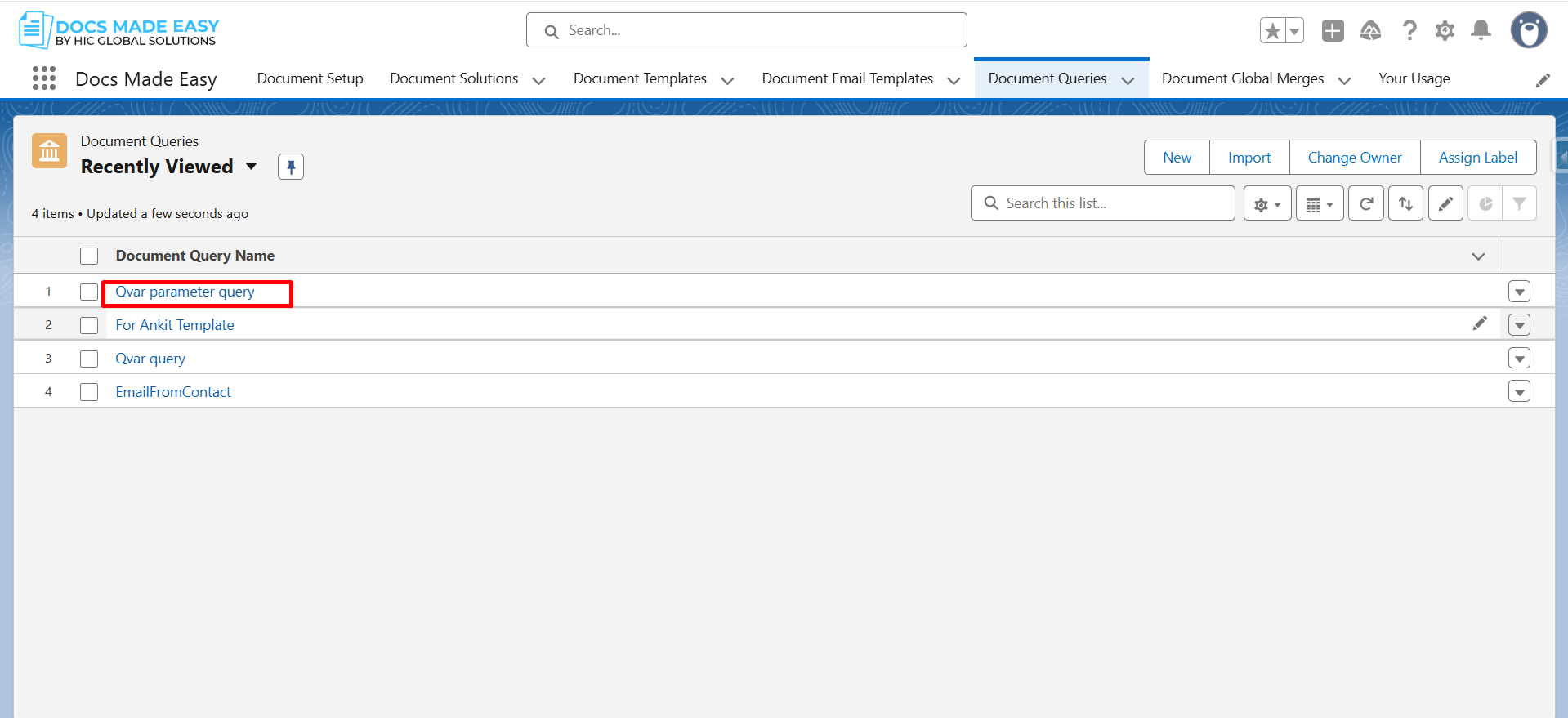
Step 9: Now, copy the Document Query ID.
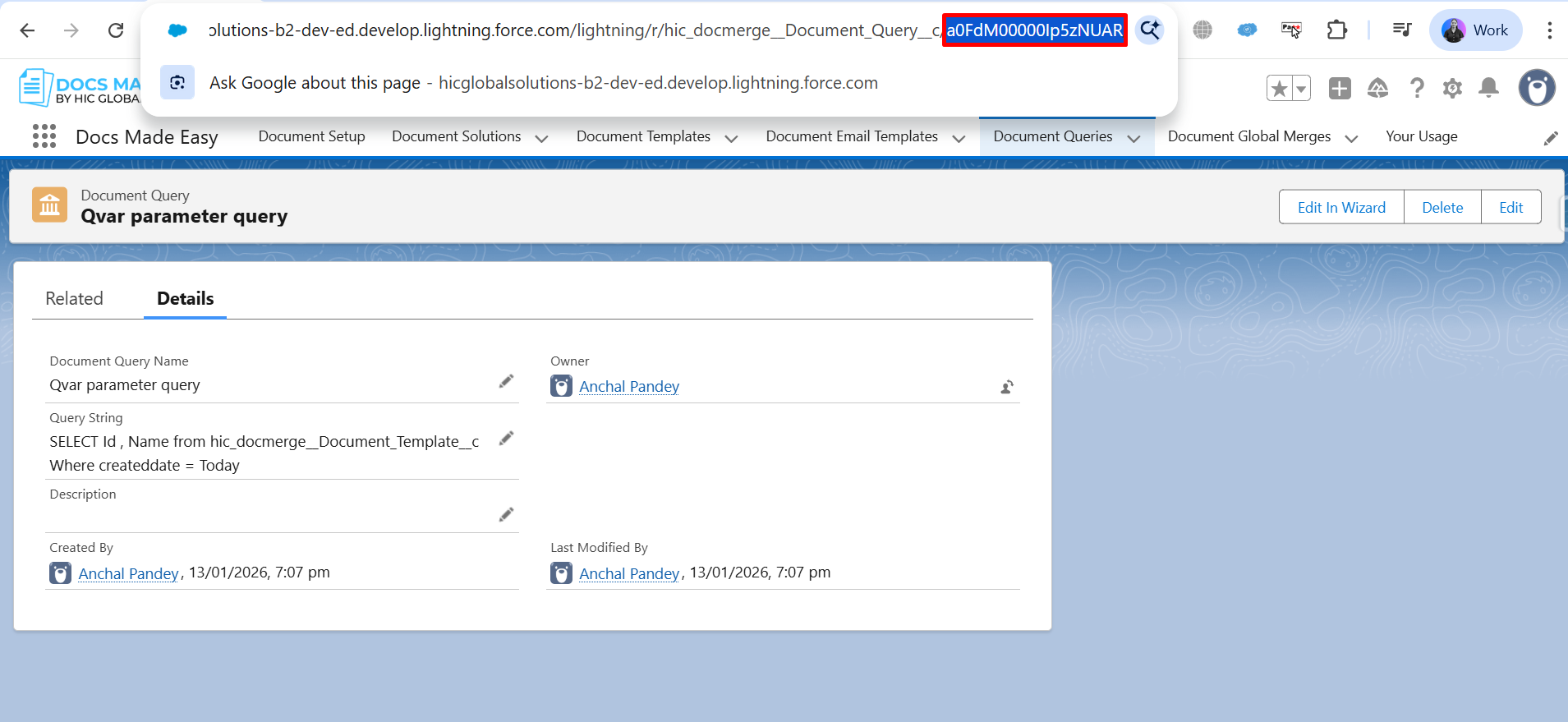
Step 10: Now go to the Document Solutions.
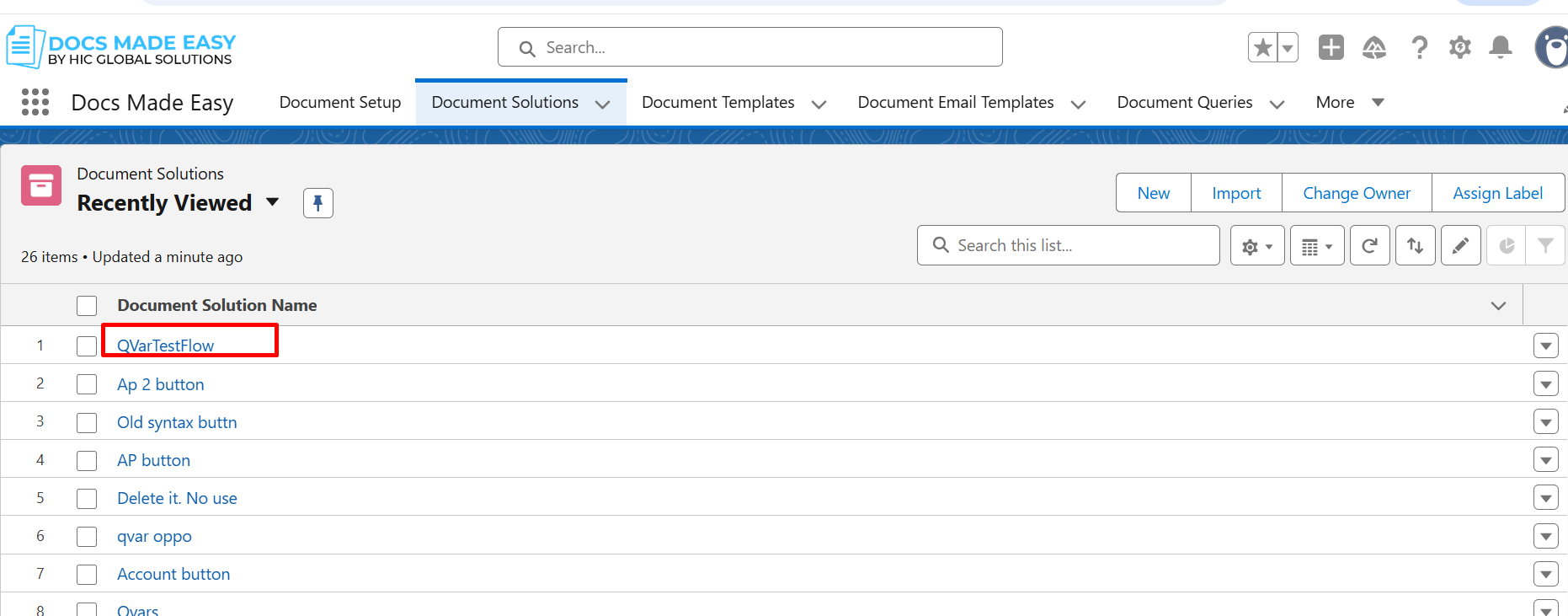
Step 11: Find the document solution you need and open it.
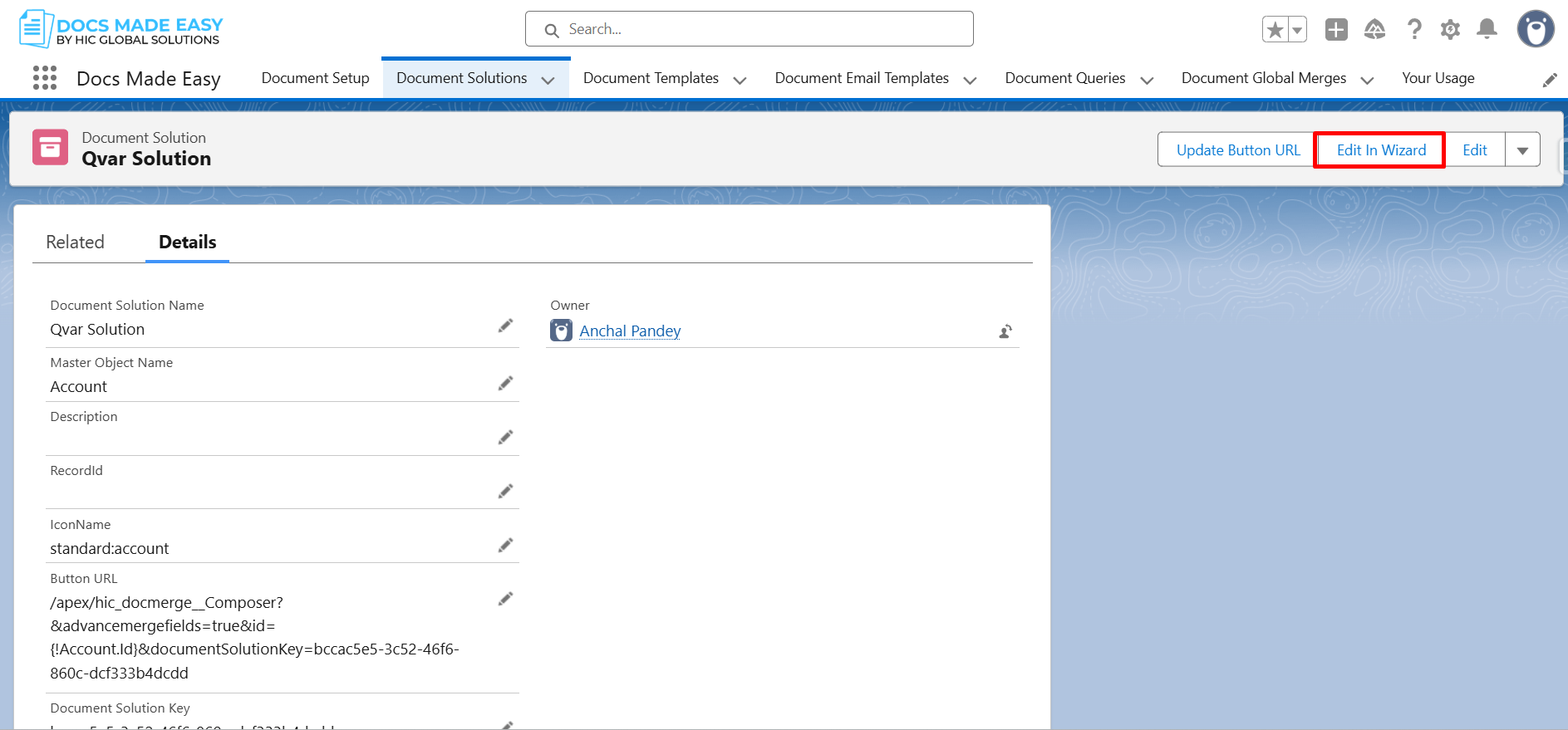
Step 12: Click on Edit in Wizard.
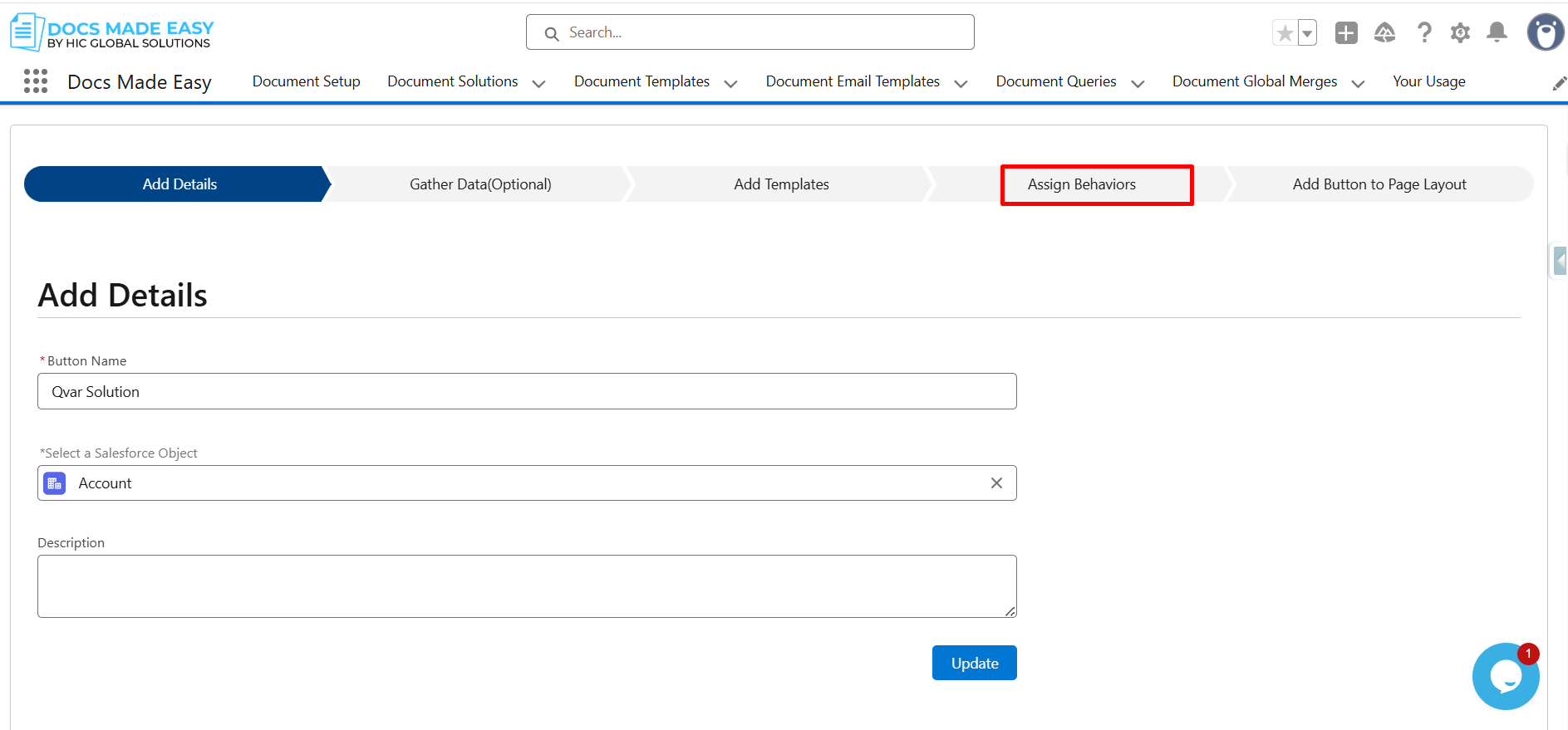
Step 13: Click on Assign Behaviors.
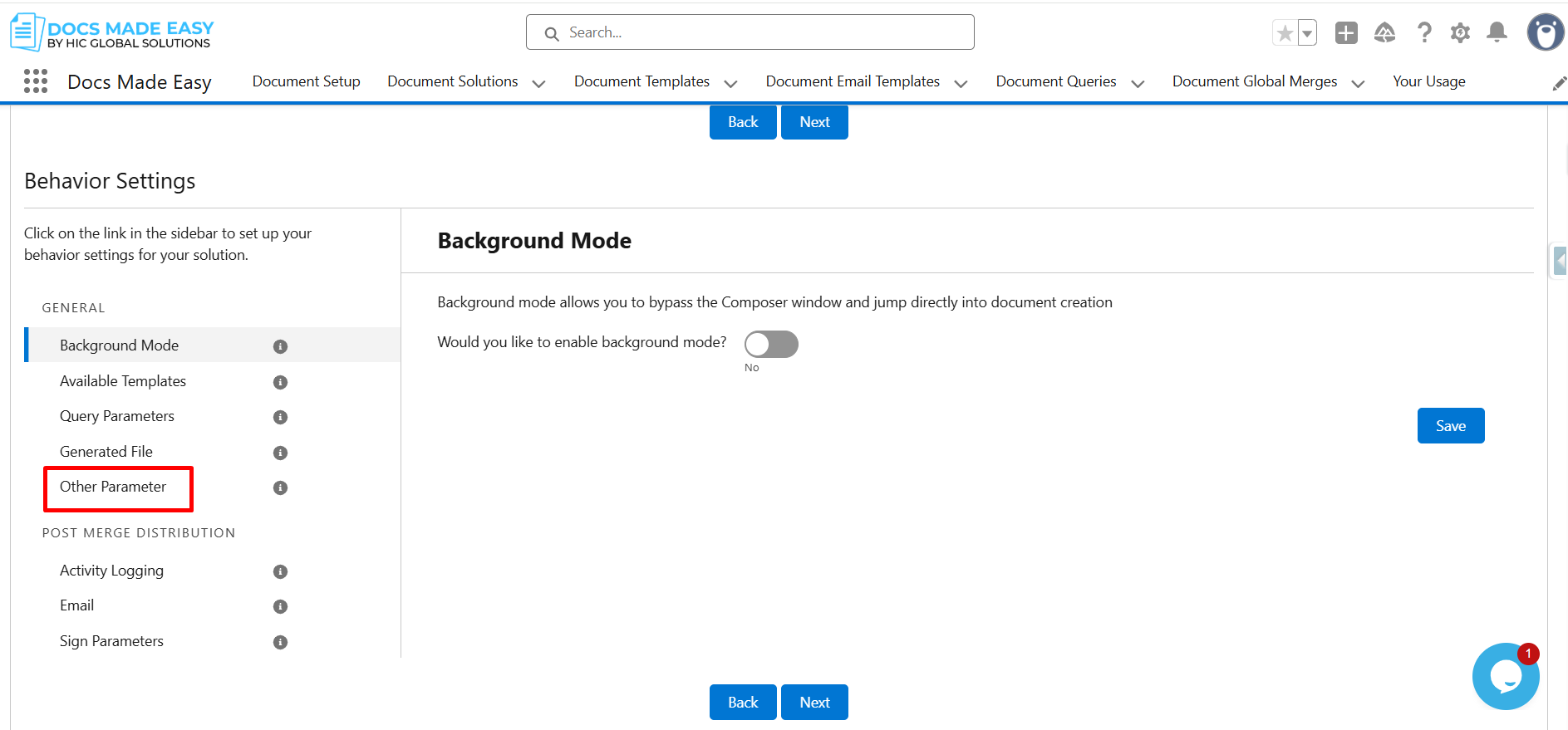
Step 14: Followed by, click on Other Parameters.
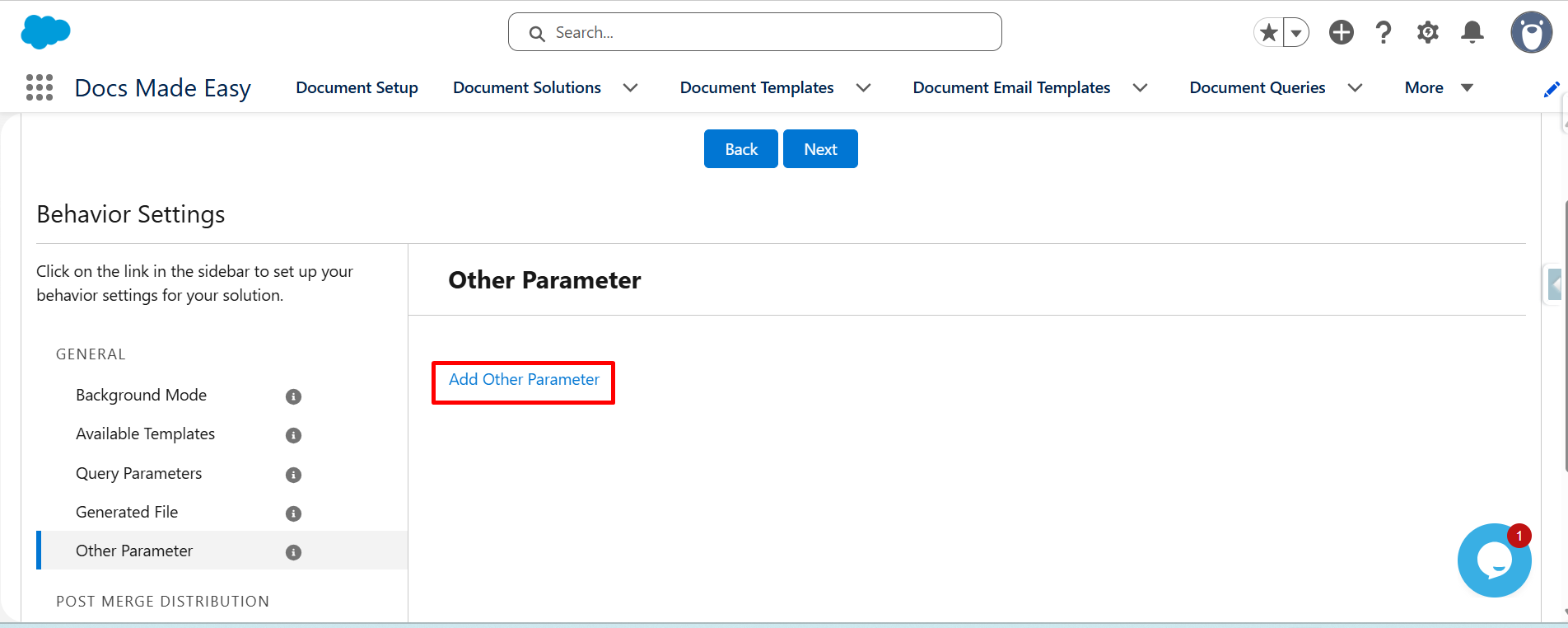
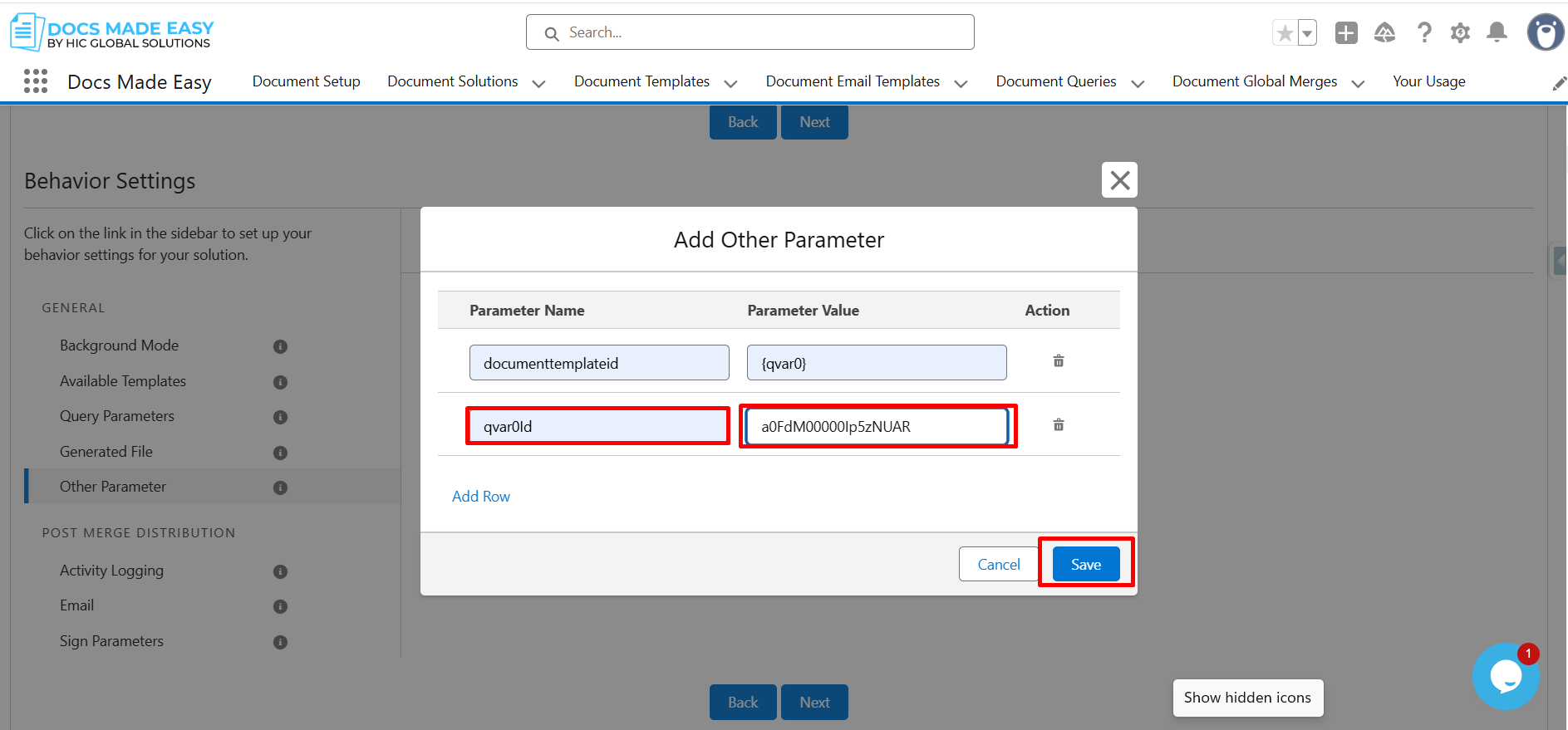
Step 15: Click on Add Other Parameters.
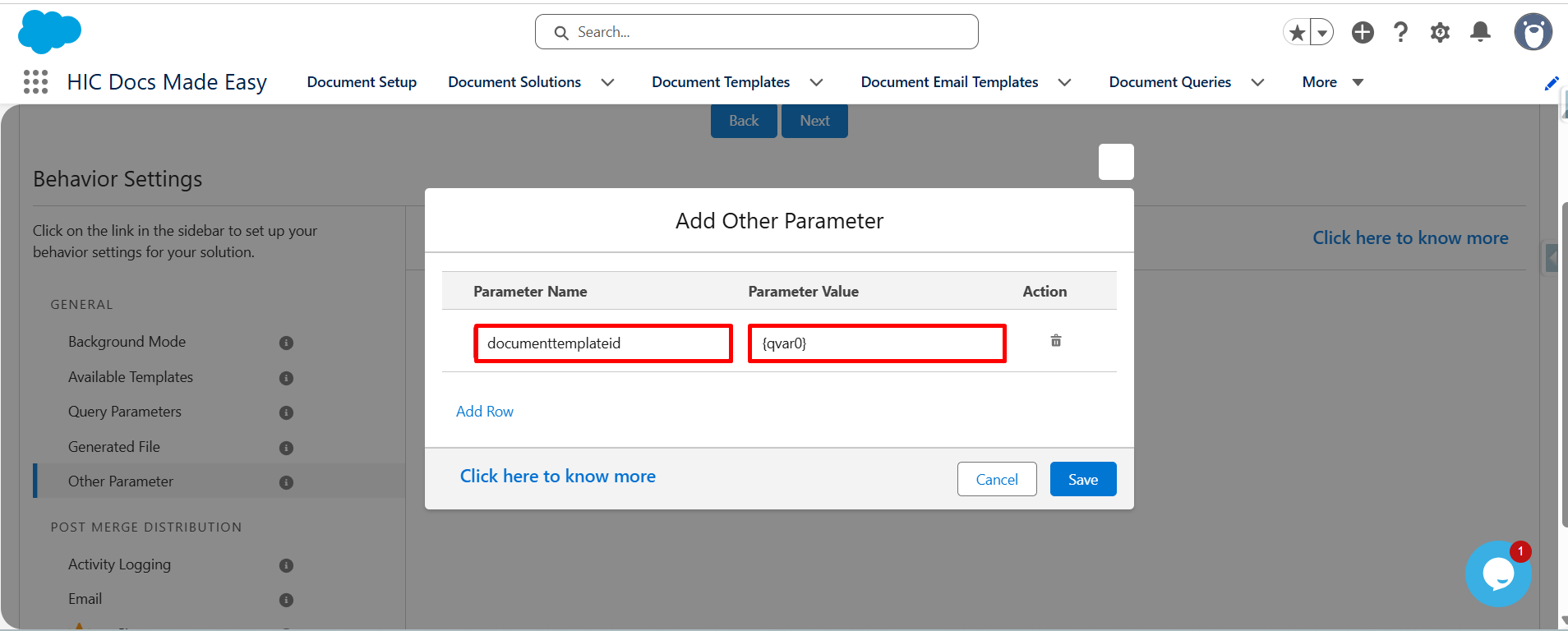
Step 16: Enter Parameter Details:
- Parameter Name: documenttemplateid
- Parameter Value: {qvar0}
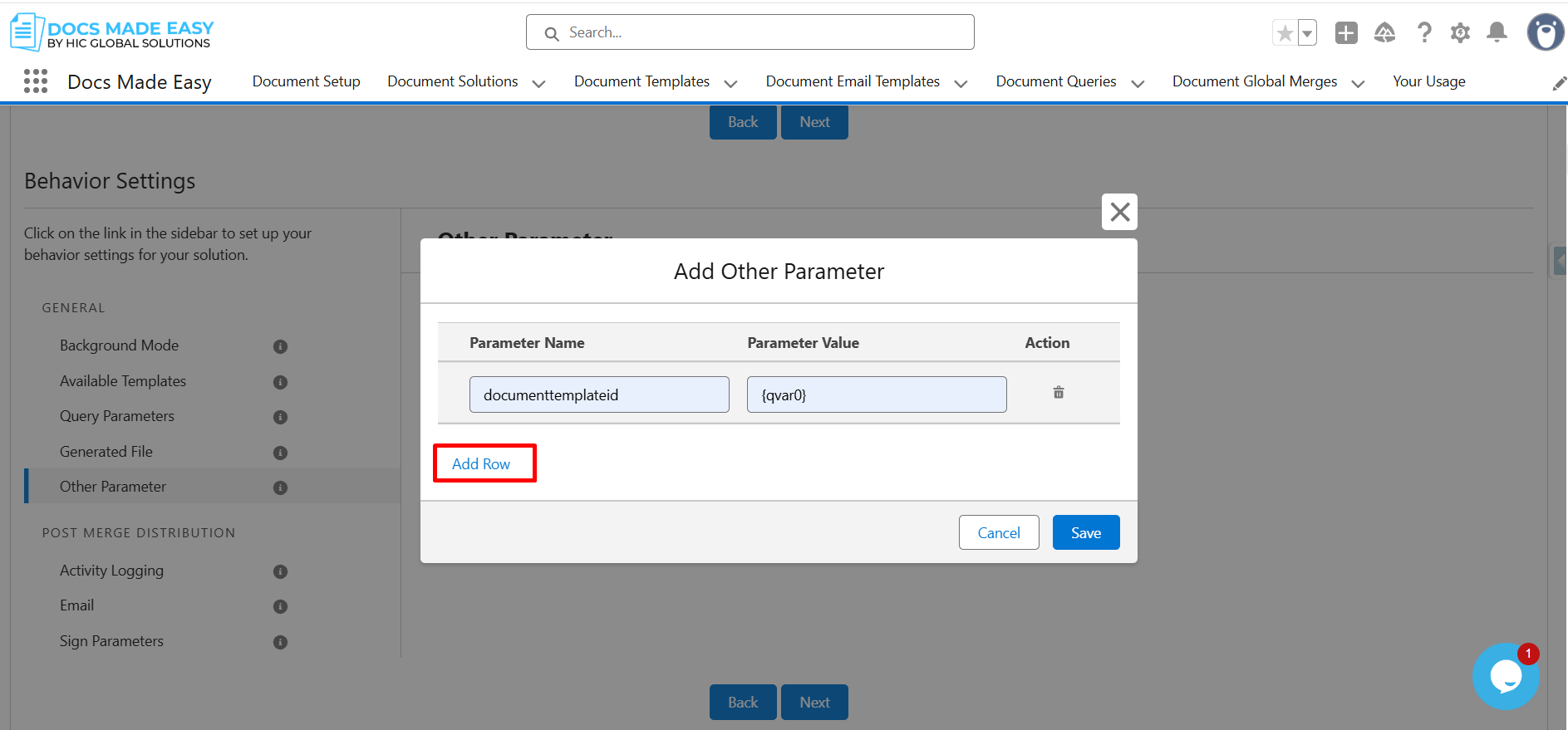
Step 17: Click on the “Add Row” link (it’s in blue text just under the first row).
A new blank row will appear with Parameter Name and Parameter Value fields.
Step 18: Enter qvar0Id in the Parameter Name field.
In the Parameter Value field, enter the Document Query ID. Then, click on Save.
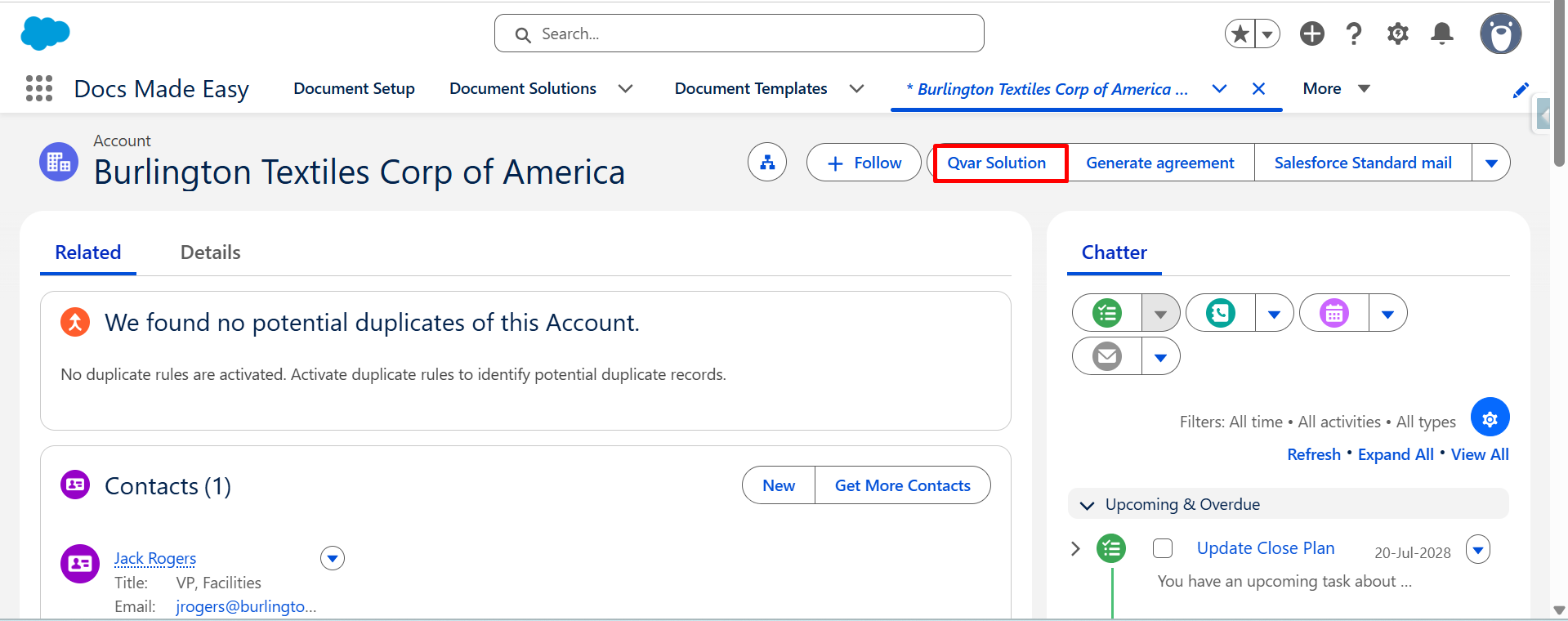
Step 19: Navigate to the object on which the solution is created and click on the created button.
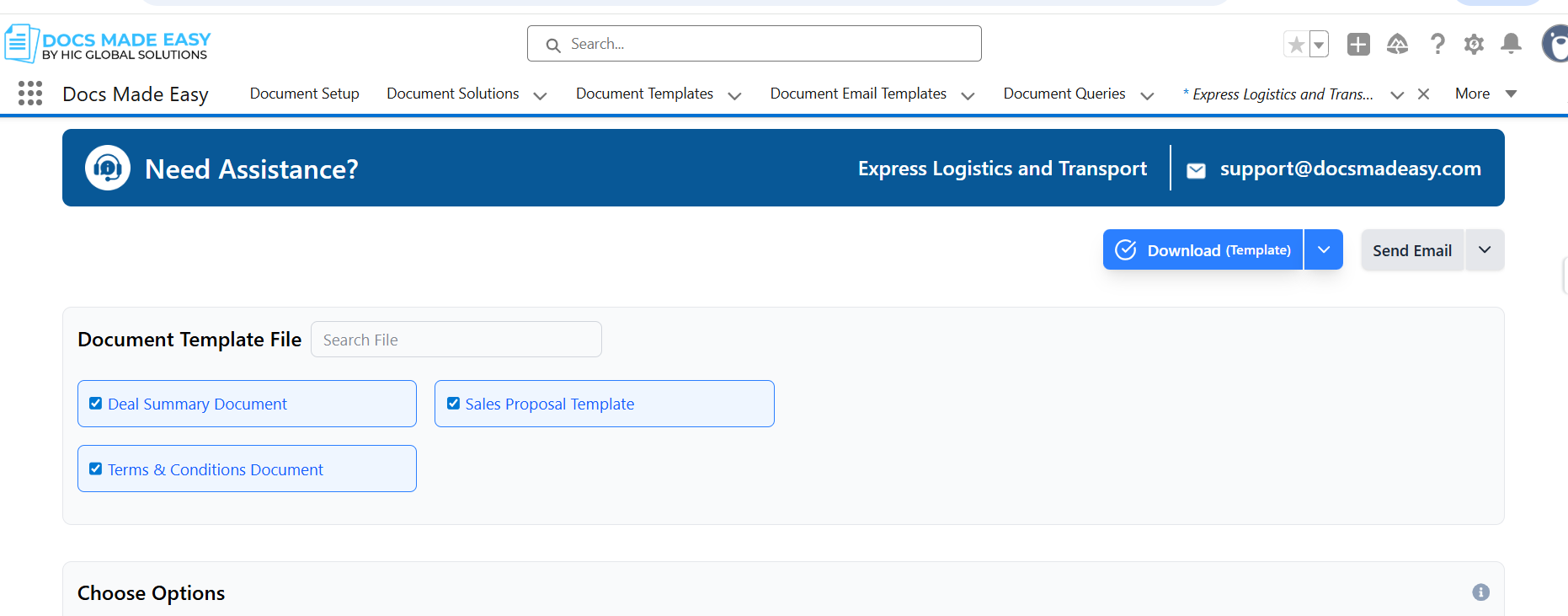
Step 20: All available document templates that meet the query will be displayed under Document Template File.
Thank You
Was this article helpful?
That’s Great!
Thank you for your feedback
Sorry! We couldn't be helpful
Thank you for your feedback
Feedback sent
We appreciate your effort and will try to fix the article