Setting Up Your Document Solution and Email Template
Step 1: Kindly edit your document solution first by selecting Document Setup, then clicking the pencil icon.
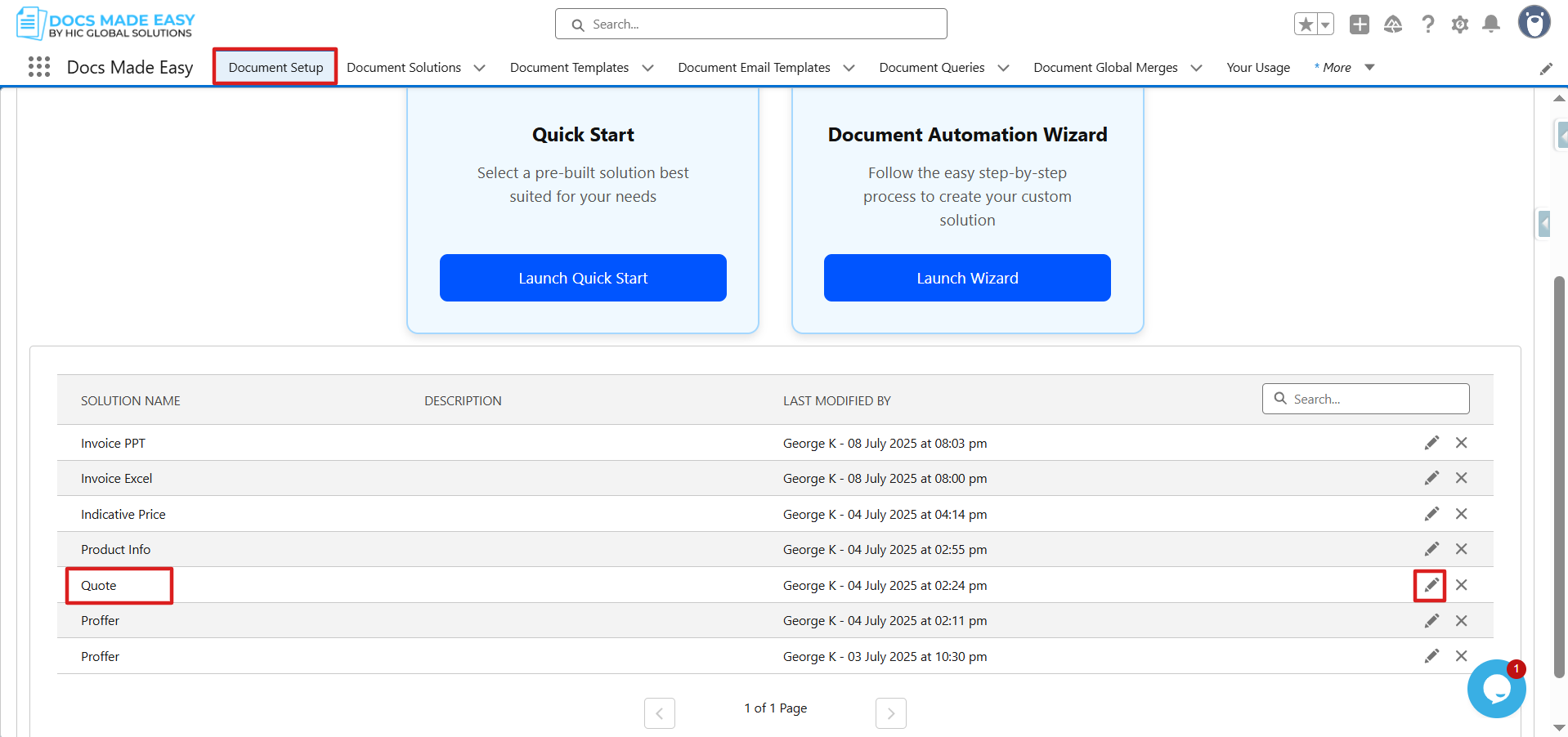
Step 2: On the Add Email Template tab in your solution. Kindly create an email template first, which can be sent via email.
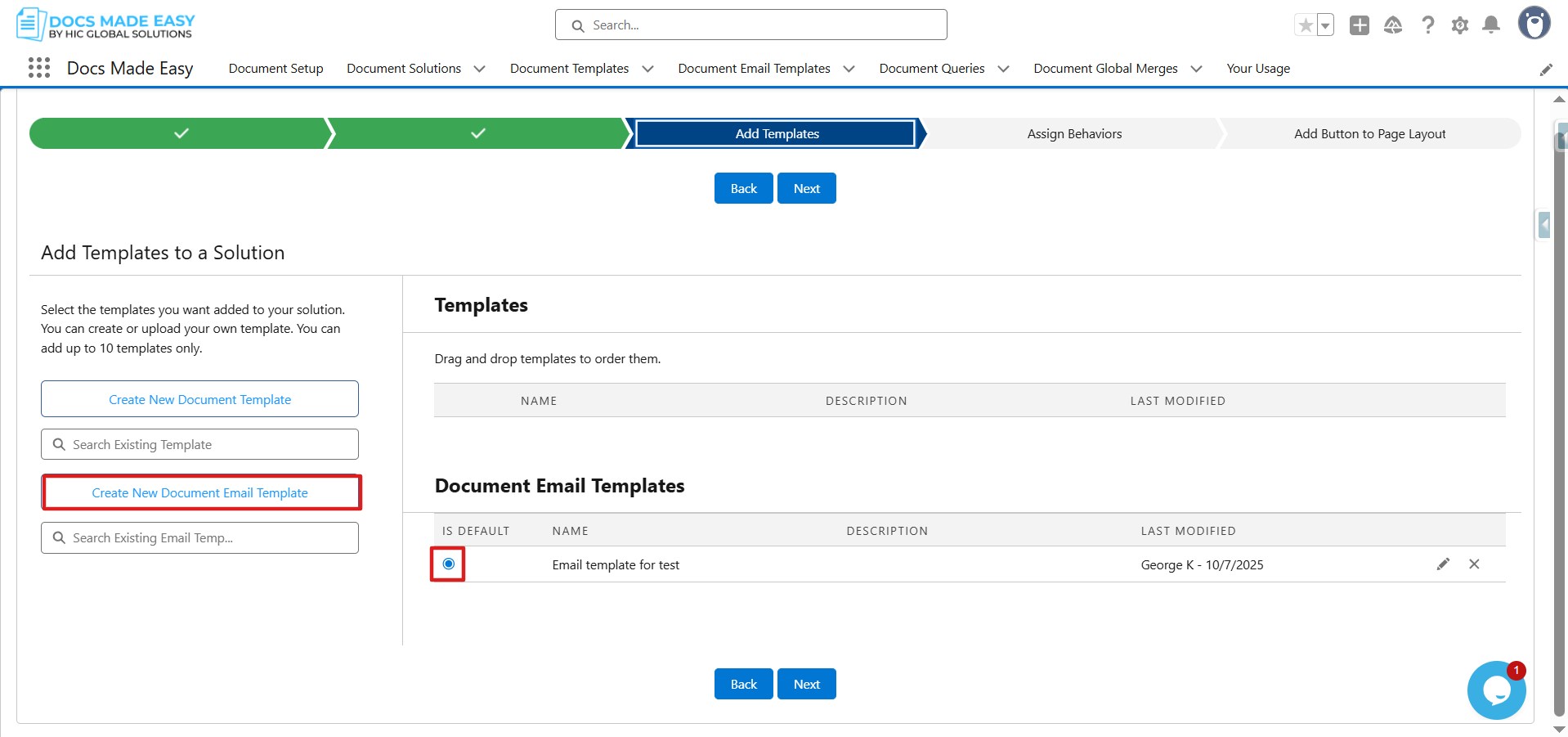
Step 3: In the next step, please choose email on the same tab and add information like this to send an email. To save this information on your solution, please click on Save and then the Next button.
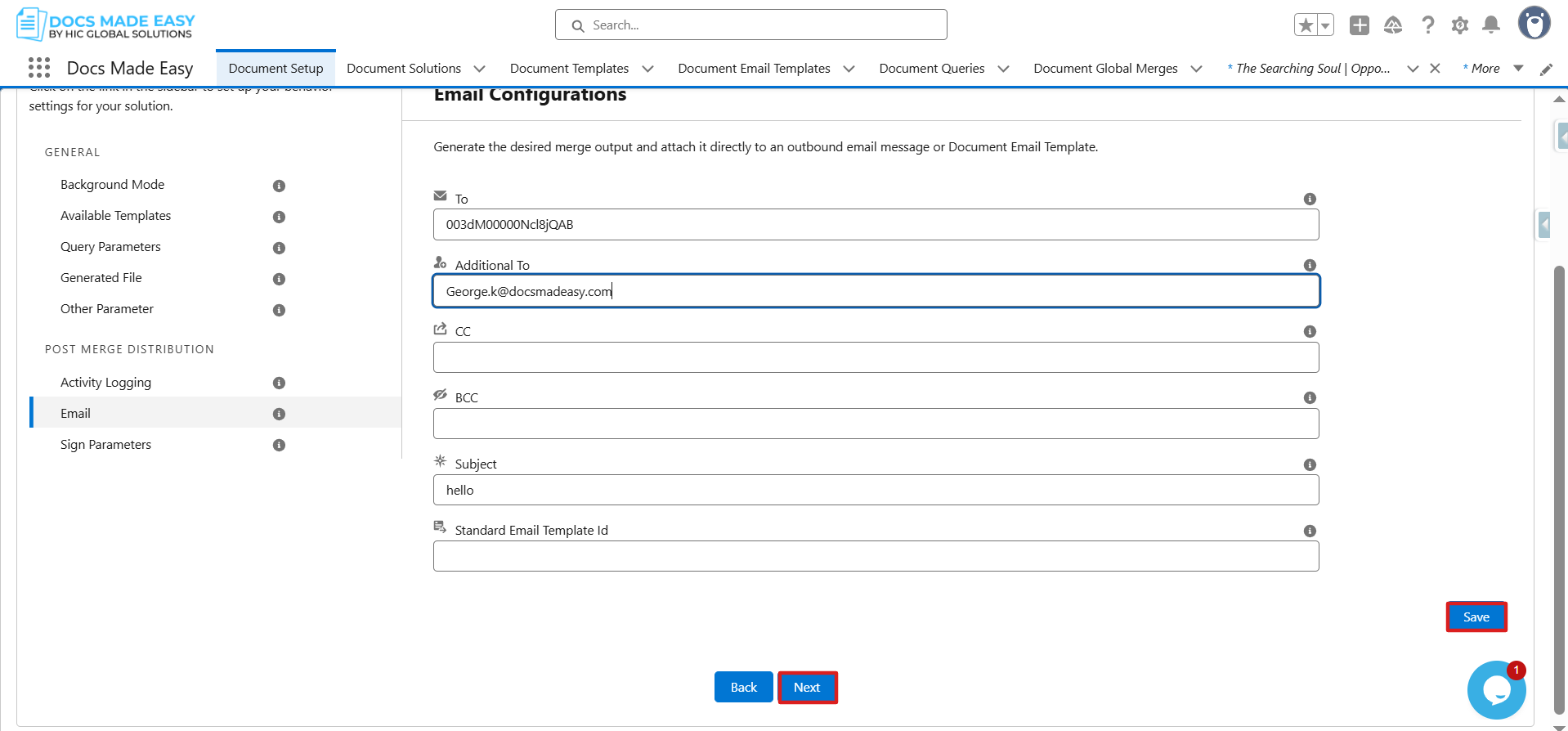
Core Steps to Creating a Flow
Note:
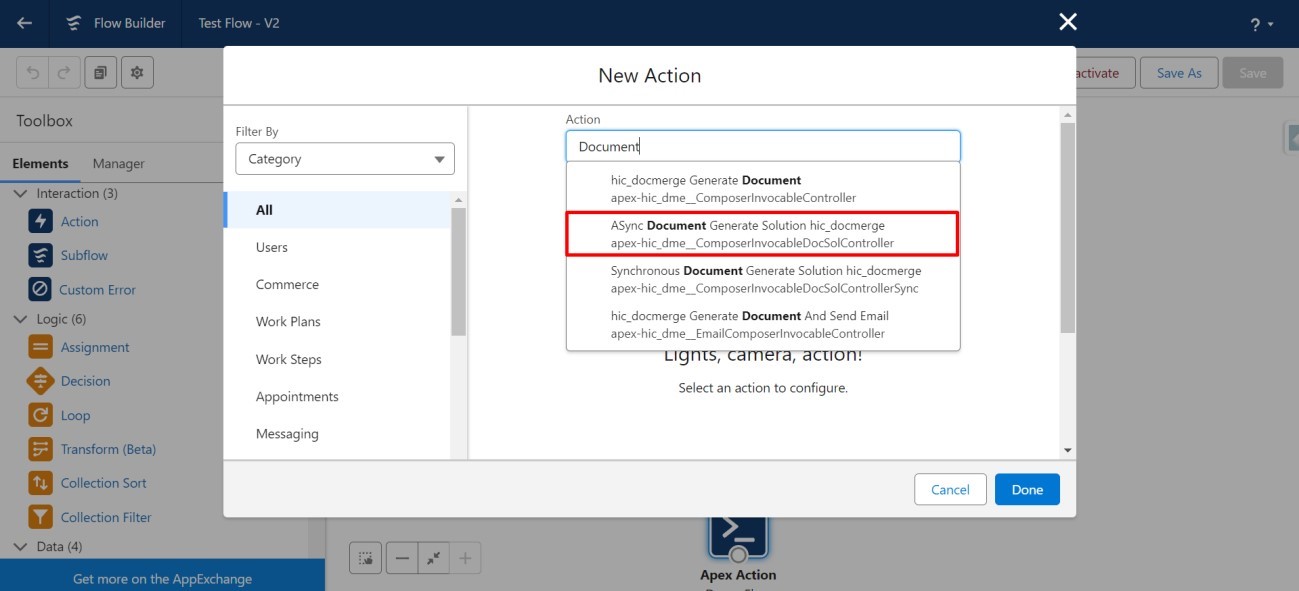
- As we have already set up email parameters in our solution. We can create a flow to send an email with the help of the steps mentioned below. We can use ASync Document Generate Solution hic_docmergeapex-hic_dme__ComposerinvocableDocSolController.
Step 1: Click the setup button on the right side of the screen.
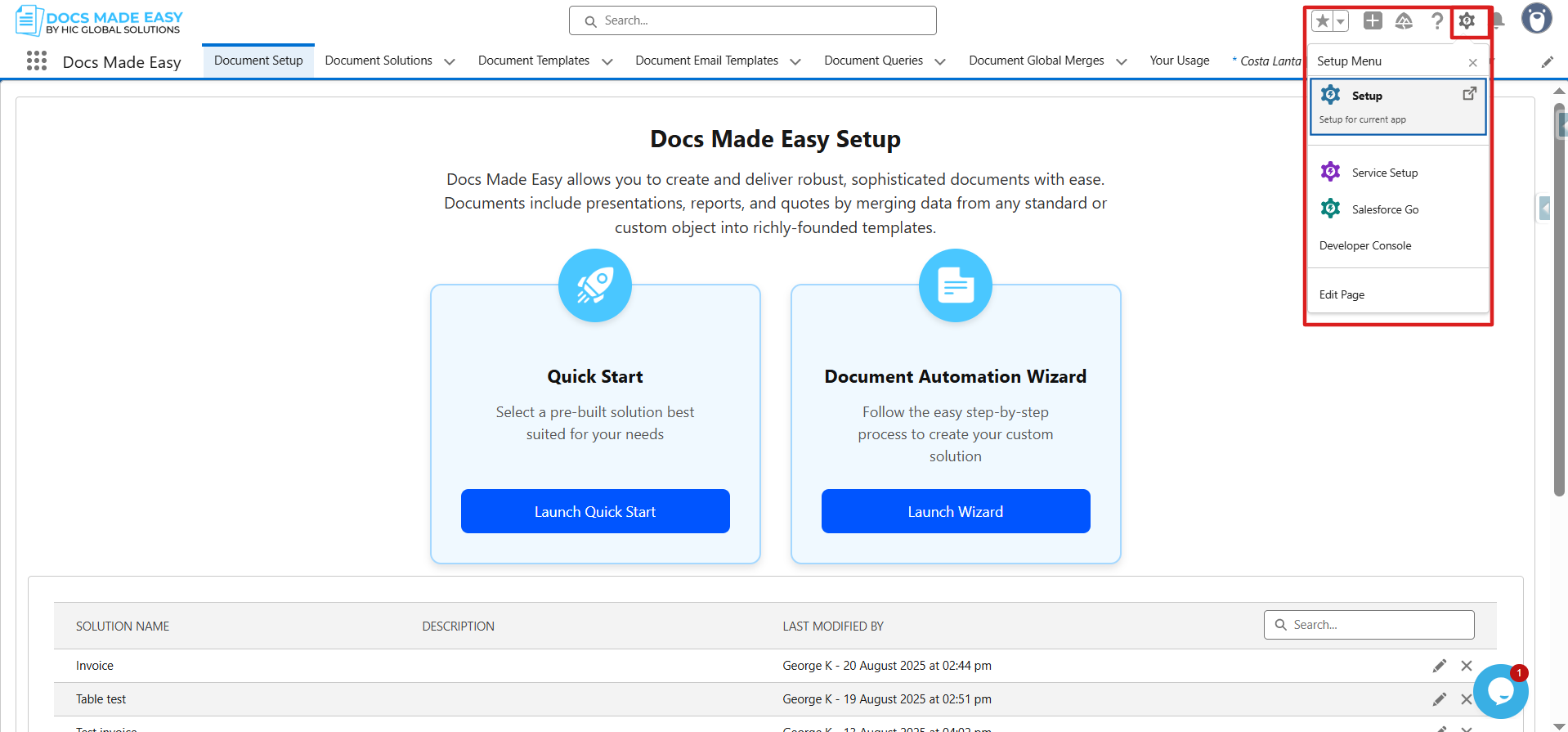
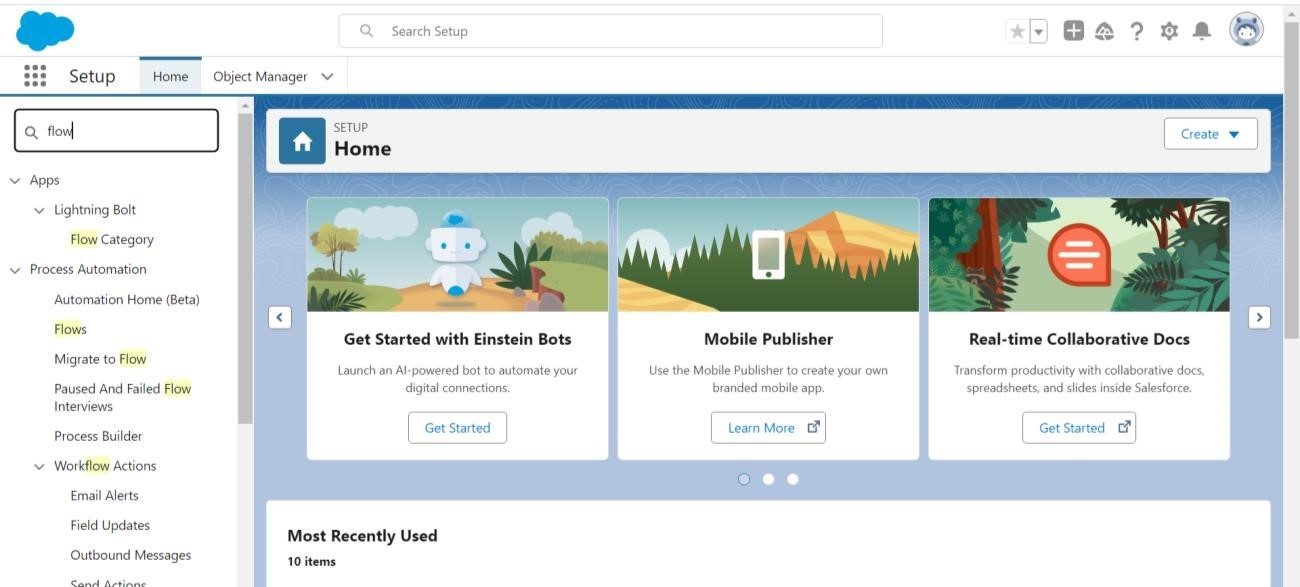
Step 2: You will see a homepage like the one below; on the left side, use Quick Find to search for "FLOW".
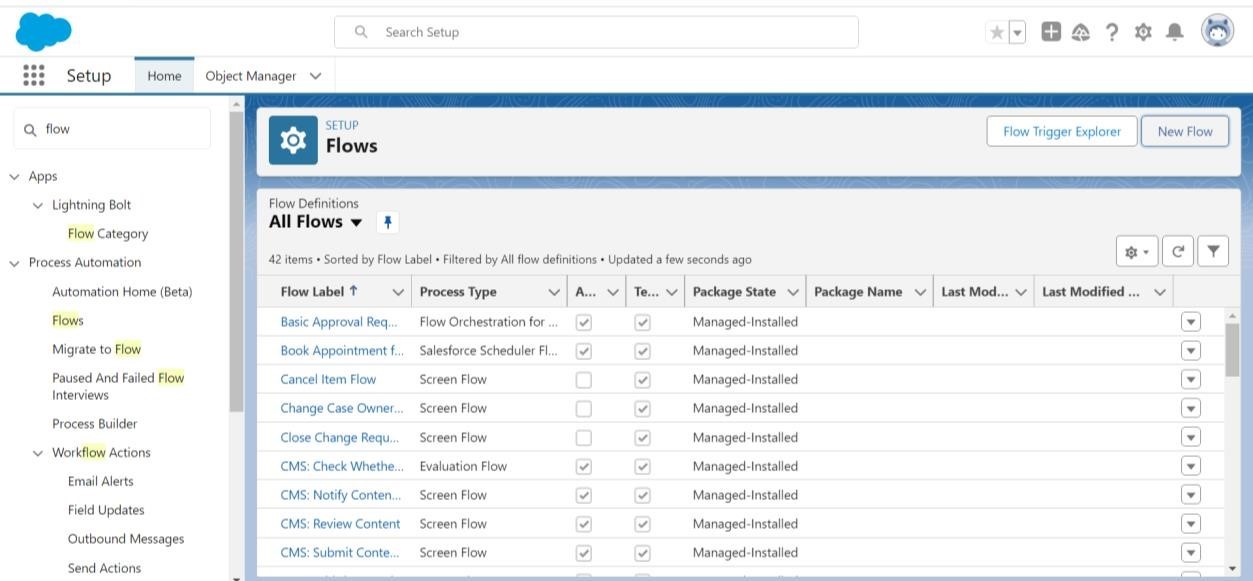
Step 3: Click on "FLOWS" as shown below, then click on "NEW FLOW".
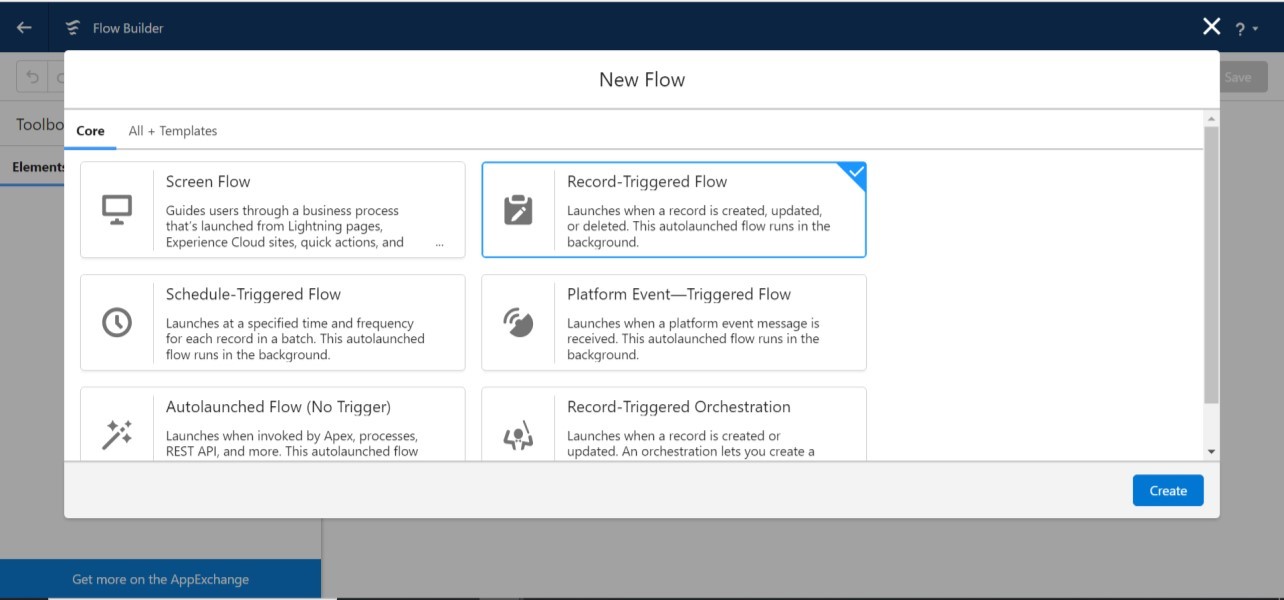
Step 4: Now you will see the screen below; choose "Record-Triggered Flow".
Step 5: Now click "Edit" as shown in the red box.
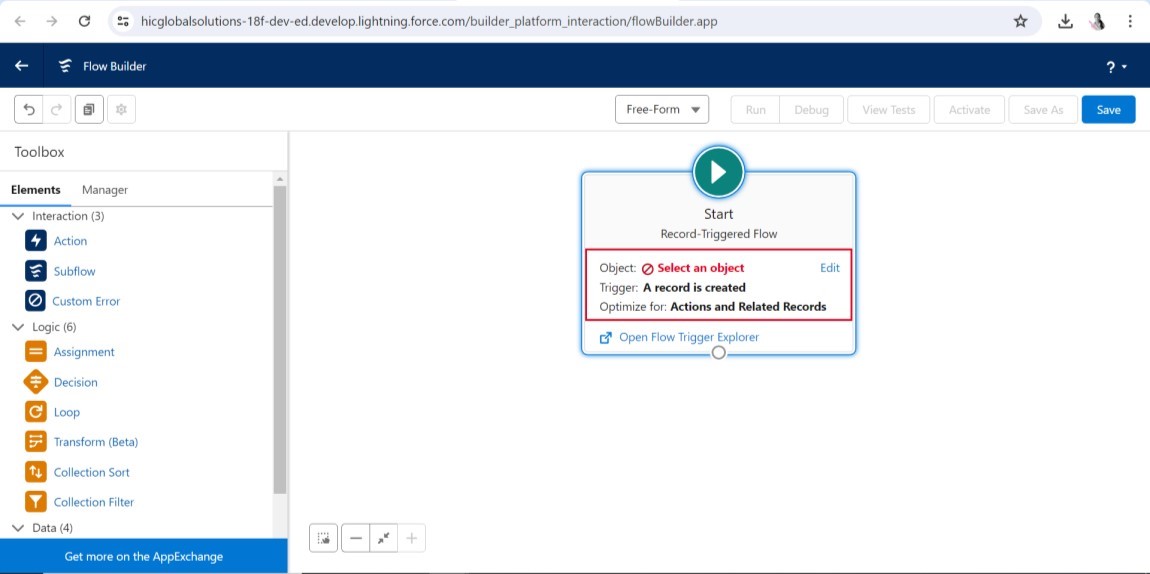
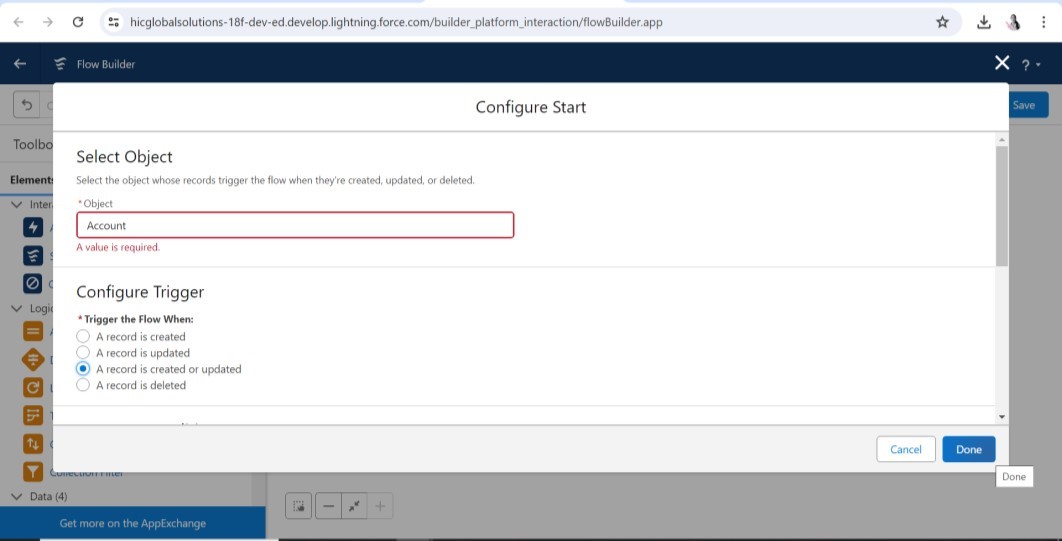
Step 6: After that, you will see "Configure Start" below. Select your object and configure the trigger as needed.
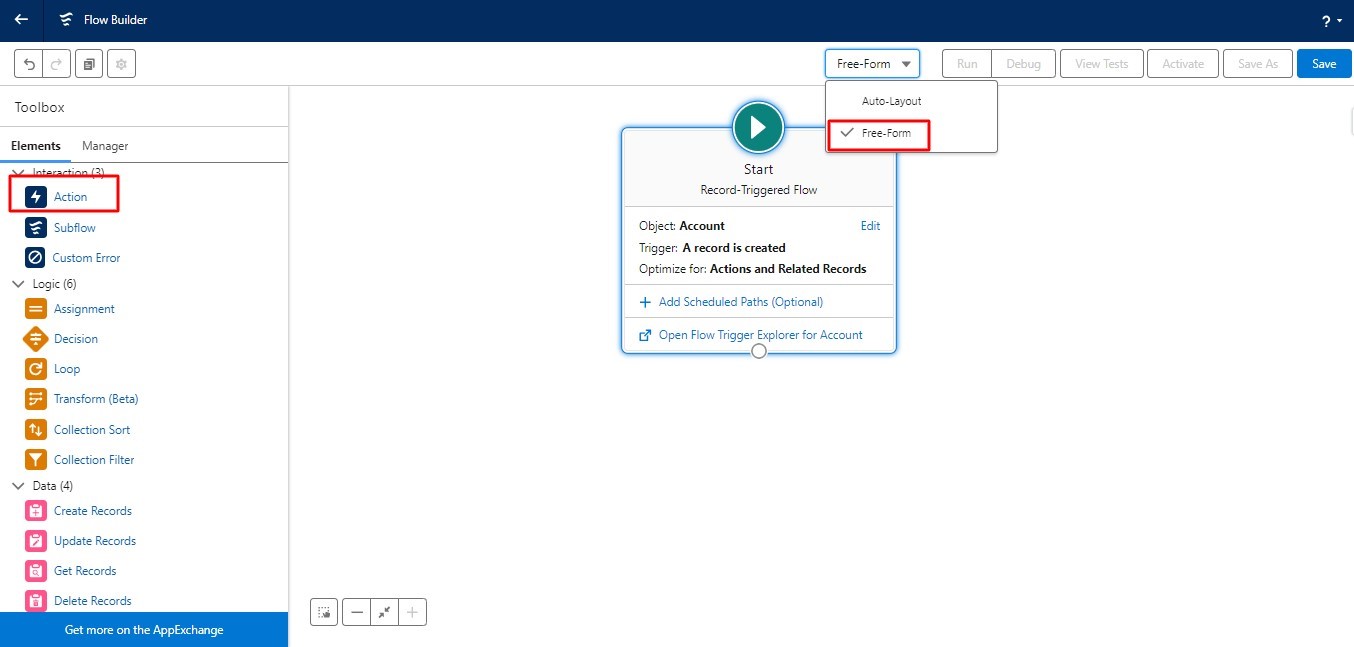
Step 7: After that, choose "Free Form" and drag and drop the Action (Element) from the left side of the screen.
Step 8: Next, you will see the "New Action" page; fill in the "Action" field by searching "ASync Document Generate Solution hic_docmerge" then complete all required fields like Label and API Name.
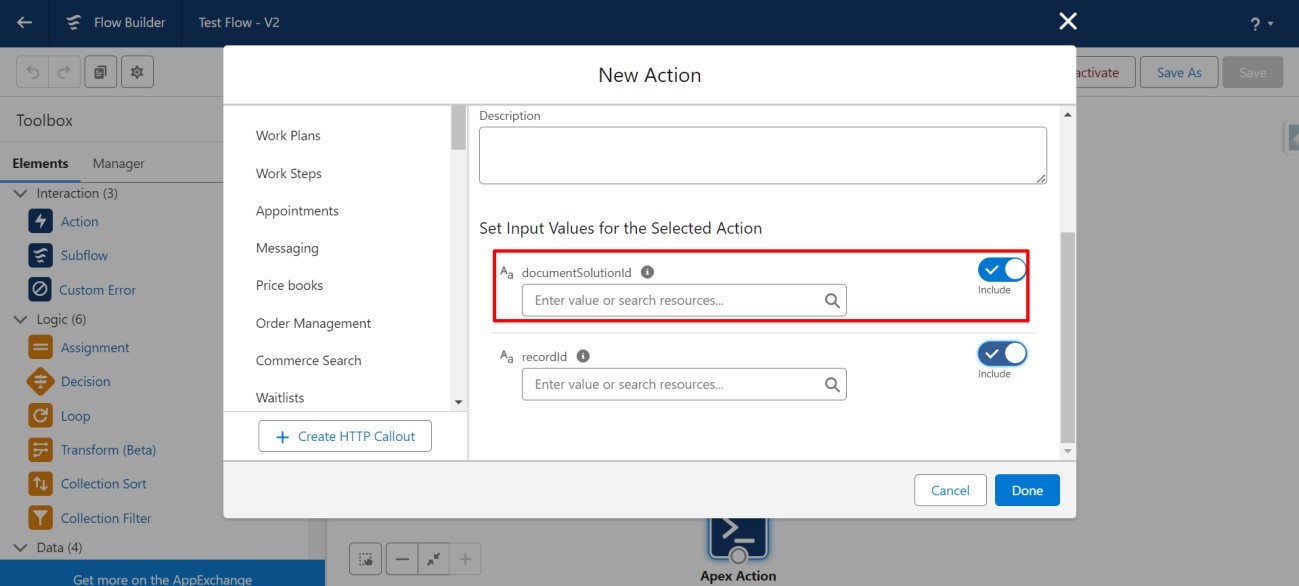
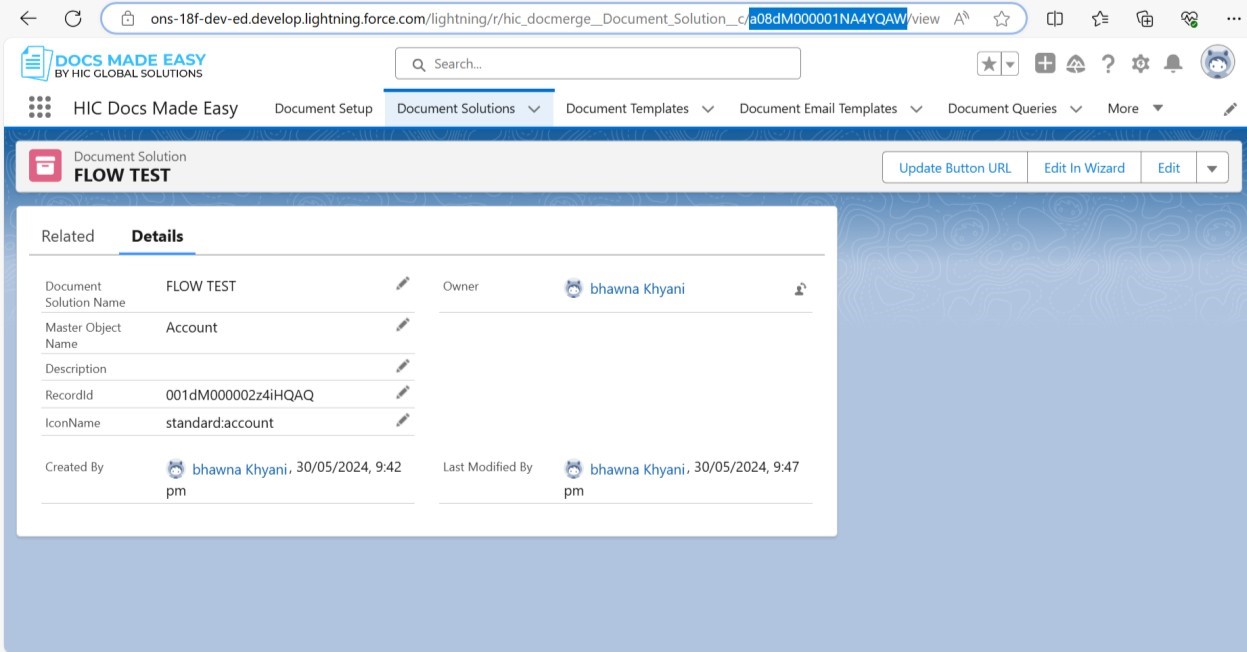
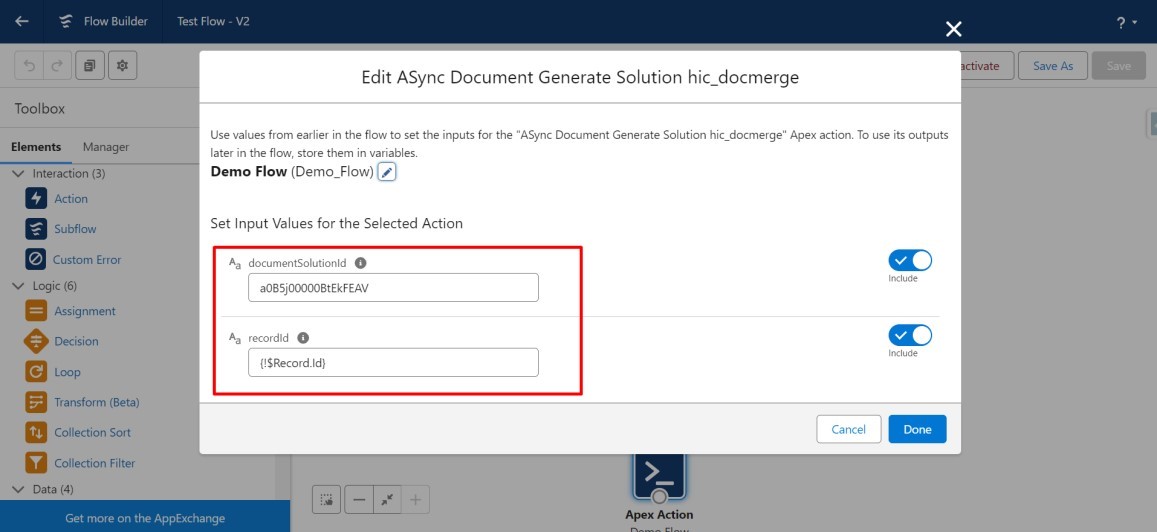
Step 9: In the "documentSolutionId" field, enter the Document Solution ID of your document.
Note:
- For the Document Solution ID, refer to the image below, highlighted in the URL.
Step 10: Now, enter the record ID and click "Done." Your flow is now created.
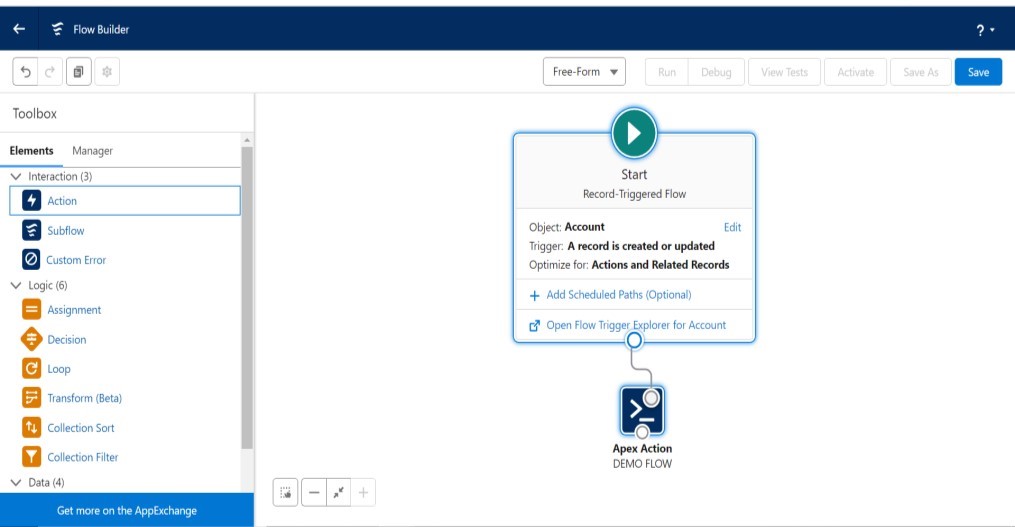
Step 11: Now, connect an Apex Action element.
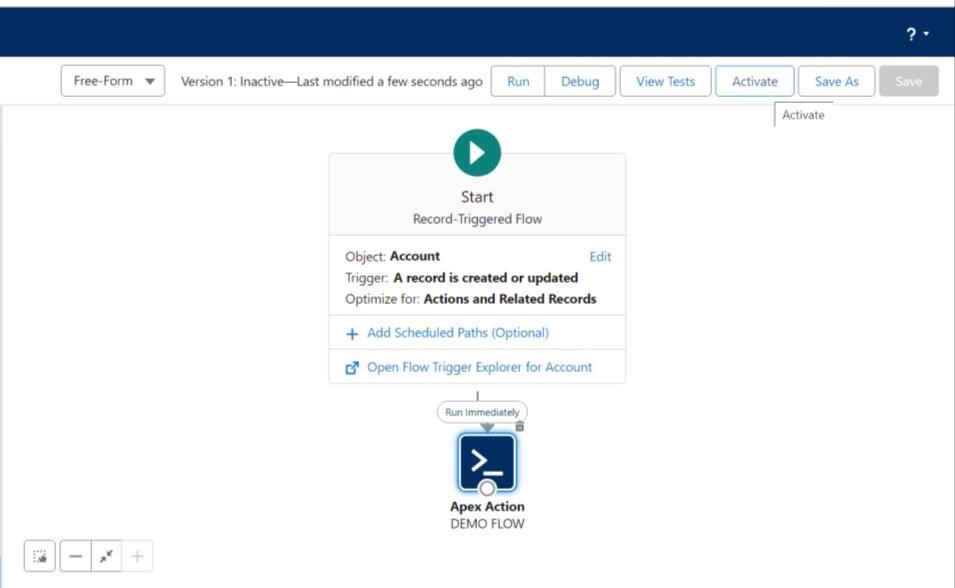
Step 12: Save the flow and activate it as shown below.
Step 13: Now, go to the Account record and update it according to your requirements.
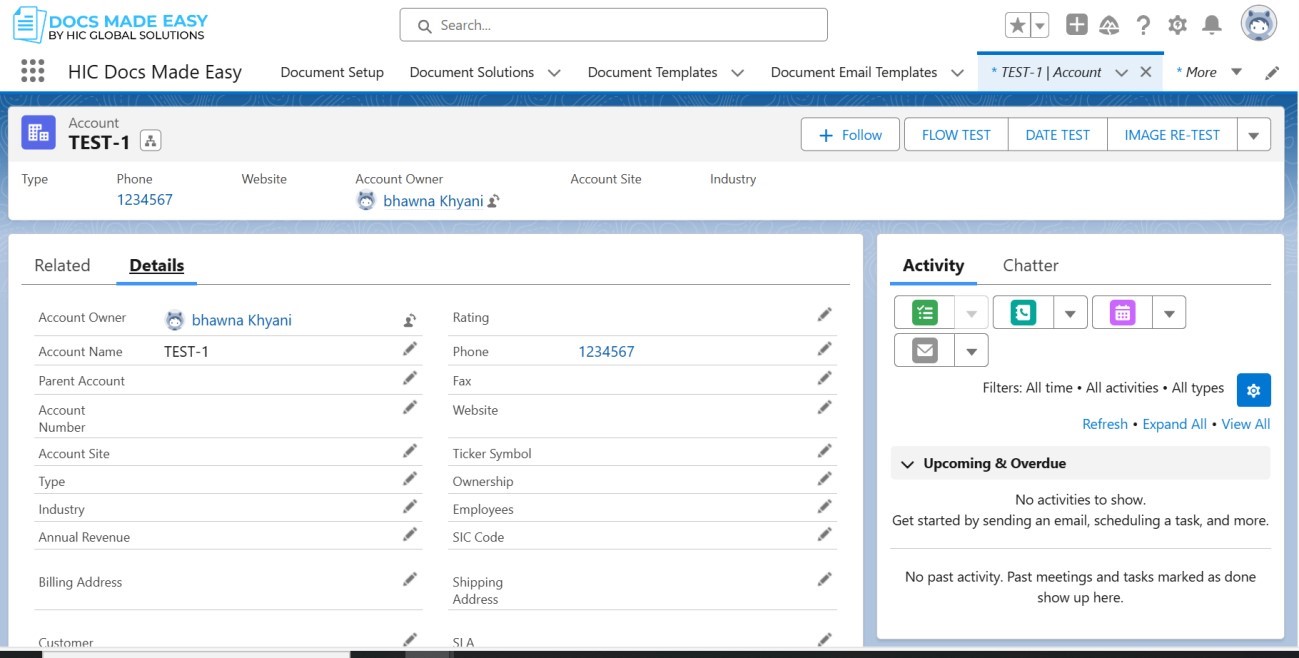
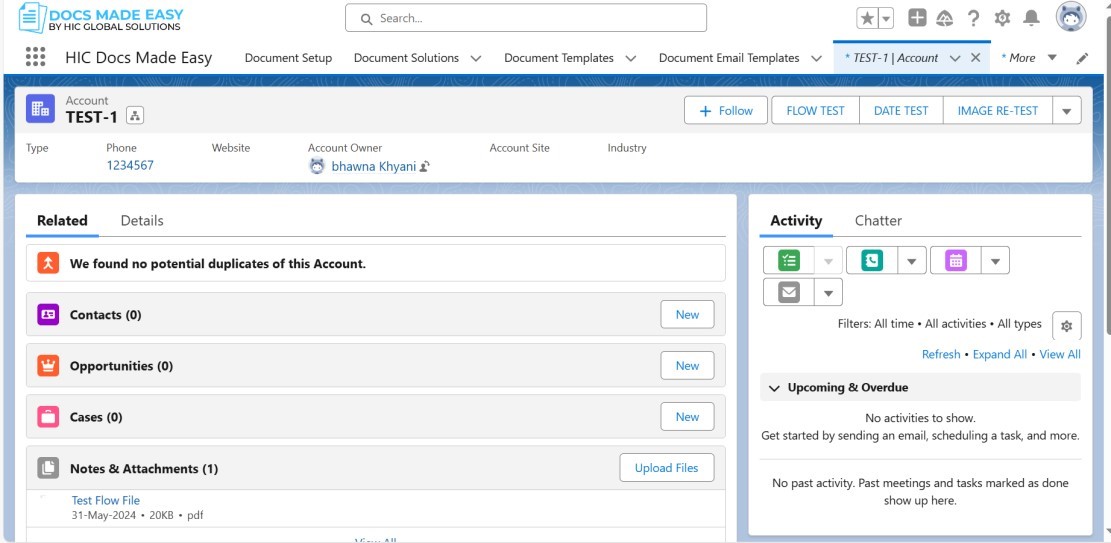
Step 14: Now, go to the Related tab and click on Notes and Attachments.
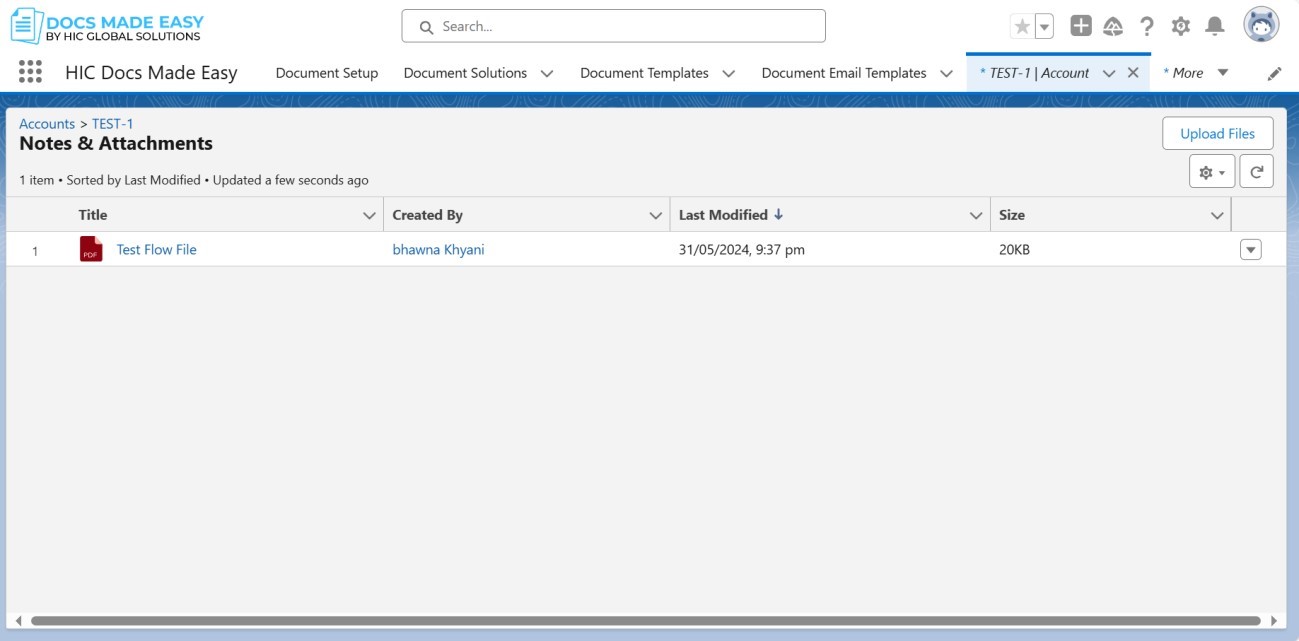
Step 15: Now, you can refresh it. Your file is generated, and you can view it.
Was this article helpful?
That’s Great!
Thank you for your feedback
Sorry! We couldn't be helpful
Thank you for your feedback
Feedback sent
We appreciate your effort and will try to fix the article