Below are the simple steps to generate documents for multiple Salesforce records at once.
Step 1: To begin, log in to Salesforce.
Step 2: Now, open Docs Made Easy in Salesforce to access the document tools.
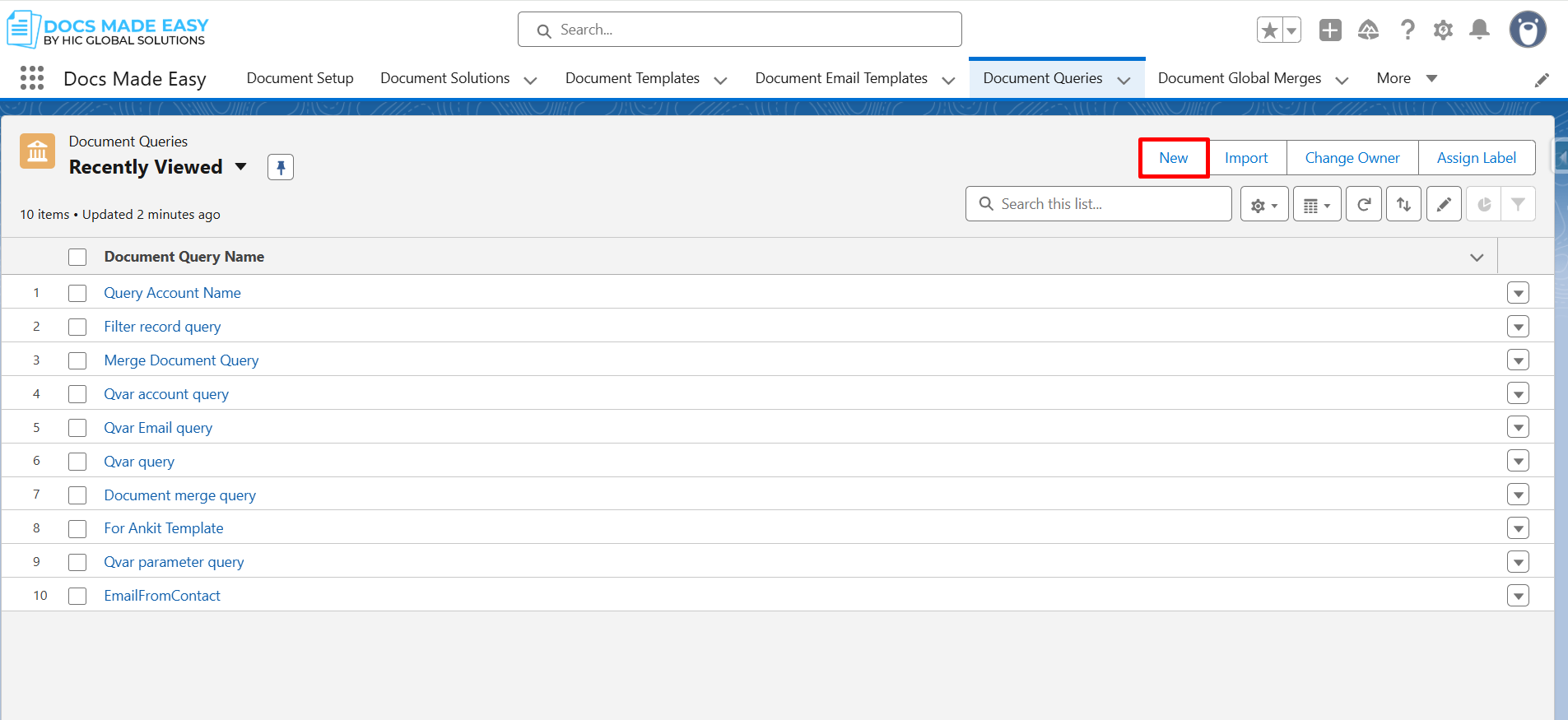
Step 3: Next, click Document Queries and then click New to create a query for the records you want to process.
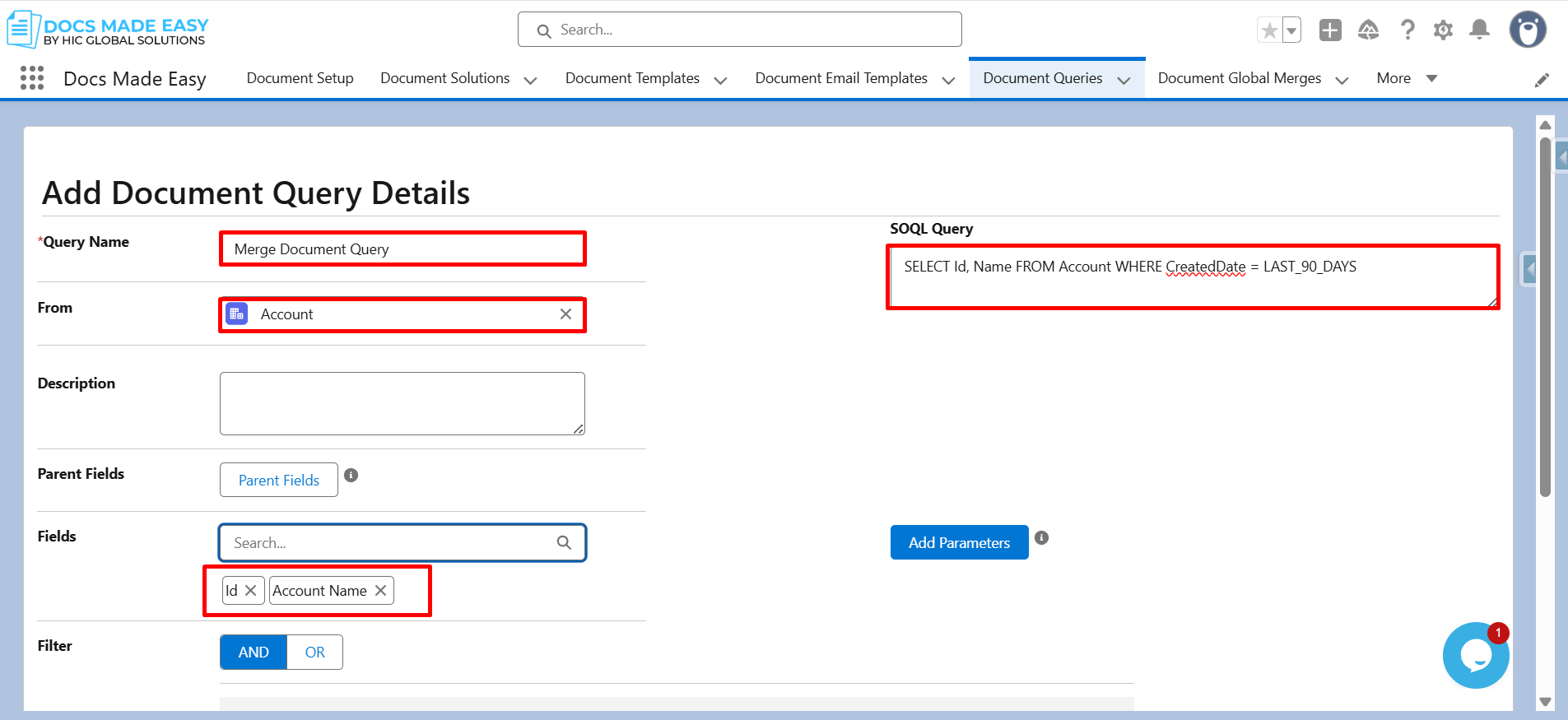
Step 4: In this step, enter the Query Name and select Account as the object.
Furthermore, choose the required fields such as Id and Account Name, and then click Save.
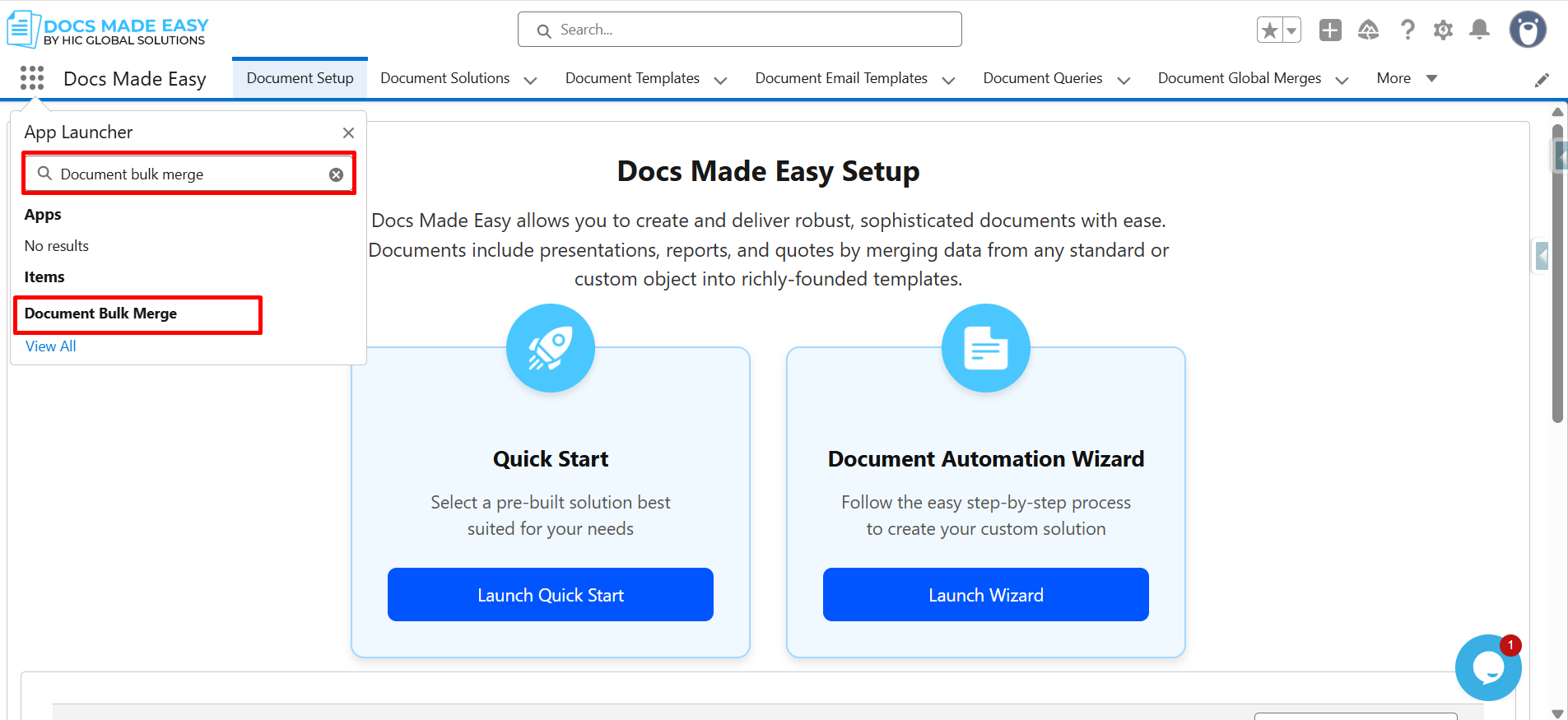
Step 5: Moving ahead, open the App Launcher and search for Document Bulk Merge.
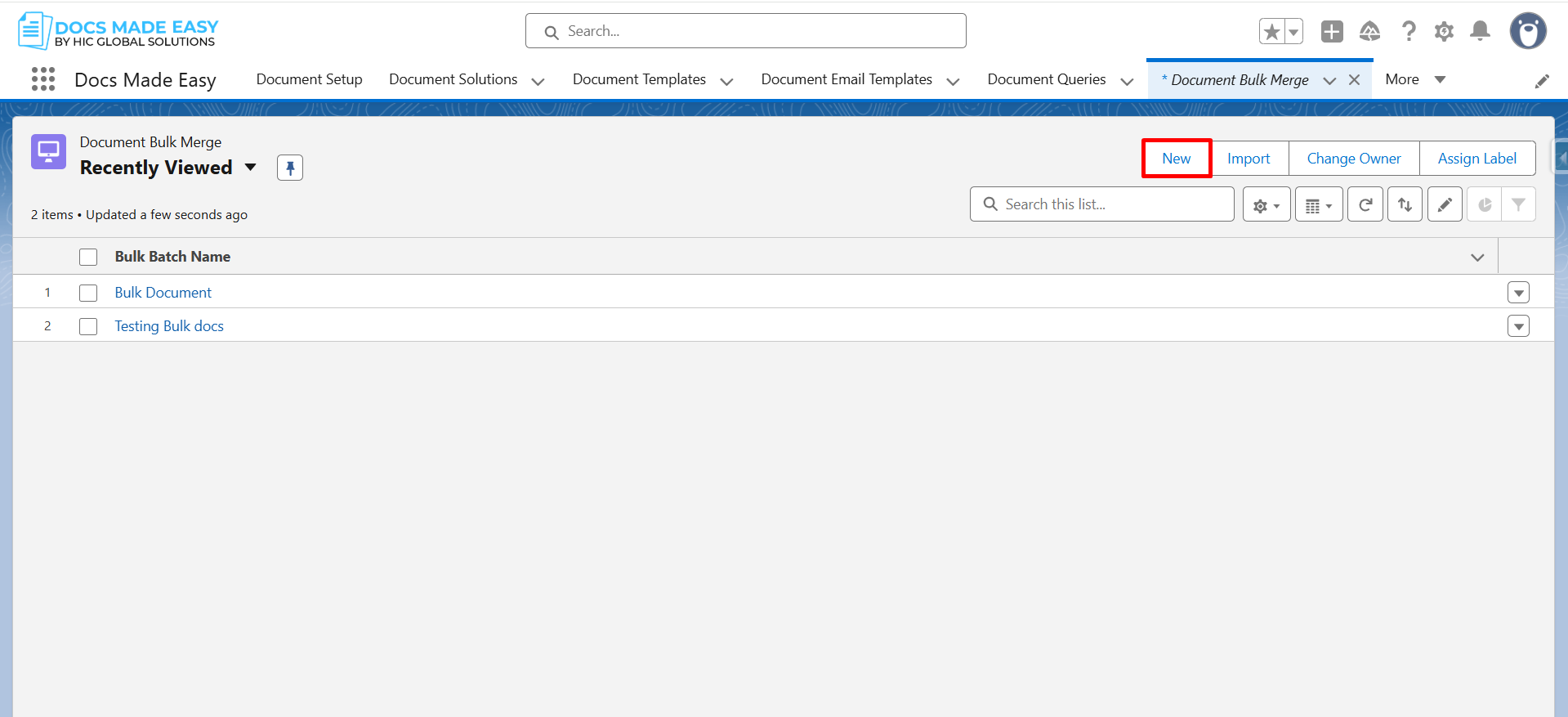
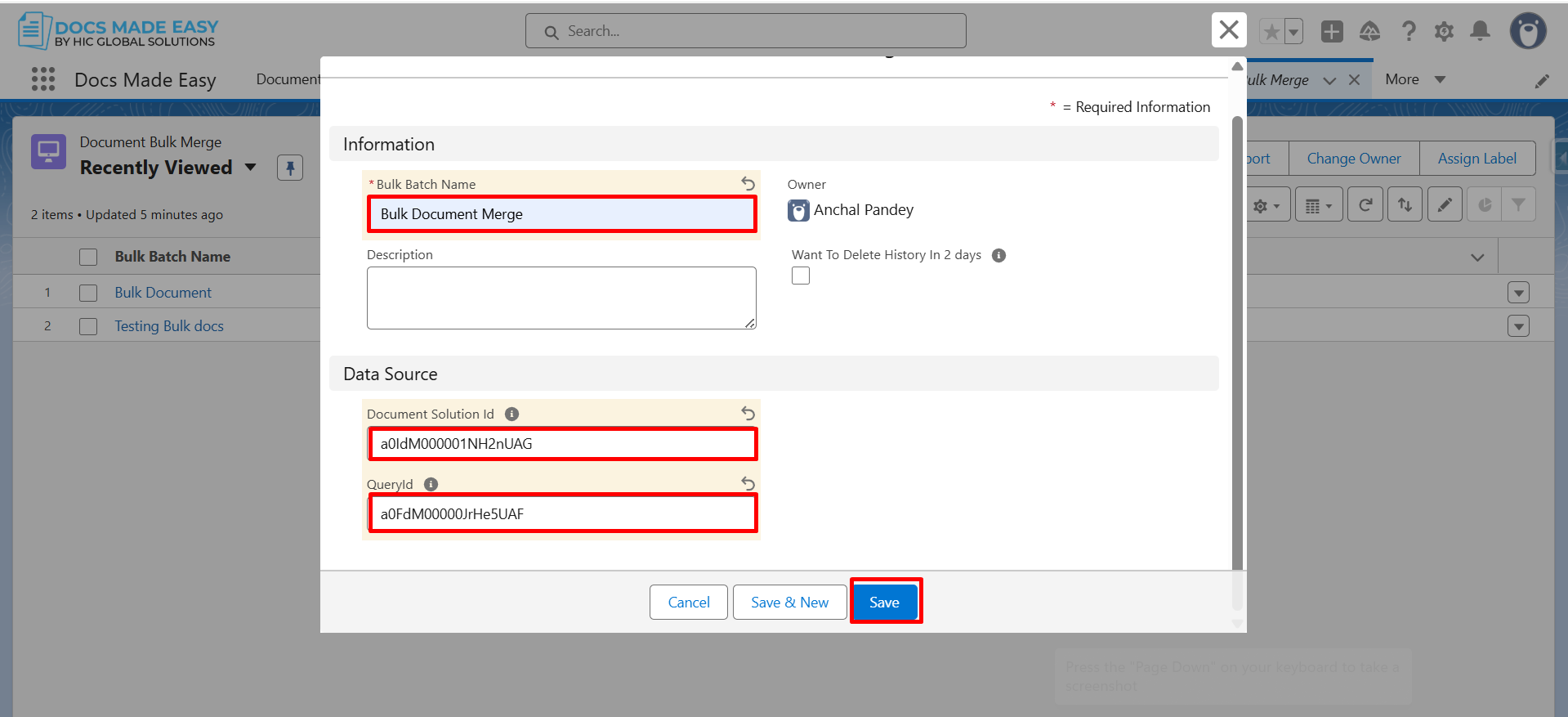
Step 6: Once the screen opens, click New to create a new bulk merge record.
Step 7: Now, enter the Bulk Batch Name, Solution ID, and Query ID.
After filling in these details, click Save to proceed.
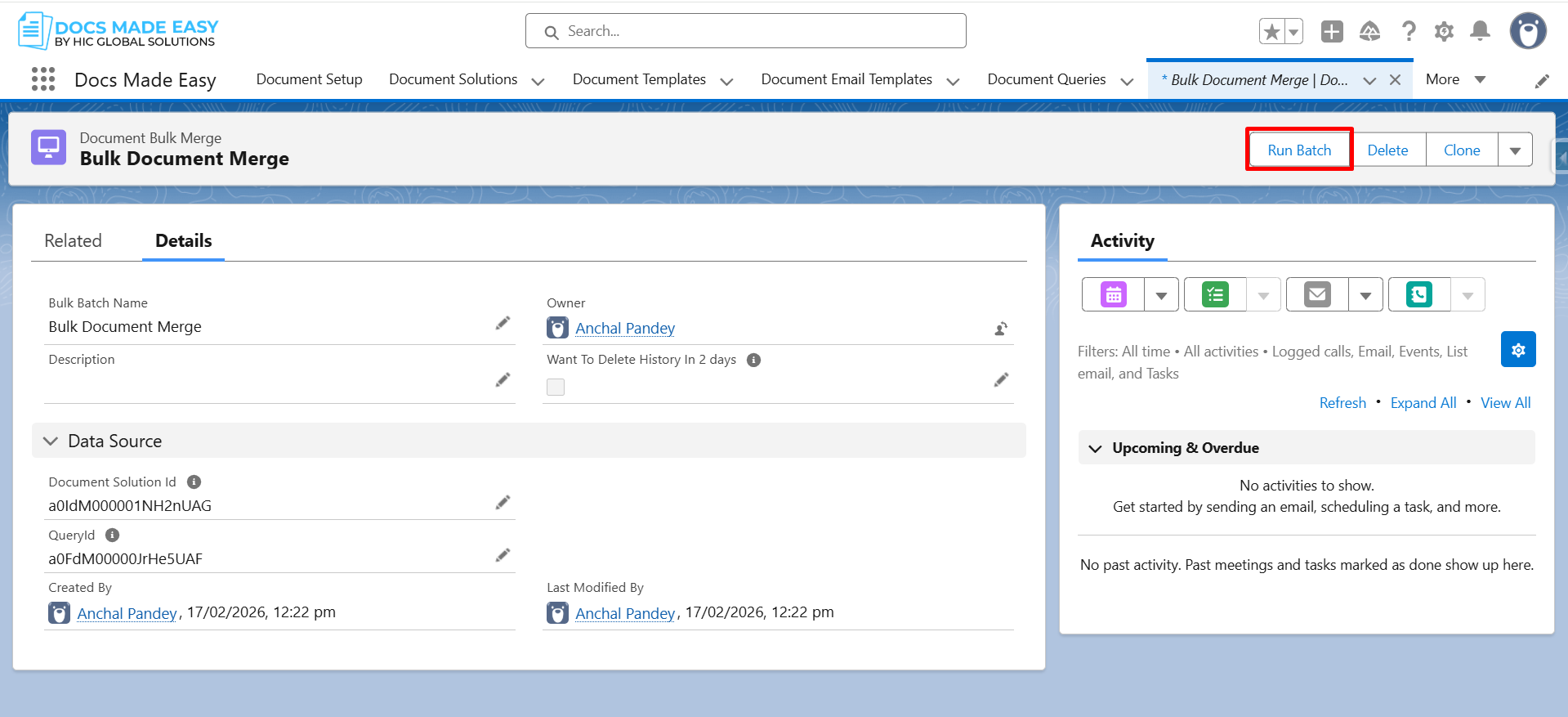
Step 8: Next, open the created Document Bulk Merge record. Here, click Run Batch to move forward.
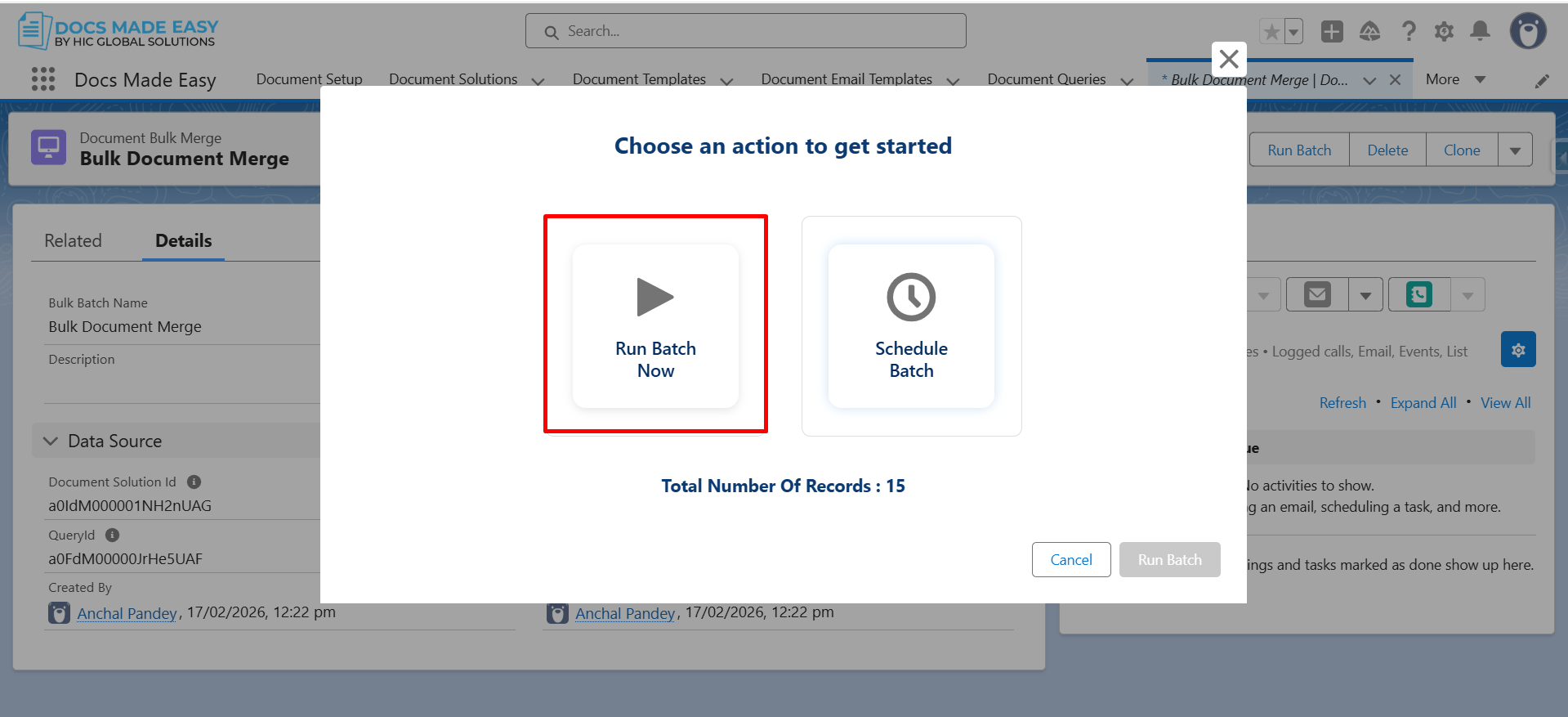
Step 9: At this point, choose an action to get started. If required, you can optionally select Schedule Batch to run the process later.
Step 10: Now, click Run Batch to start the execution.
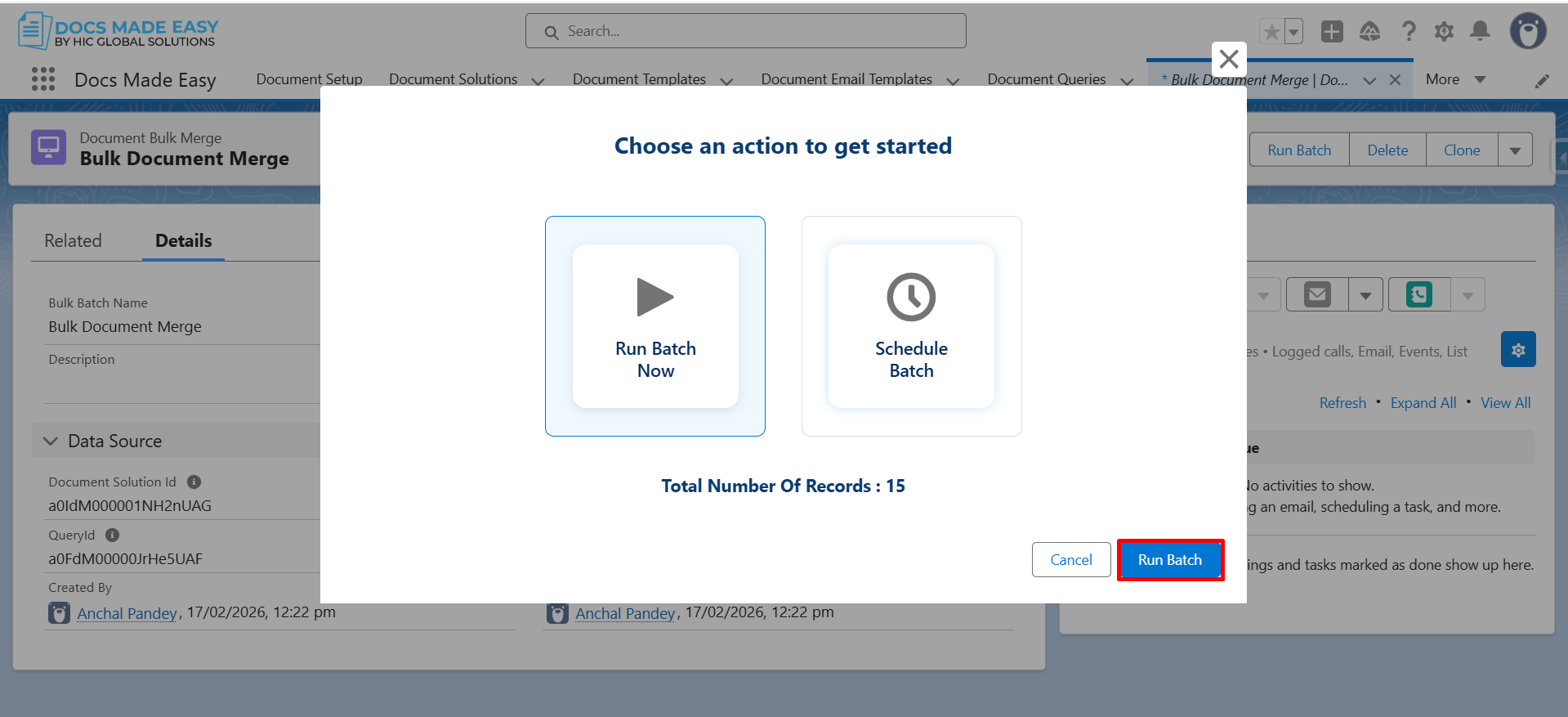
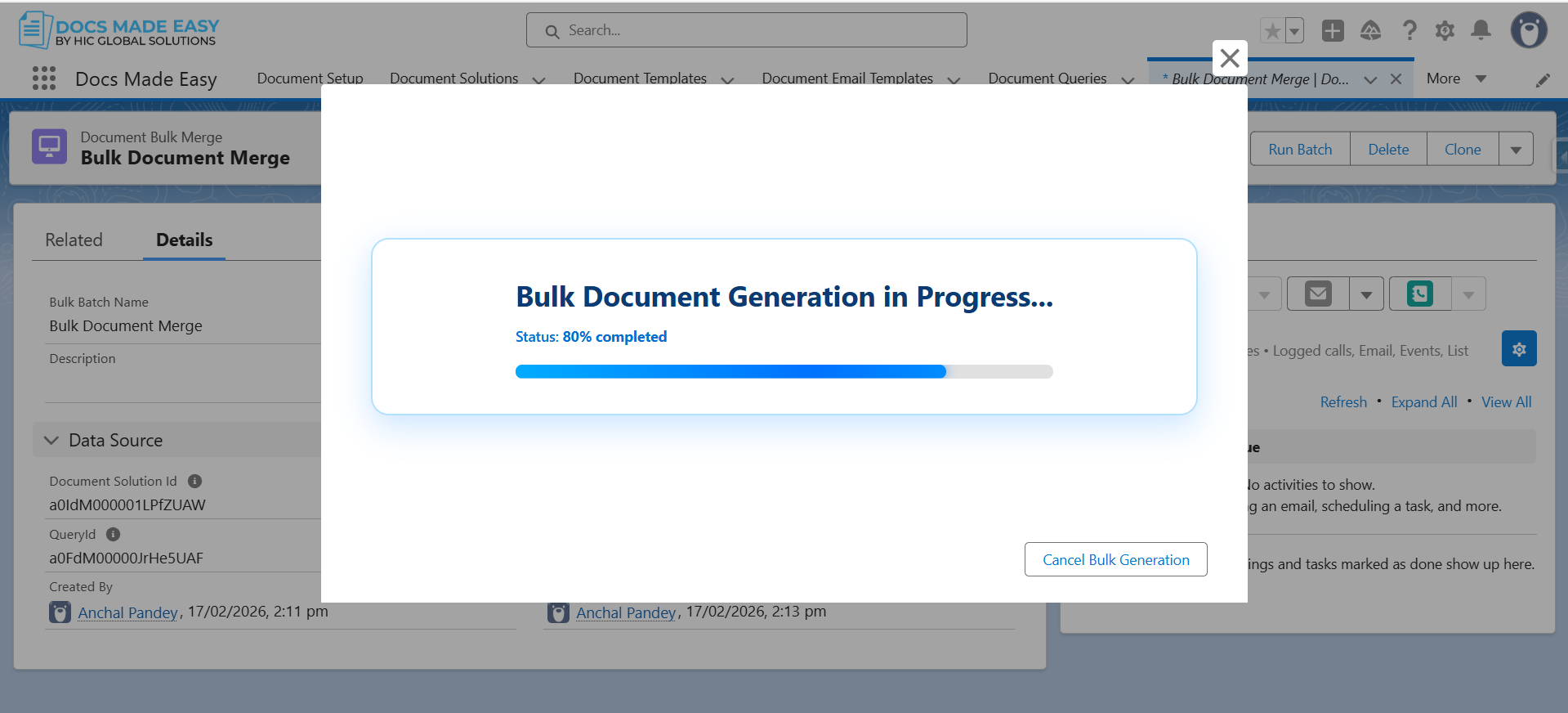
Step 11: After clicking Run Batch, the system begins Bulk Document Generation in the background.
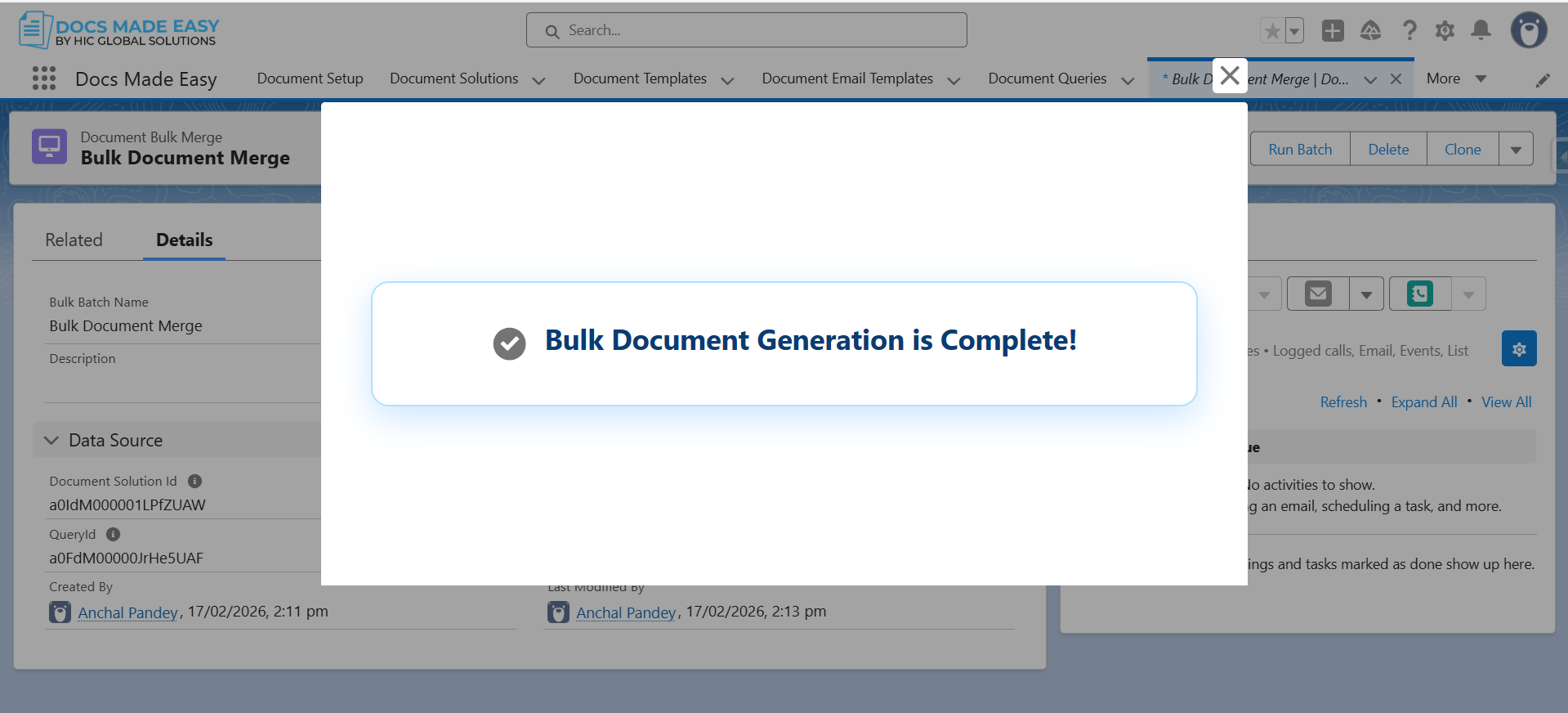
Step 12: Once the process is completed, a confirmation message, “Bulk Document Generation is Complete!” is displayed.
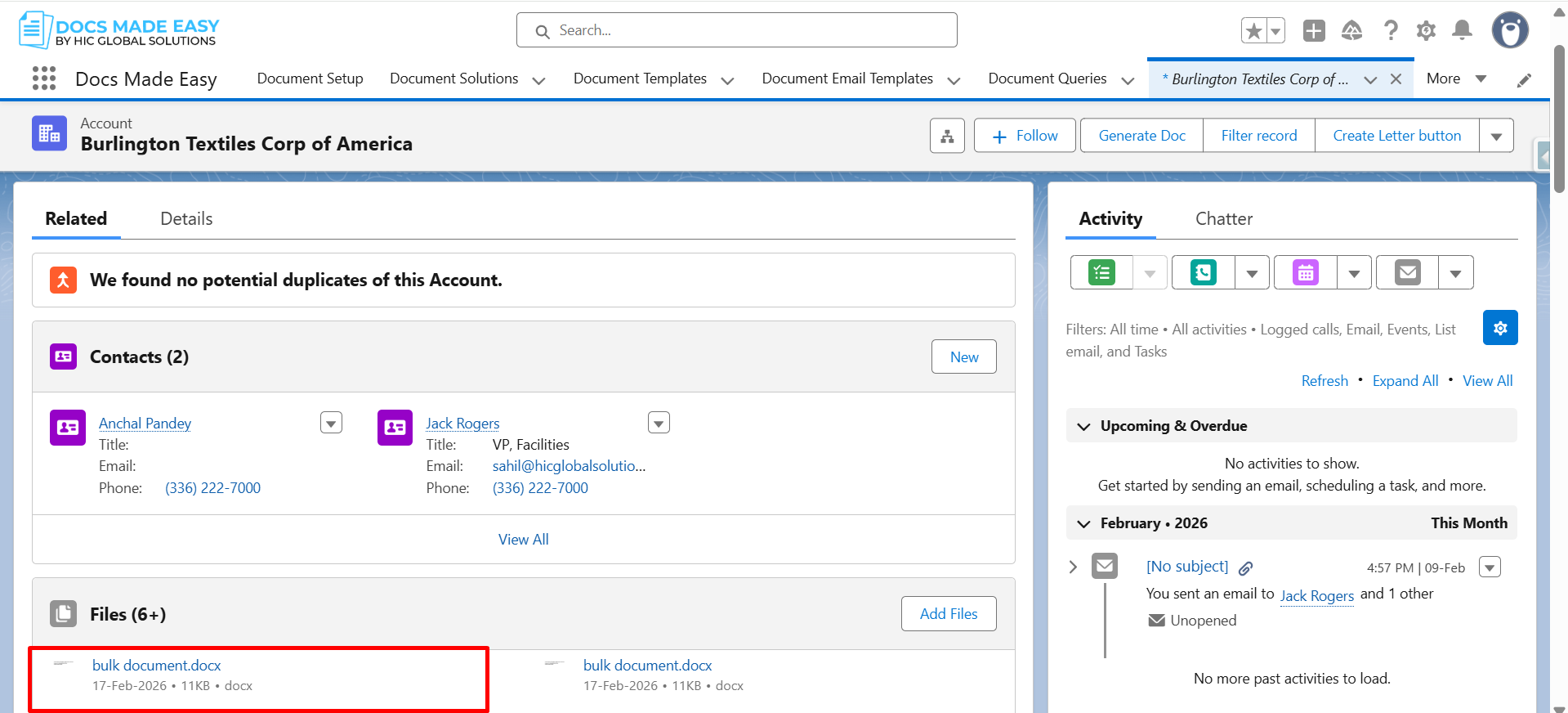
Step 13: Finally, the generated documents are automatically saved in the Files section of each Account record included in the (LAST_90_DAYS) query.
Thank You
Was this article helpful?
That’s Great!
Thank you for your feedback
Sorry! We couldn't be helpful
Thank you for your feedback
Feedback sent
We appreciate your effort and will try to fix the article