Here are the quick steps for generating invoices in Salesforce using Docs Made Easy.
Step 1: Start by logging in to Salesforce.
Step 2: Now, open Docs Made Easy from the App Launcher to begin the setup.
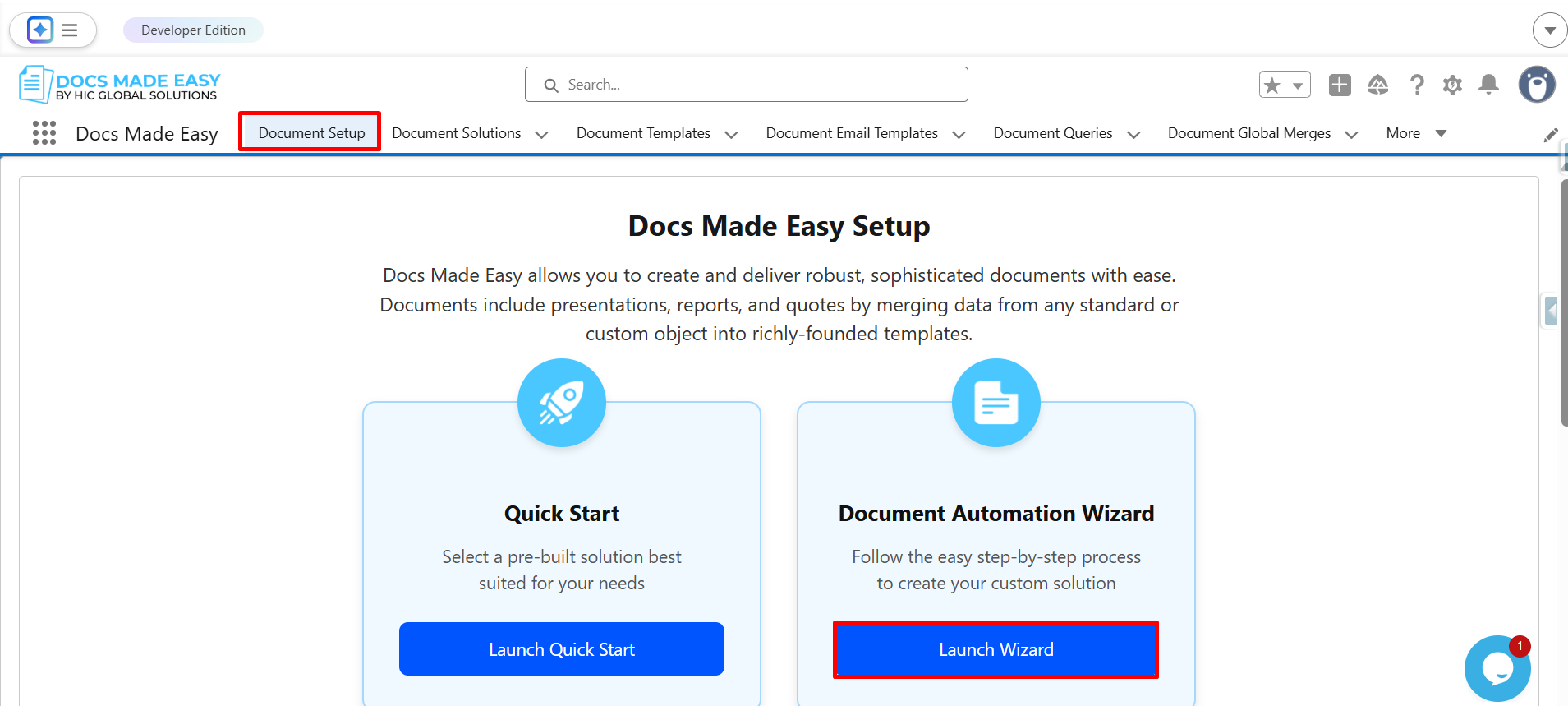
Step 3: Once you’re inside the app, click Document Setup and then proceed by clicking Launch Wizard.
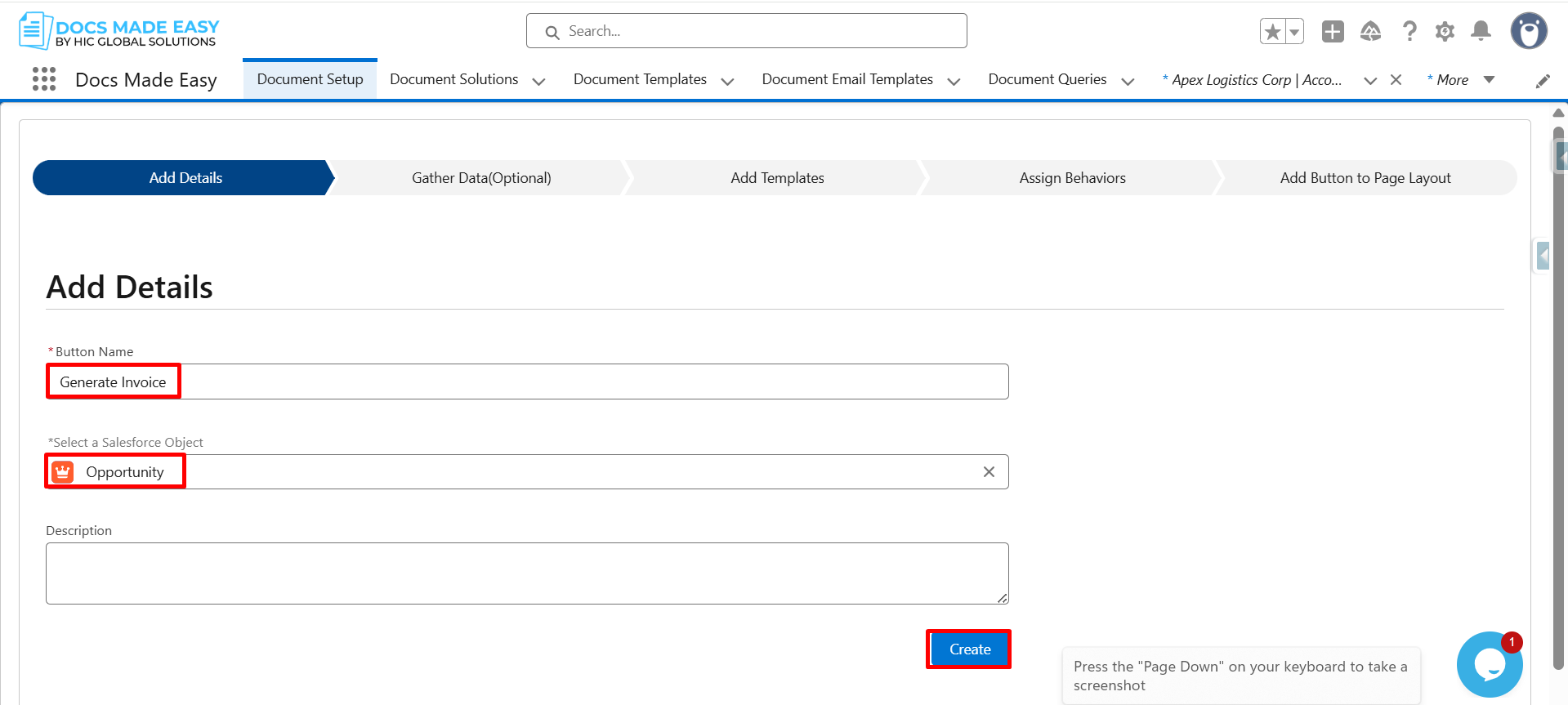
Step 4: Next, enter the button name and select the Salesforce object like Opportunity.
After setting this up, click Create to move forward.
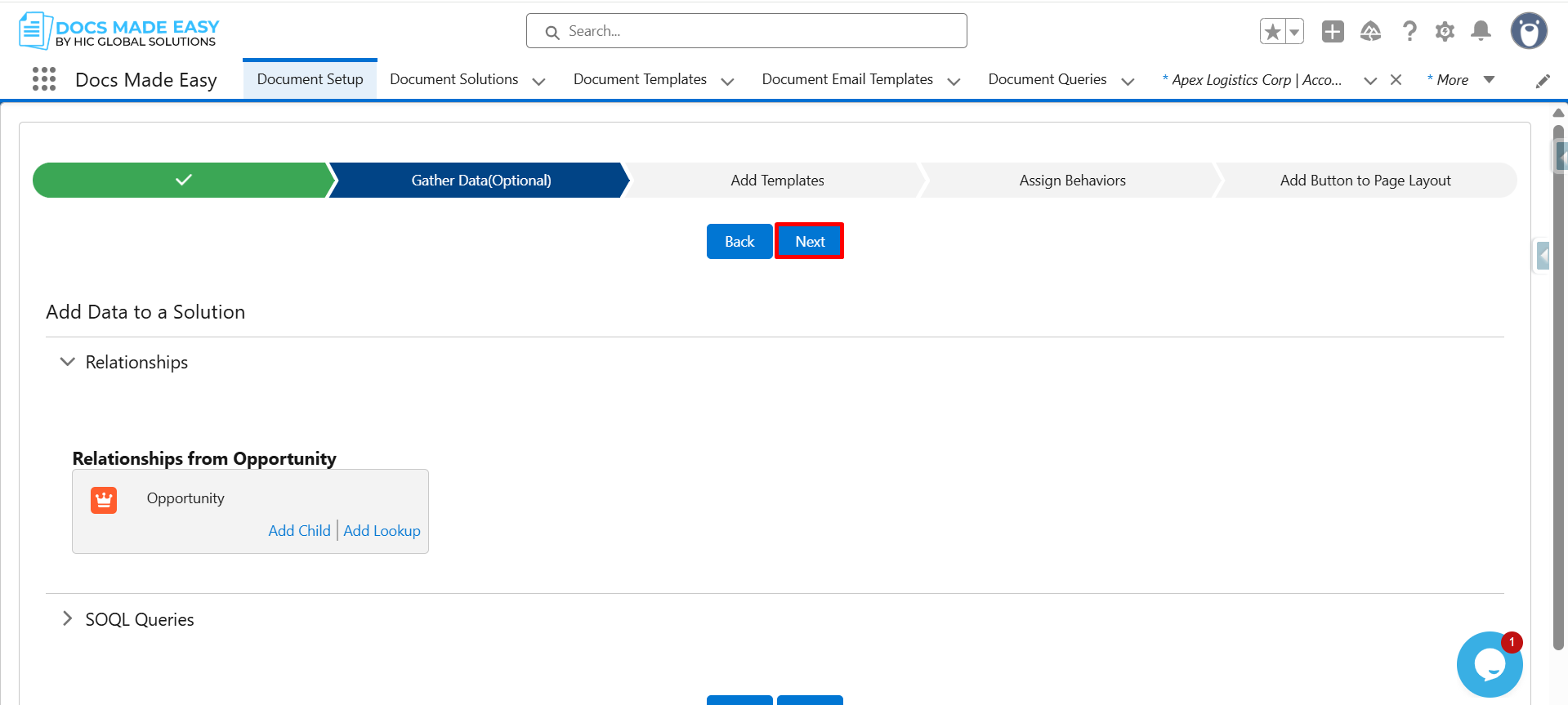
Step 5: Now that the basic setup is done, click Next to continue.
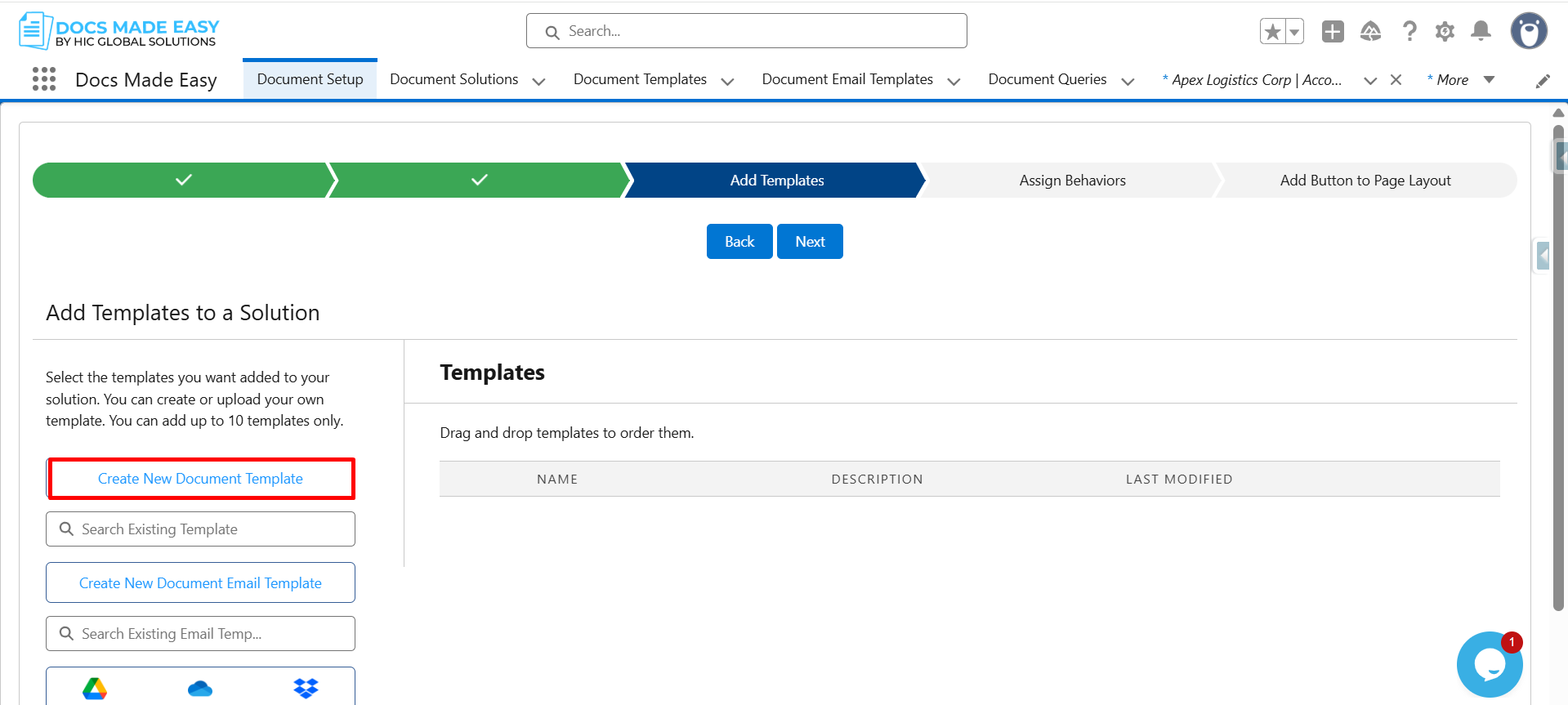
Step 6: At this stage, click Create New Document Template to start designing your invoice.
Step 7: Furthermore, open Merge Field Helper to add dynamic data to your document.
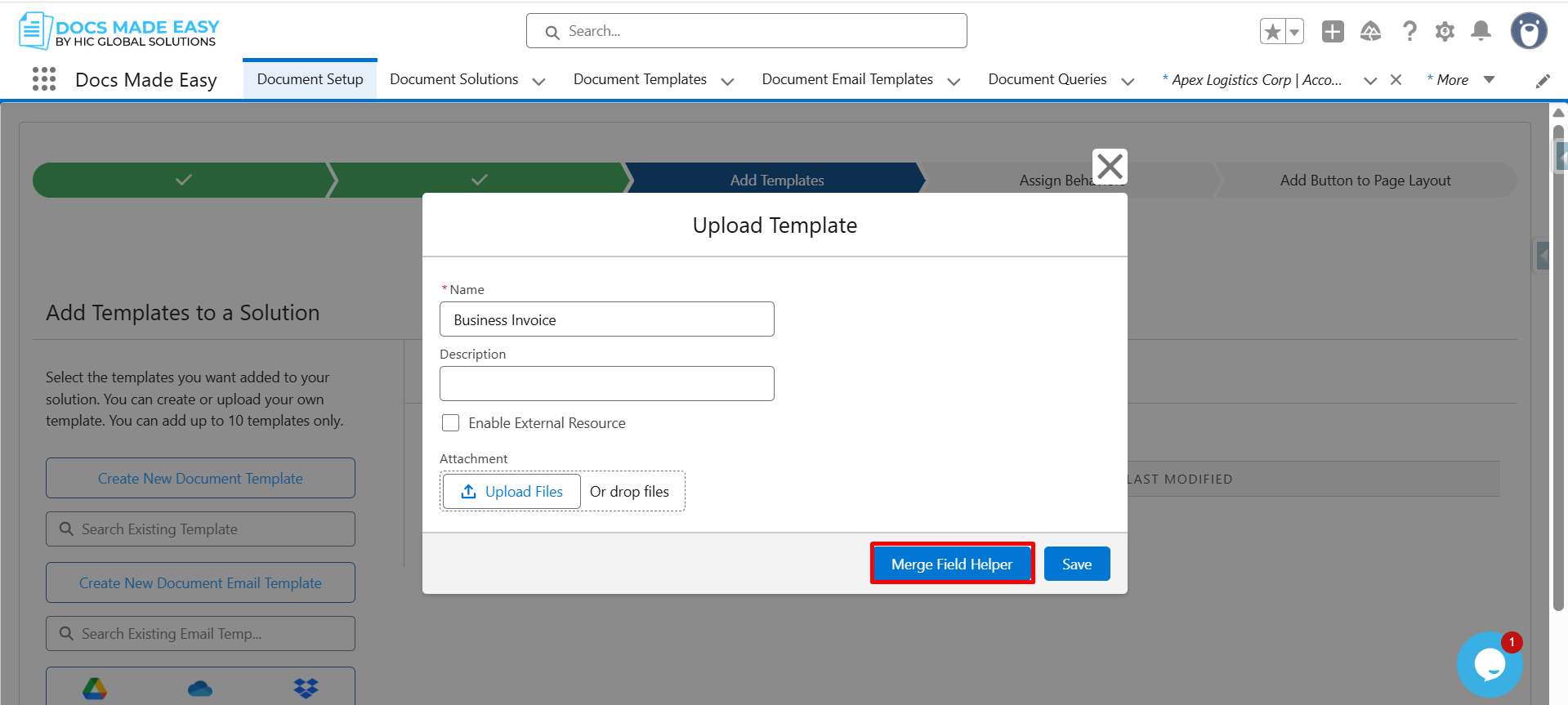
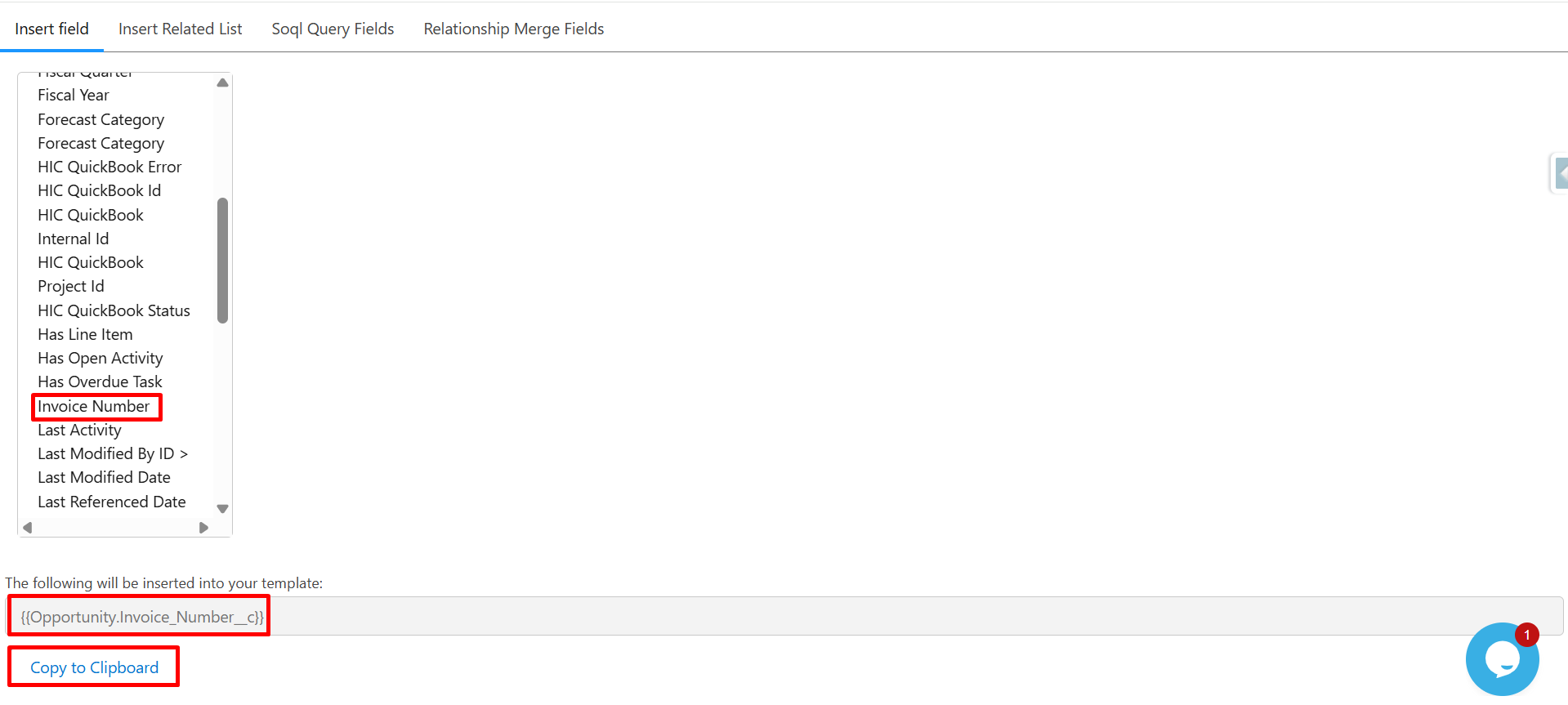
Step 8: From the field list, click Invoice Number to select it.
The system automatically generates the merge field syntax:
{{Opportunity.Invoice_Number__c}}
Now, click Copy to Clipboard.
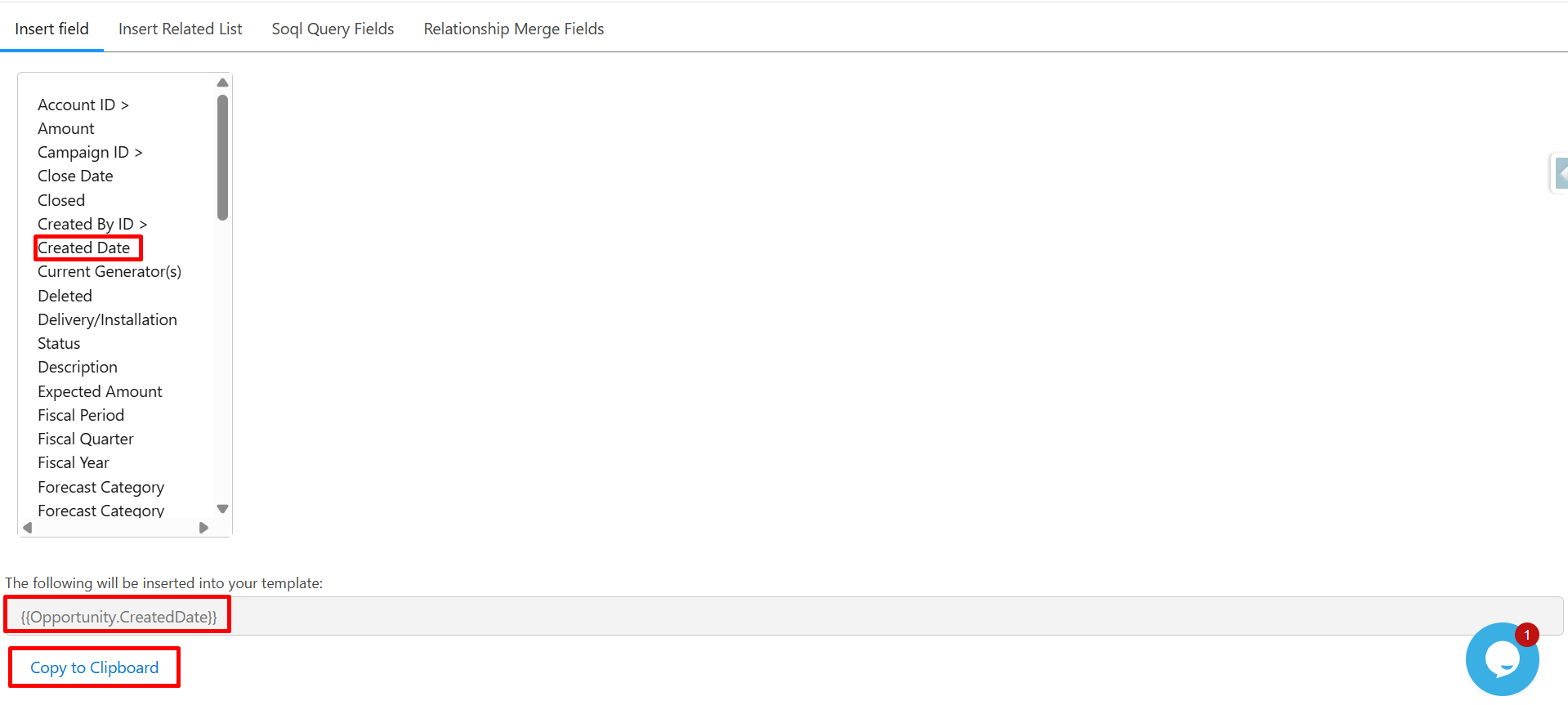
Step 9: Next, click Created Date, and once selected, click Copy to Clipboard again.
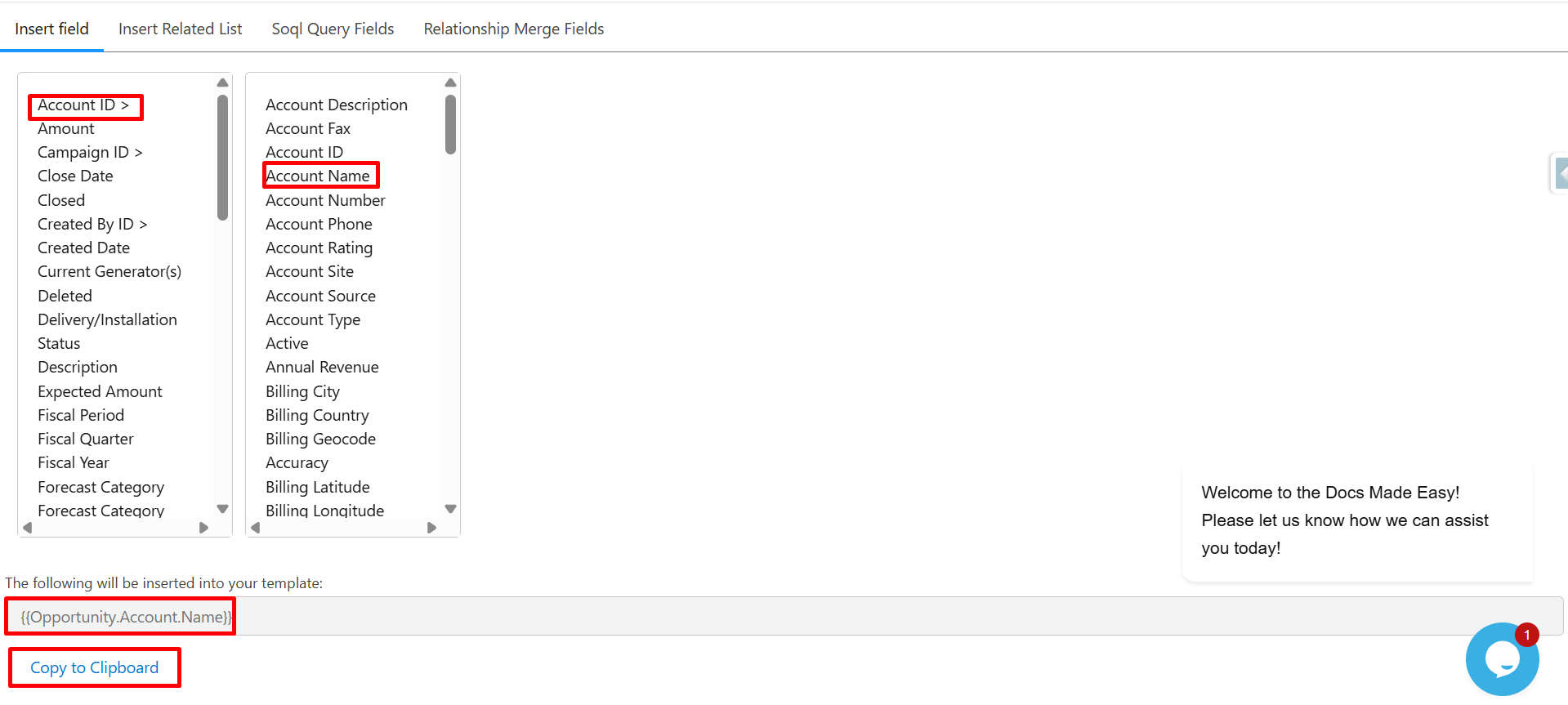
Step 10: After that, select Account ID (Opportunity → Account relationship) and choose Account Name.
You’ll see the merge field syntax appear as {{Opportunity.Account.Name}}.
Click Copy to Clipboard to save it.
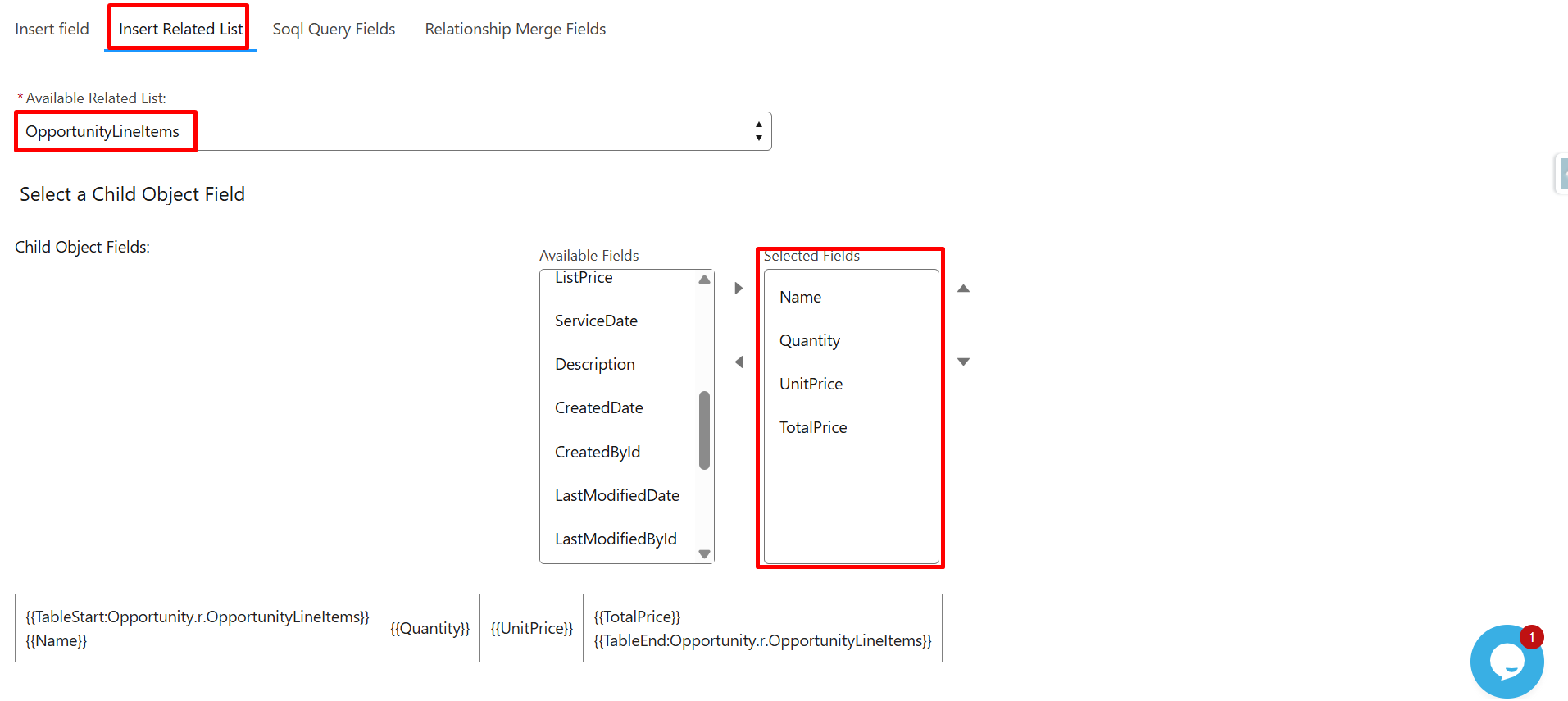
Step 11: Now, click Insert Related List to include line-item details.
From Available Related Lists, select OpportunityLineItems.
Then, under Child Object Fields, choose the required fields:
- Name
- Quantity
- Unit Price
- Total Price
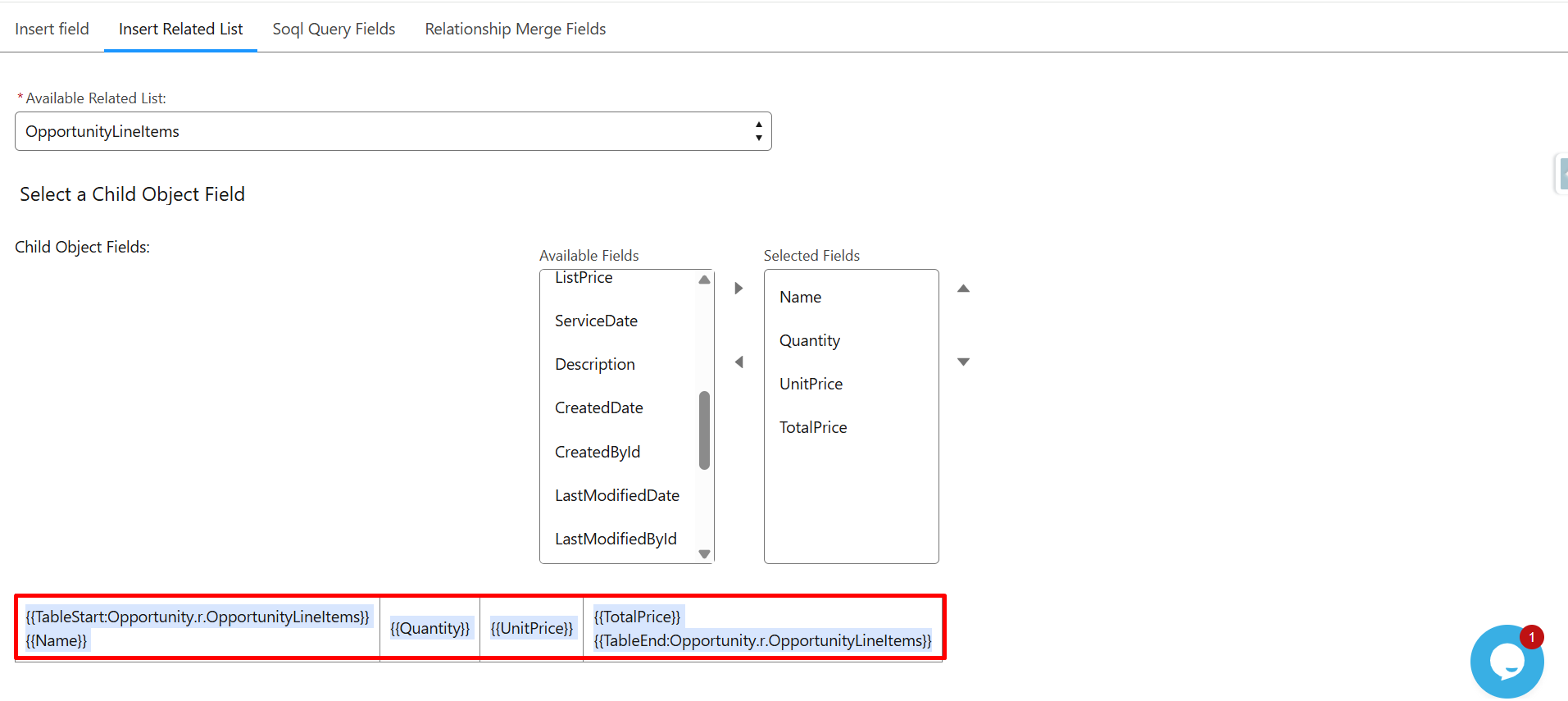
The system will automatically generate the table merge syntax for you.
Step 12: Once the table is generated, click Copy to copy the table merge syntax.
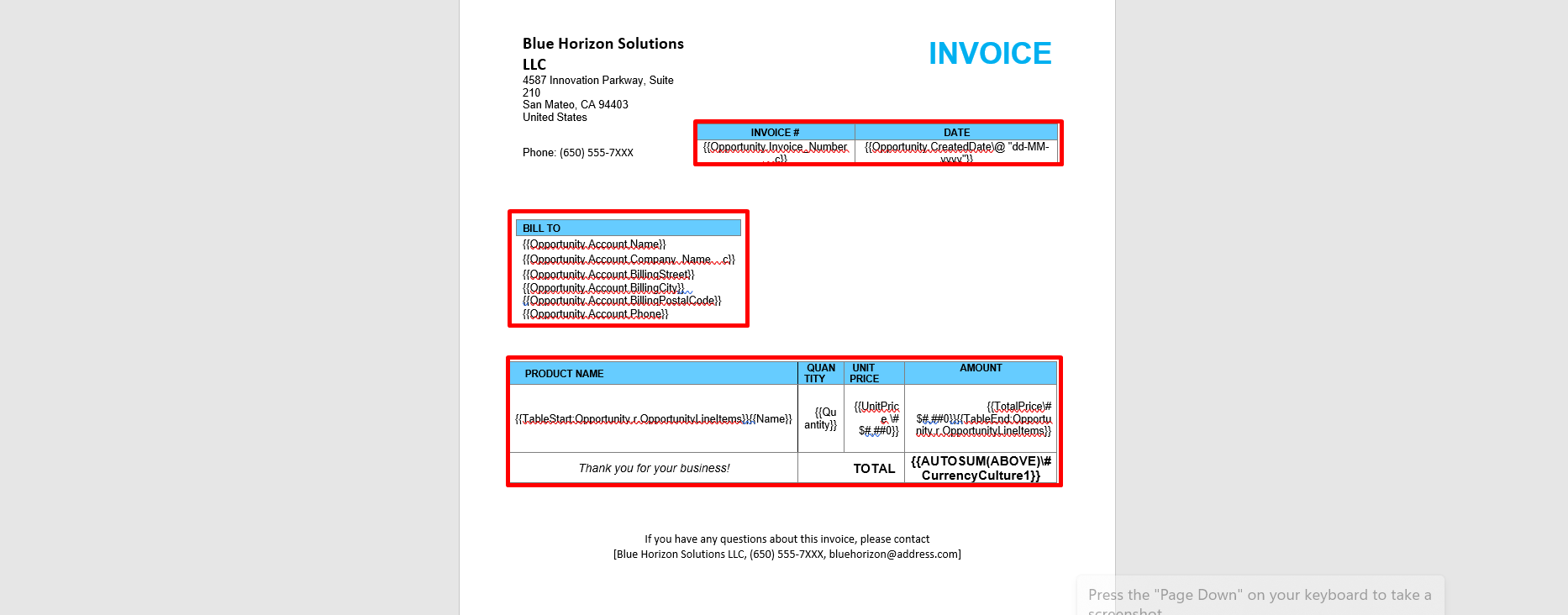
Step 13: Next, paste all the copied merge field syntax into the Template Editor.
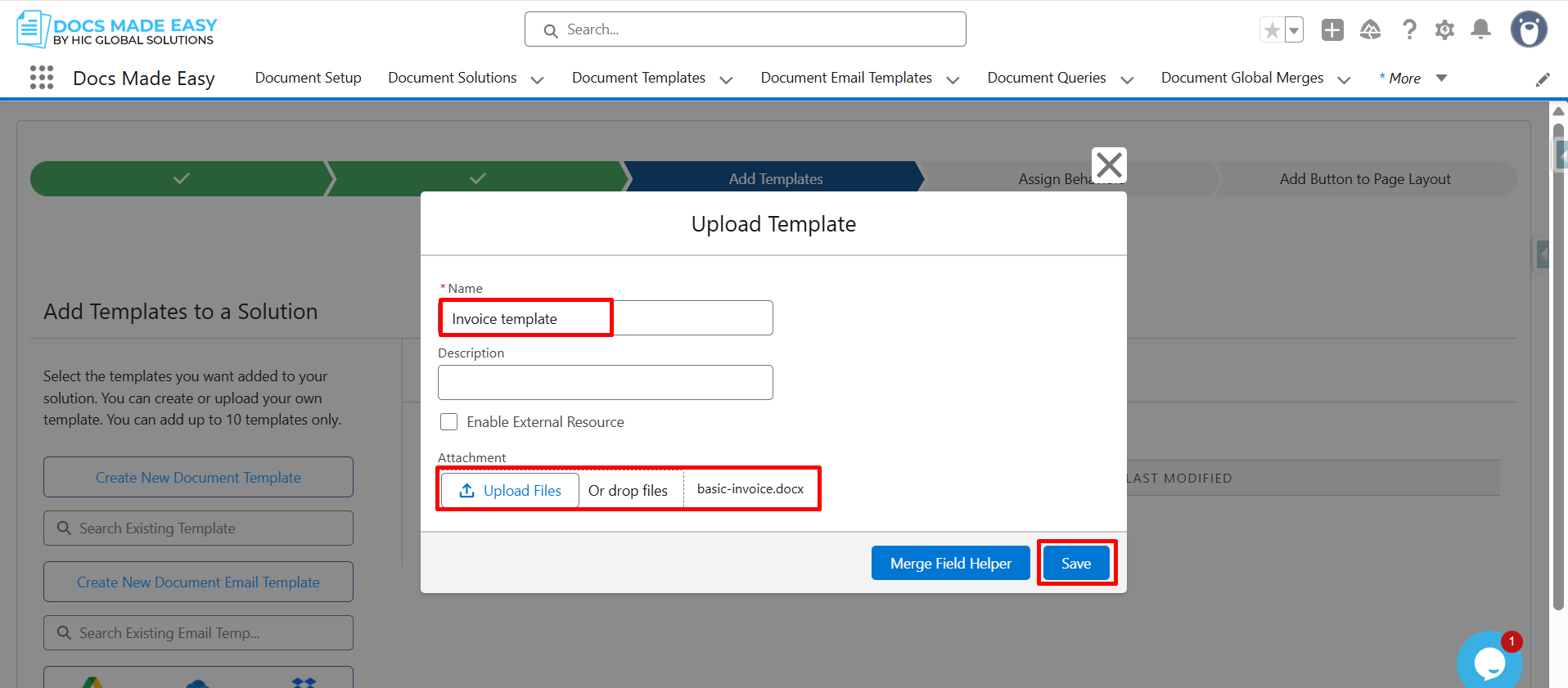
Step 14: After completing the template design, reopen the Upload Template window.
Enter the template name, upload the template file, and then click Save.
Step 15: Now that the template is saved, click Next to continue.
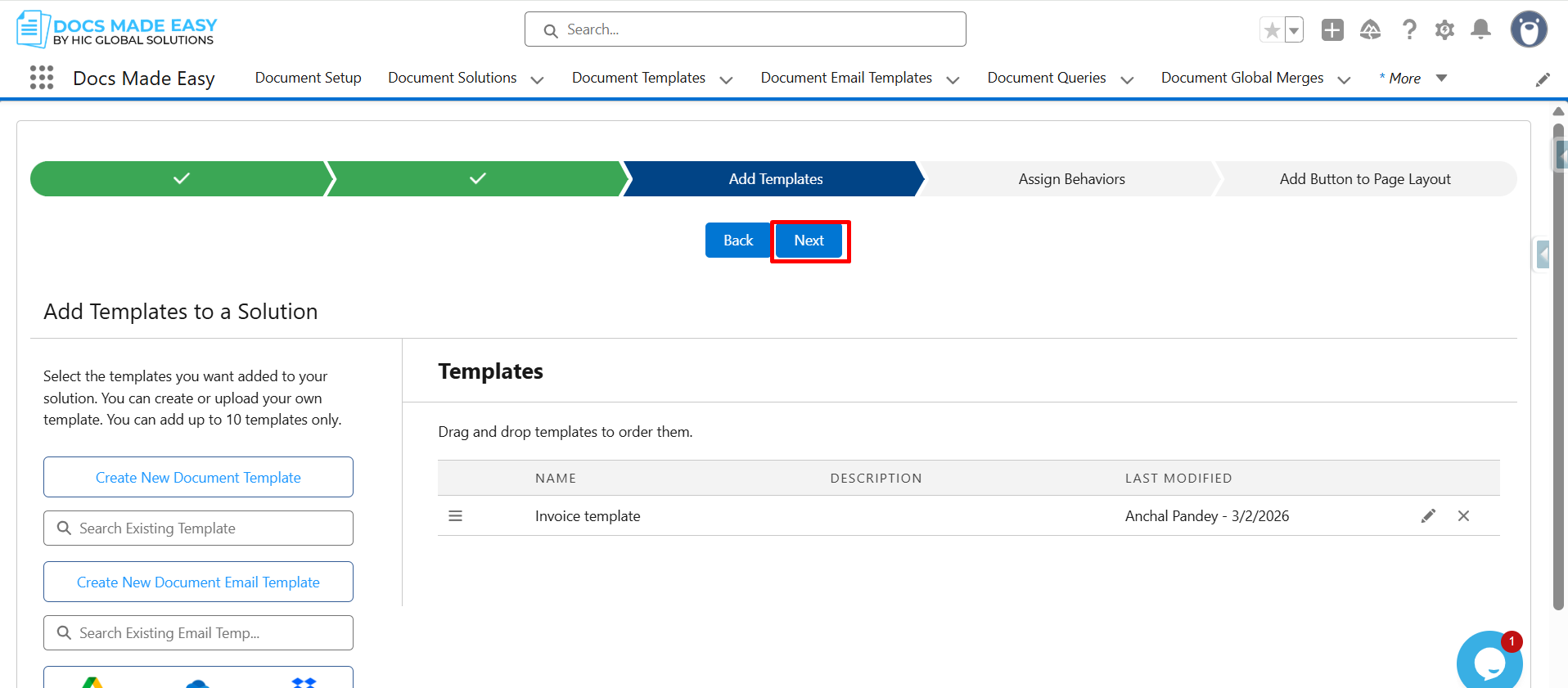
Step 16: Click Next again to move to the layout configuration.
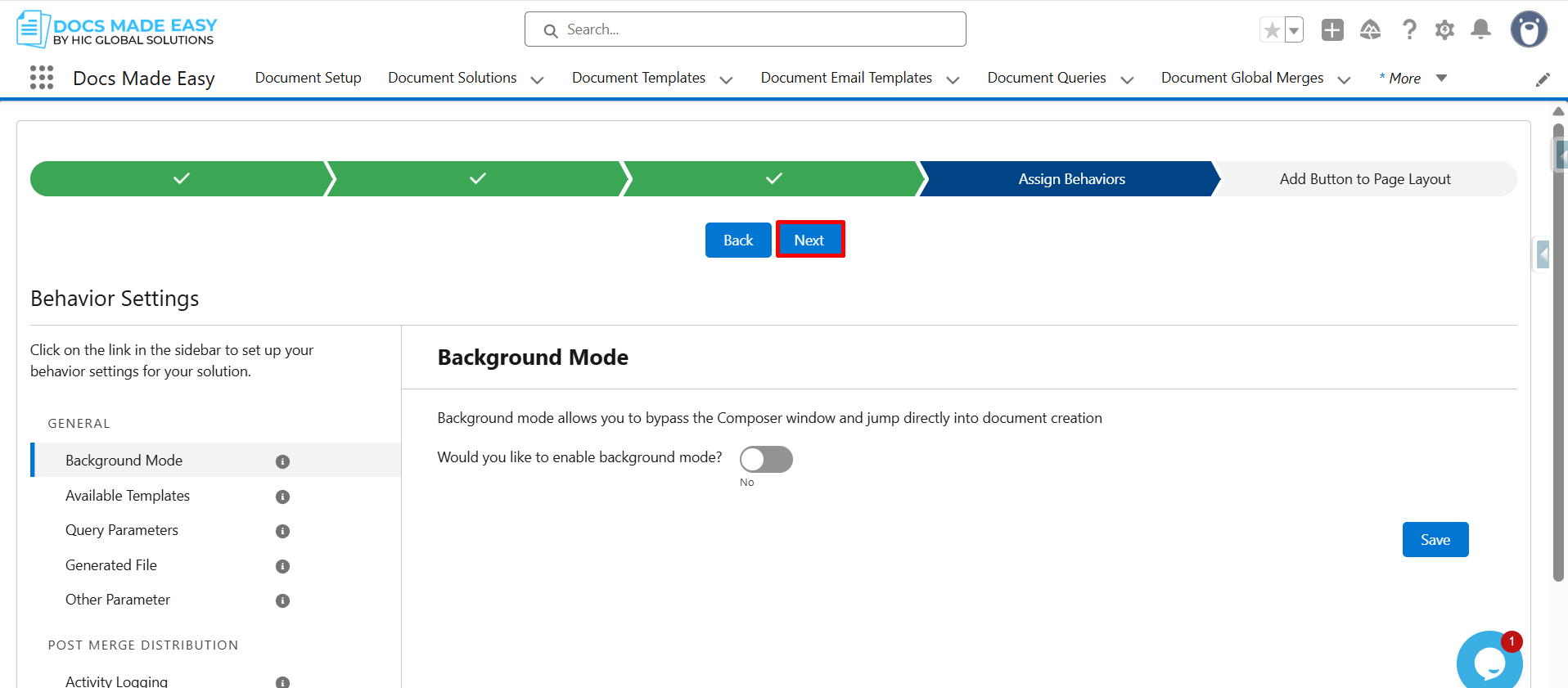
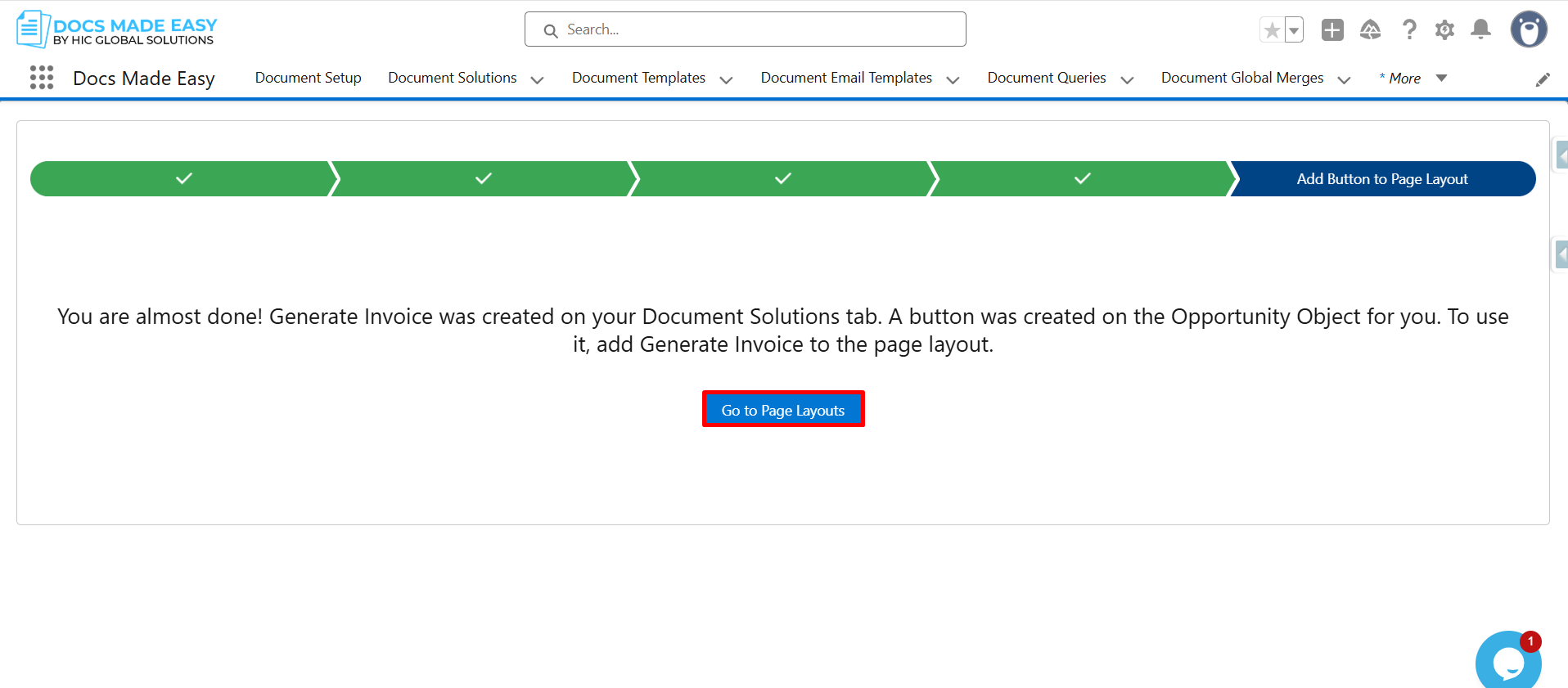
Step 17: At this point, click on Go to Page Layouts in Salesforce.
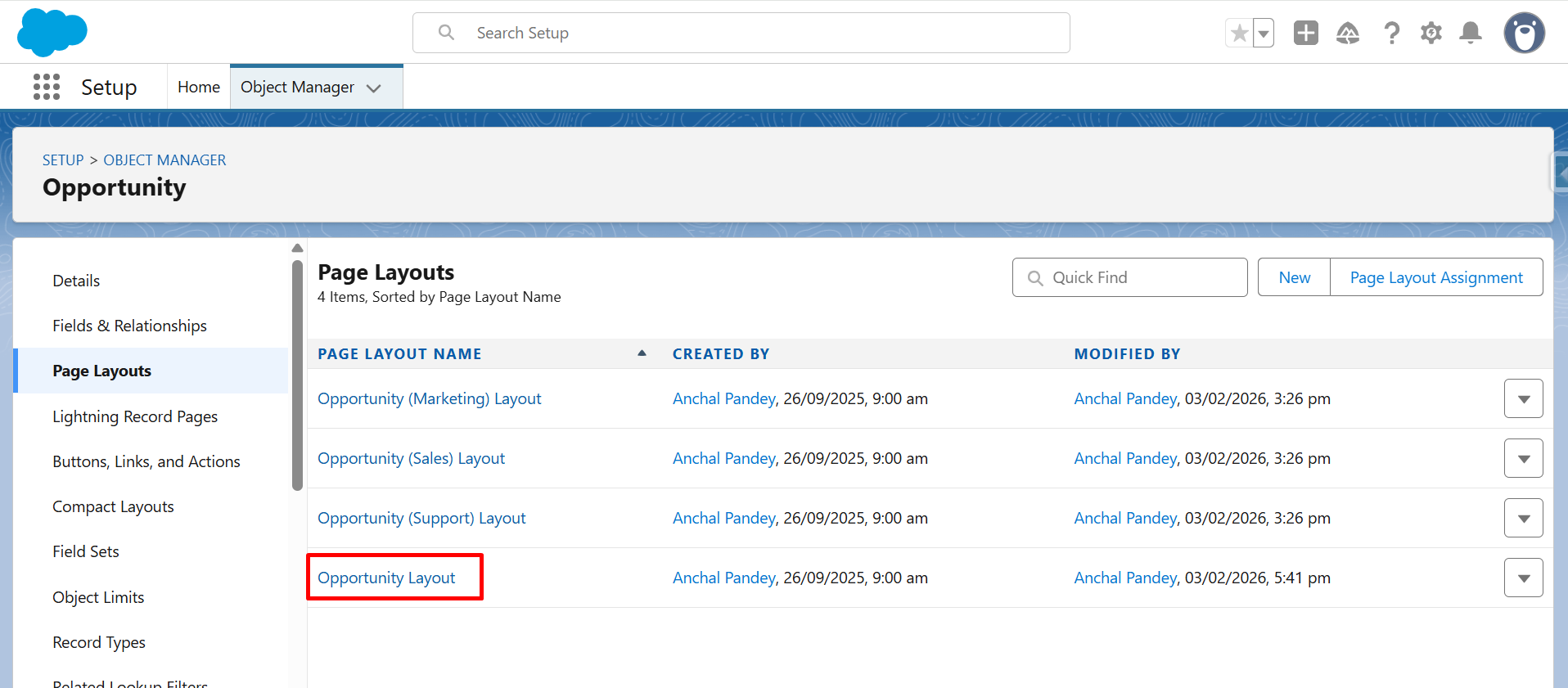
Step 18: From the list, click Opportunity Layout (as we have selected Opportunity as Salesforce object) to customize the record page.
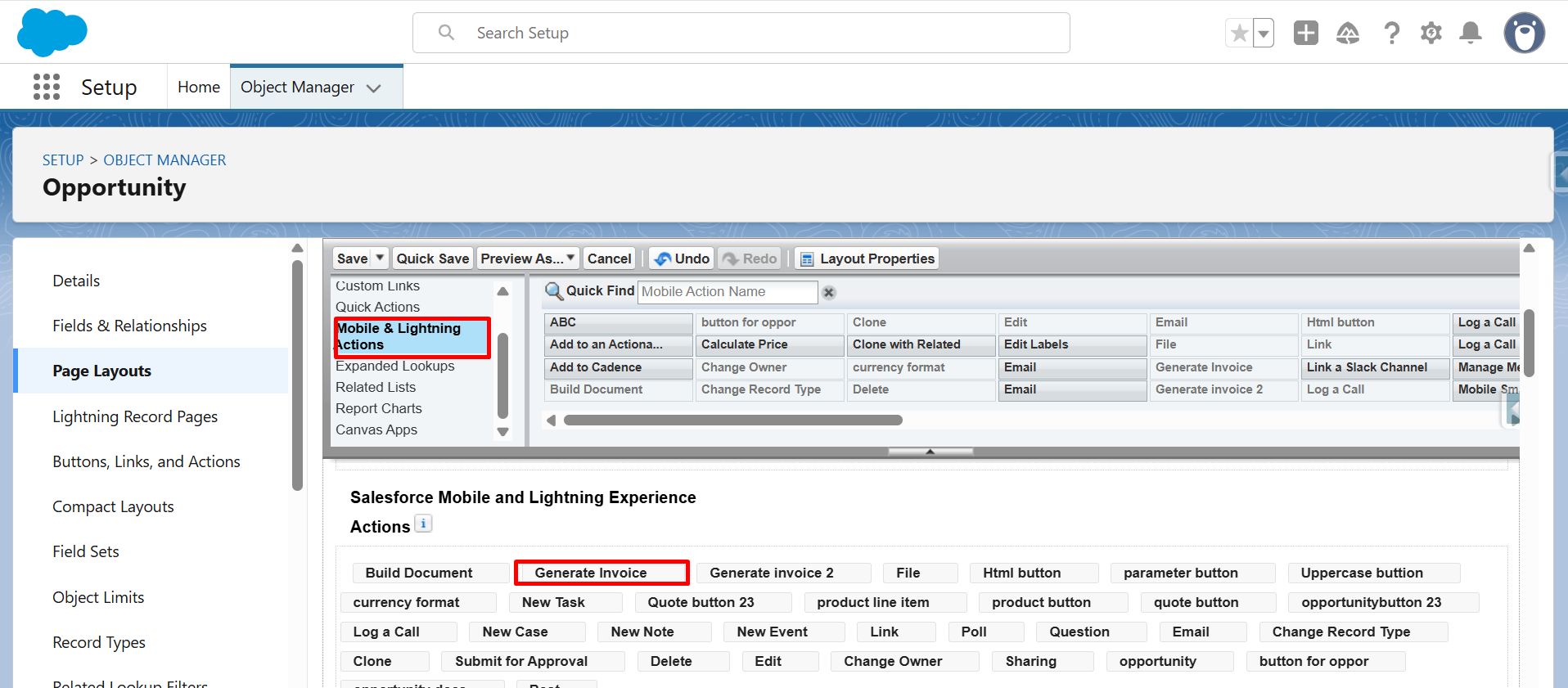
Step 19: Now, from Mobile & Lightning Actions, drag and drop Generate Invoice into Salesforce Mobile and Lightning Experience Actions.
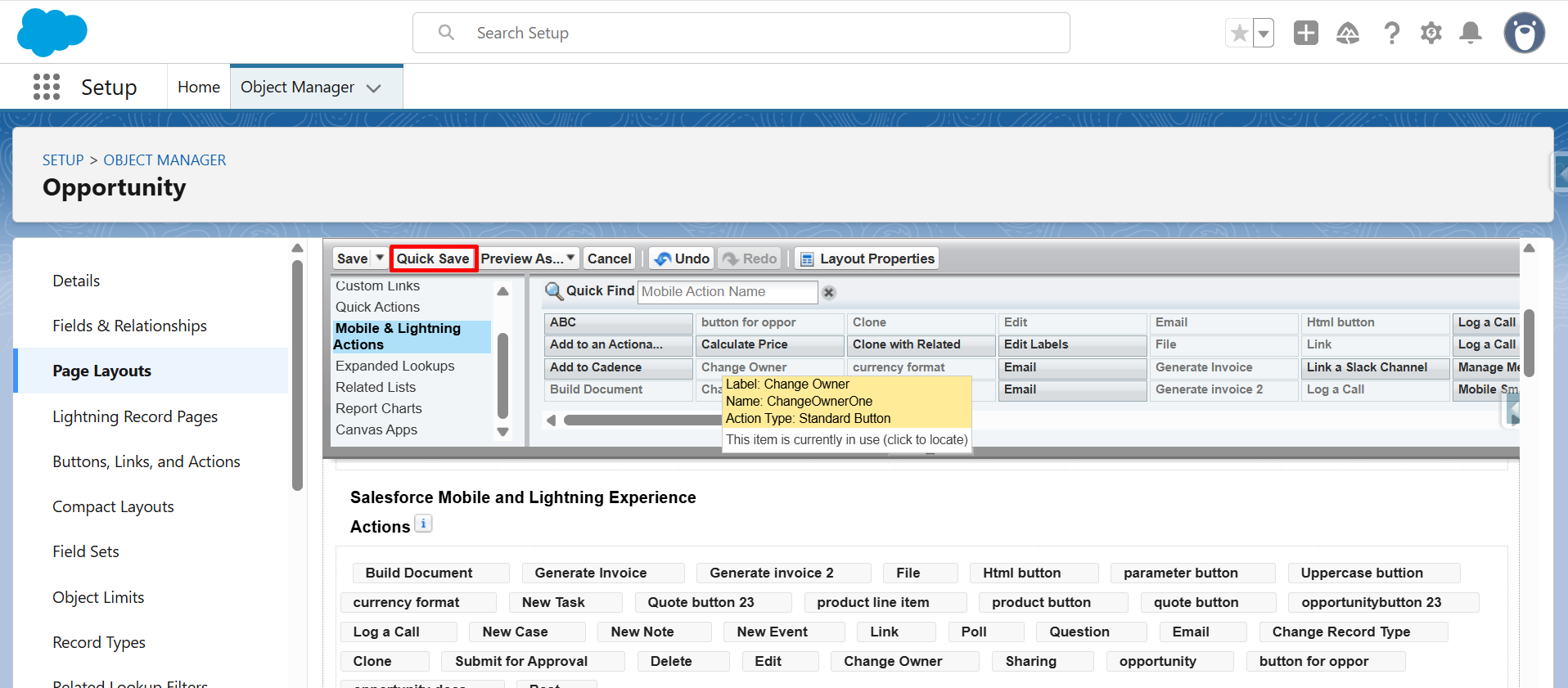
Step 20: After placing the button, click Quick Save or Save to apply the changes.
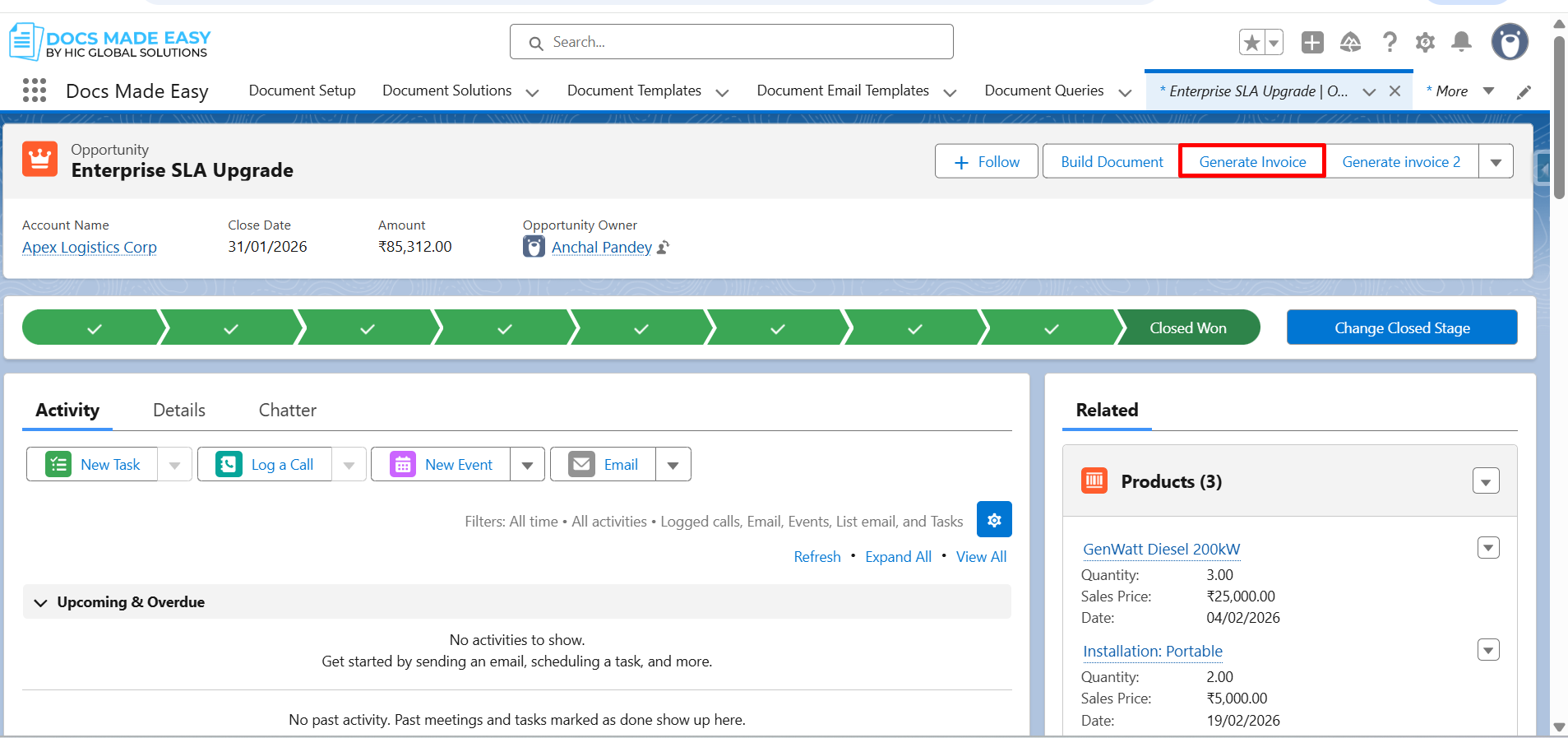
Step 21: Next, open an Opportunity record and click the Generate Invoice button.
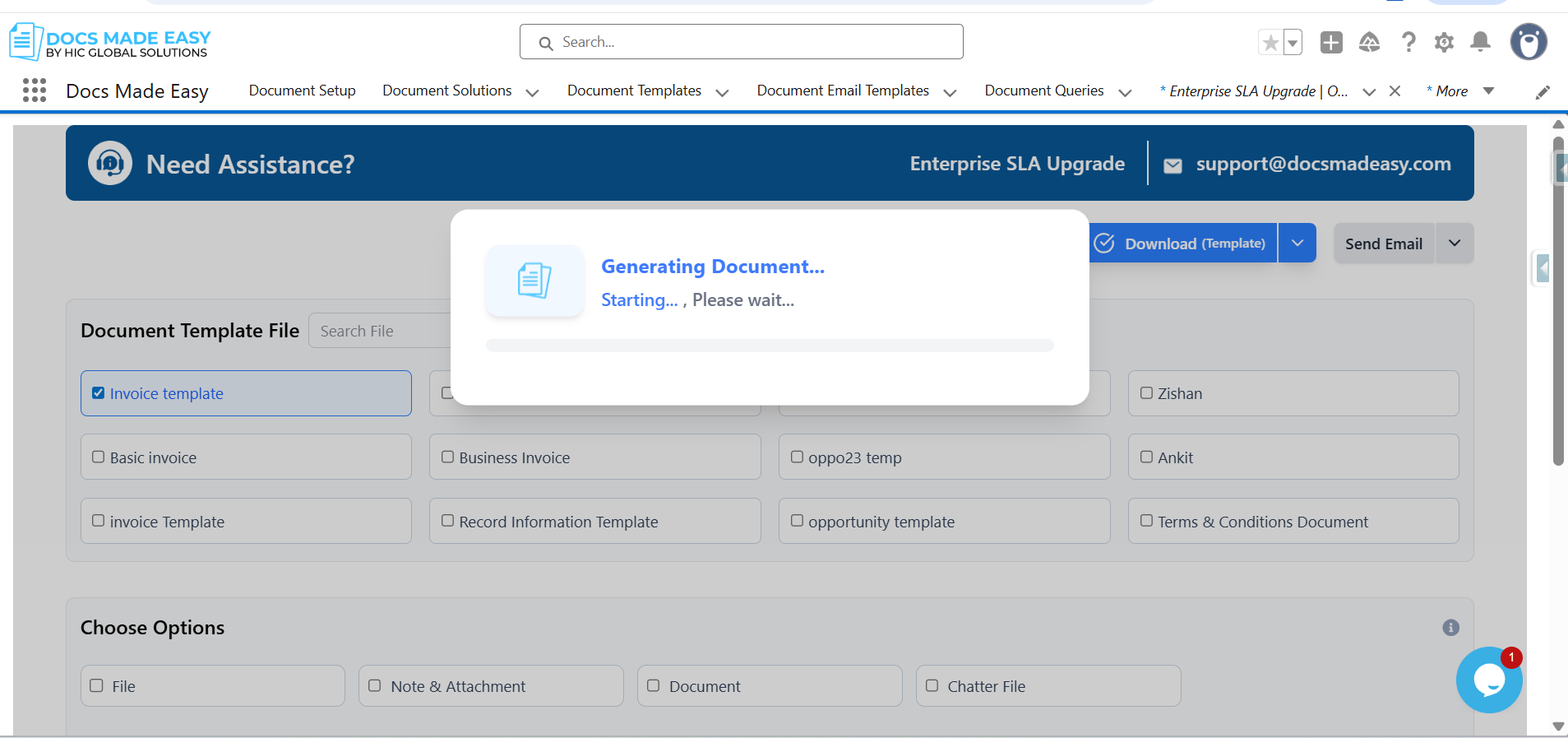
Step 22: Now, click Download Template to start the document process.
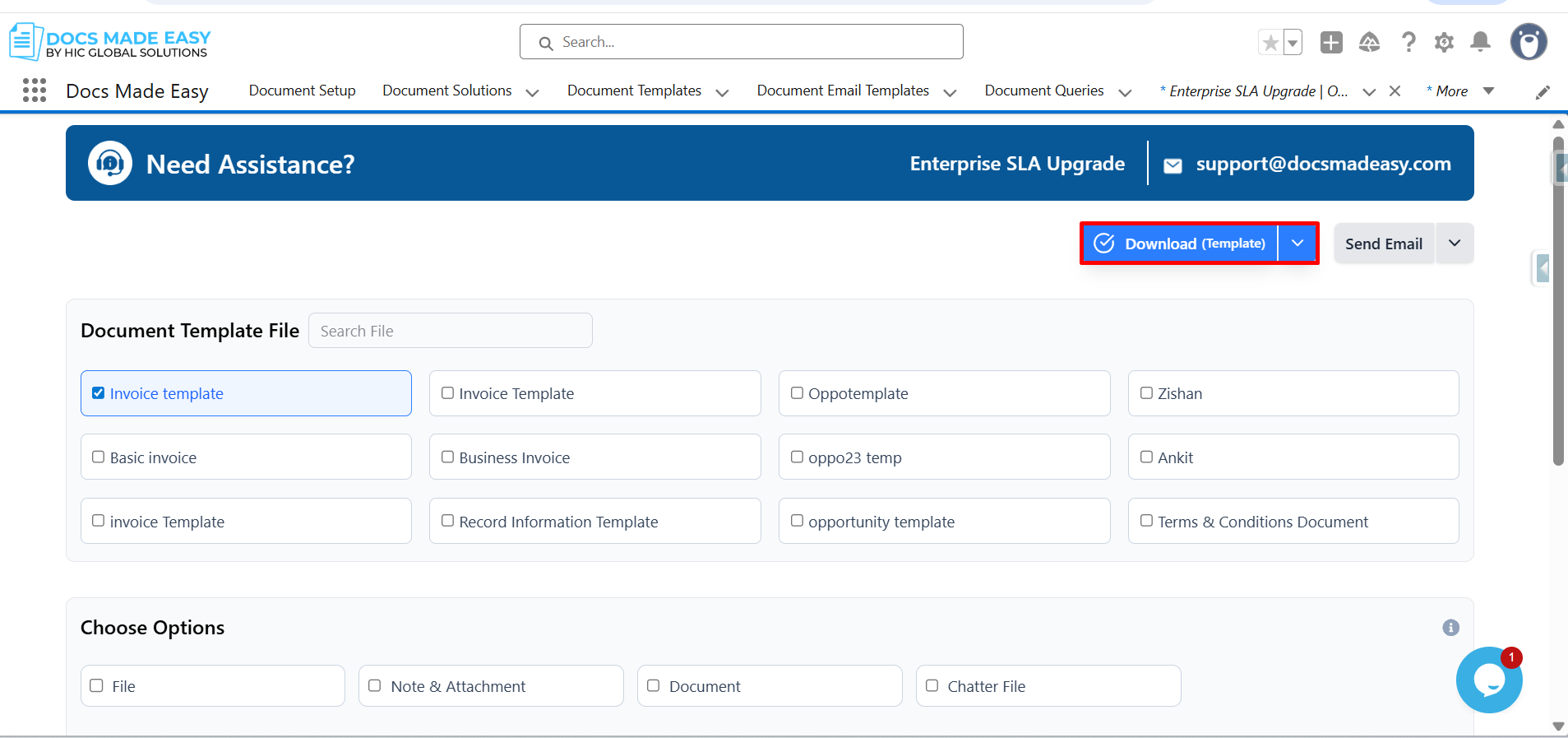
Step 23: The system will begin generating the invoice document automatically.
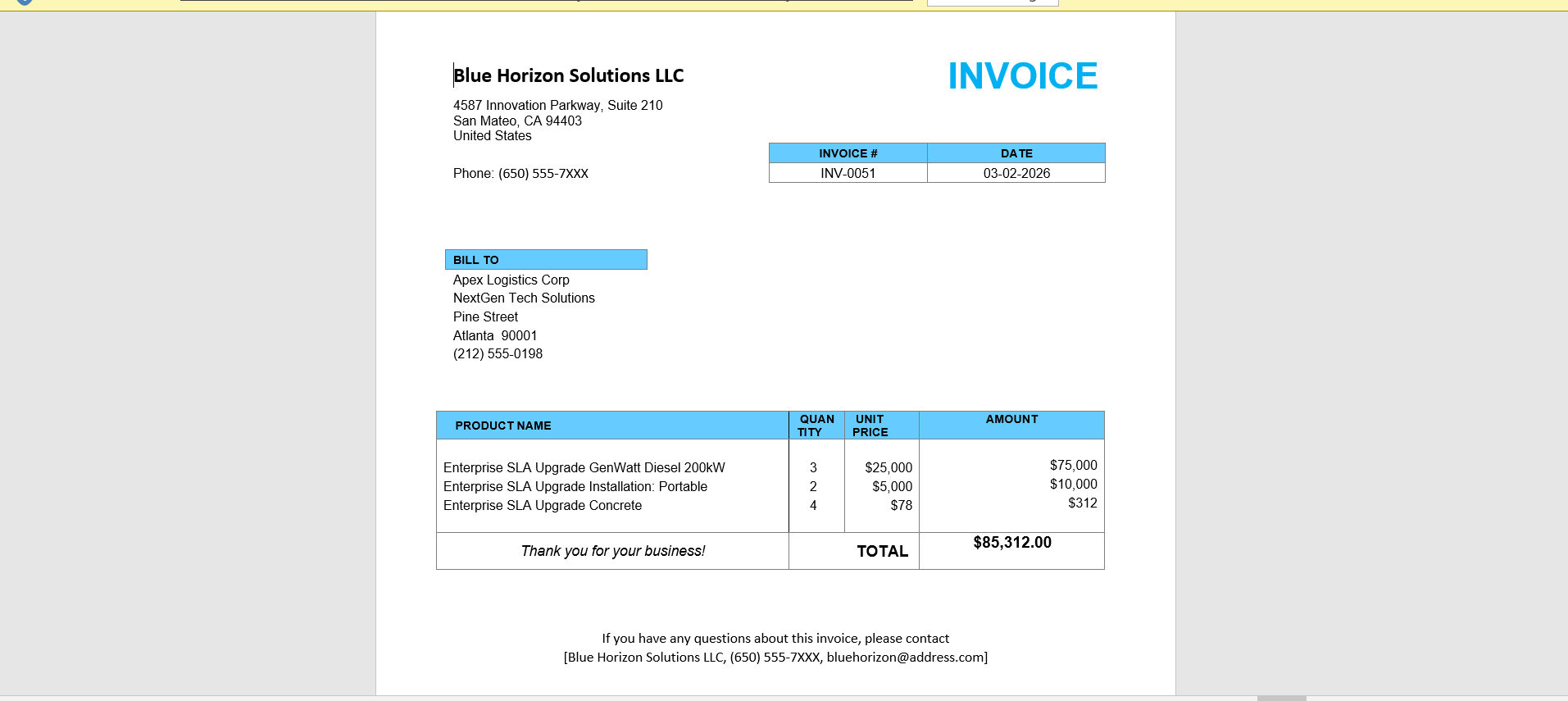
Step 24: Finally, open the generated document and review your invoice.
Thank You
Was this article helpful?
That’s Great!
Thank you for your feedback
Sorry! We couldn't be helpful
Thank you for your feedback
Feedback sent
We appreciate your effort and will try to fix the article