Step 1: Login to Salesforce.
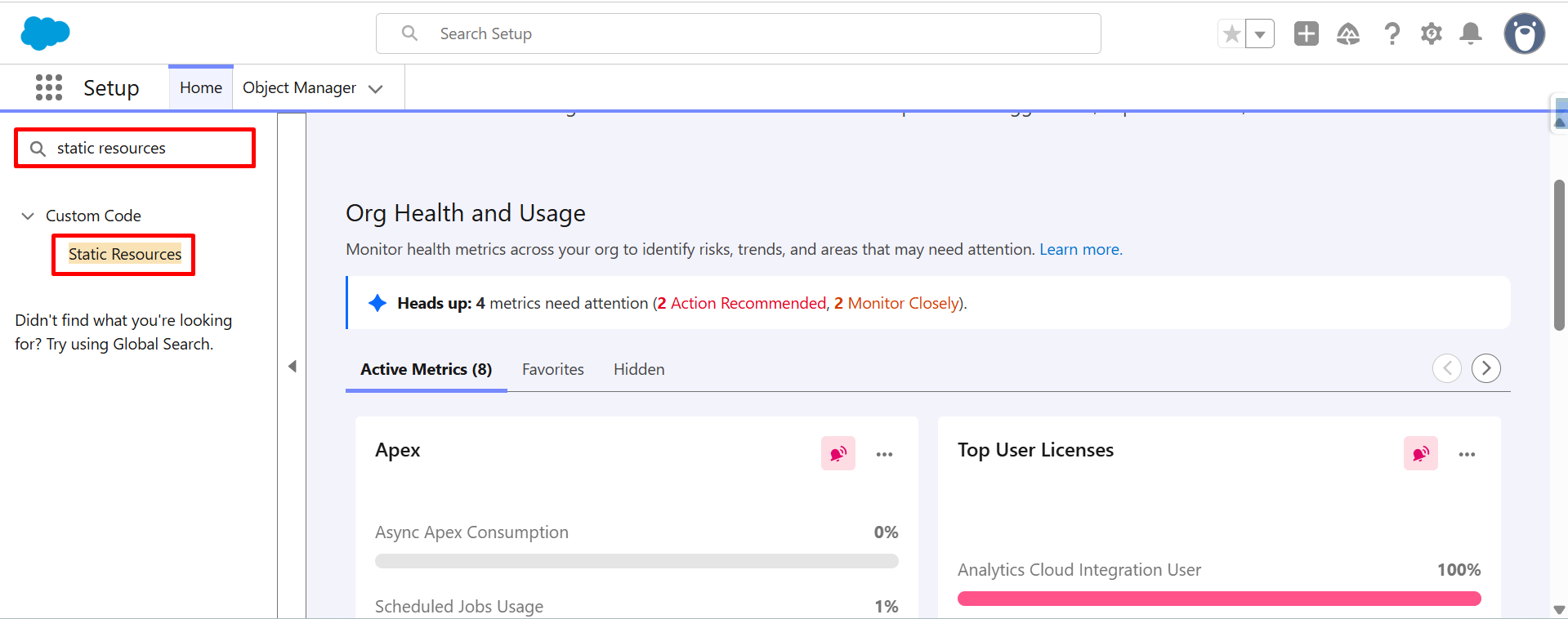
Step 2: In the Quick Find box, type Static Resources. Then click Static Resources under Custom Code.
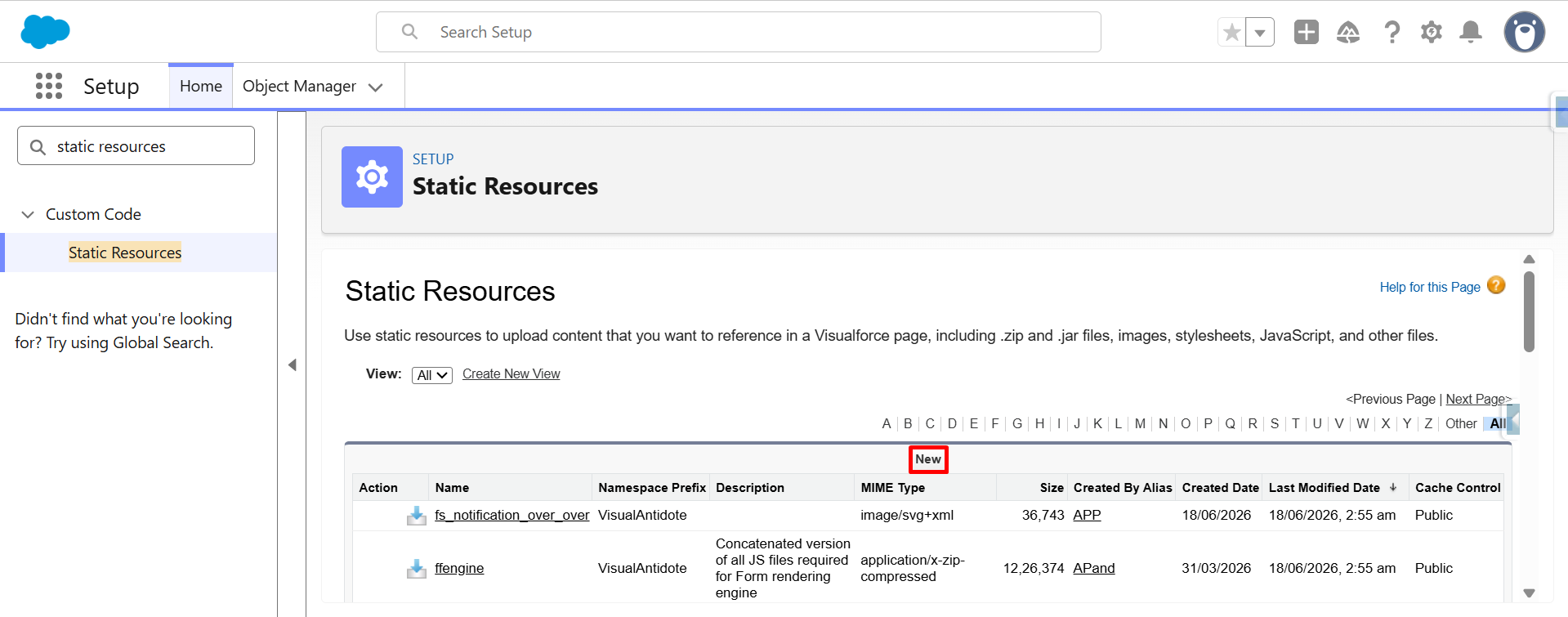
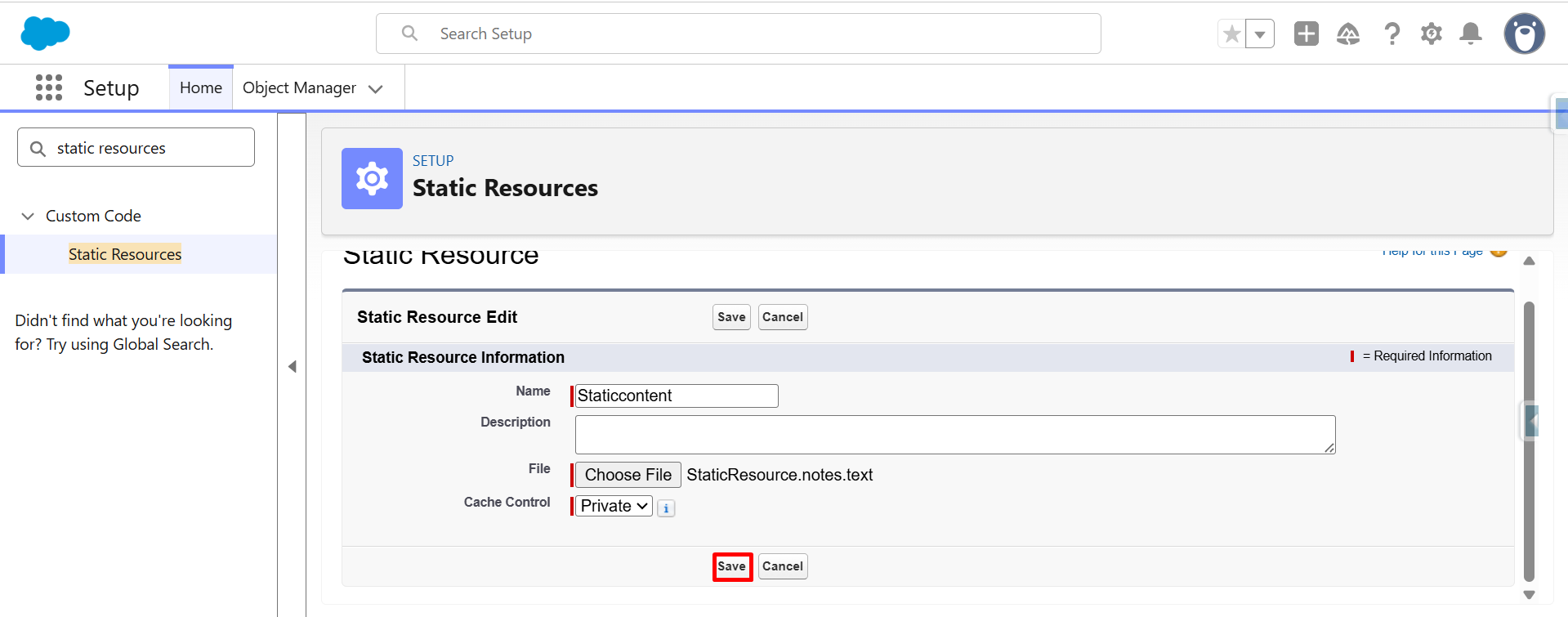
Step 3: On the Static Resources page, click the New button.
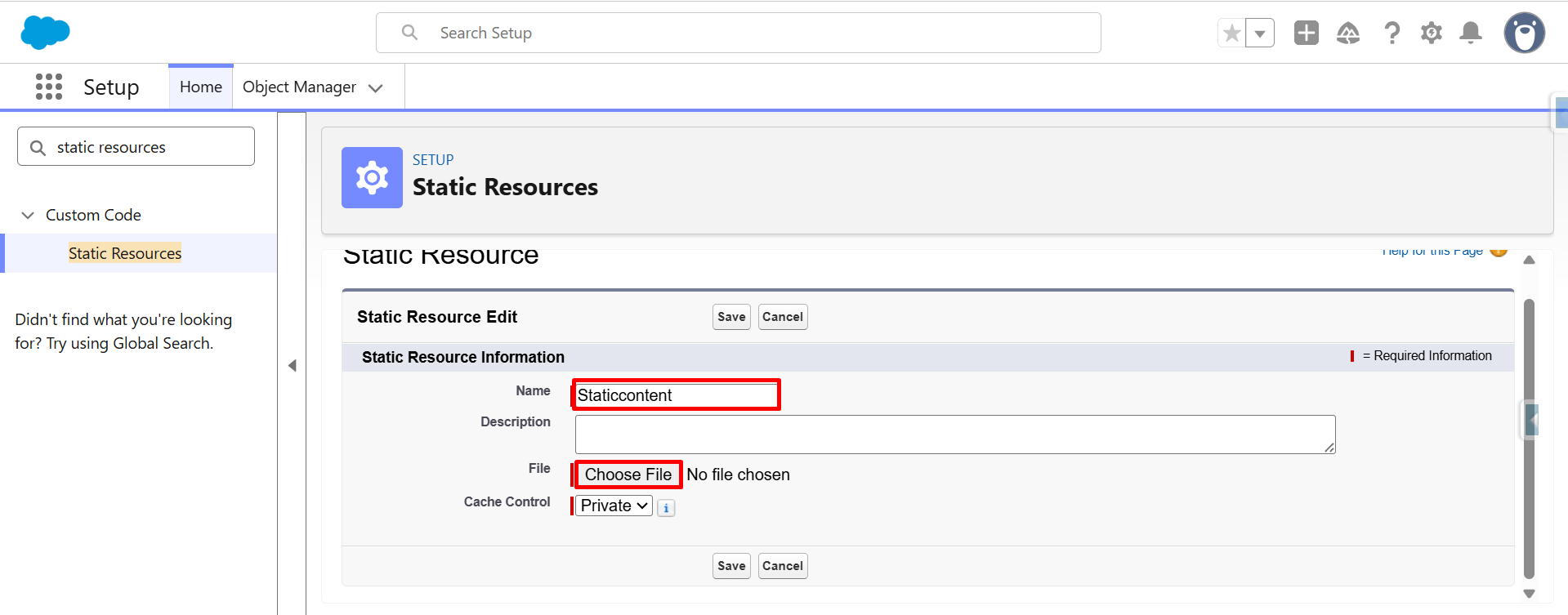
Step 4: Enter Static Resource Details.
- Name: Enter Name (e.g., Staticcontent).
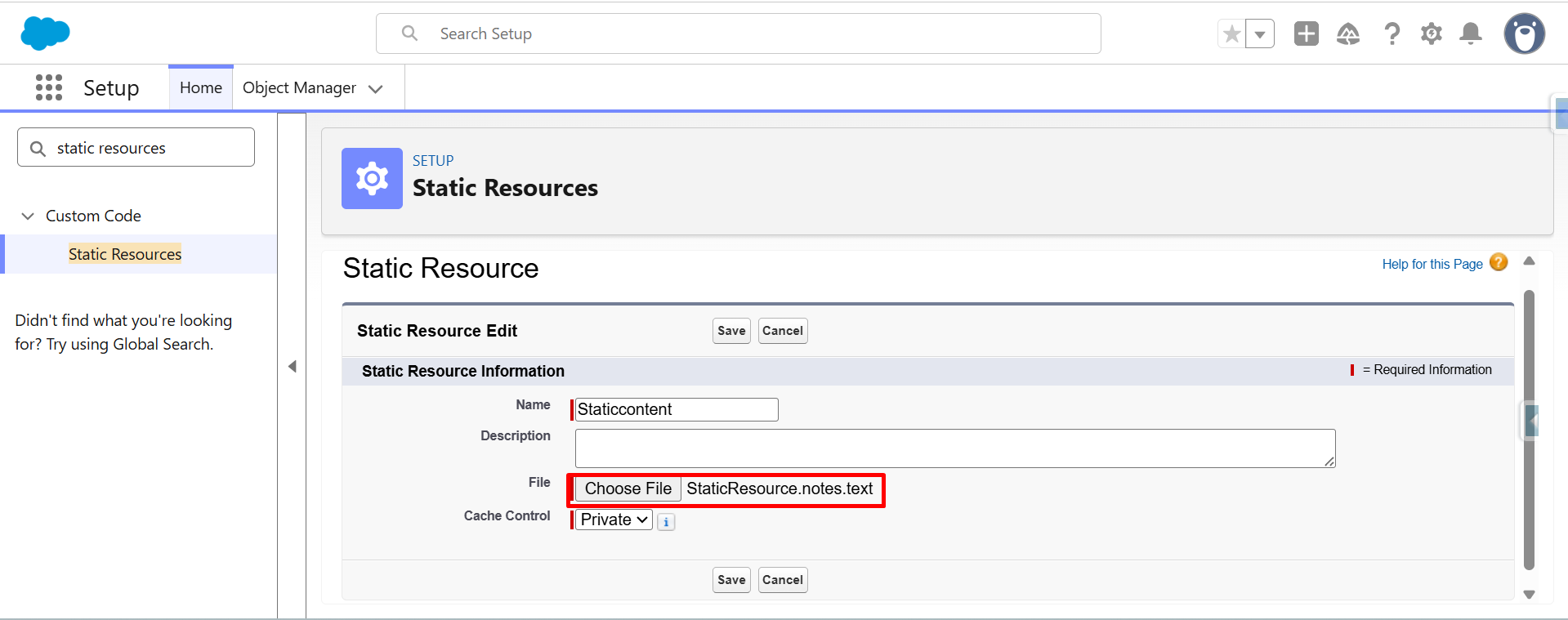
Step 5: File: click Choose File and upload your file (e.g.txt., Image).
Step 6: Click save.
Step 7: The static resource has been saved successfully.
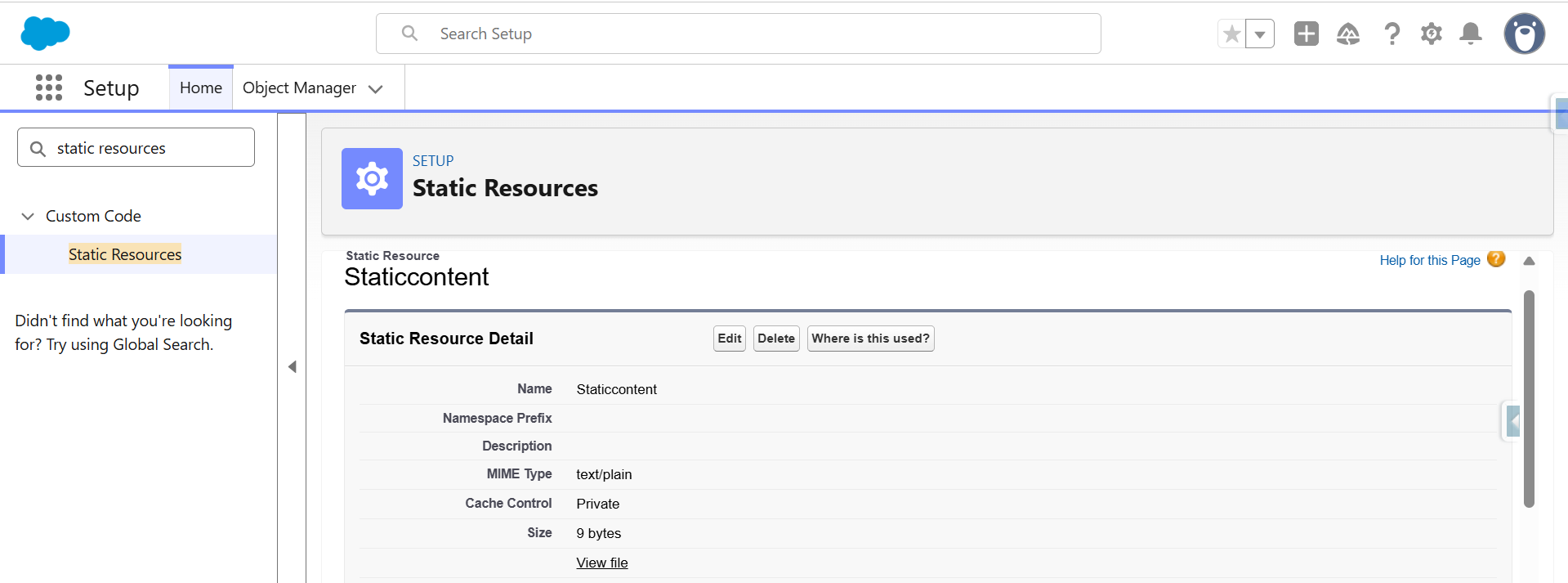
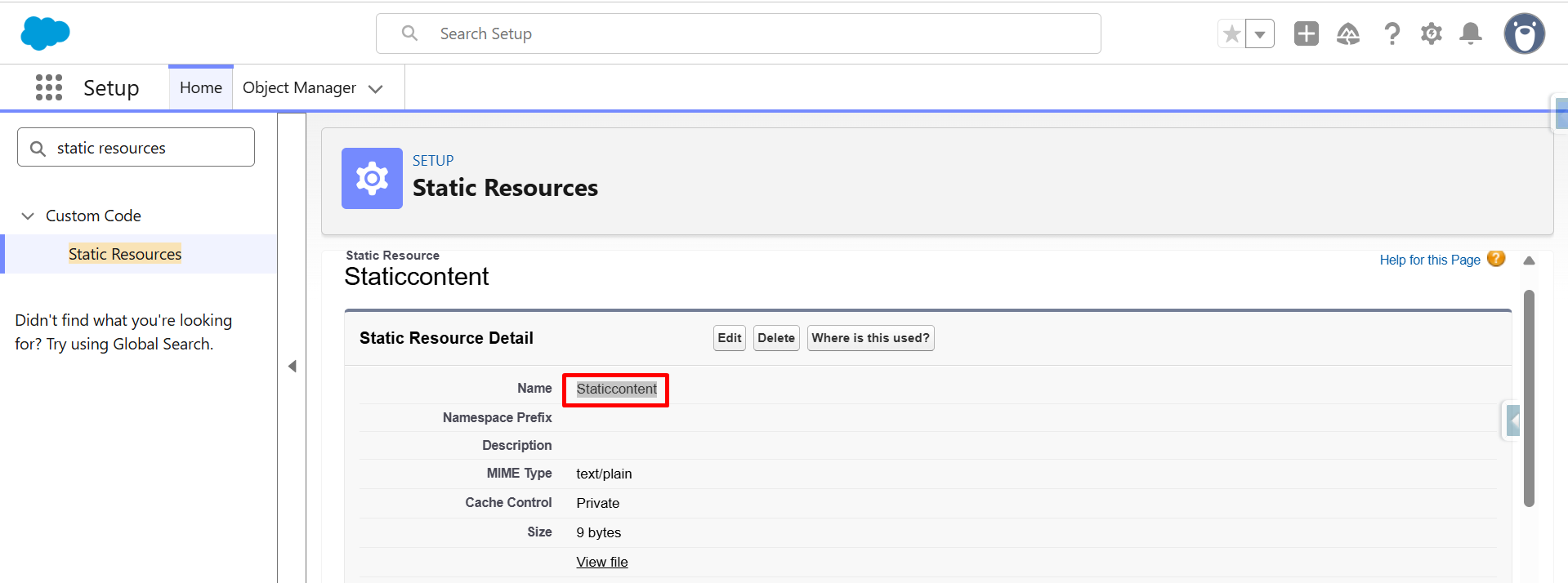
Step 8: Copy the Name (for example: Staticcontent).
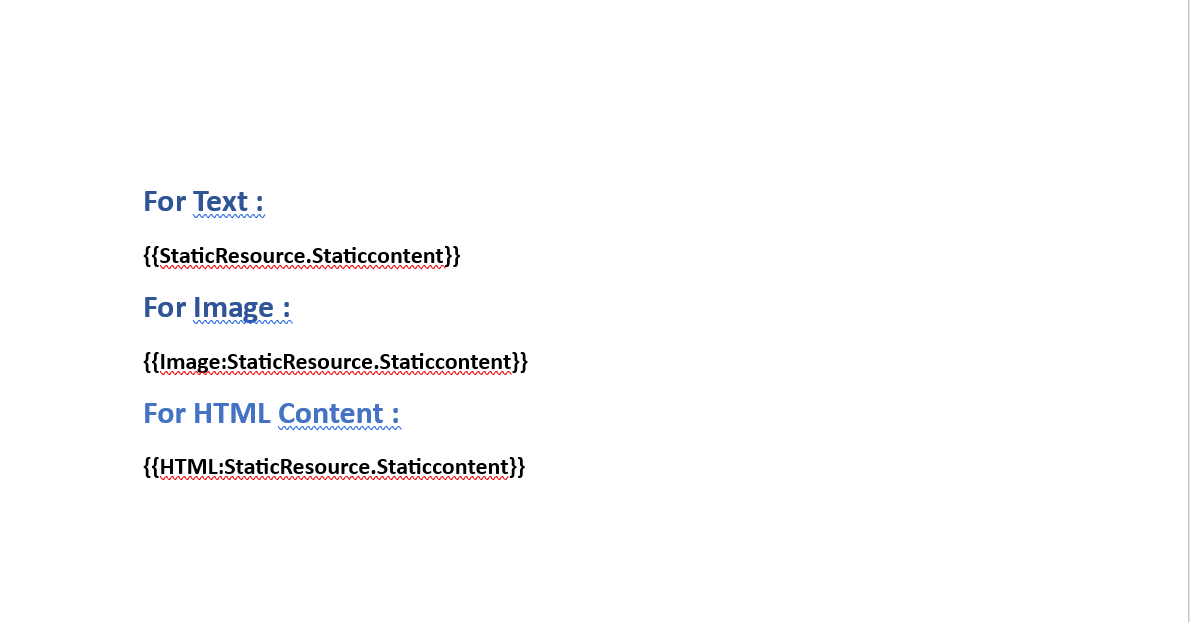
Step 9: Add Static Resource Merge Syntax on template.
- For Text - {{StaticResource.Staticcontent}}.
- For Image - {{Image:StaticResource.Staticcontent}}.
- For HTML content - {{HTML:StaticResource.Staticcontent}}.
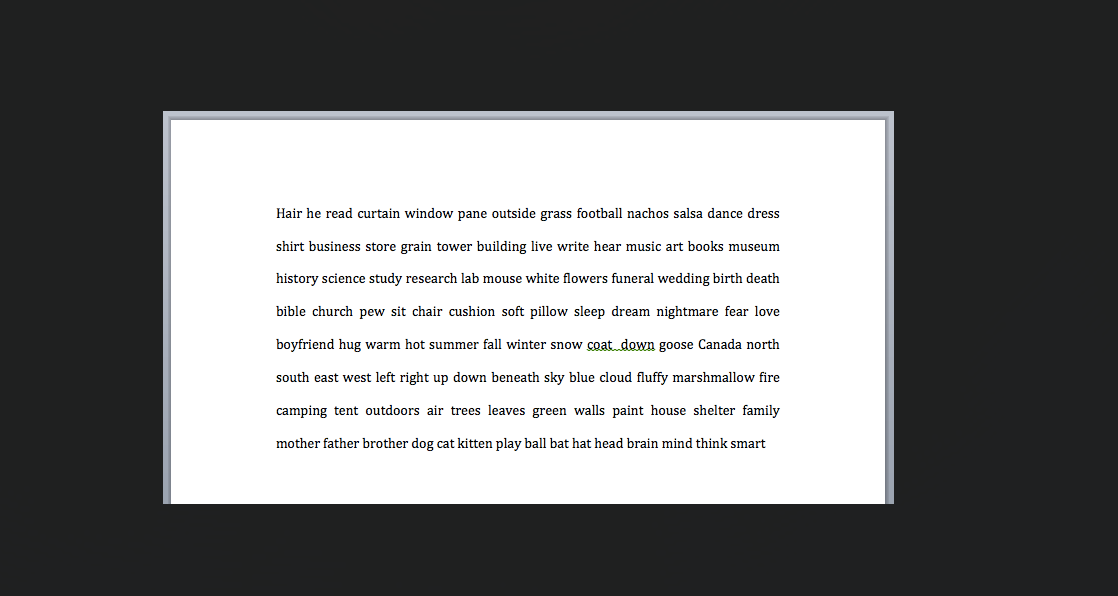
Step 10: Go back to the object record → Generate document to view the output.
- Text file Output
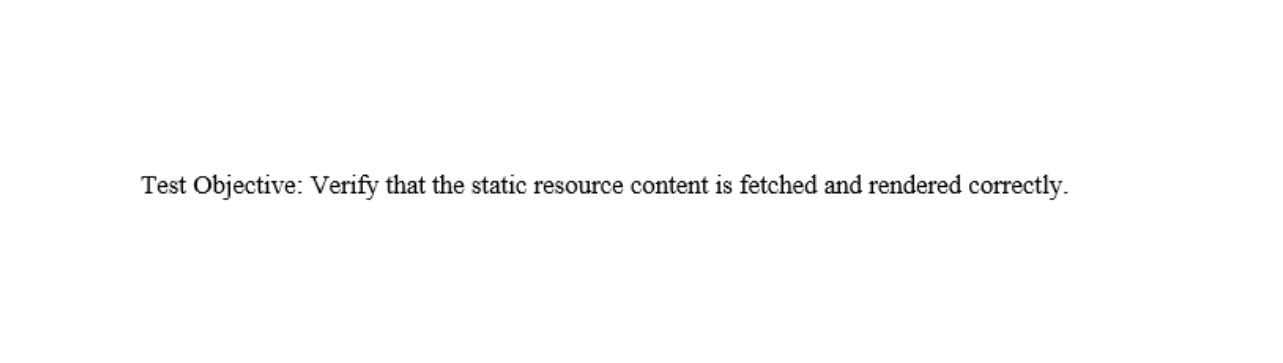
- Image Output
Thank you
Was this article helpful?
That’s Great!
Thank you for your feedback
Sorry! We couldn't be helpful
Thank you for your feedback
Feedback sent
We appreciate your effort and will try to fix the article