Steps to Create a Document Solutions Collection:
Step 1: First, login to Salesforce.
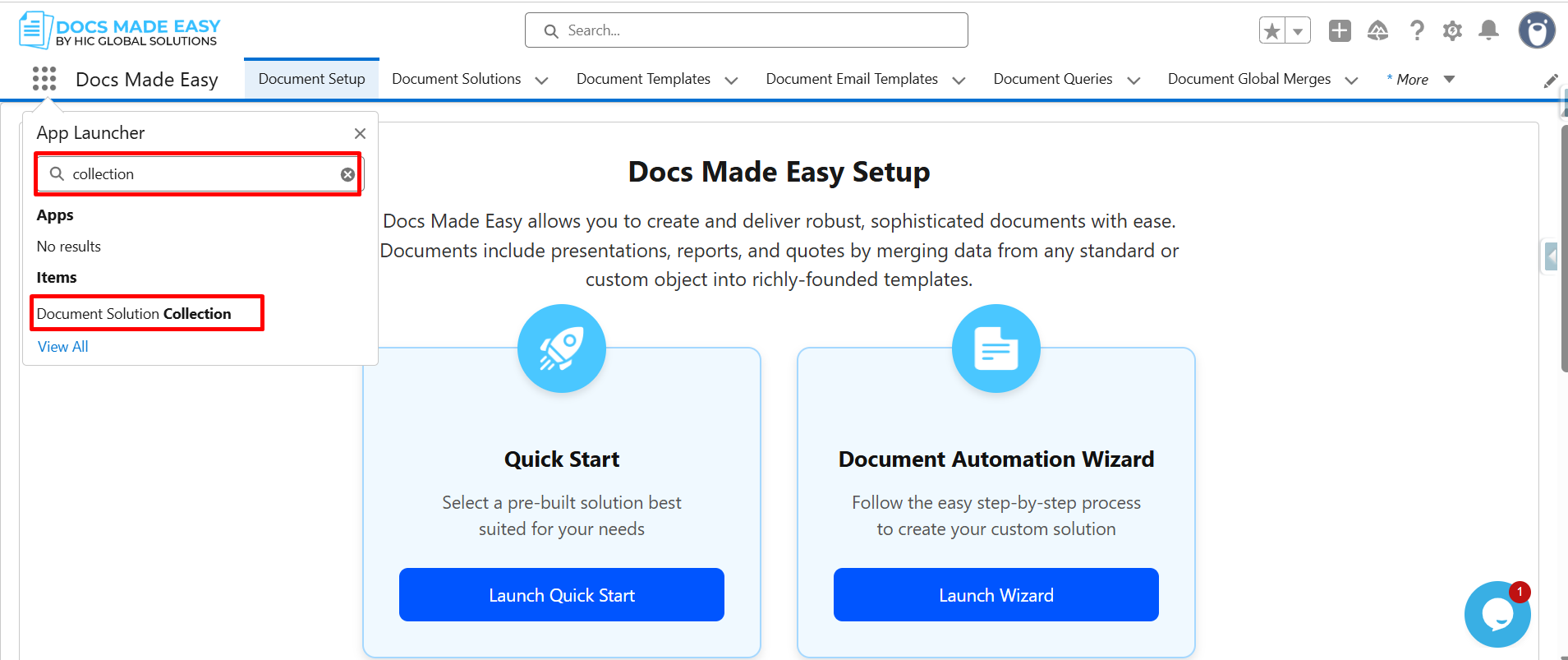
Step 2: Open Docs Made Easy and search for Collection in the App Launcher.
Then, click on the Document Solution Collection.
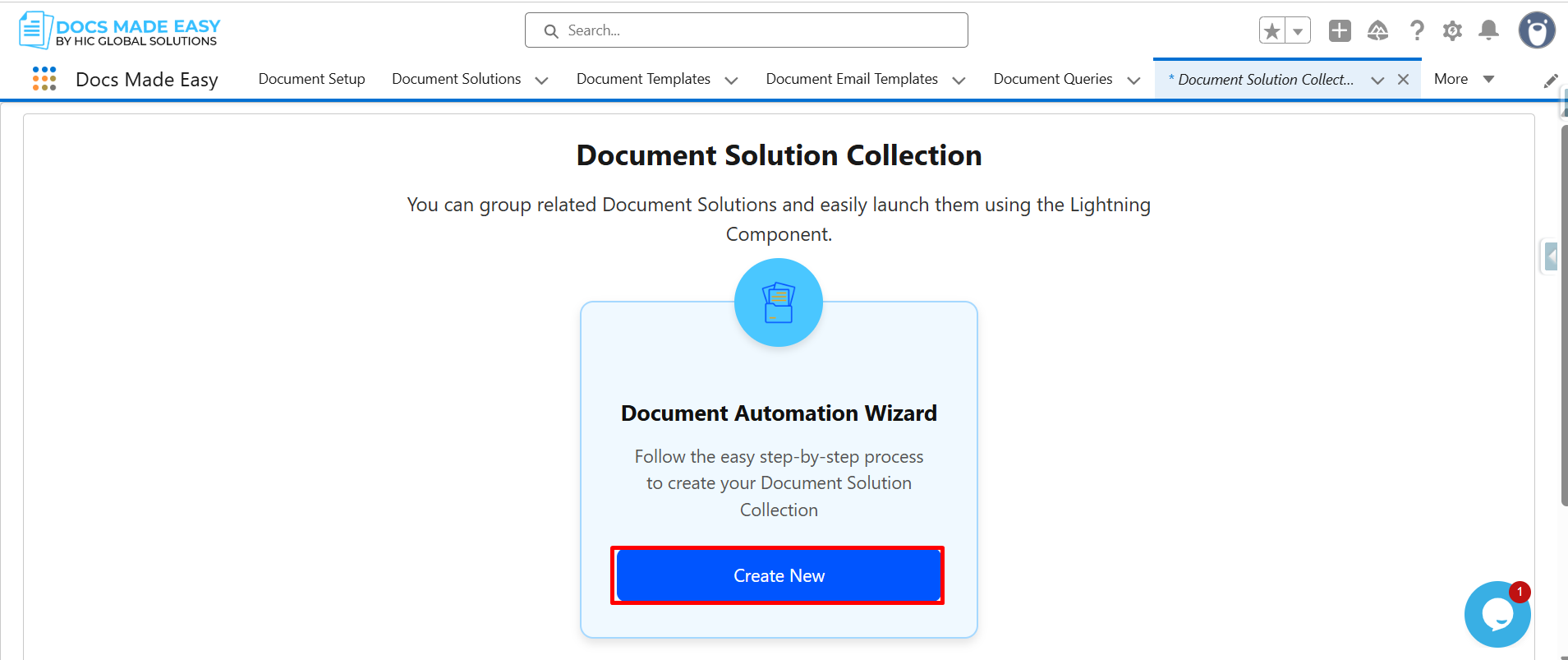
Step 3: Click on Create New.
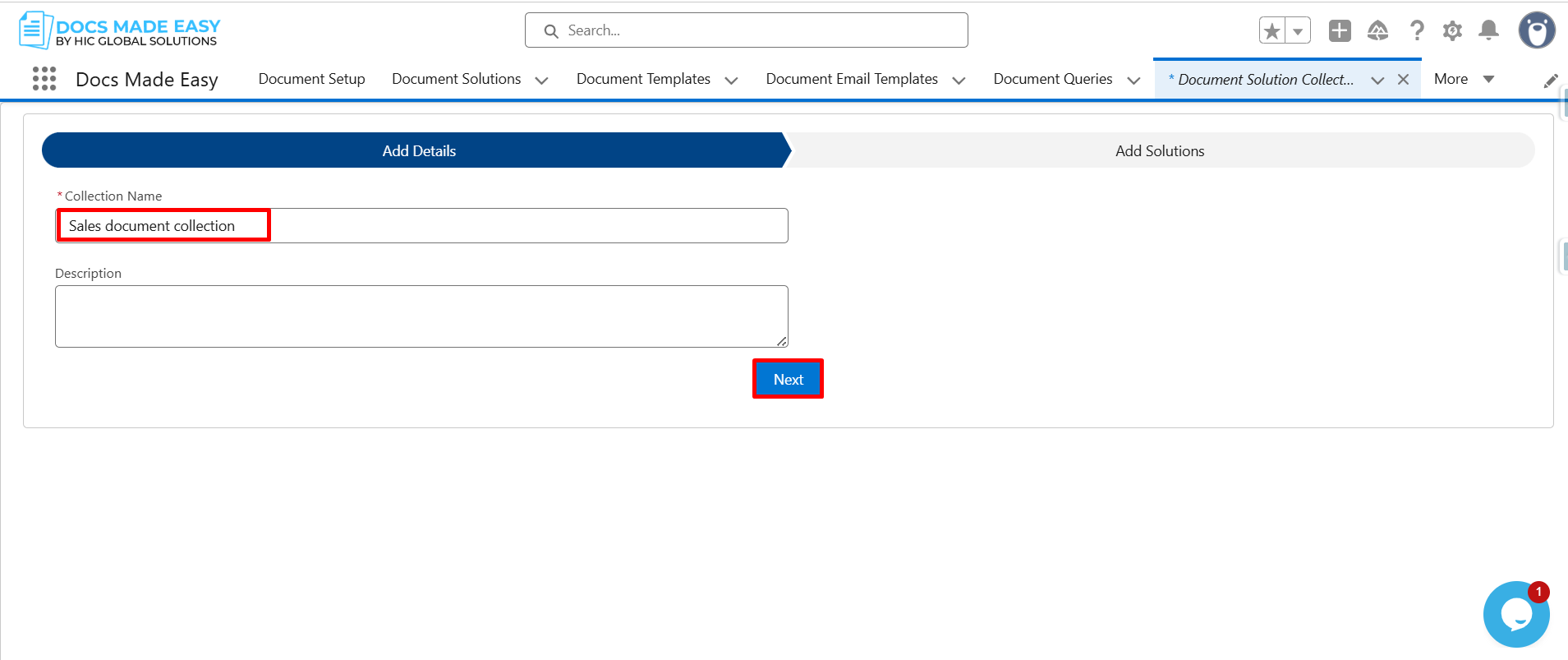
4: Enter the Collection Name and click on Next.
Step 5: Select the required solutions from the available solutions list.
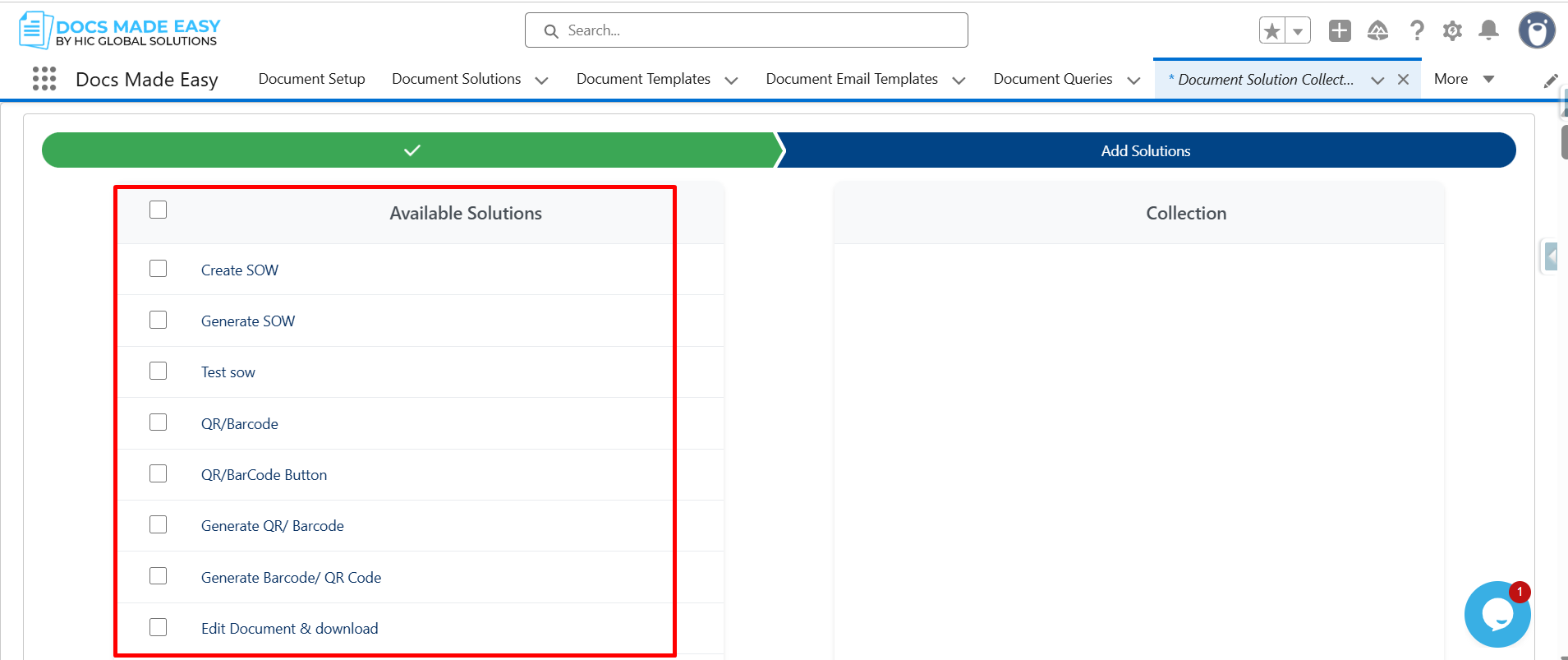
Step 6: Once selected, the solutions will appear in the Collection panel on the right side.
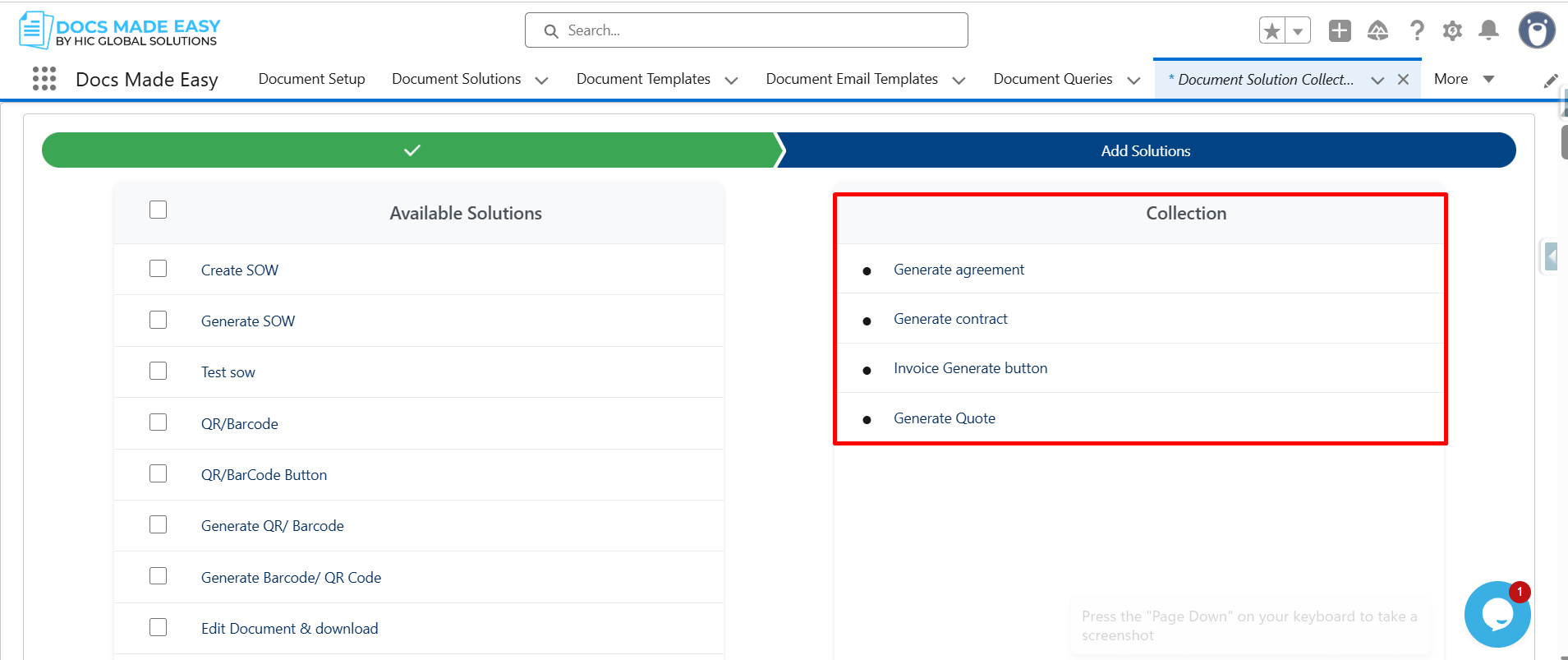
Step 7: After that Click on Next.
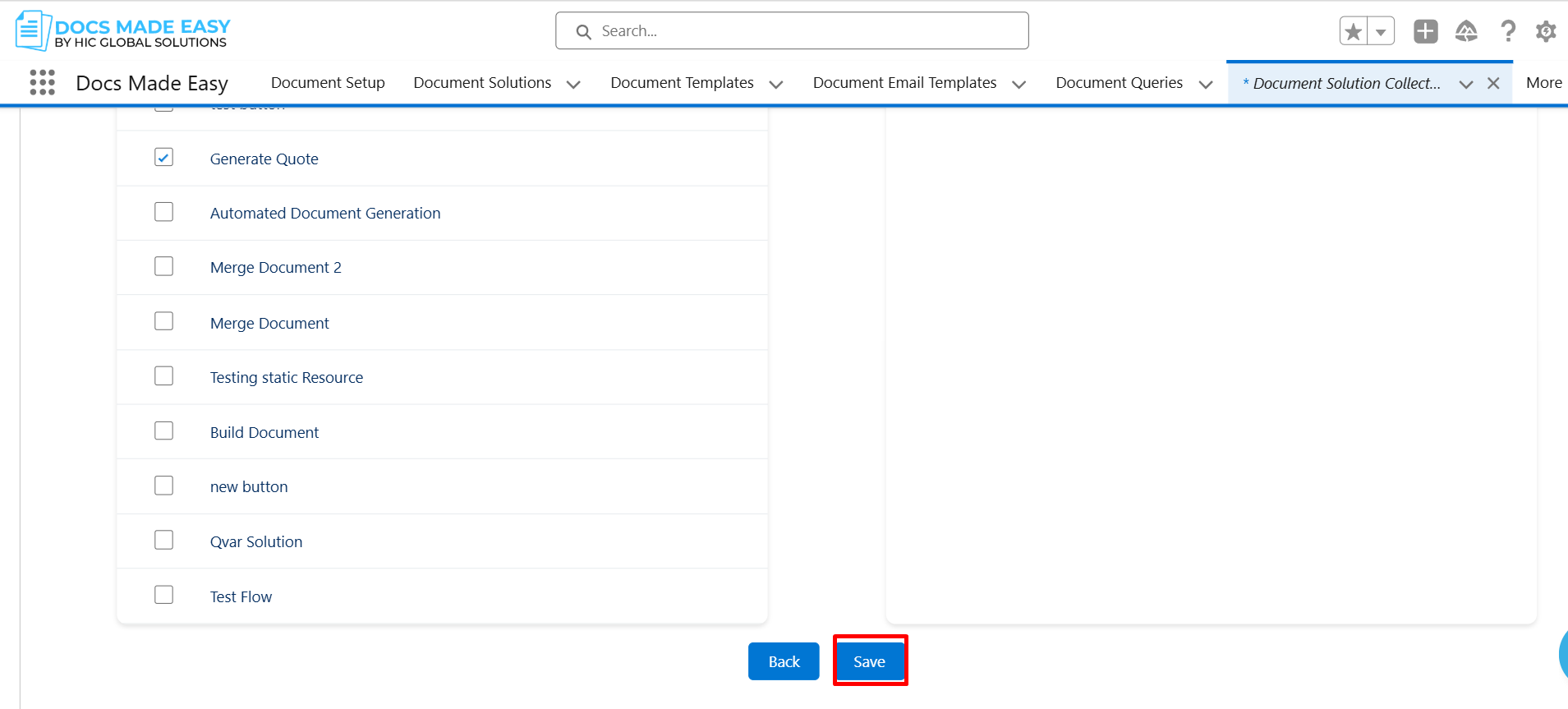
Step 8: Open the object record where the solutions are created, click the Gear icon, and select Edit Page.
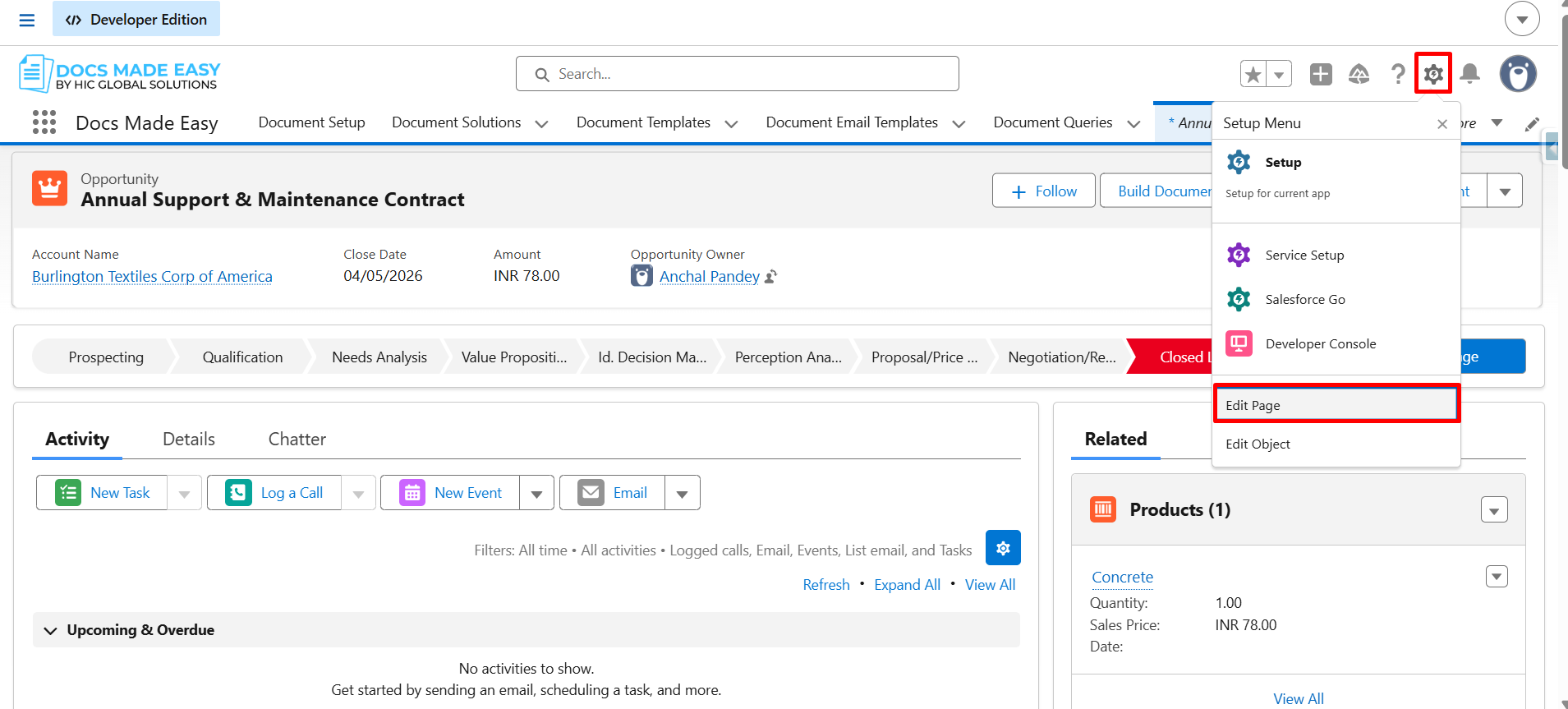
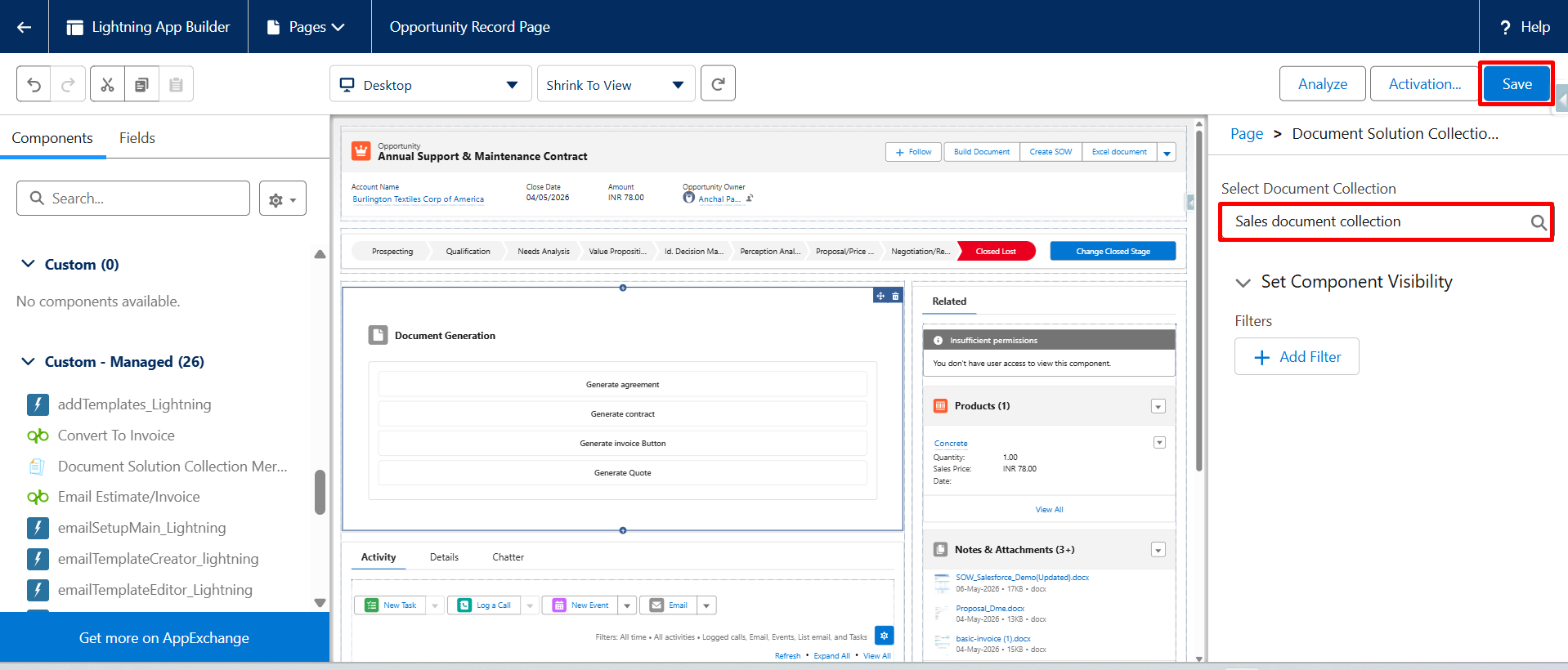
Step 9: From the component panel, drag the Document Solution Collection component and place it onto the record page.
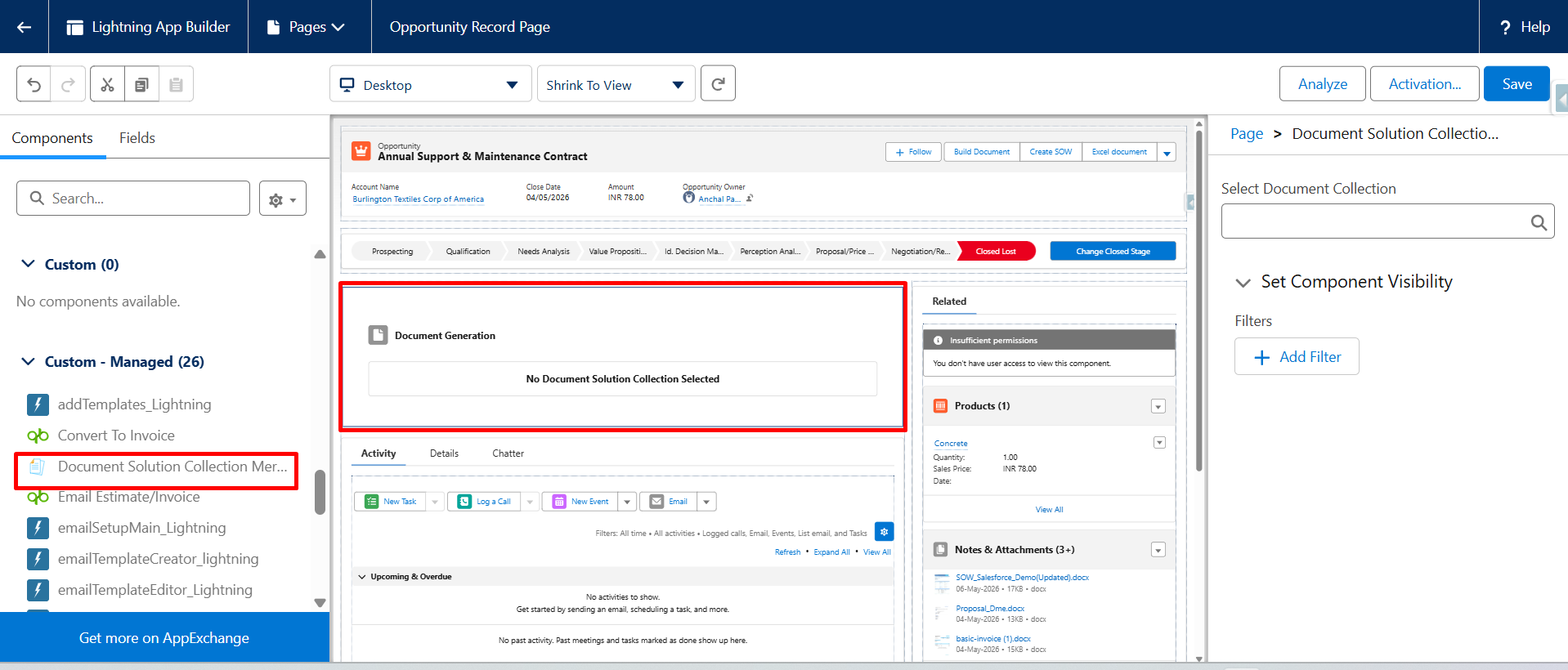
Step 10: Select the required Document Solution Collection, Then click Save to apply the changes.
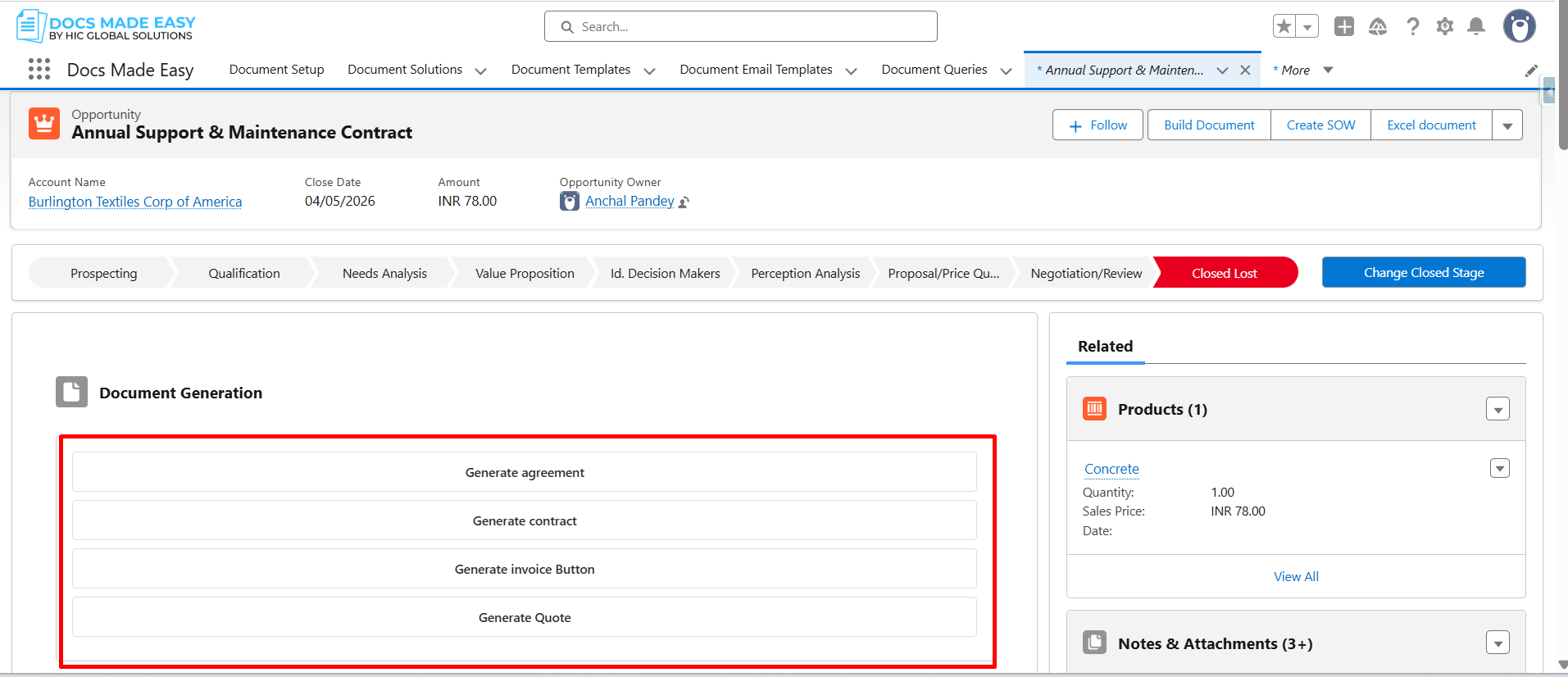
Step 11: You can now see that the solutions selected in the collection are displayed in the Document Generation section on the record.
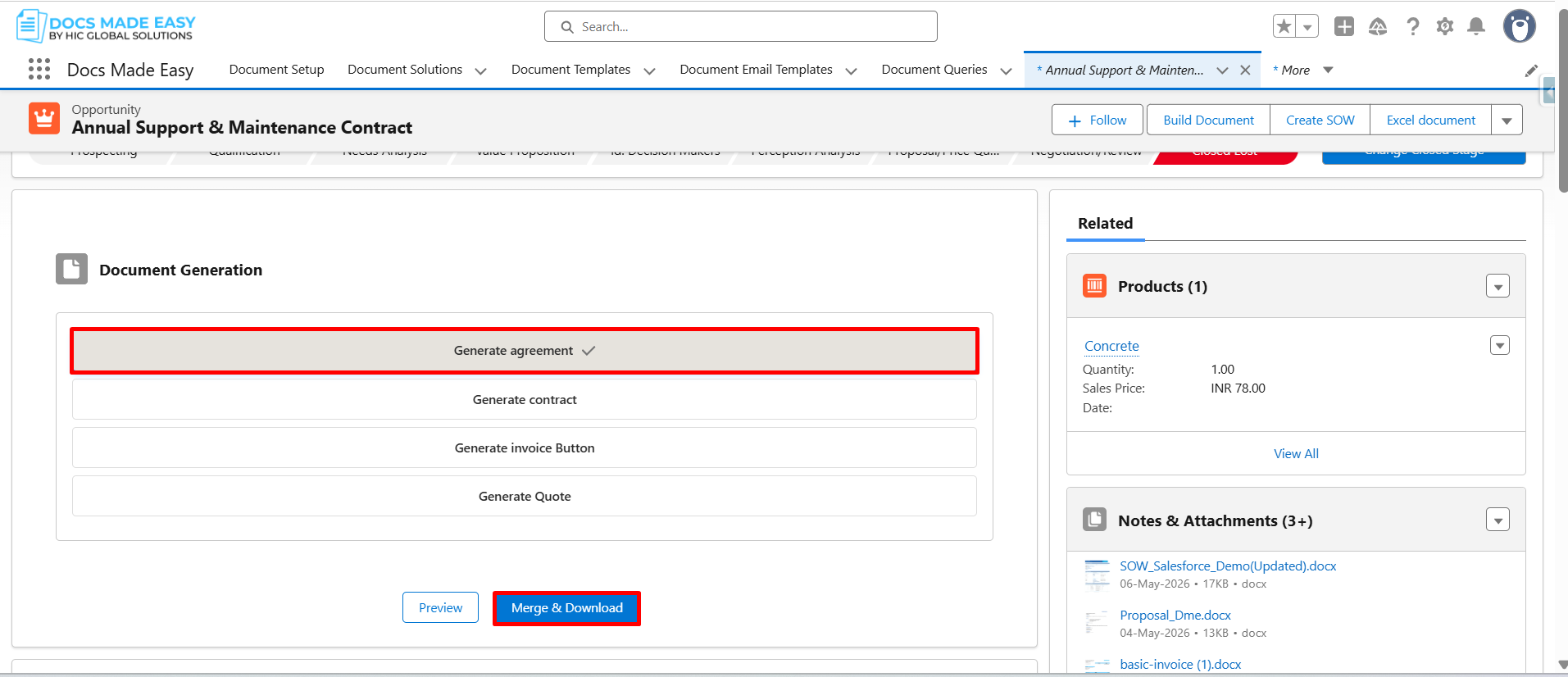
Step 12: Select the required solution and click the Merge & Download button to generate the document.
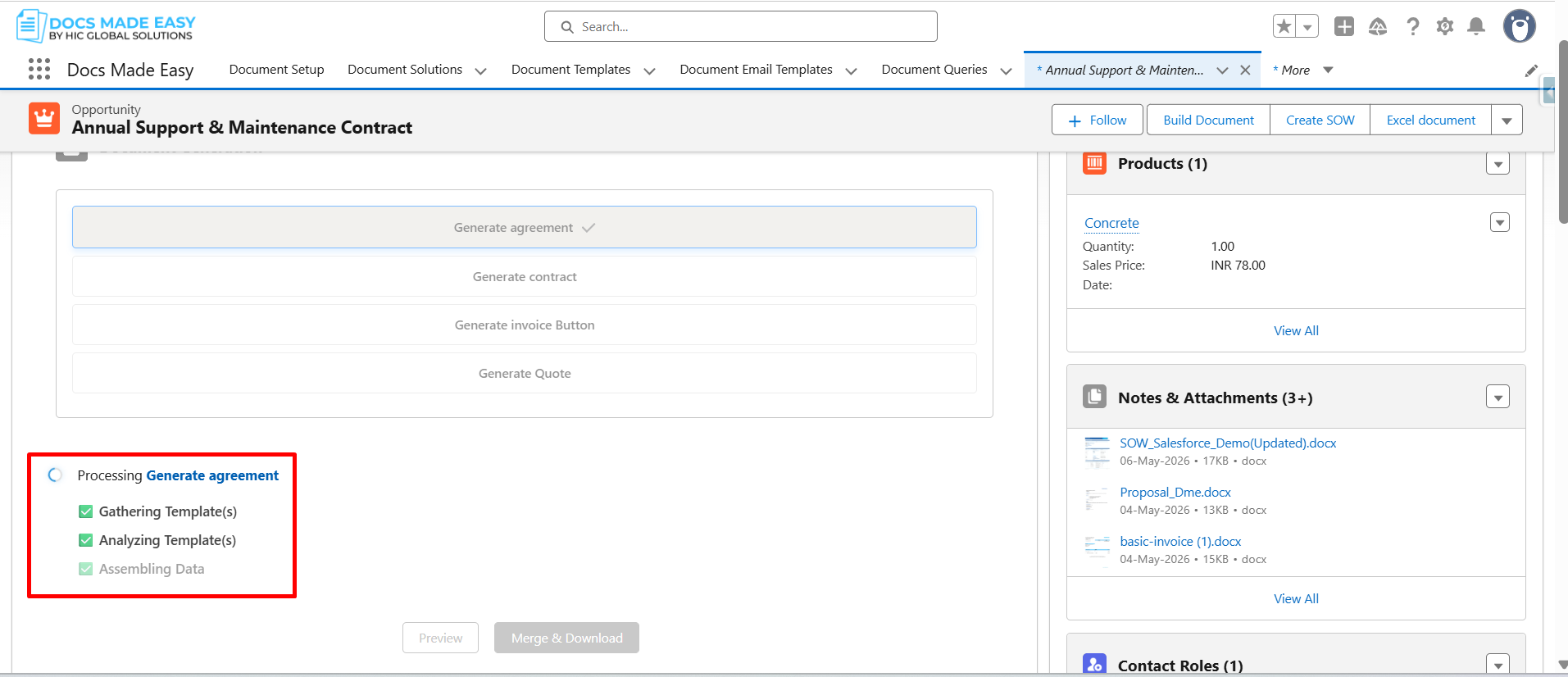
Step 13: The document generation process will begin, and the selected solution will be processed to generate the document.
Thank you
Was this article helpful?
That’s Great!
Thank you for your feedback
Sorry! We couldn't be helpful
Thank you for your feedback
Feedback sent
We appreciate your effort and will try to fix the article