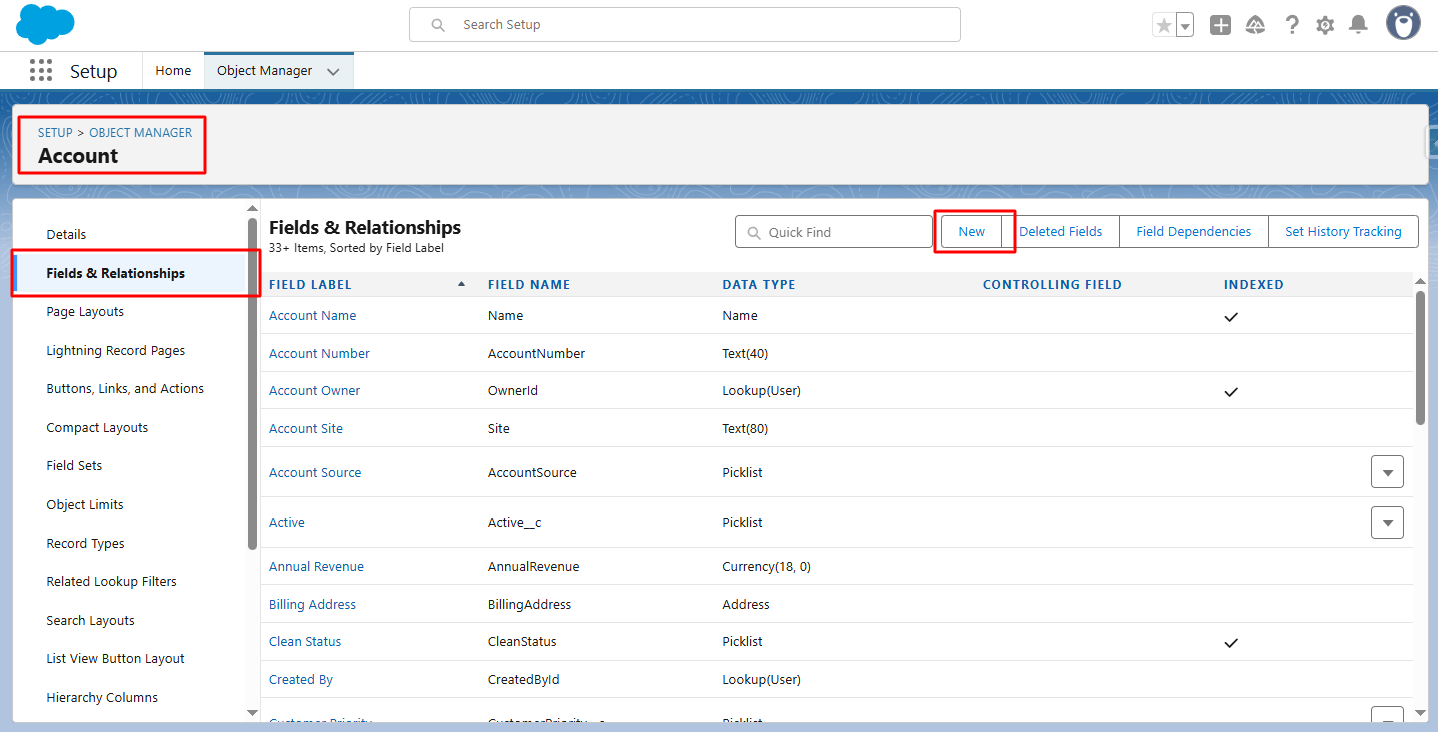
Step 1: In Object Manager, open the selected object, go to Fields & Relationships, and click New to create a field.
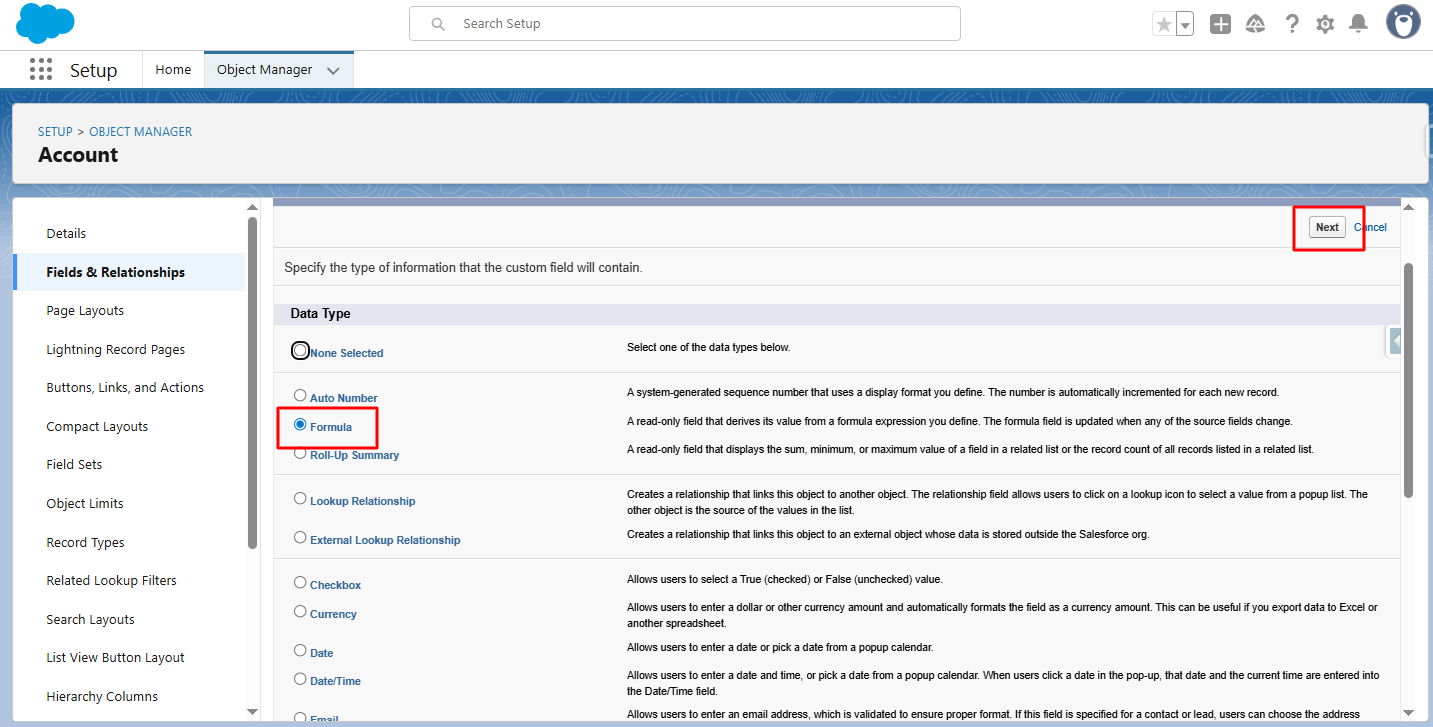
Step 2: Select the Formula radio button as the data type, then click Next.
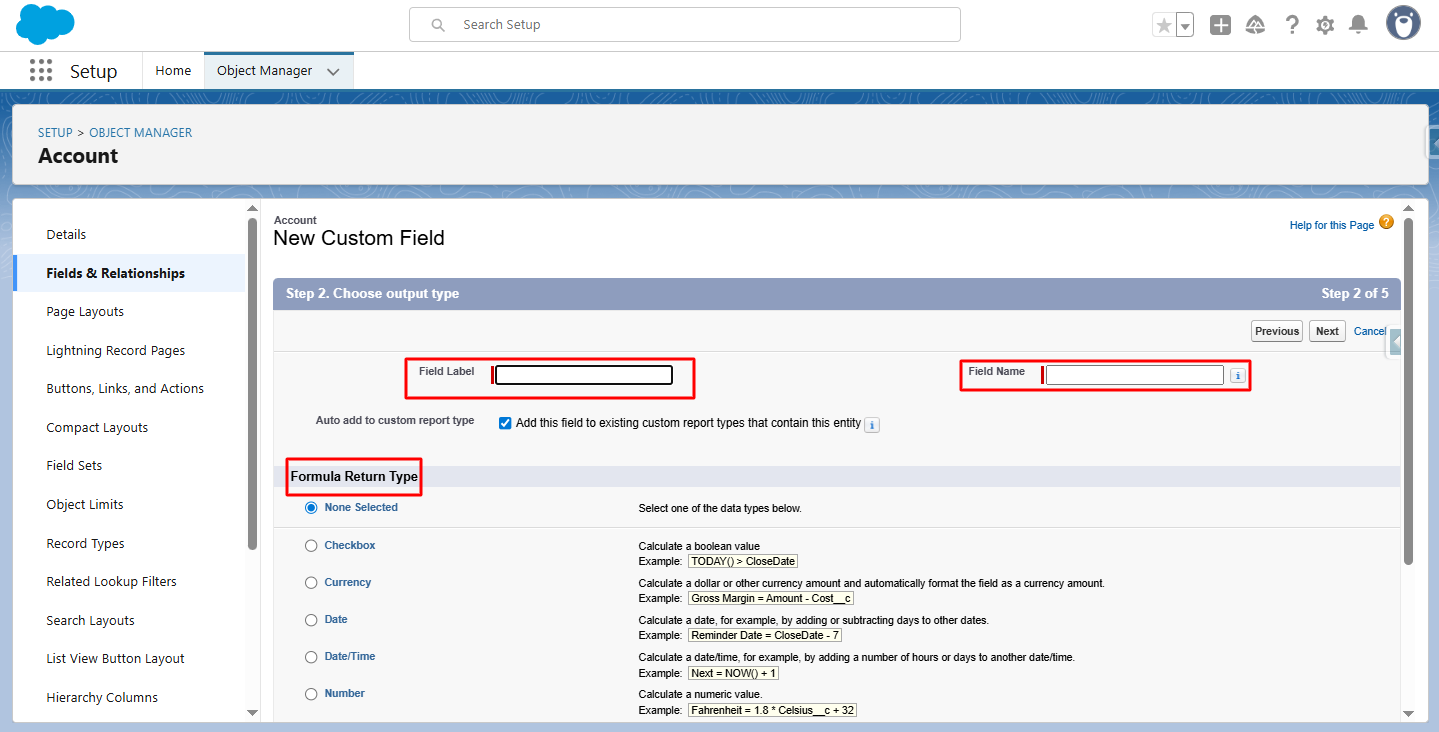
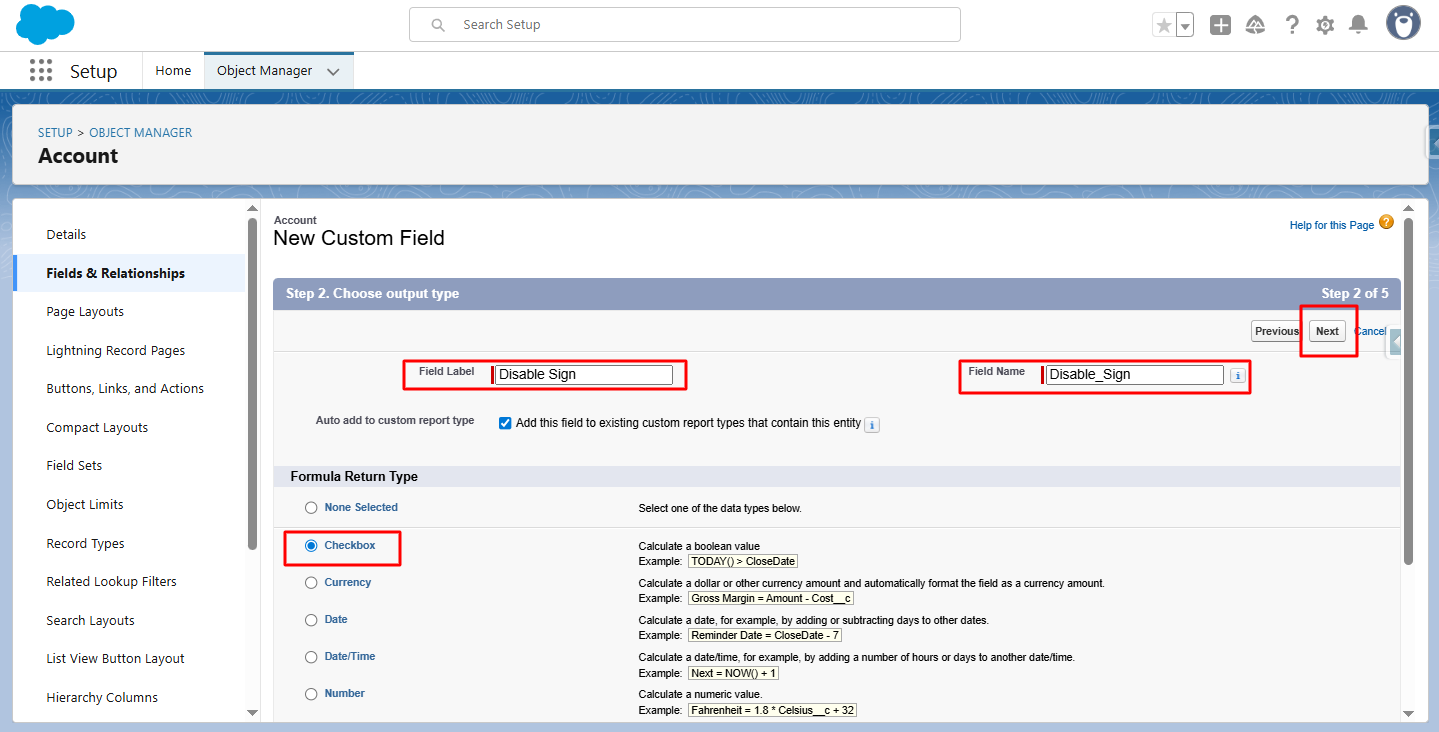
Step 3: Enter the Field Label, Field Name, and select the Formula Return Type, then proceed.
Step 4: Click Next to continue.
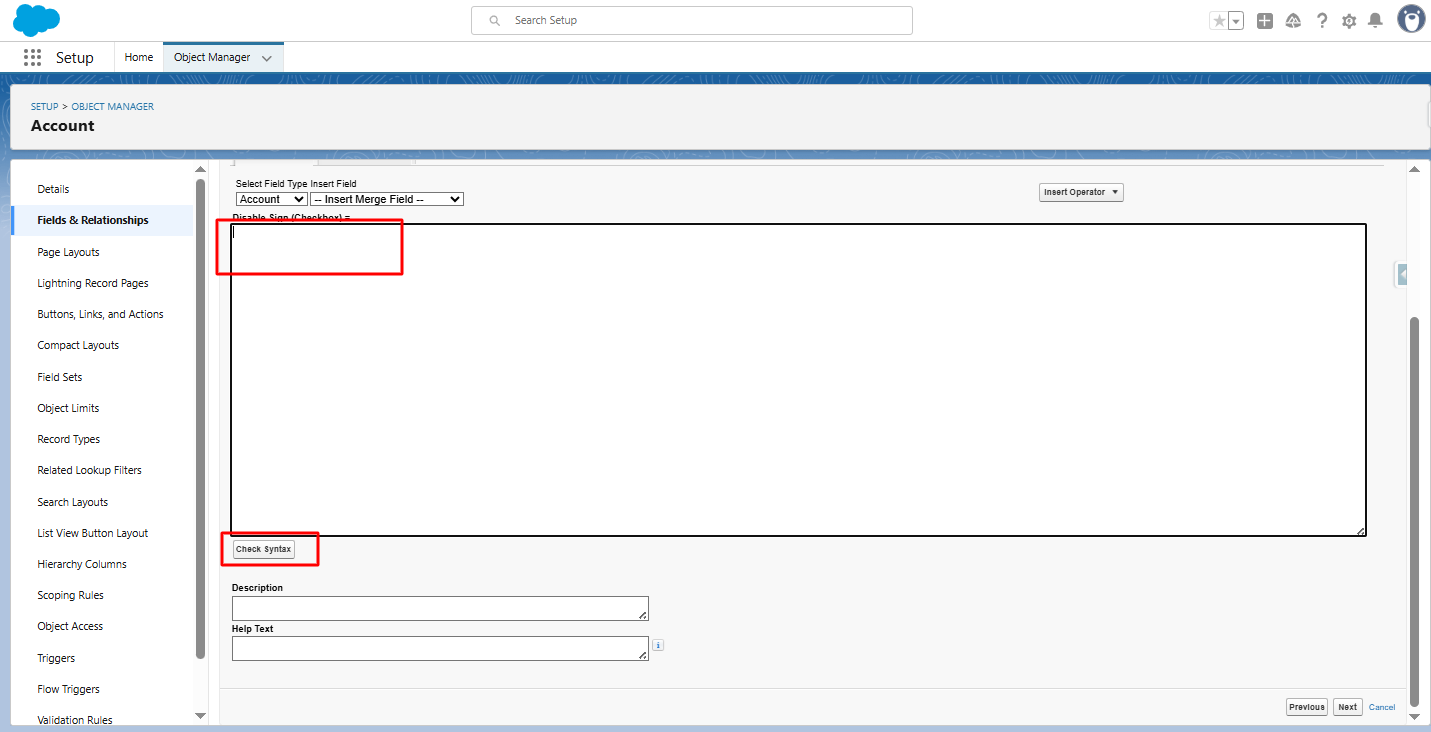
Step 5: Enter the formula for the Disable Sign parameter, then click Check Syntax. For example, if Rating is 'Hot', the Disable_Sign__c checkbox will be checked; otherwise, it will remain unchecked.
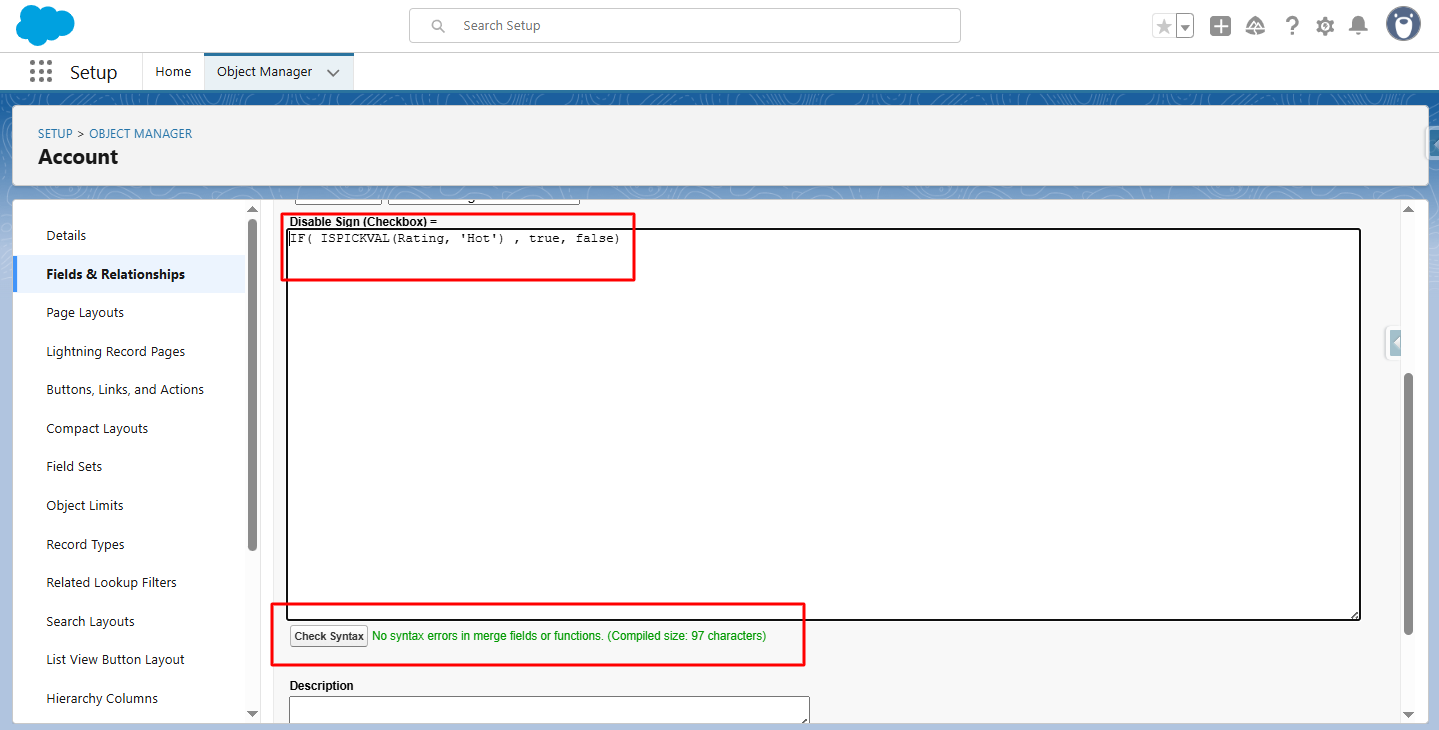
Step 6: Click Next to continue.
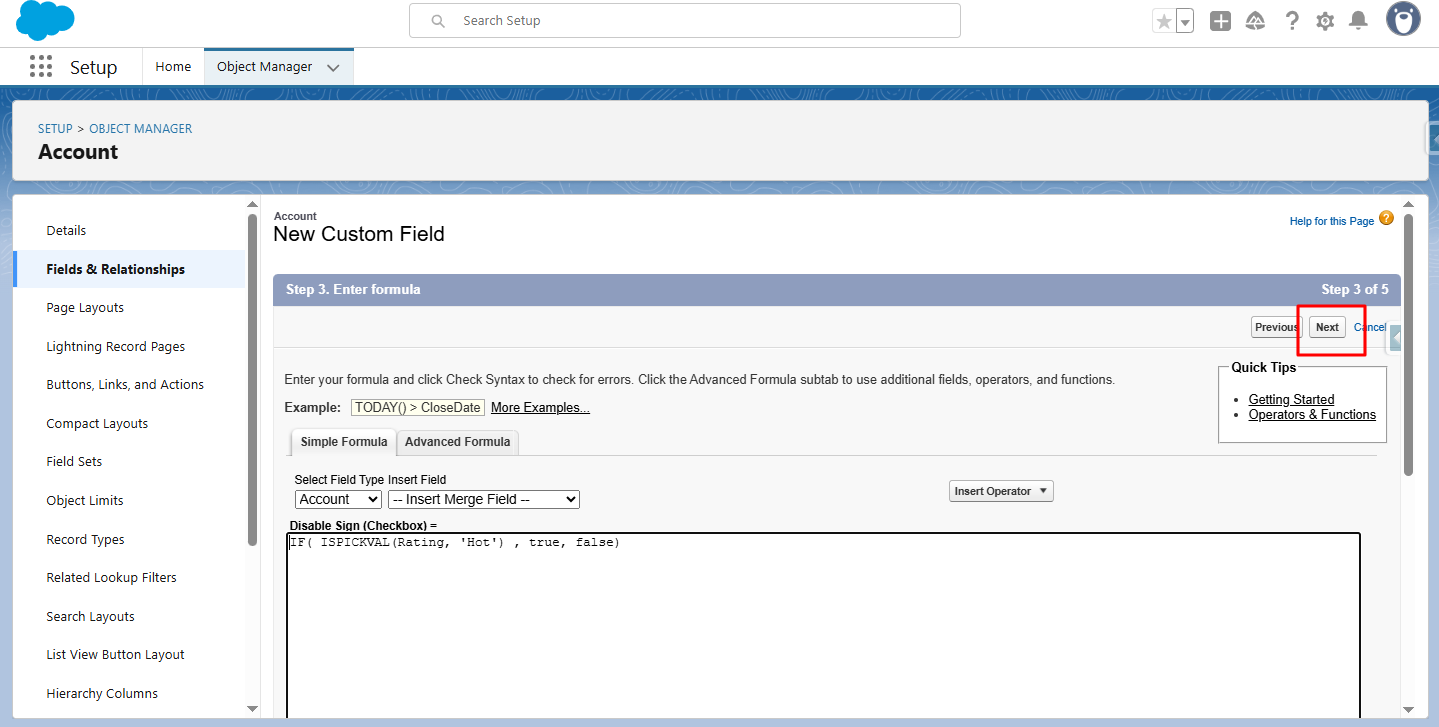
Step 7: Again, click on Next to continue.
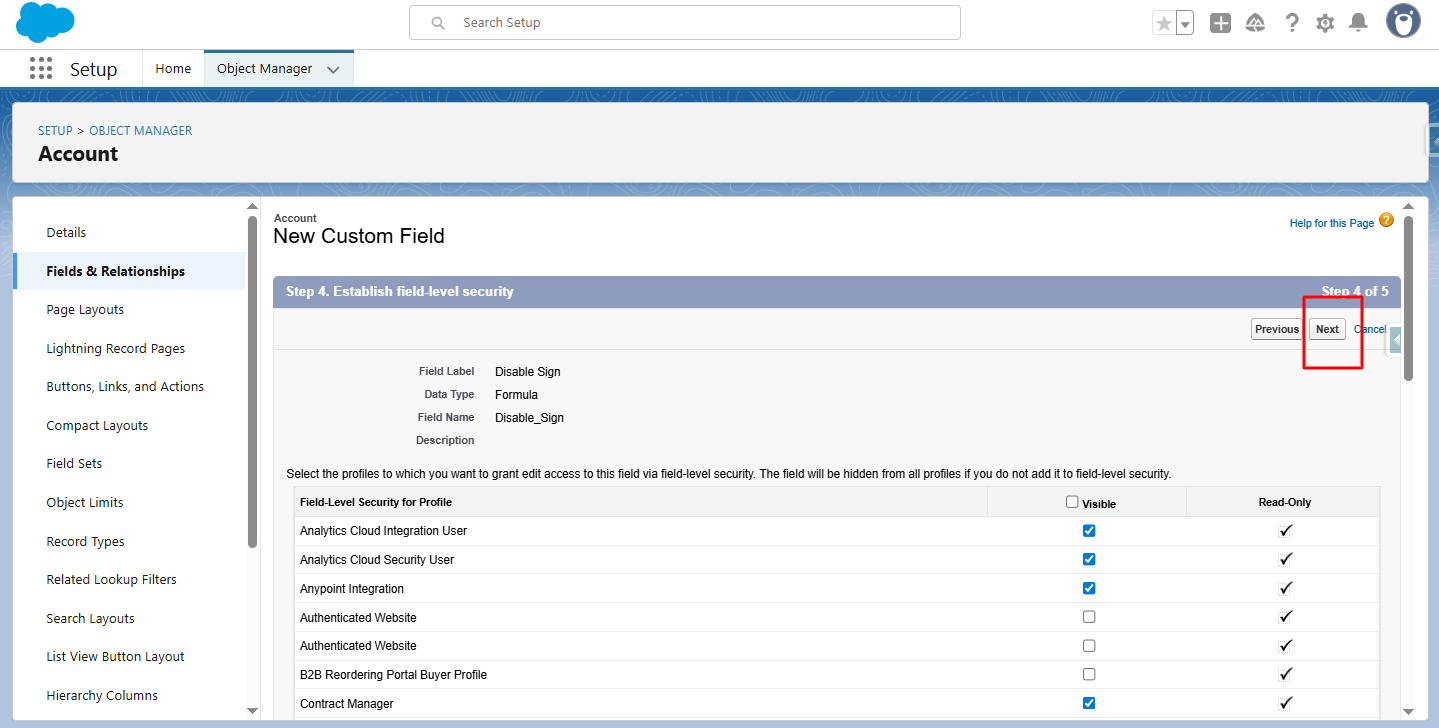
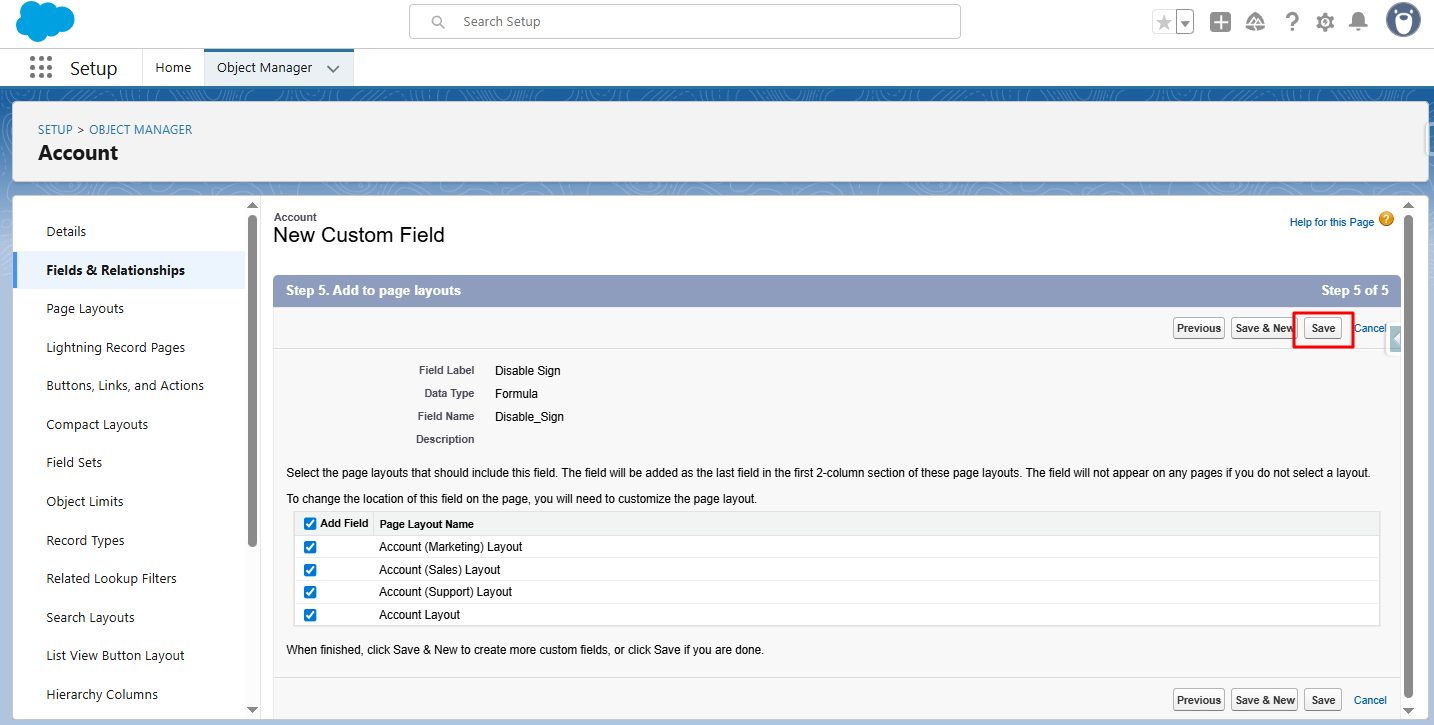
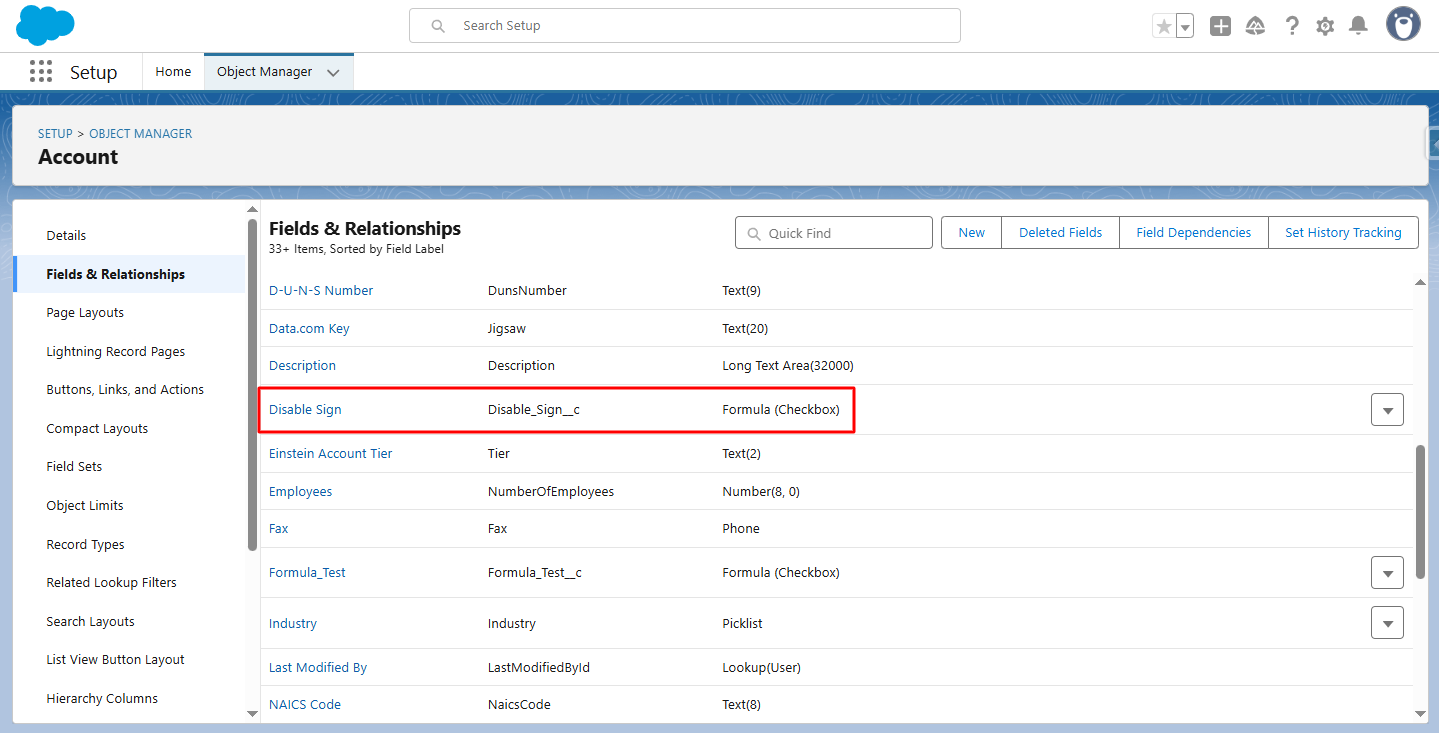
Step 8: Click Save to create the checkbox formula field.
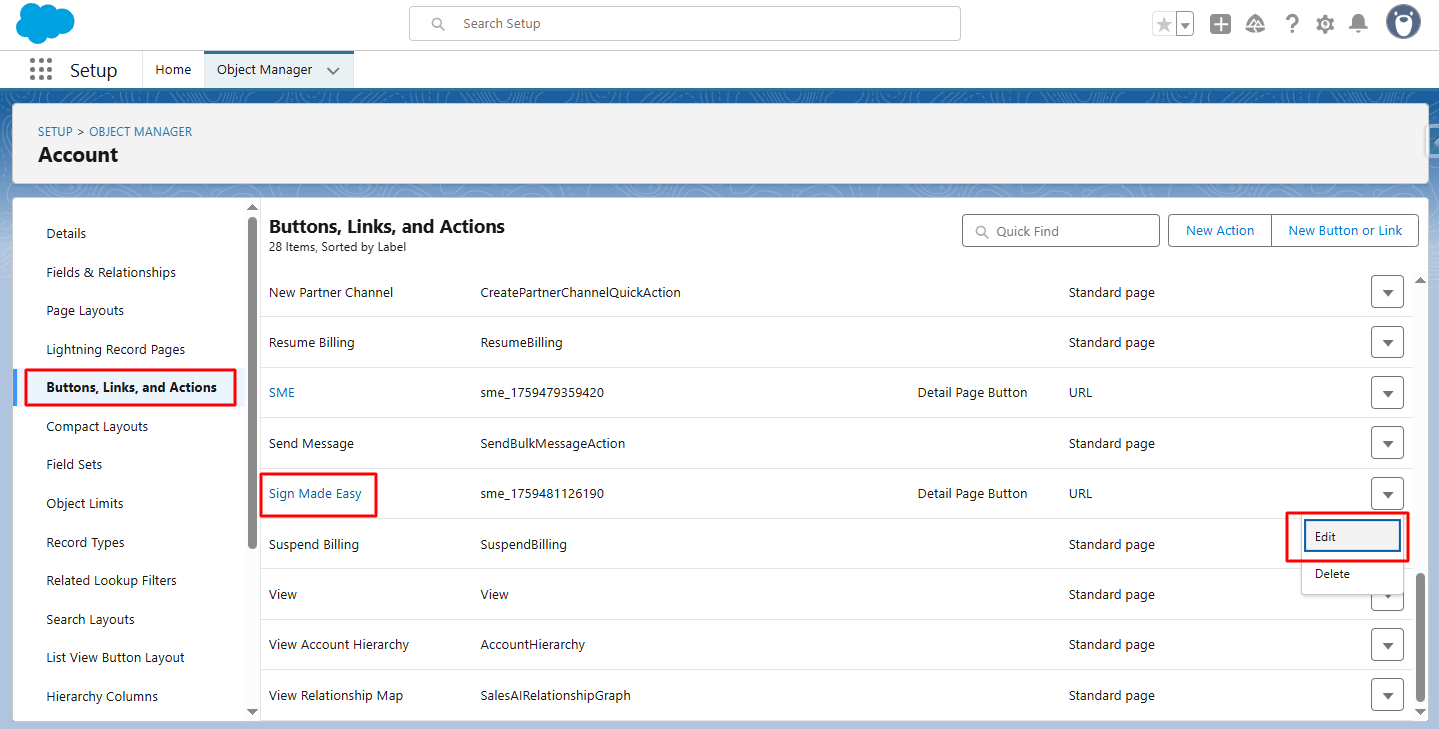
Step 9: Edit the Sign Made Easy button by navigating to Object Manager → [Selected Object] → Buttons, Links, & Actions. Locate the ‘Sign Made Easy’ button and click Edit to modify its link or behavior.
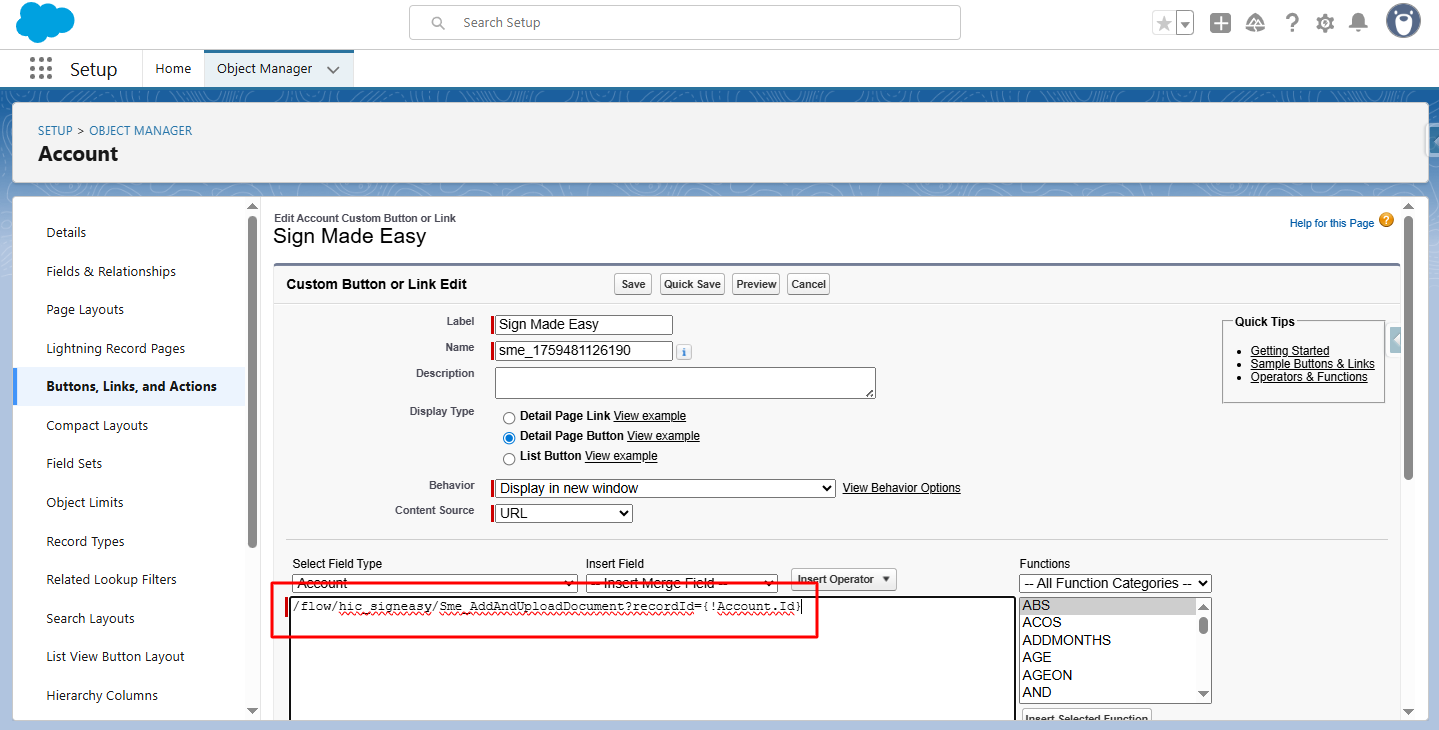
Step 10: In the button link’s formula section, add the DS and DSM parameters to enable the Disable Sign functionality, then click Check Syntax to validate.
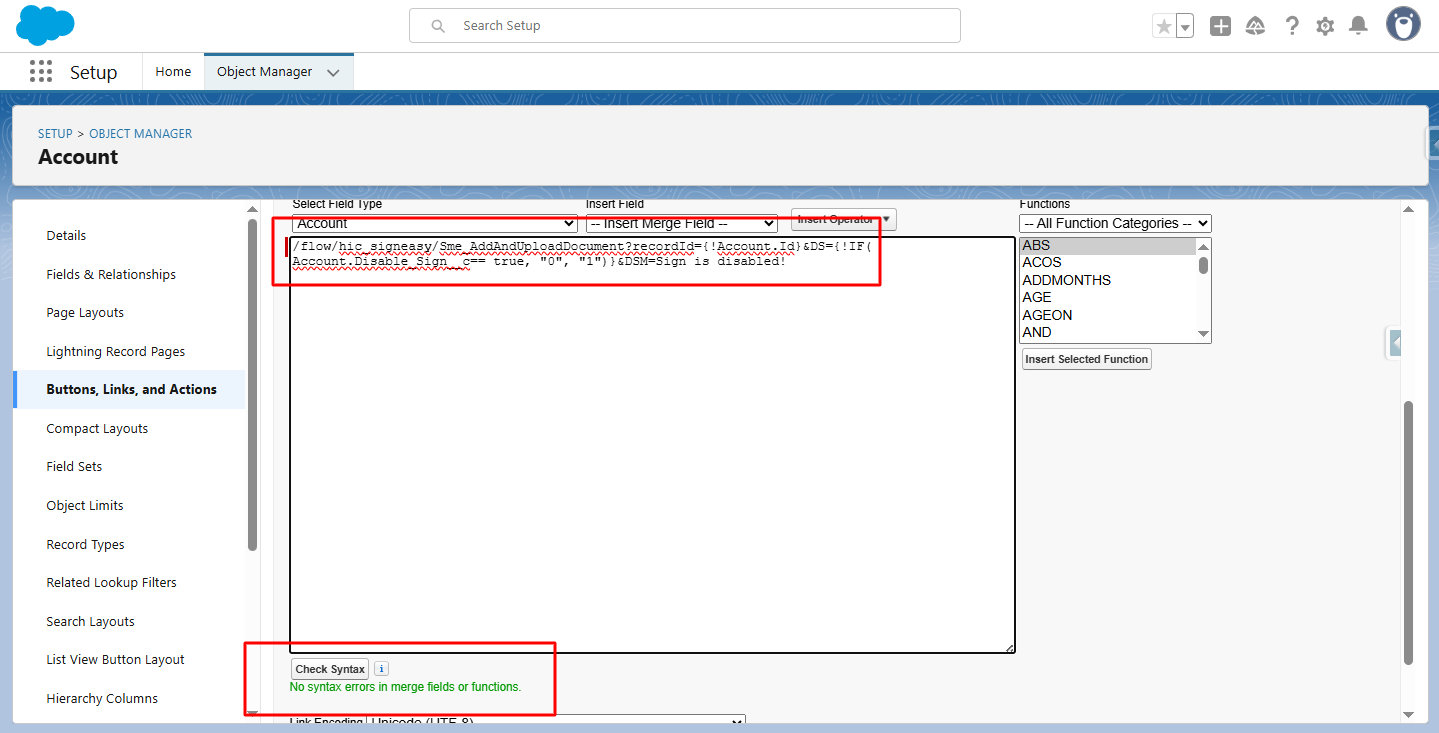
Step 11: Click Save to apply the changes to the button and enable the Disable Sign functionality.
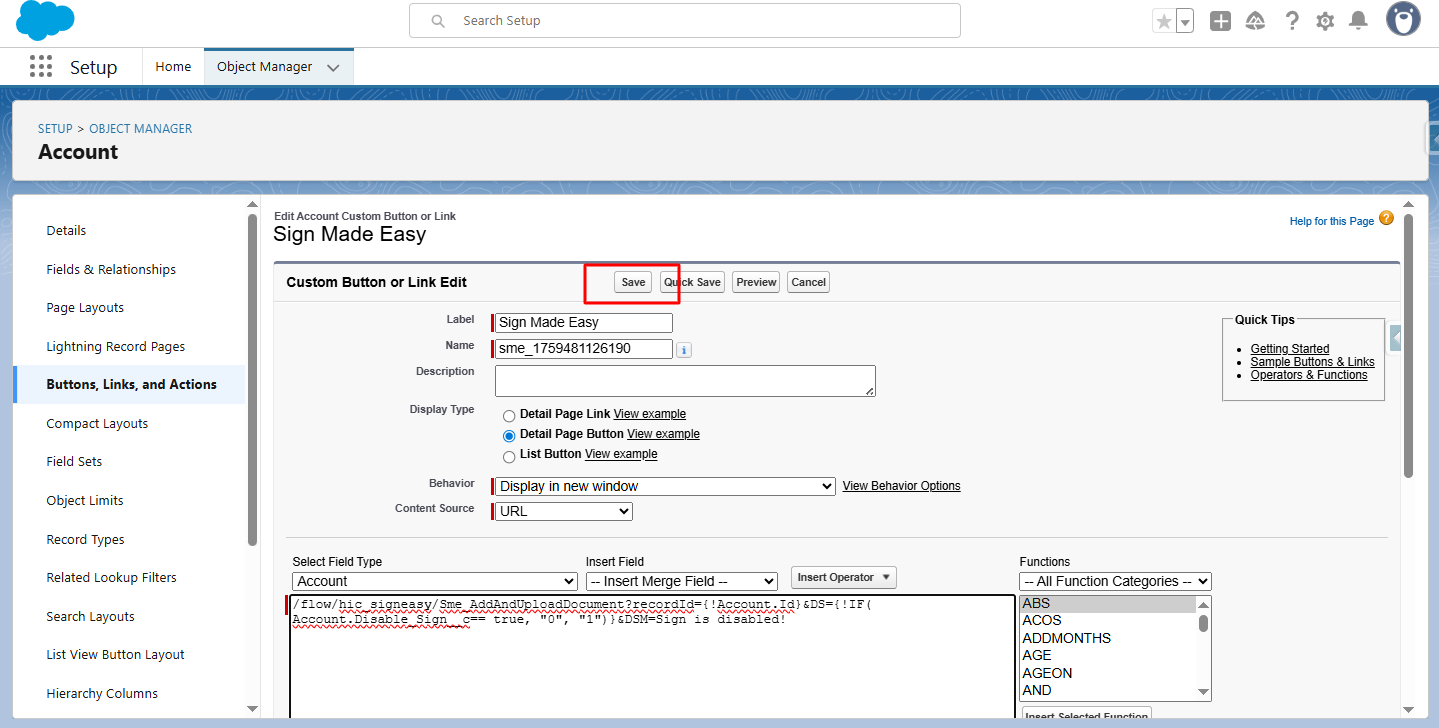
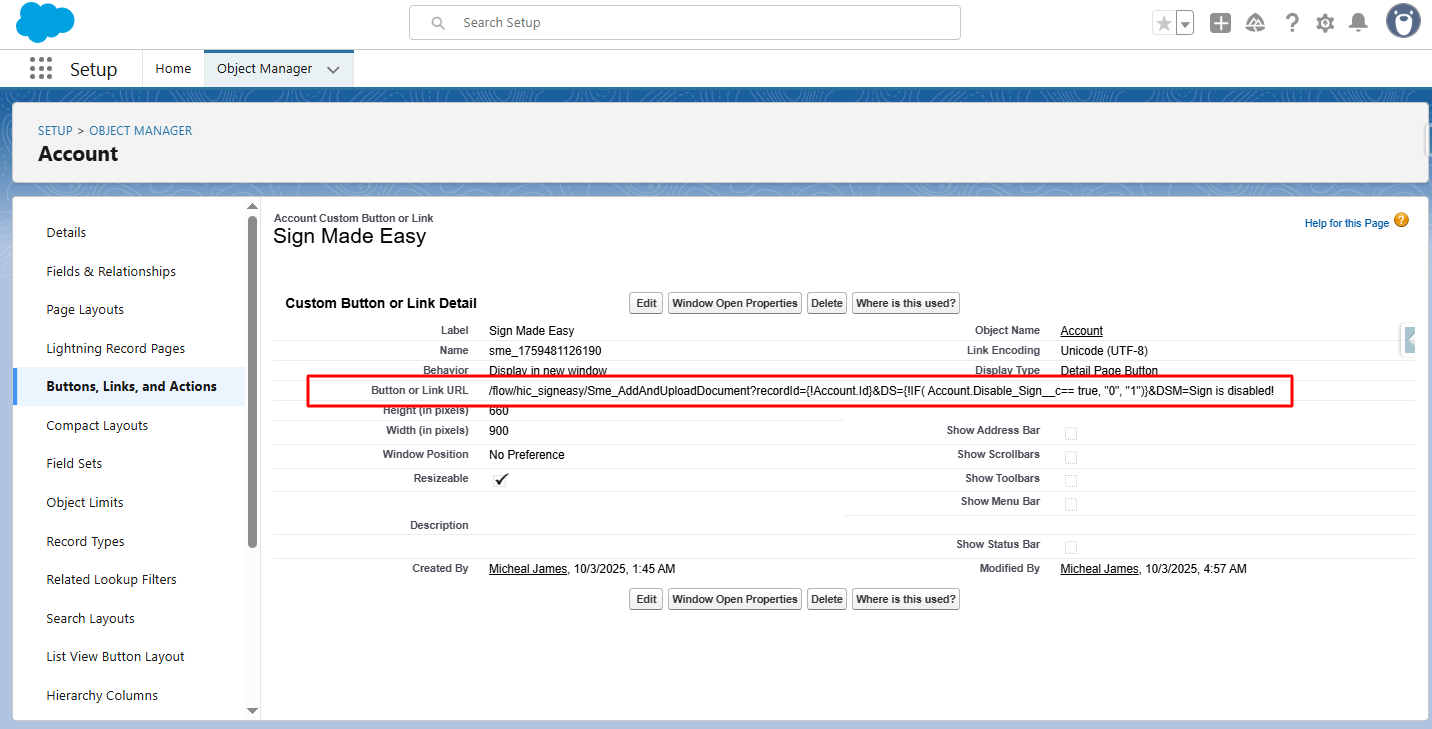
Note: This ensures that the Sign Made Easy button dynamically enforces signing rules: the user can sign only when the DS condition permits it, and if signing is disabled, the DSM message is displayed.
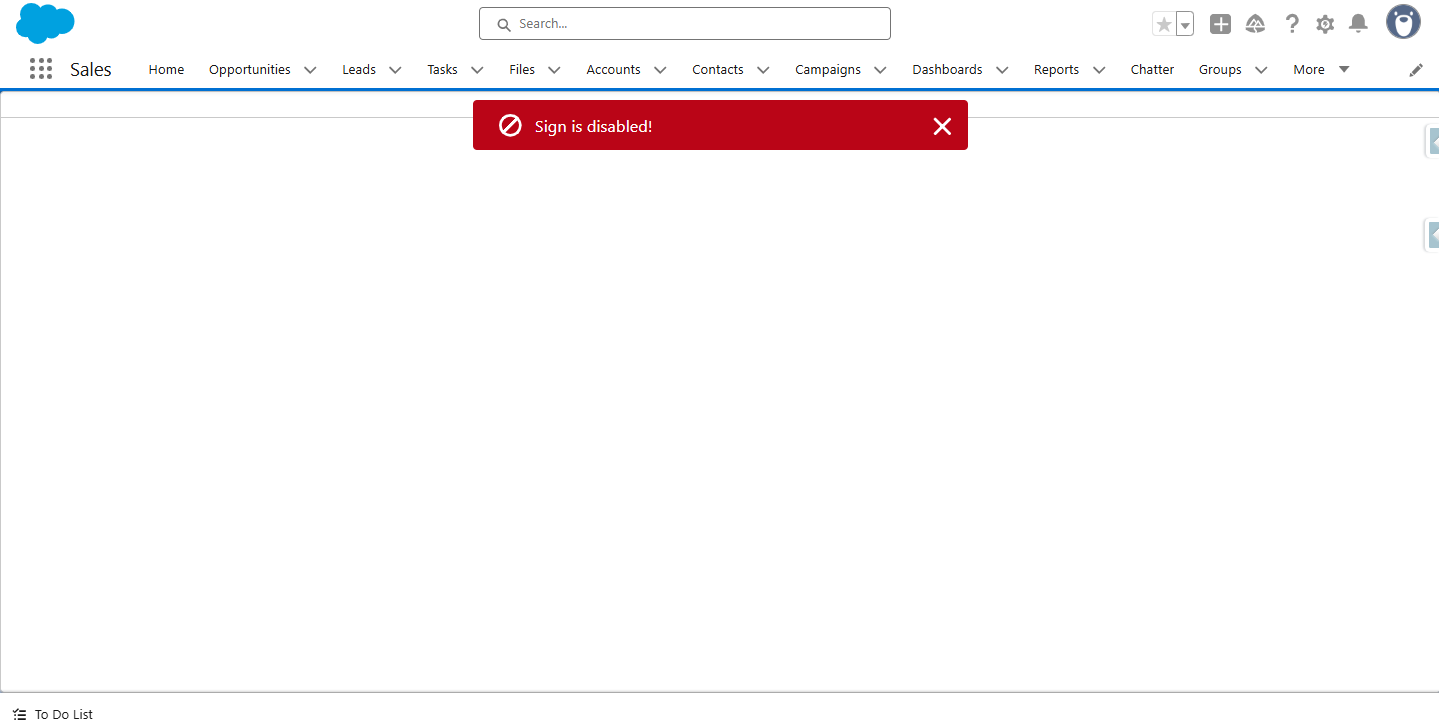
In this case, if the Rating is not 'Hot', signing will be disabled, and the DSM message (‘Sign is disabled!’) will be displayed to inform the user.
Step 12: When the Rating is 'Warm', click the Sign Made Easy button you have created to initiate the signing process.
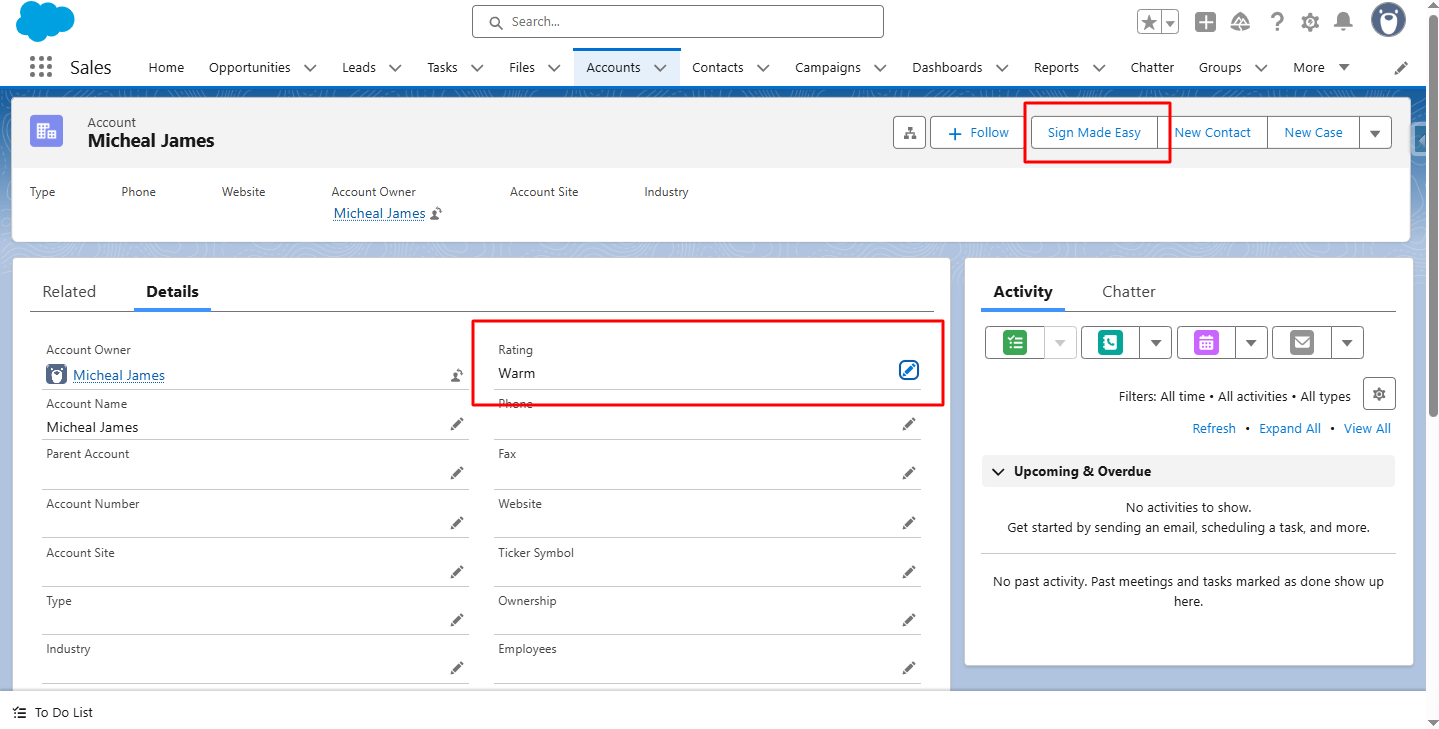
Since signing is disabled in this case, the DSM message (‘Sign is disabled!’) is displayed, and the signing process does not start.
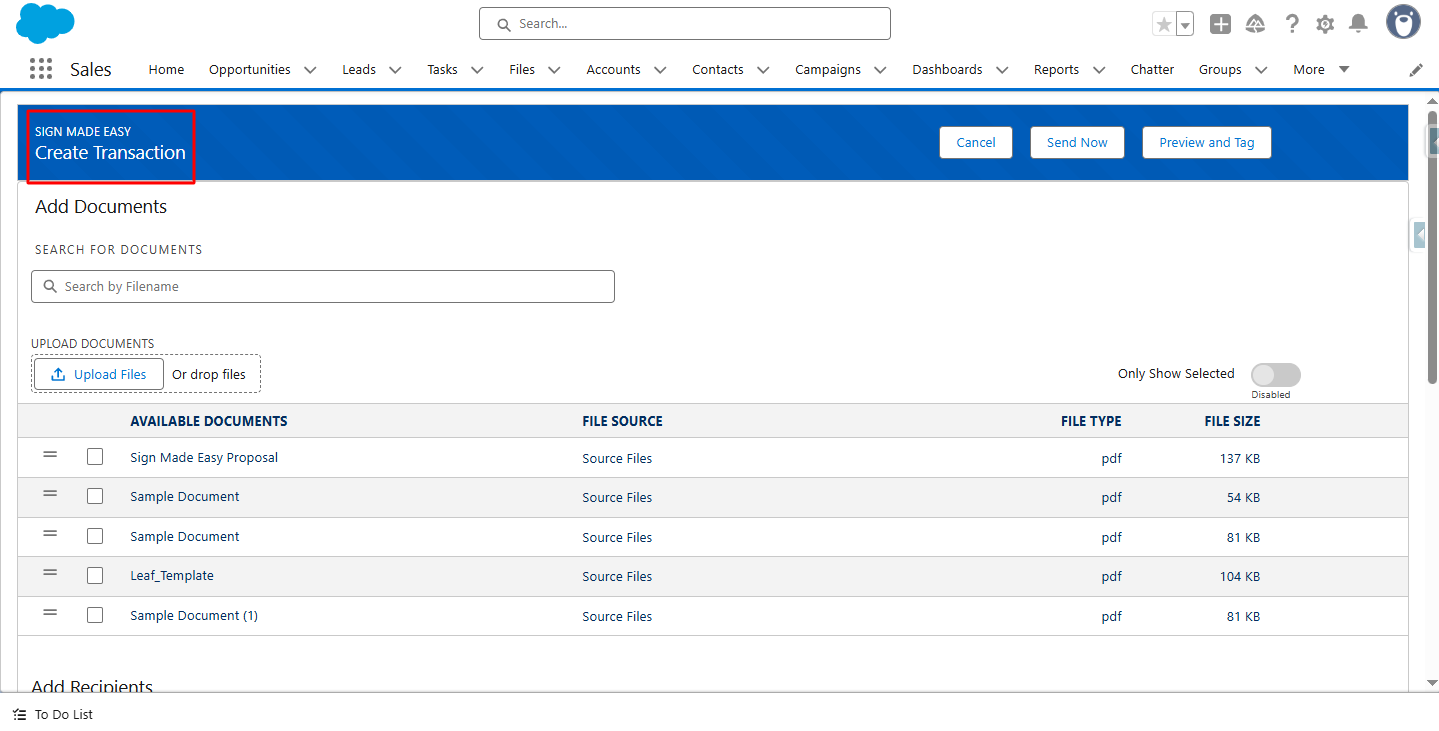
Step 13: When the Rating is 'Hot', click the Sign Made Easy button to start the signing process.
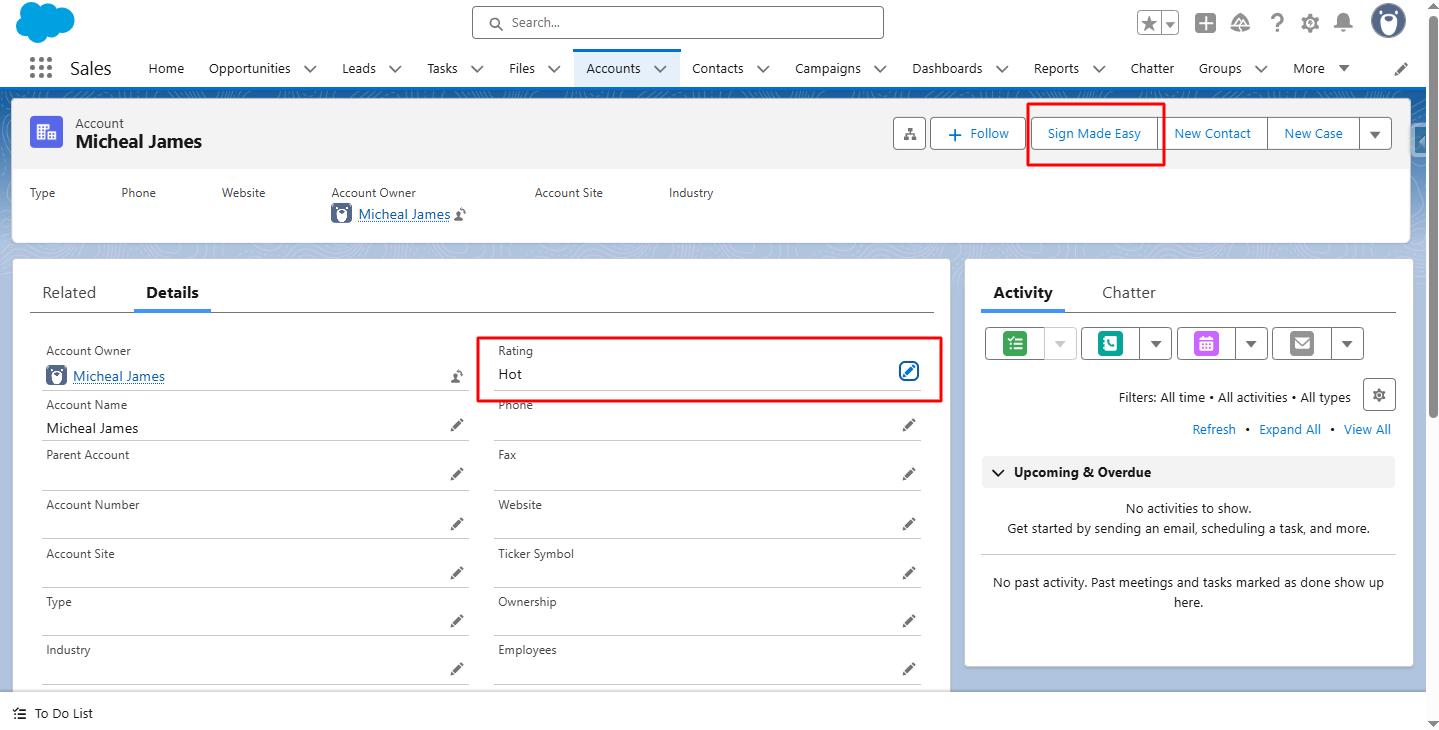
In this case, the DS condition allows signing, so the user can proceed normally without seeing the DSM message, and the Create Transaction interface opens as part of the process.
Thank You
Was this article helpful?
That’s Great!
Thank you for your feedback
Sorry! We couldn't be helpful
Thank you for your feedback
Feedback sent
We appreciate your effort and will try to fix the article