Step 1: Using SOQL Query in Excel Template
You can use the SOQL query in the Excel template by following the syntax below:
Merge Field Syntax:
&=${{QueryAlias.mergeFieldApiName}}
Example SOQL Query:
SELECT Id, LastName, FirstName, Name FROM Contact WHERE Account.Id = '{pv0}'
In this query, the alias used is ‘query’.
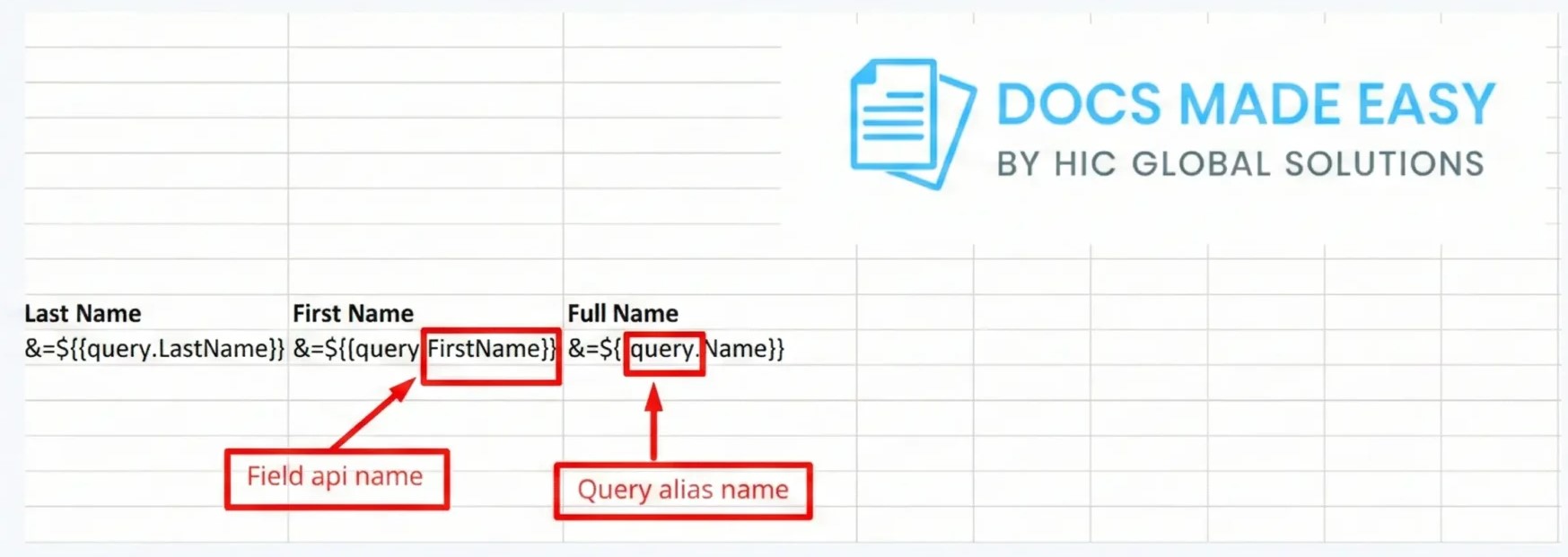
Use the following merge field syntax in the Excel file to display data from the query.
| Last Name | First Name | Full Name |
| &=${{query.LastName}} | &=${{query.FirstName}} | &=${{query.Name}} |
&=${{query.LastName}}
&=${{query.FirstName}}
&=${{query.Name}}
Notes:
- Ensure that the Query Alias used in the Excel template matches the alias defined in the query.
- The merge field API names must exactly match the fields used in the SOQL query.
- This syntax is mandatory for proper data rendering in Excel output.
- Please refer to the attached screenshot for a visual reference.
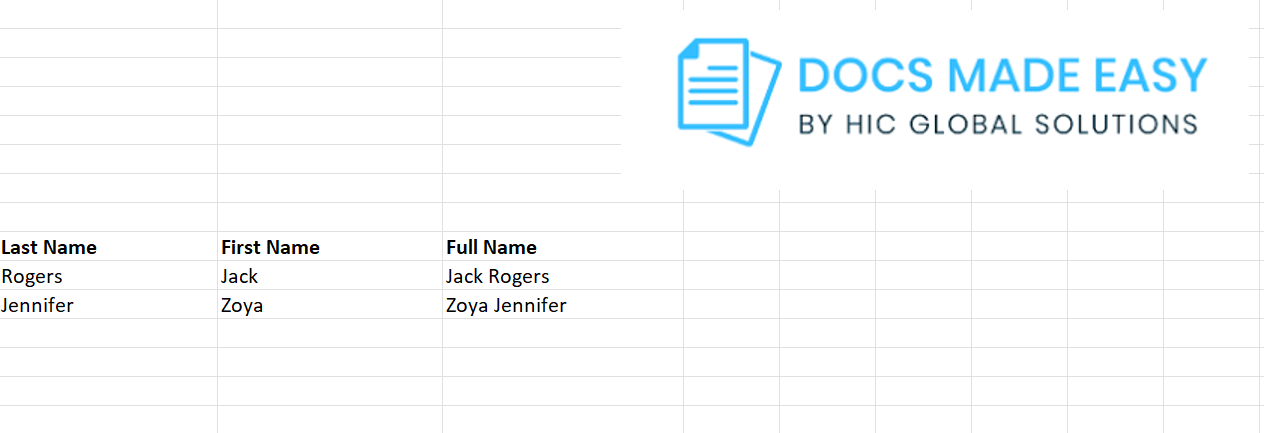
Step 2: After completing the above step, upload the Excel template in the Add Template section.
The screenshot below shows the generated Excel document output.ndatory for proper data rendering in Excel output.
Please refer to the attached screenshot for a visual reference.
Was this article helpful?
That’s Great!
Thank you for your feedback
Sorry! We couldn't be helpful
Thank you for your feedback
Feedback sent
We appreciate your effort and will try to fix the article