A QVar (Query Variable) in Docs Made Easy runs a configured query at document-generation time and stores the result so it can be reused by another parameter. Instead of hardcoding a value — like a Contact ID for an email recipient, or a Template ID for a document — you let a query find that value dynamically, based on the record the document is being generated from.
This is useful whenever a value needed by another parameter isn't fixed, but depends on data elsewhere in Salesforce. Common examples include:
- Finding the correct Contact to email based on the Opportunity's Primary Contact Role.
- Selecting one or more templates based on Opportunity Stage, Account Type, Industry, or Product.
- Pulling any other record-specific value that a downstream parameter needs.
| Parameter | Purpose |
| QVar0Id | The query that QVar 0 runs. Its result becomes available for reuse. |
| QVar0Format | Optional. Controls how the query result is formatted before it's passed on (for example, when handling multiple returned values). |
| {QVar0} | A merge reference to the result of QVar 0. Used inside another parameter to inject that result as its value. |
The index number (0 in the examples above) identifies a specific QVar. The same pattern extends to additional QVars — QVar1Id, QVar1Format, {QVar1}, and so on — for configurations that need more than one query variable.
Examples:
Example 1: Dynamically Select an Email Recipient Scenario: A document is generated from an Opportunity. Instead of hardcoding who receives the emailed document, you want Docs Made Easy to look up the Opportunity's Primary Contact and email that person automatically. |
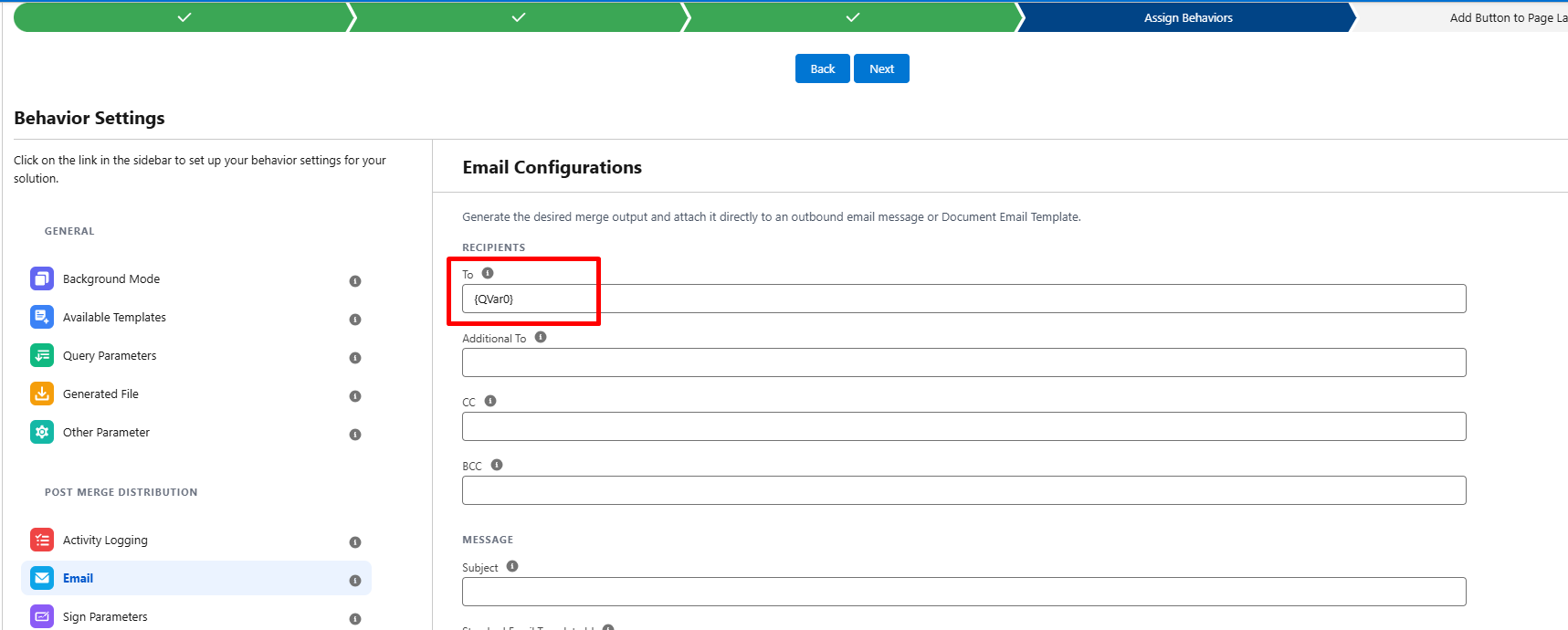
<Fetch Primary Contact> represents a query that returns the Contact ID of the Opportunity's primary contact (for example, via OpportunityContactRole filtered to the current Opportunity and IsPrimary = true). 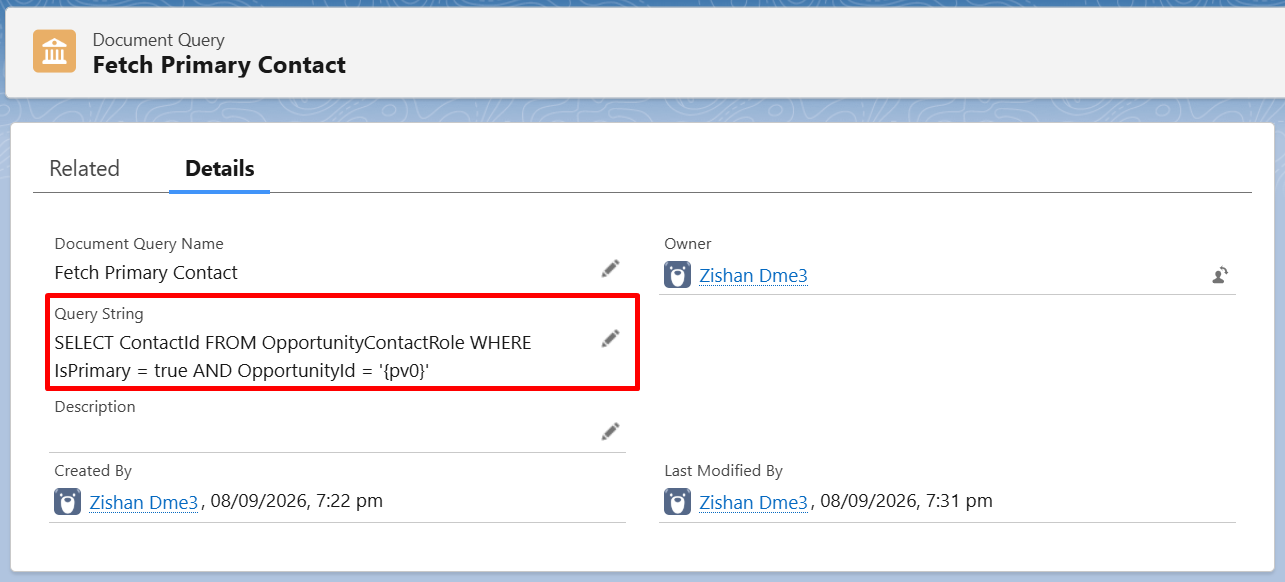 Pass the ID of this query to QVar0ID 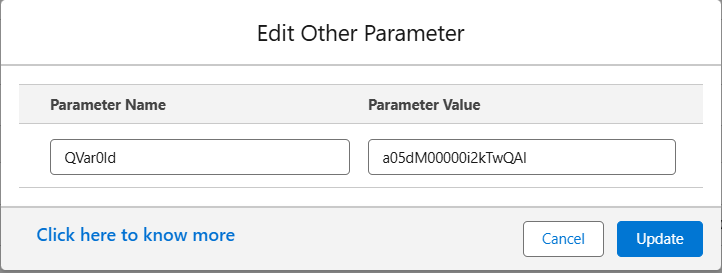 Then, reference the result in the email parameter: EmailToId = {QVar0}
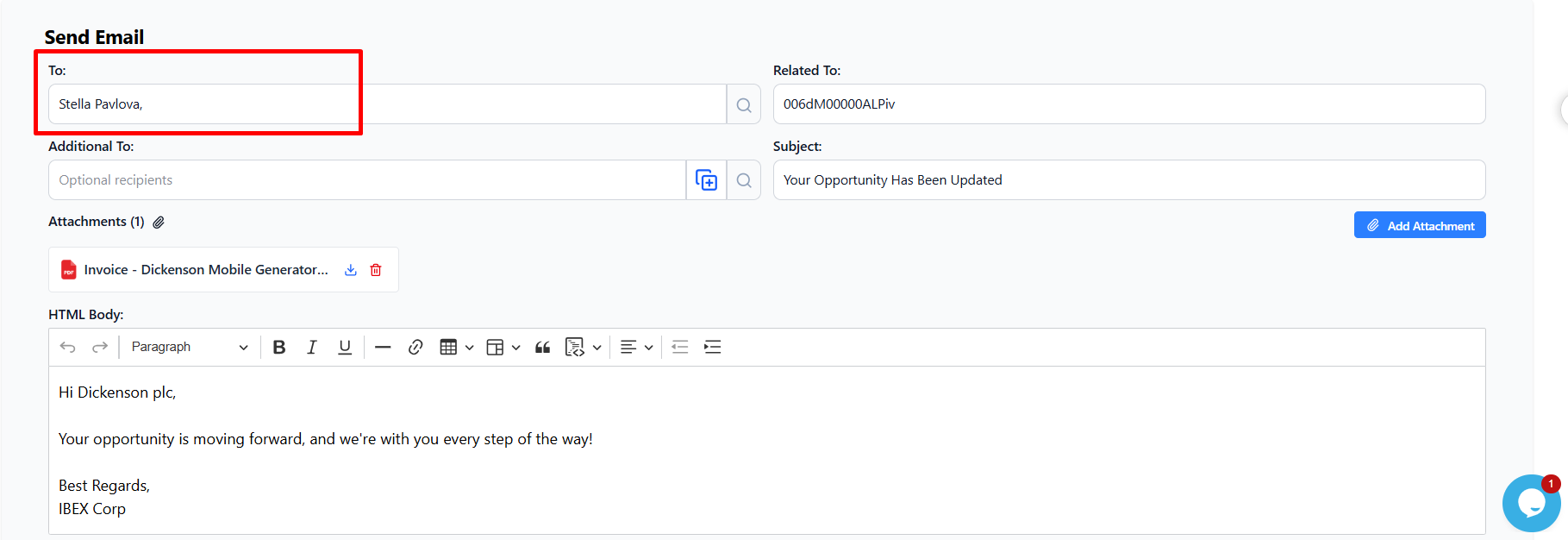
The generated document is emailed to that Contact automatically — no manual recipient selection needed.
|
| In this example, QVar0 dynamically retrieves the Contact ID at runtime, and EmailToId uses that value to automatically send the generated document to the correct Contact without requiring any manual recipient selection. |
| Example 2: Dynamically Merge an Additional Template Scenario: A document is generated from a primary template, but a secondary template — "Terms and Conditions" — also needs to be merged into the same generated document. Query looks up the "Terms and Conditions" template by name, and its ID is combined with the primary Template ID. |
<Query: Document Template where Name = 'Terms and Conditions'> represents a query filtered on the Document Template object's Name field, returning the ID of that specific template record. 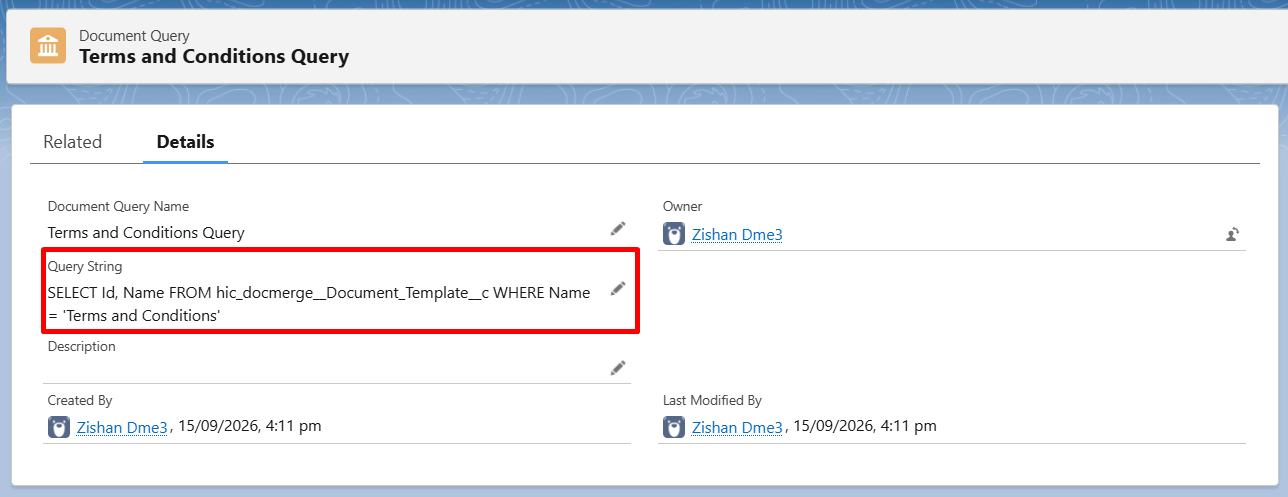 Pass the ID of this query to QVar0ID 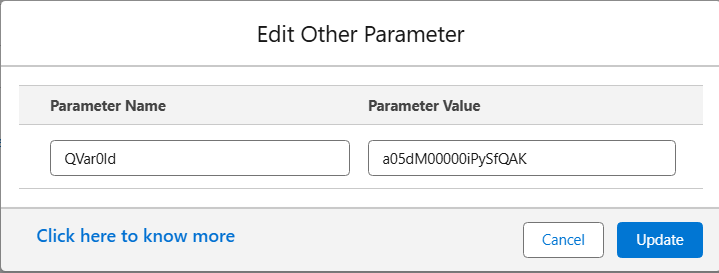 Then, reference the result in the document templateId along with the primary template ID 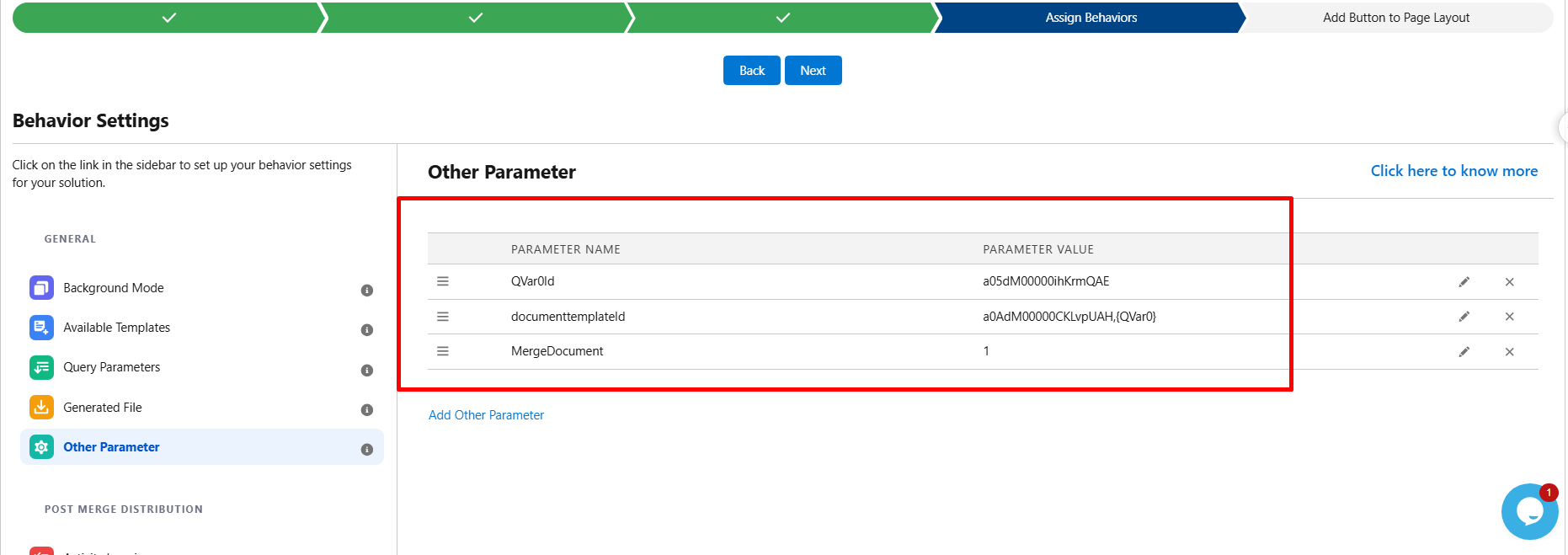 The generated document will have both templates merged togather into a single file. 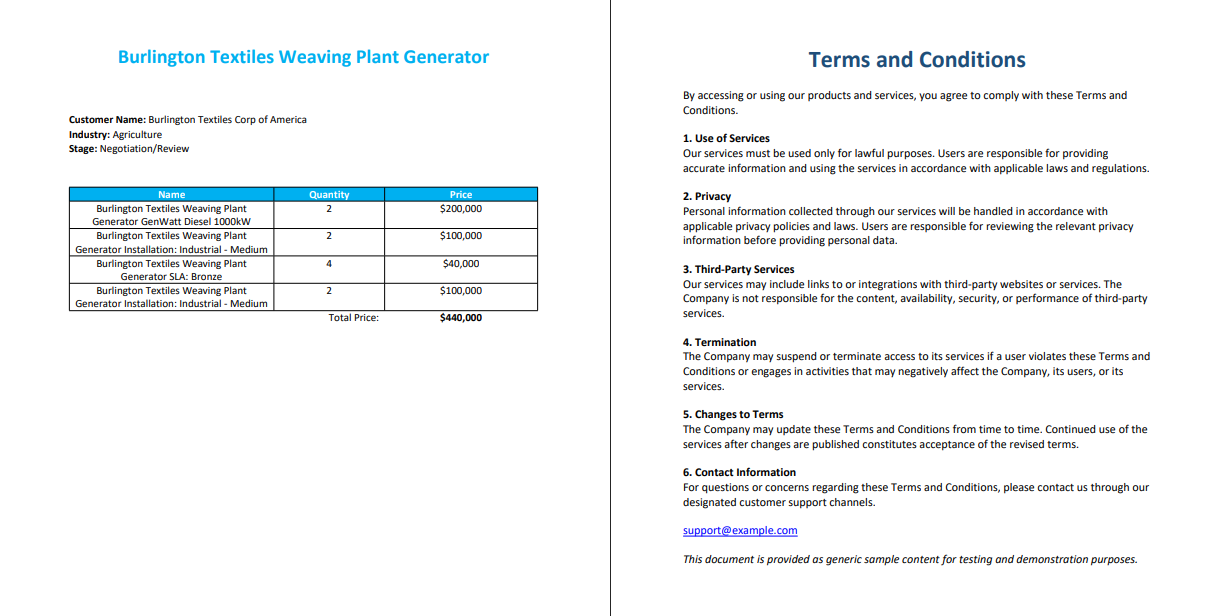 |
| In this example, the query defined in QVar0Id runs and finds the Document Template record named "Terms and Conditions." It returns that template's ID, which QVar0 stores as its result. DocumentTemplateId then resolves to the primary Template ID plus {QVar0}, combining both IDs. As a result, both templates are merged together into the single generated document: the primary template and the "Terms and Conditions" template. |
QVarFormat — Formatting the Result
QVarFormat controls how the raw query result is packaged before it gets inserted into the rest of the URL. This matters most when a query can return multiple rows (for example, multiple email addresses) rather than a single value.
The Six Digit Positions
| Digit | Controls | Key Values |
| A (1st digit) | Separator placed between values | 1 = comma · 2 = pipe | · 3 = semicolon · 4 = colon · 5 = hyphen · other = none |
| B (2nd digit) | Remove duplicate values | 1 = remove duplicates · any other value = keep duplicates |
| C (3rd digit) | Quotes around each value | 1 = single quotes · 2 = double quotes · other = no quotes |
| D (4th digit) | Space after the separator | 1 = add a space · any other value = no space |
| E (5th digit) | Limit each value's length | 1 = limit to 15 characters · any other value = keep full value |
| F (6th digit) | Wrap the whole result | 1 = ( ) · 2 = [ ] · 3 = { } · other = no wrapping |
Example
Suppose a QVar returns three values: Apple, Orange, Banana.
| Format Code | A-B-C-D-E-F Meaning | Result |
| 100000 | Comma separator, no dedup, no quotes, no space, no length limit, no brackets | Apple,Orange,Banana |
| 100010 | Comma separator + space, everything else off | Apple, Orange, Banana |
Was this article helpful?
That’s Great!
Thank you for your feedback
Sorry! We couldn't be helpful
Thank you for your feedback
Feedback sent
We appreciate your effort and will try to fix the article