Here are the steps to quickly merge, edit, and download your documents
Step 1: Log in to Salesforce.
Step 2: Open Docs Made Easy from the App launcher.
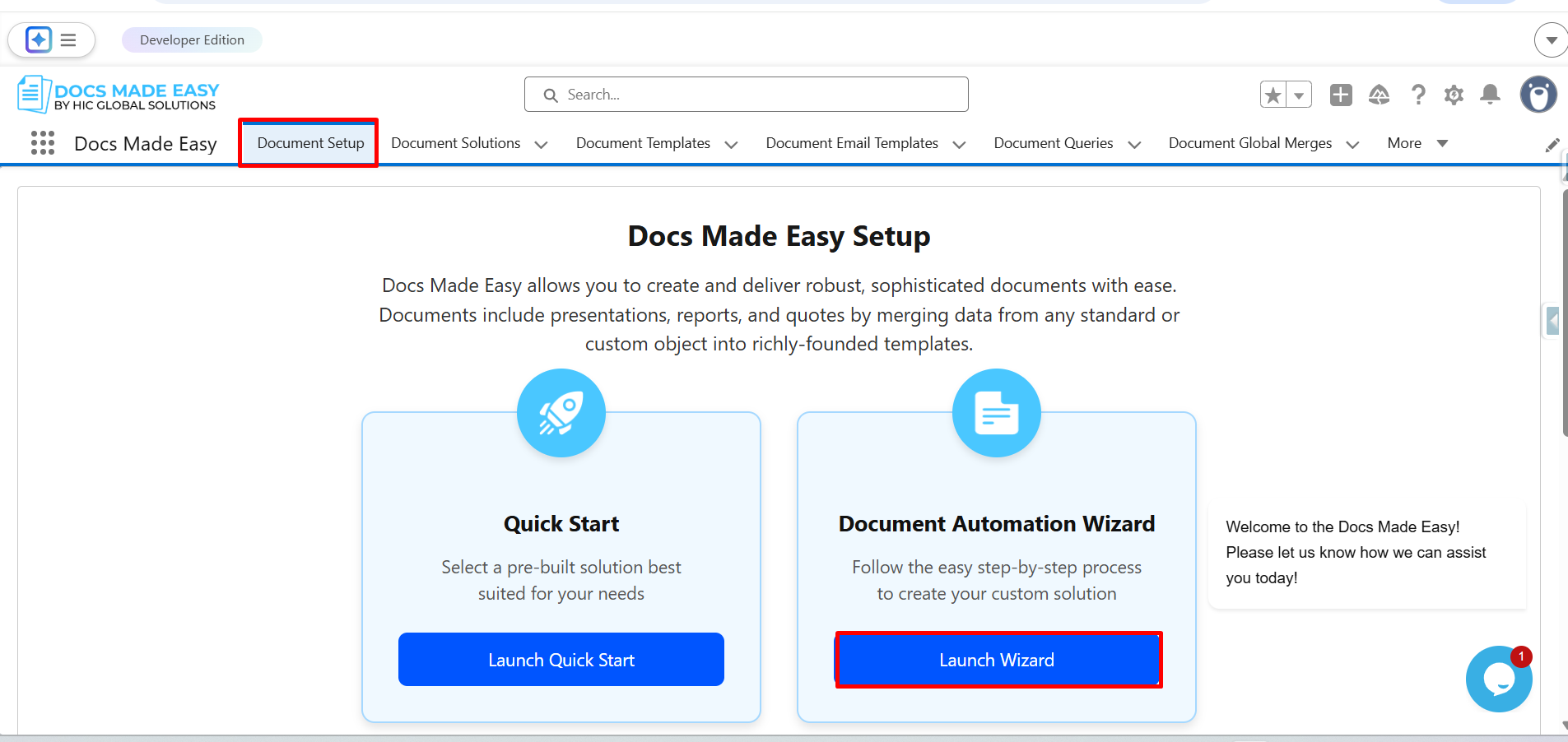
Step 3: Click on Document setup. Then click Launch wizard.
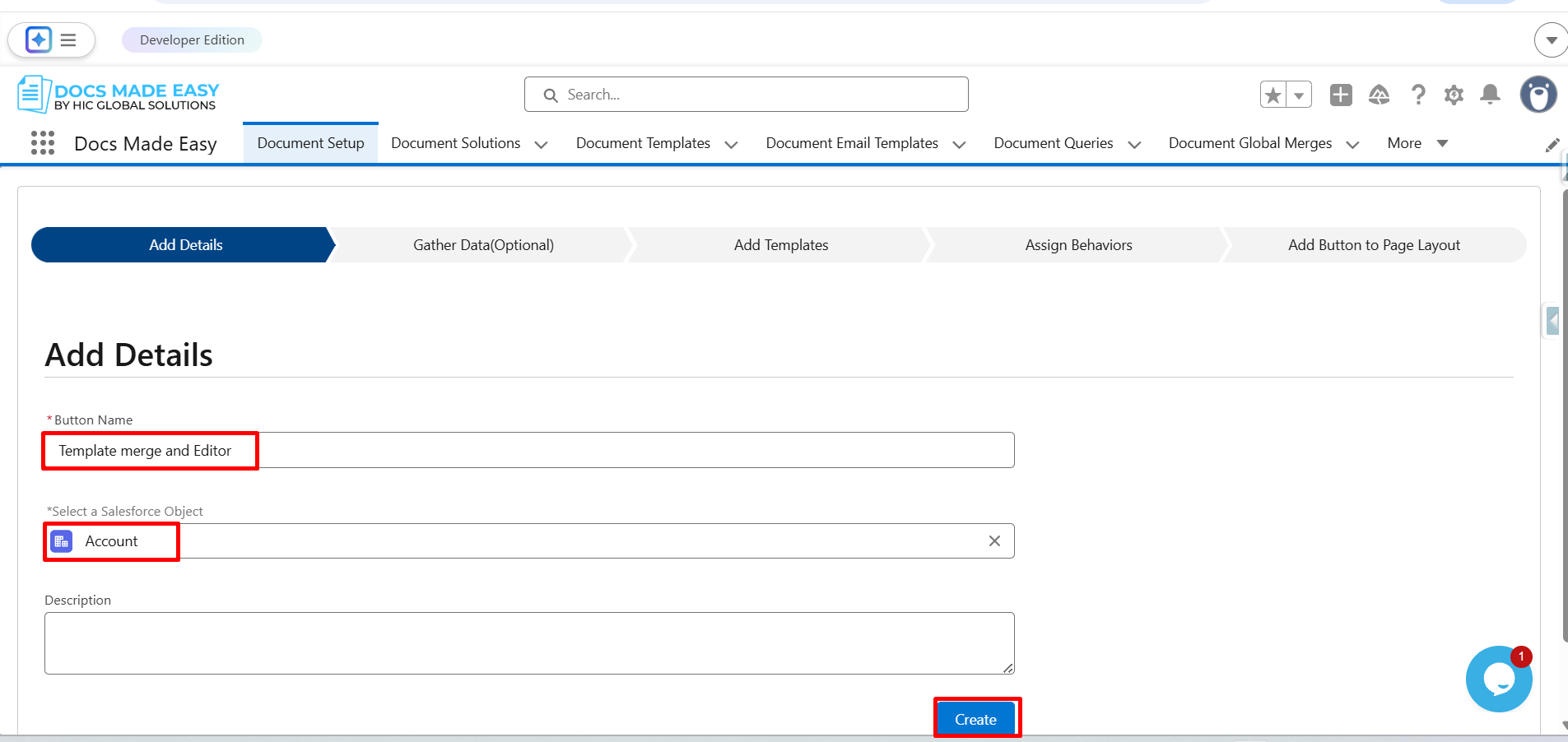
Step 4: In the Add details tab, add the button name and select the Salesforce object. Followed by clicking on the Create button.
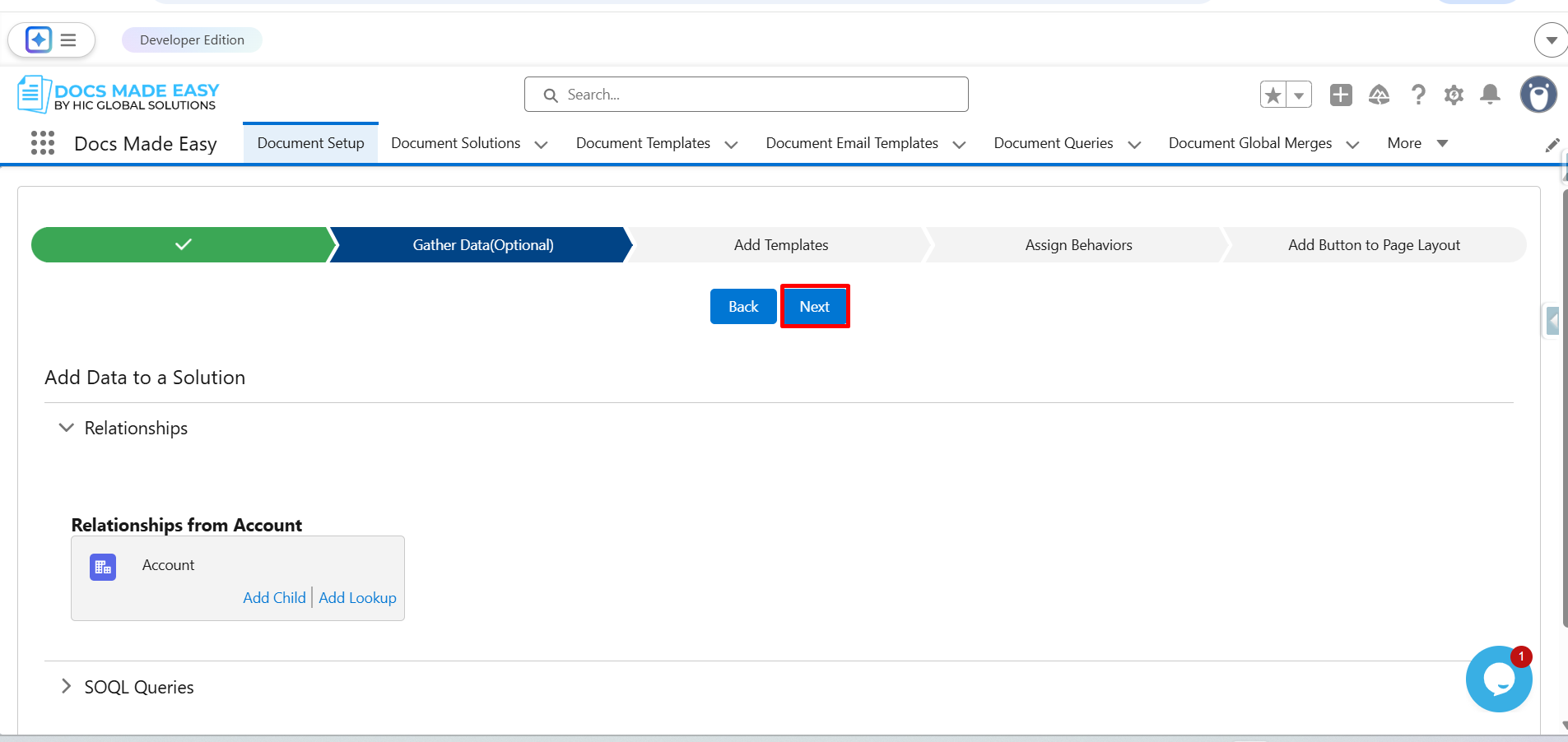
Step 5: Click on Next.
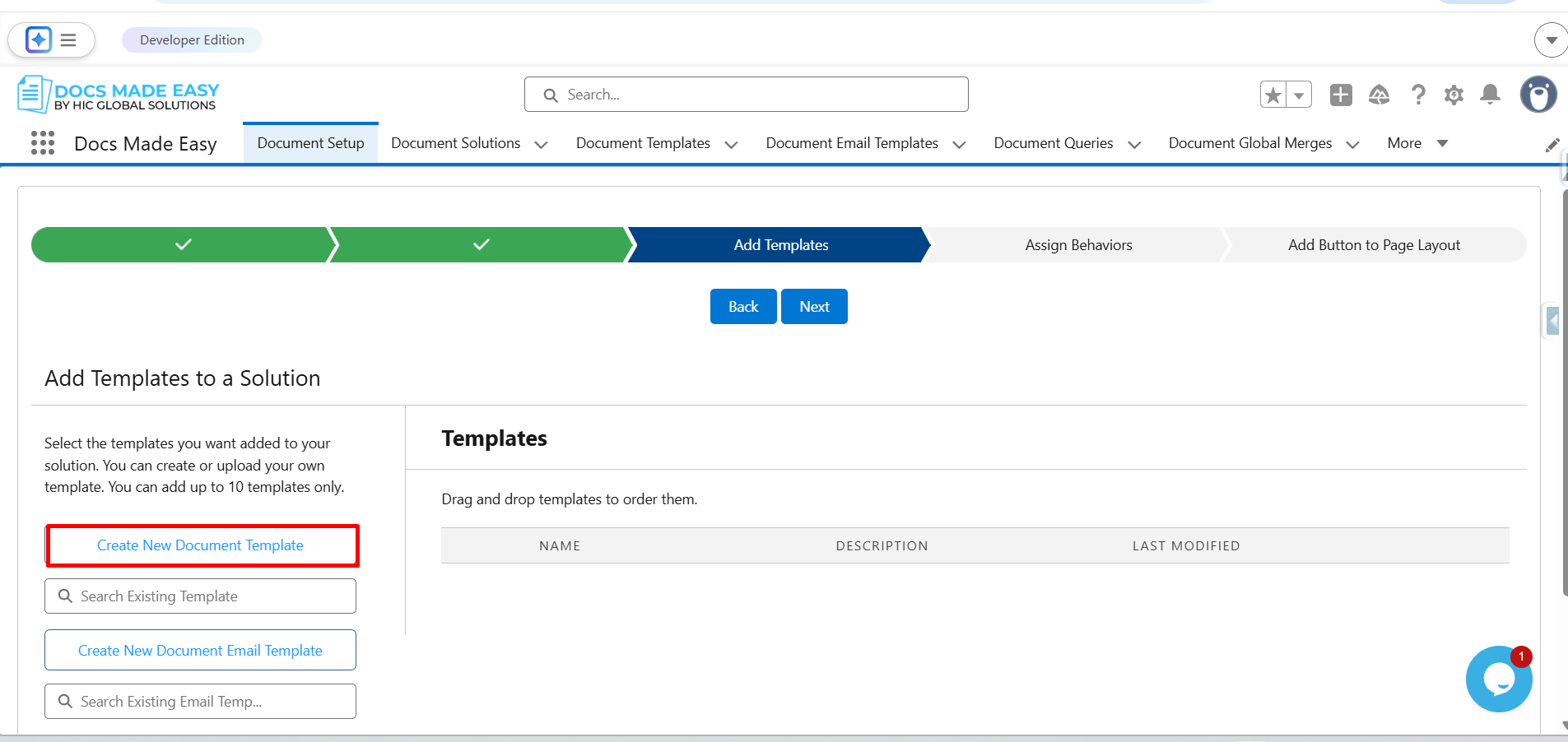
Step 6: Click on Create New Document Template.
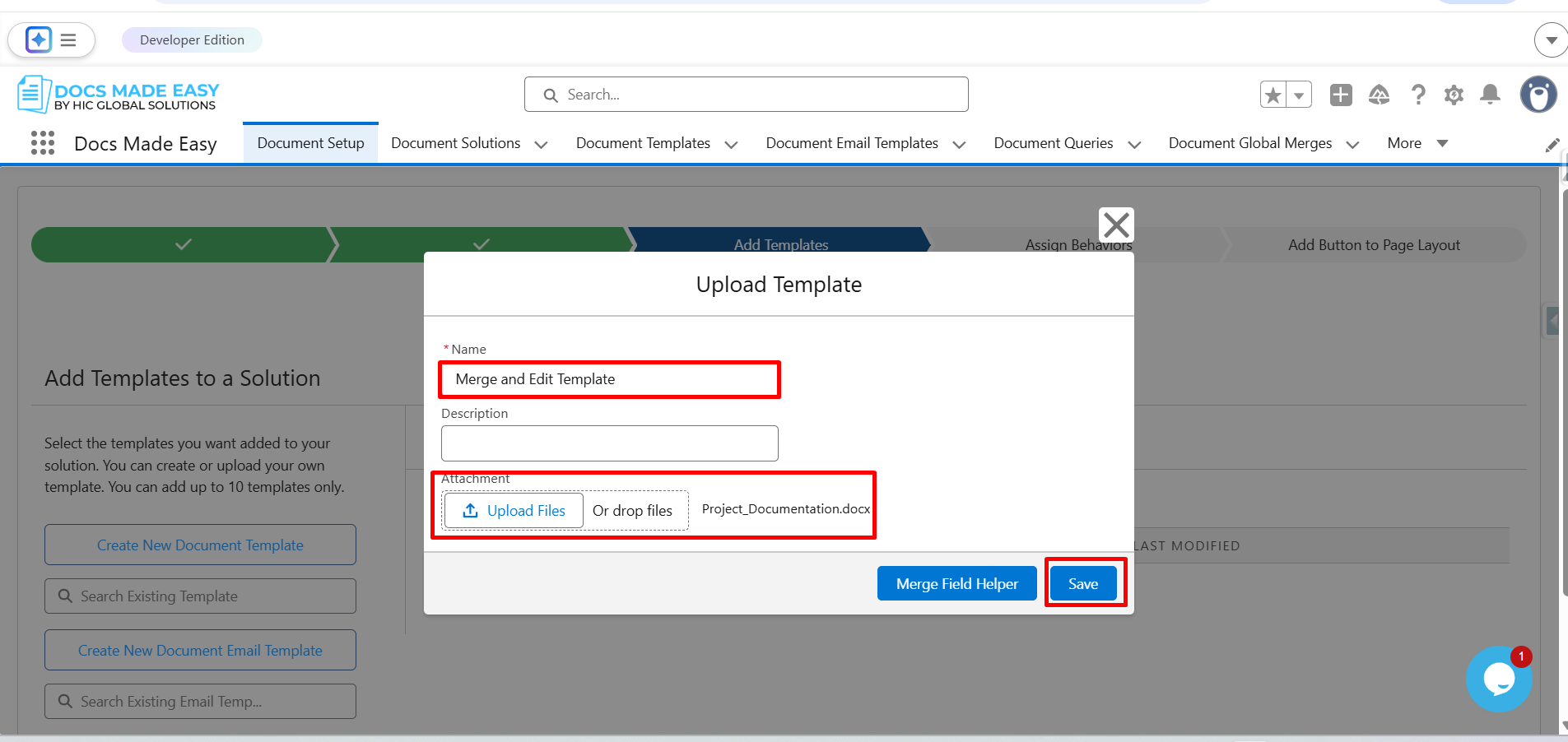
Step 7: Enter the Template Name, upload the Template file, and click Save.
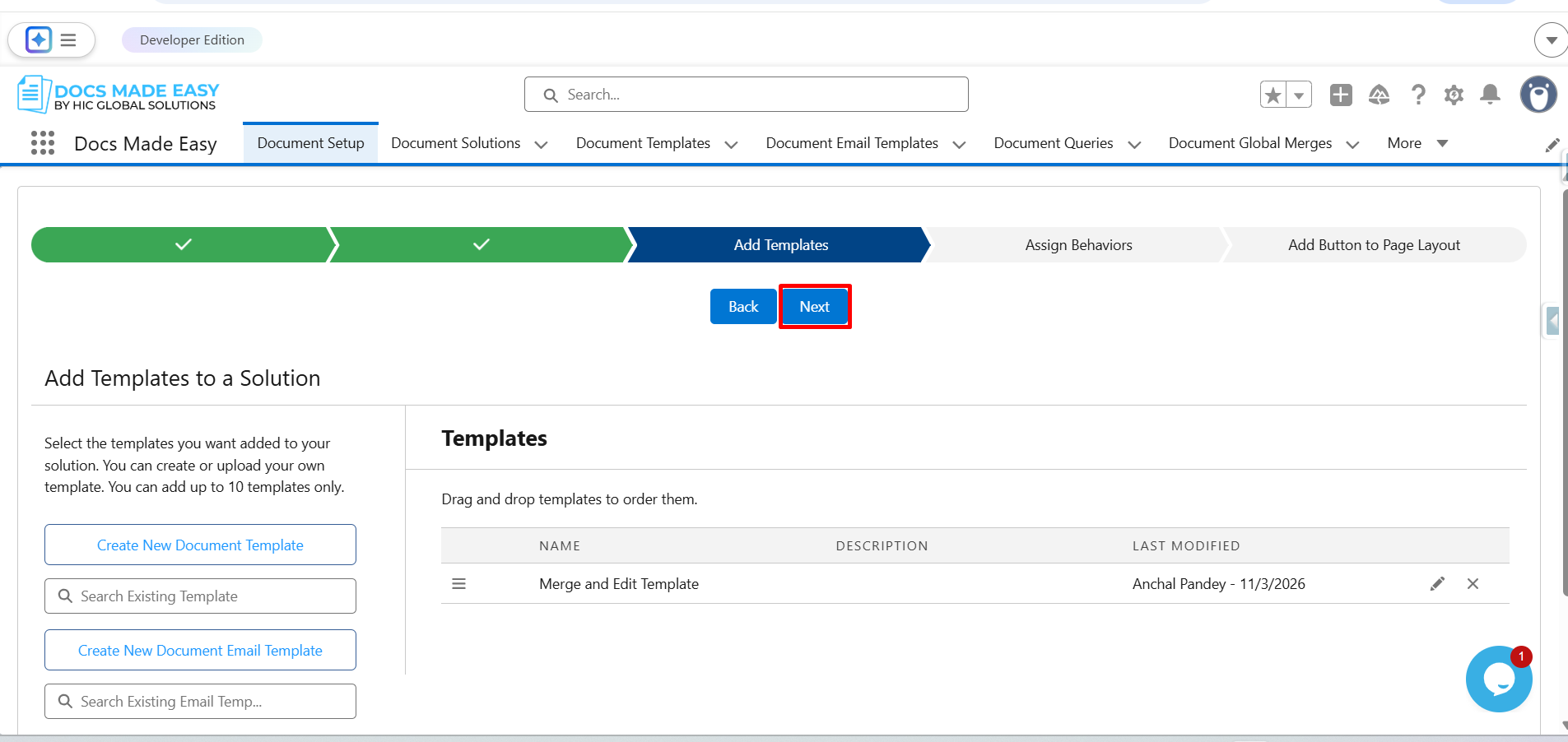
Step 8: Click on Next.
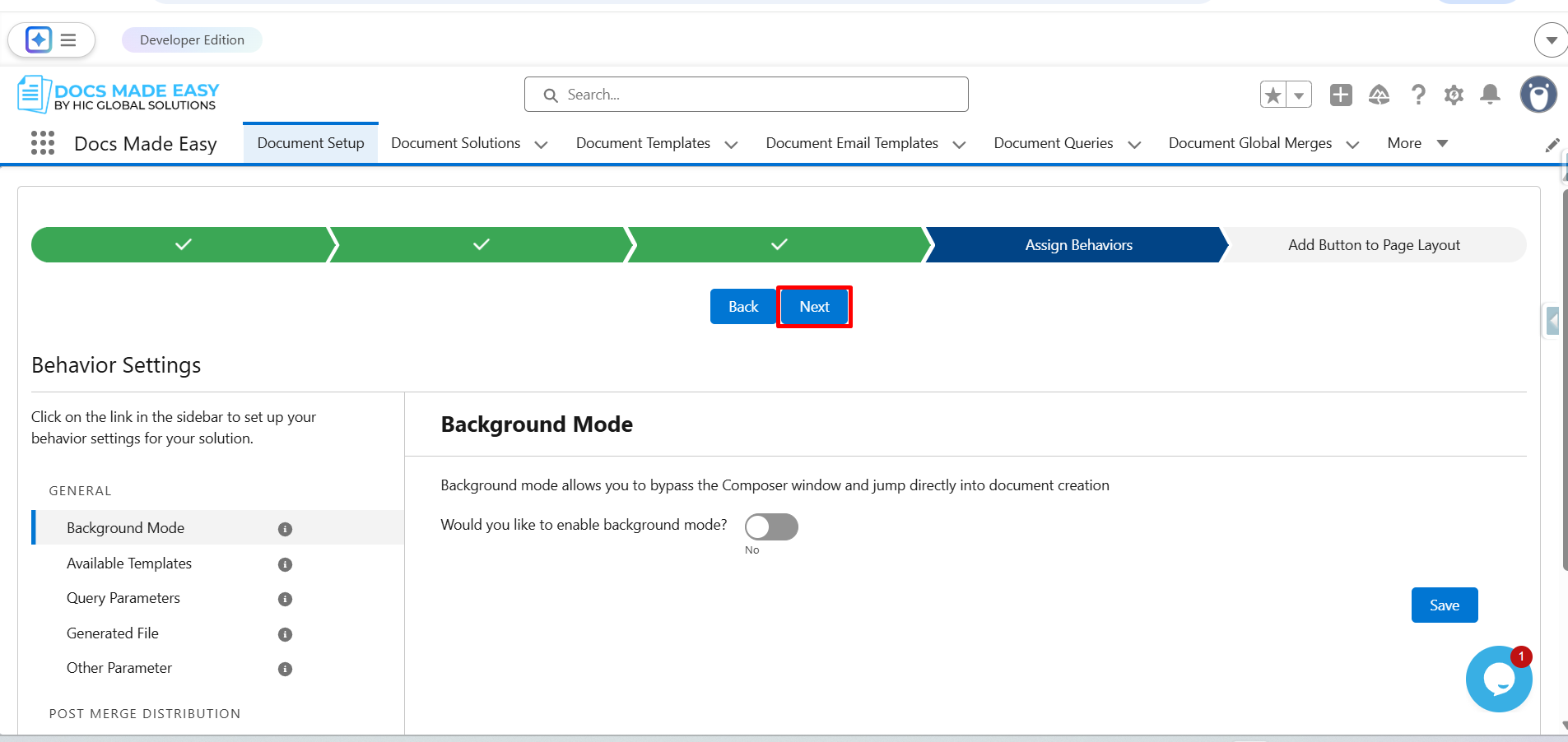
Step 9: Click on Next.
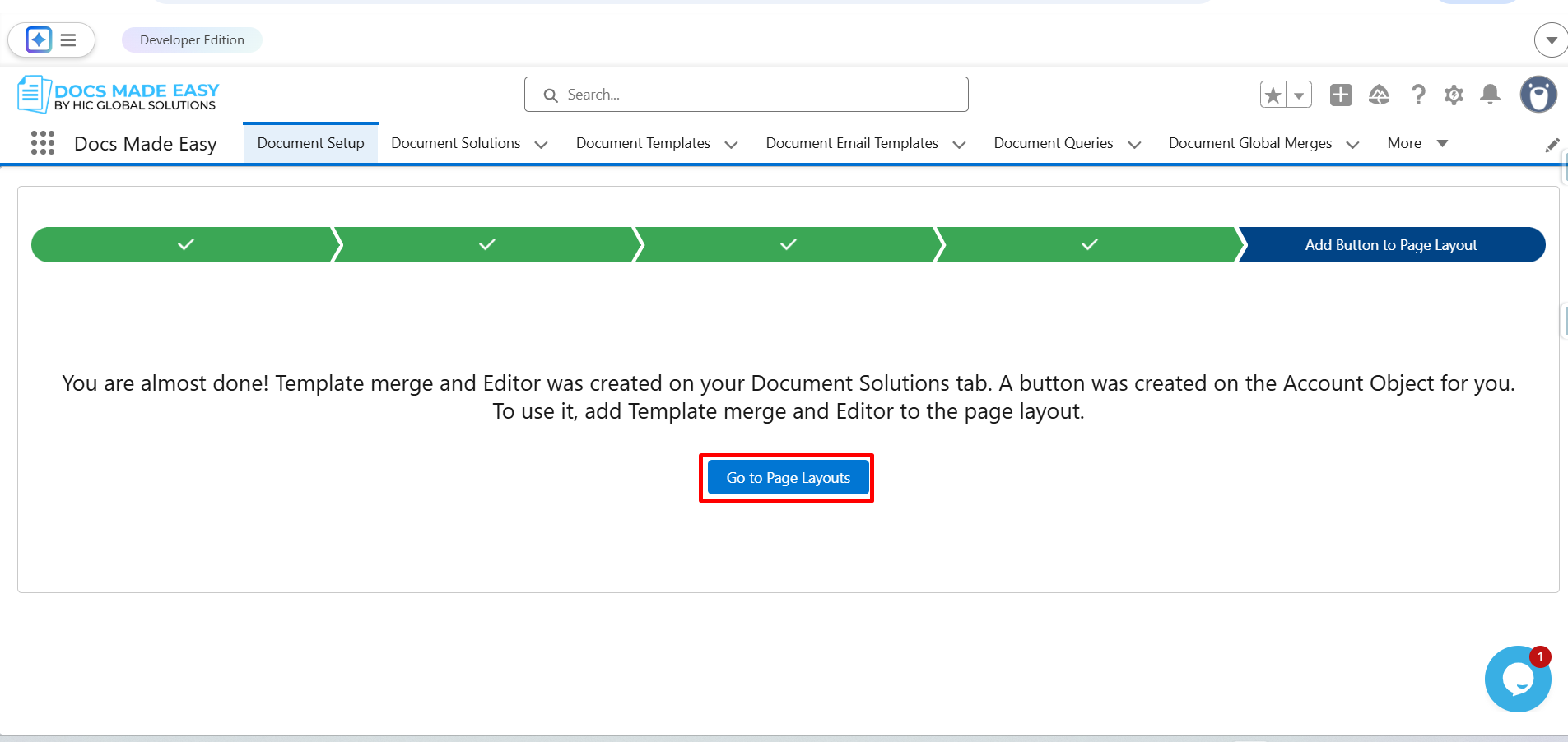
Step 10: Click on Go to Page Layouts.
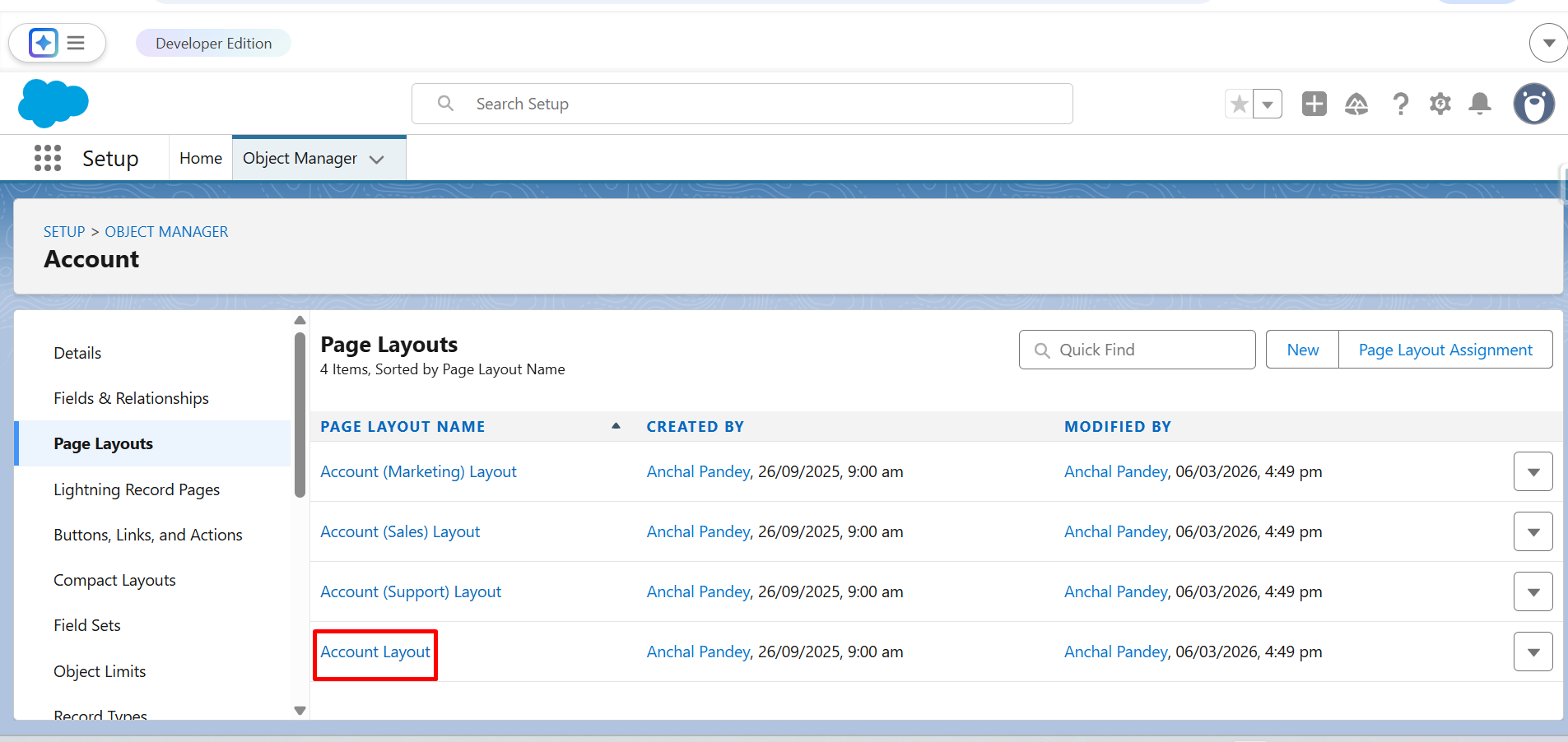
Step 11: Here, click on Account Layout.
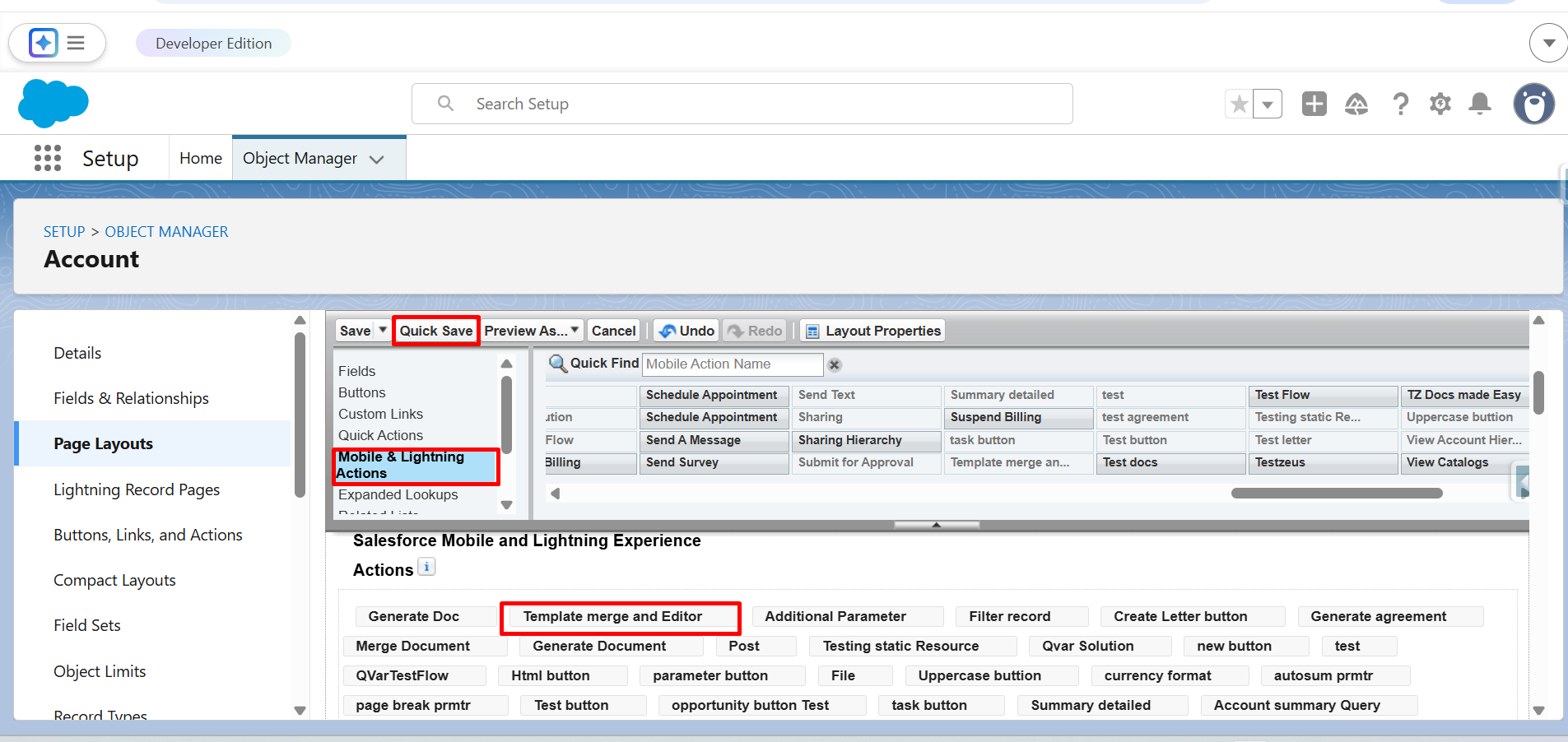
Step 12: From Mobile & Lightning Actions, drag and drop the Template merge and Editor button in Salesforce Mobile and Lightning Experience Actions.
Click on the Quick Save button.
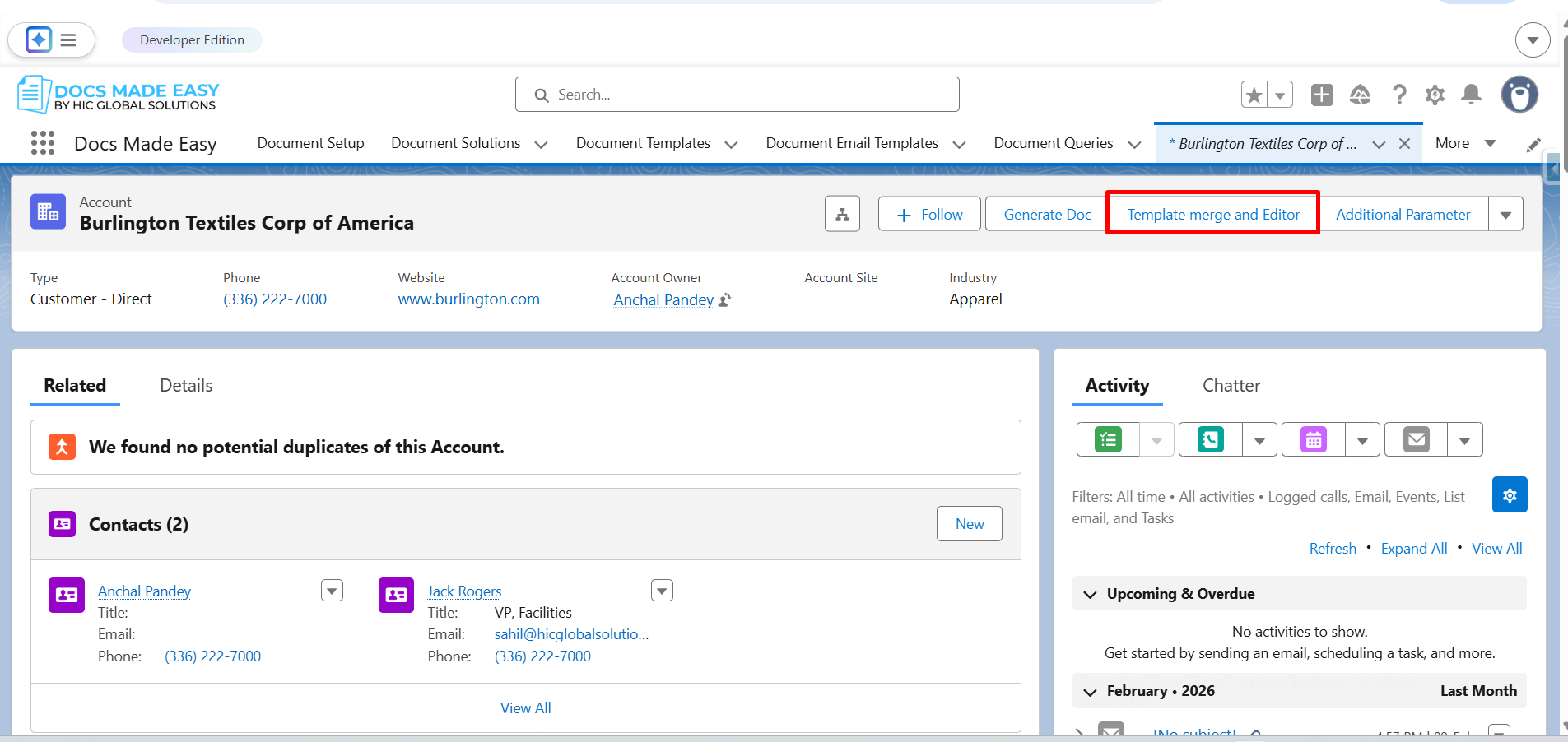
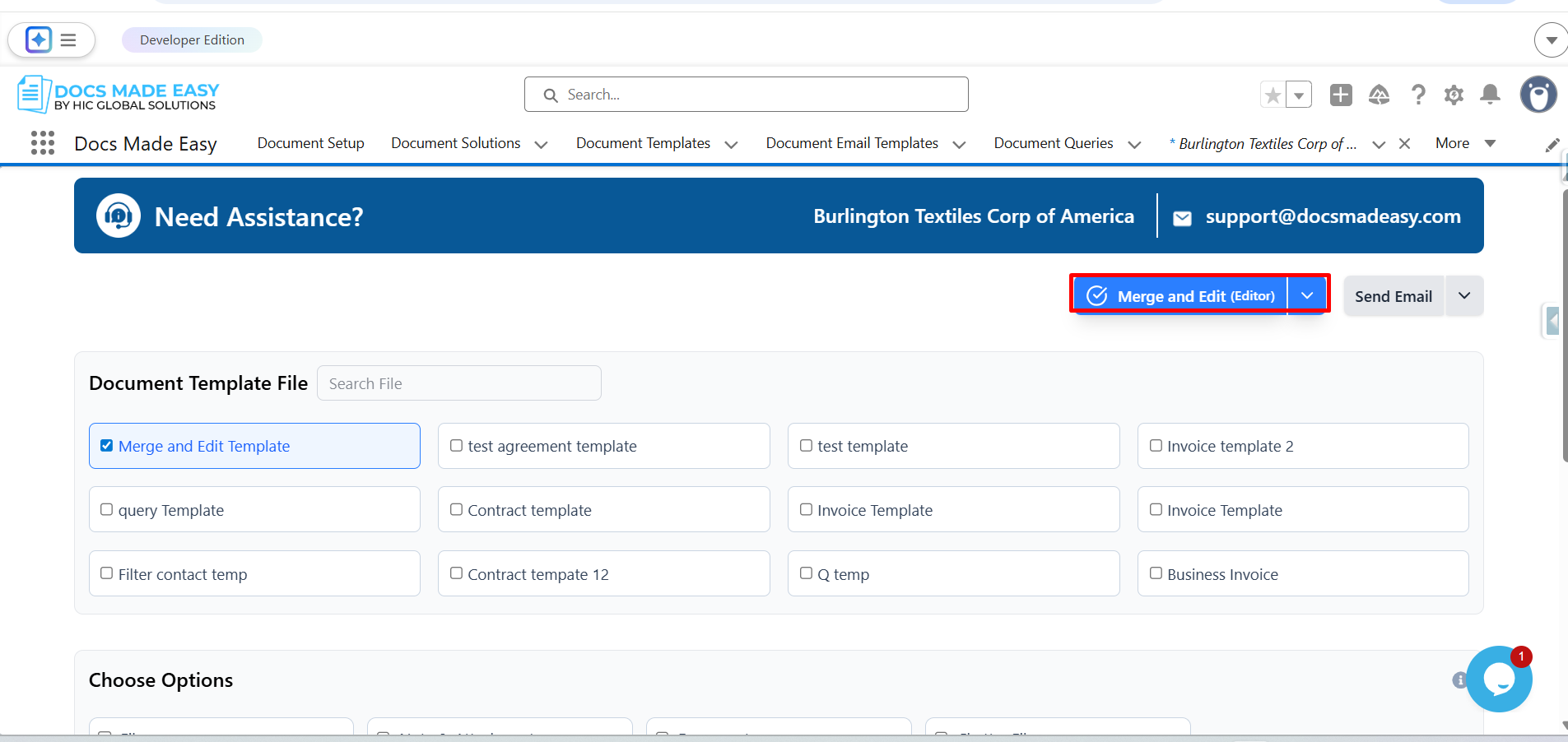
Step 13: Go to Account Record and click on the button (Template merge and Editor).
Step 14: Click the dropdown arrow next to the Download (Template) button.
From the available options, select Merge and Edit.
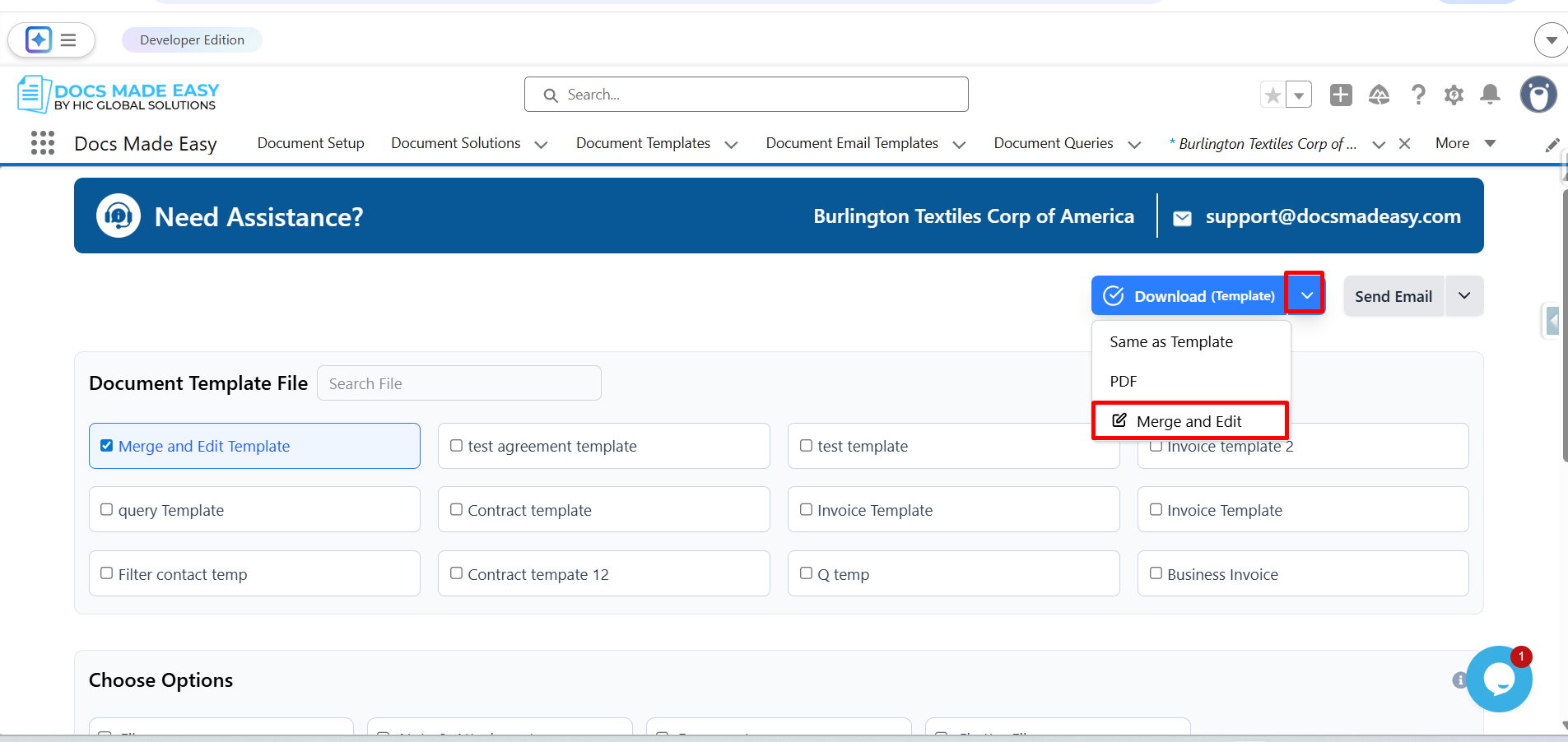
Step 15: Click on Merge and Edit (Editor).
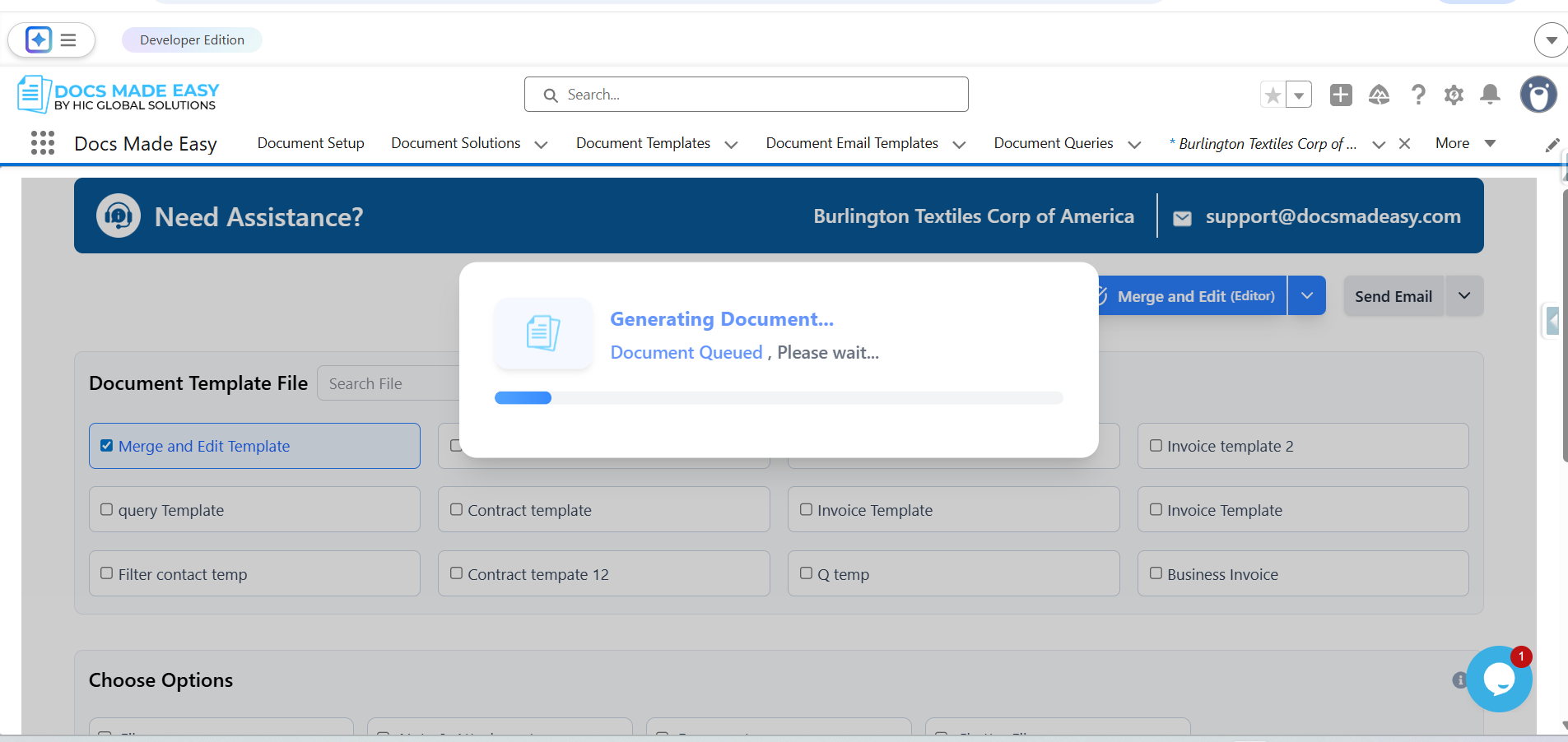
Step 16: Now, the system will start generating the document.
Step 17: The system will merge the template with the selected record data and open it in the document editor for further editing.
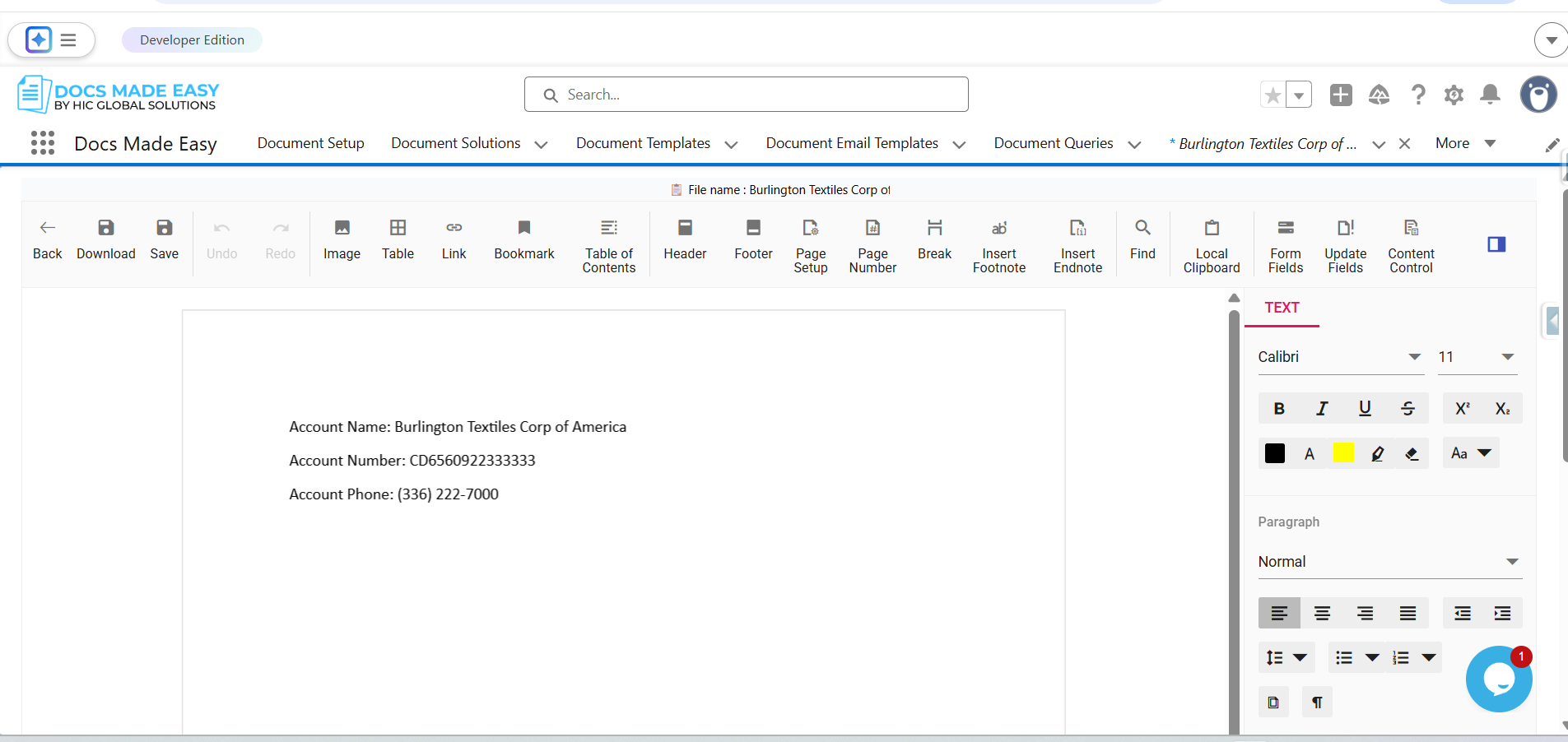
Step 18: Edit or update the content in the document as required.
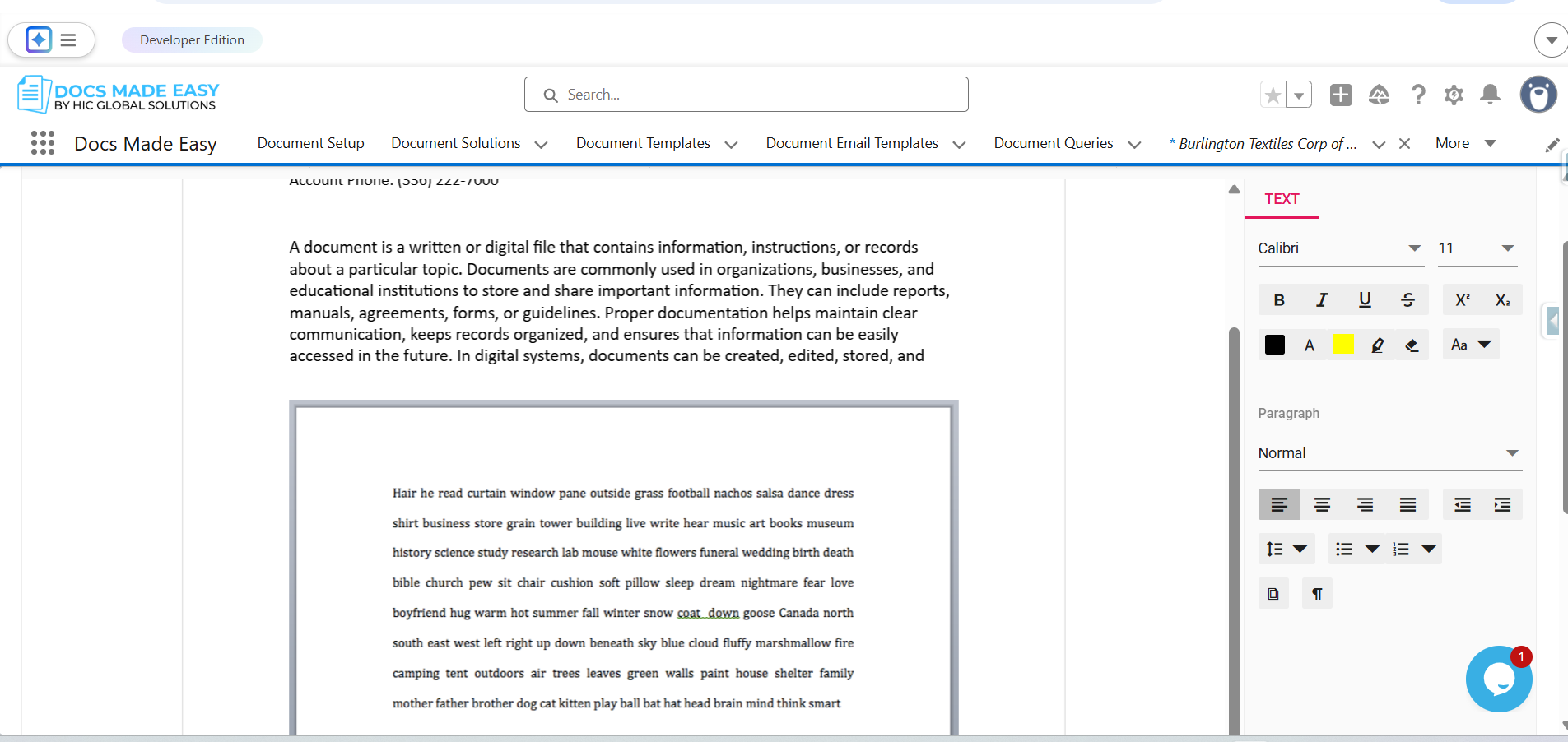
Step 19: After completing the changes, click on the Download button available in the editor.
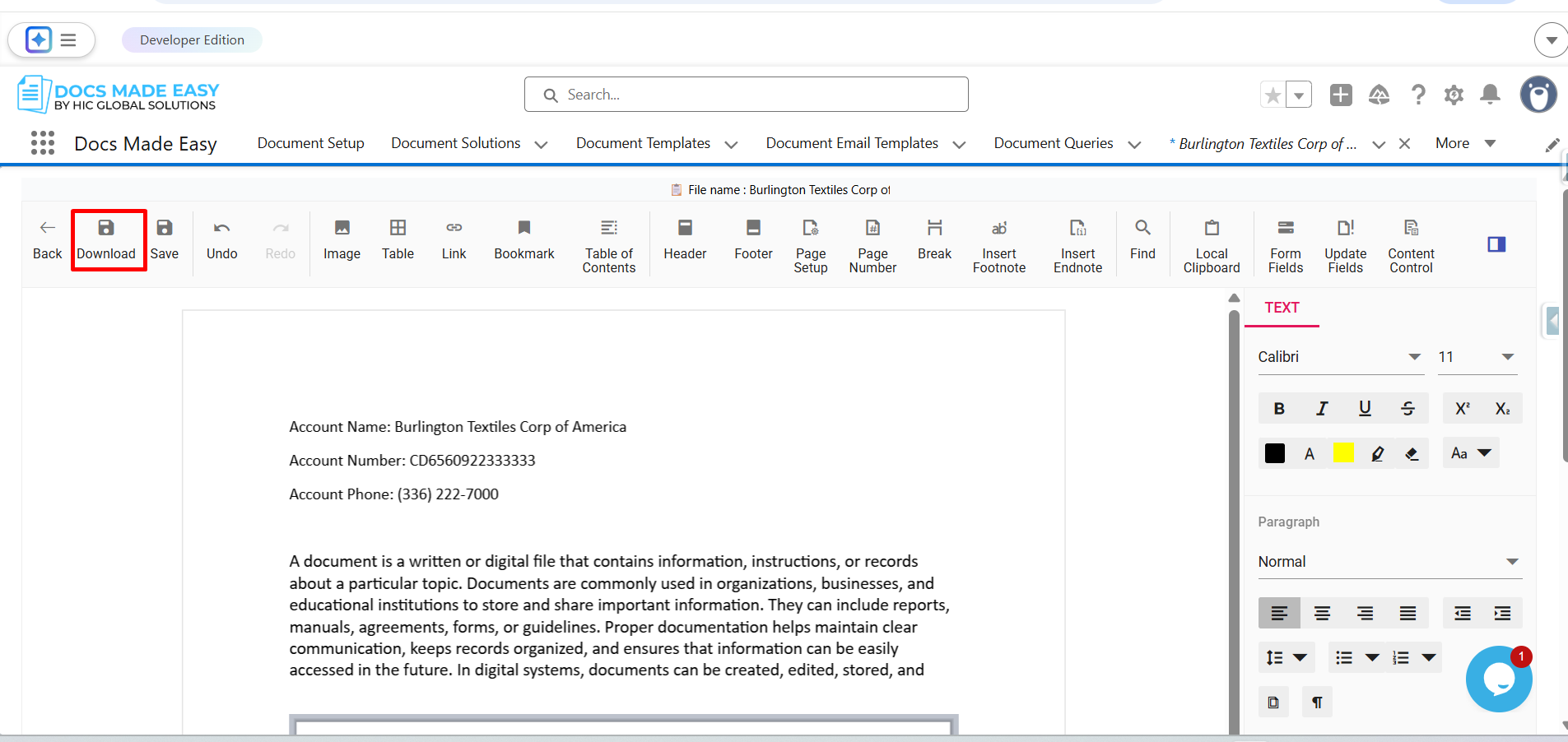
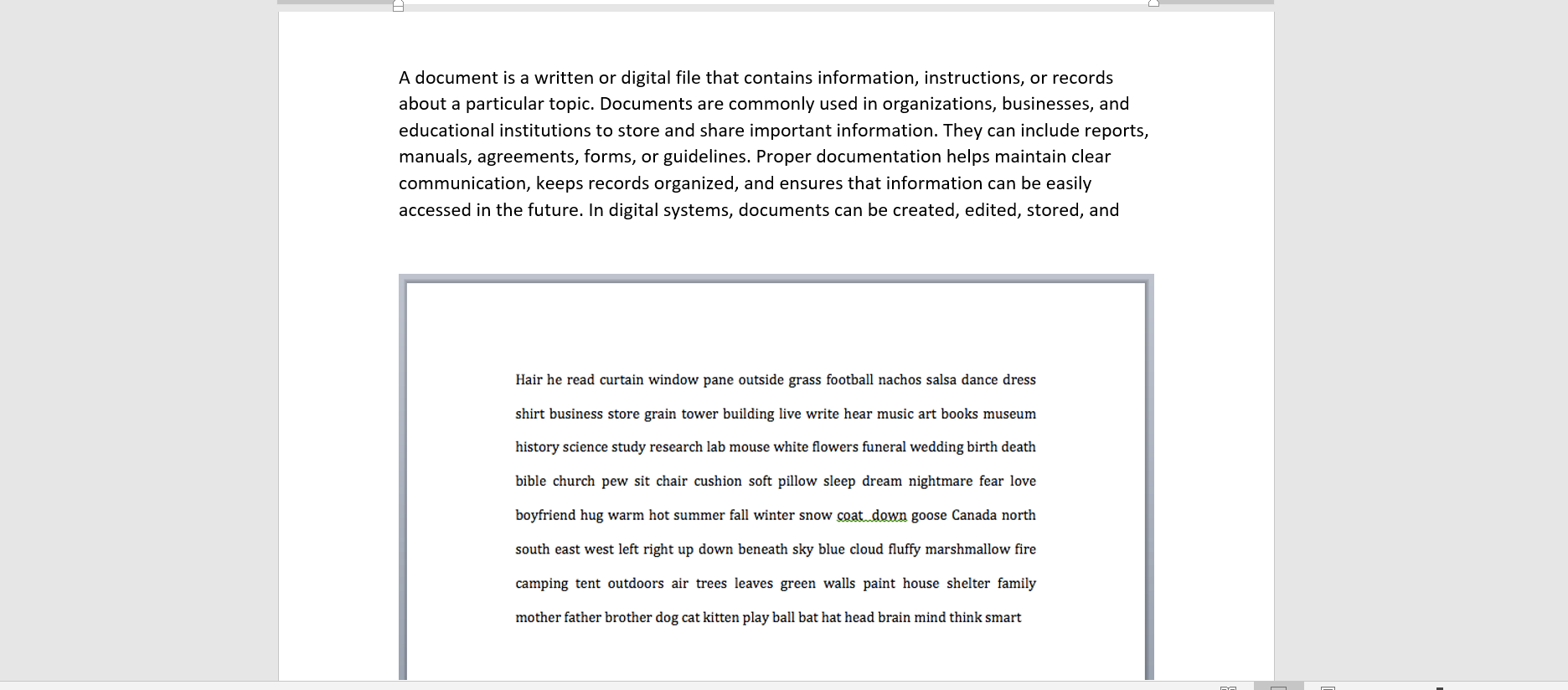
Step 20: The system will download the edited document to your device.
Thank You
Was this article helpful?
That’s Great!
Thank you for your feedback
Sorry! We couldn't be helpful
Thank you for your feedback
Feedback sent
We appreciate your effort and will try to fix the article